> For the complete documentation index, see [llms.txt](https://docs.aisera.com/llms.txt). Markdown versions of documentation pages are available by appending `.md` to page URLs; this page is available as [Markdown](https://docs.aisera.com/aisera-platform/adding-data-to-your-tenant/integrations-and-data-sources/connectors/sharepoint-connector/access-controls-with-the-sharepoint-connector.md).
# Access Controls with the SharePoint Connector
Enable access controls for SharePoint articles
## Overview
SharePoint enables you to control article access based on a user's profile attributes like location or group membership by defining metadata related to the articles. The Aisera Platform can ingest User Profiles and article metadata to enforce these regulations. User Profile information offers a comprehensive set of details, delivering more than basic User information.
The Aisera platform will store the site group information within custom fields providing a view of user affiliations. When a user makes a request to an Aisera application, all relevant articles will be gathered. The user profile affiliations will then be checked against each articles metadata to determine if a user is allowed to view the article. If a user doesn't meet the criteria, their access to the article will be restricted. Only articles that the user has permission to view will be made available to them.
## Prepare
### Authorization
Ensure that you have provided the necessary credentials for User Profile ingestion. These steps for providing these credentials can be found under [Authorization](/aisera-platform/adding-data-to-your-tenant/integrations-and-data-sources/connectors/sharepoint-connector.md#basic-authorization-through-azure-portal) in the prepare step of the SharePoint Connector.
### Enable access to the SharePoint REST APIs
To enable access controls with the SharePoint connector, the Aisera Platform must make use of the SharePoint REST APIs. [Instructions on enabling access to these APIs](/aisera-platform/adding-data-to-your-tenant/integrations-and-data-sources/connectors/sharepoint-connector.md#enabling-the-sharepoint-rest-apis) is located in the **Prepare** section of the **SharePoint Connector** document.
## Ingest User Profiles from SharePoint
User Profile information will need to be ingested into the Aisera Platform and combined with existing User information. To do this you will *create a new data* source similar to the steps outlined in the [SharePoint Connector](/aisera-platform/adding-data-to-your-tenant/integrations-and-data-sources/connectors/sharepoint-connector.md#data-source-setup) document.
### Data Source Creation
To create the Data Source for User Profiles ingestion:
1. In the Aisera Admin UI navigate to **Settings > Data Sources**
2. Click **+ New Data Source** in the upper right corner
3. Select **SharePoint** and click **Next**
4. Choose the **Integration** with the credentials and appropriate authorization as detailed above
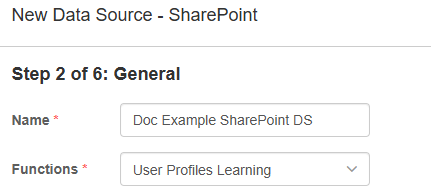
5. Select **User Profiles Learning** for the function field
SharePoint Data Source User Profiles Learning function
6. Fill in the remaining general configurations and click **Next**
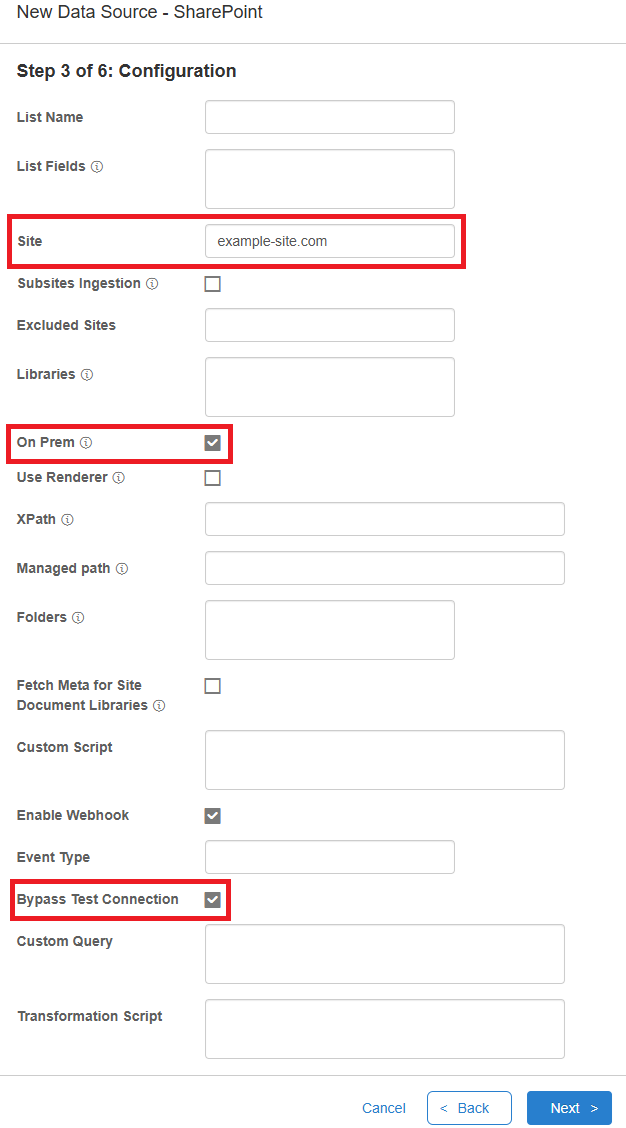
7. Define the **Site** if you are not using the default site
8. Check the **On Prem** checkbox
9. Check the **Bypass Test Connection** checkbox
SharePoint Data Source configurations
10. Select **Next** until the window closes to save the data source configurations
### Data Source Field Configuration
Additional fields will need to be added to the Data Source. These fields are used to ensure the User Profile information is merged with existing User data, and to check if a user has access to an article. For information on adding additional fields view the document on [Data Ingestion](/aisera-platform/adding-data-to-your-tenant/data-ingestion.md#field-mapping)
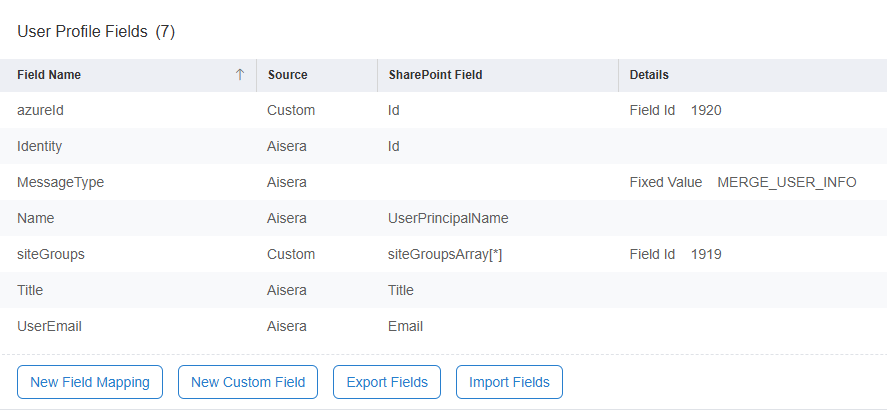
Add a **New Field Mapping** named `MessageType` and provide it with the fixed value of `MERGE_USER_INFO`
Add a **New Custom Field** named `siteGroups` and add the SharePoint field value `siteGroupsArray[*]`
Add a new custom field named `azureId` and provide it with the SharePoint value `Id`
SharePoint Data Source field mappings
## Enable Access Controls
To enable Access Controls:
1. In the Admin UI navigate to **Settings > Access Controls** in the left navigation panel
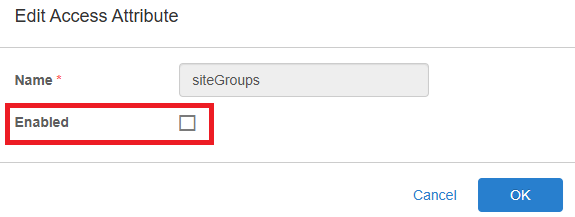
2. On the right side of the row for the **siteGroups** access attribute, click the **Pencil** icon to open the **Edit Access Attribute** modal
3. Check the **Enable** checkbox
Enabling the Access Attribute
4. Select **OK** to save the changes
### Fetch Permissions
SharePoint Connector Includes **Fetch Permissions** and **Fetch Site Page & Drive Items Permissions** checkboxes in the **Data Source Configuration** parameters.
* The **Fetch Permissions** checkbox is **unchecked** by default.
* The **Fetch Site Page & Drive Items Permissions** checkbox allows you to enable/disable ingestion of permission metadata for Site Pages and Drive Items (these include group permissions and siteGroups permissions).The permission metadata ingested for SharePoint **Site Pages** and **Drive Items** allows you to:
* Apply **ACL tagging** / controls
* Map permissions into **TagKeys/TagValues** for downstream use cases
**NOTE:** When the Admin UI opens the Configuration of a previous Sharepoint Data Source that does not have a key-value pair for the new field (**`fetchPermissions`**), the corresponding check box is displayed as active (checked).