> For the complete documentation index, see [llms.txt](https://docs.aisera.com/llms.txt). Markdown versions of documentation pages are available by appending `.md` to page URLs; this page is available as [Markdown](https://docs.aisera.com/aisera-platform/adding-data-to-your-tenant/integrations-and-data-sources/connectors/ivanti.md).
# Ivanti
Ivanti provides a standalone generic connector. You can see this connector in both the Integration and Data Source options. As with other connectors, you create the [Integration](https://aisera.com/integrations/) first and then create the Data Source.
The Aisera Gen AI platform supports Ivanti integration with an Access Token.
## Integration Setup
**To add an Ivanti integration:**
1. Navigate to **Settings > Integrations** in the Aisera Admin UI.
2. Select **Ivanti** from the list of integration options.
3. Click the **Ivanti** icon.
4. Choose **Next**.
5. Provide a **Name** for the integration and the endpoint of your Ivanti instance, and click **OK**.
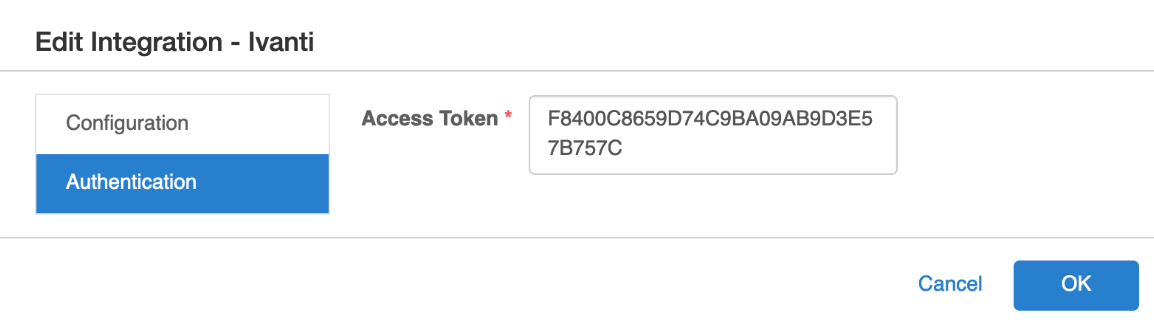
6. Paste the **Access Token** into the field in the **Authentication Tab** and choose **OK** to complete the integration.
## Data Source Setup
1. Navigate to **Settings > Data Sources** in the Aisera Admin UI.
2. Choose the **+ New Data Source** button in the upper right corner.
1. Type **Ivanti** into the Search field.
2. Choose the **Ivanti** icon.
3. Fill in a **Name** for the Data Source configuration.
4. Choose the **Learning Function**(s).
5. Keep the **On Demand** option for the Schedule.
6. There are no required fields on the **Configuration, Templates, or Ingestion Configuration** tabs, so click **OK** to continue.
7. The Ivanti Data Source has some pre-configured defaults. These Configuration and Document Transformation Overrides describe the .json configurations that are loaded within these default settings (you don't need to change these).
1. **Configuration Overrides:**
```
{"xml2json":false,"externalSystemTypeEnum":"Generic","supportectContentTypes":["Ticket","Incident","Problem","Alert","ChangeRequest","KnowledgeArticle","User","UserGroup","Request","ServiceCatalog","ServiceCatalogCategory","CMDB_CI"],"contentTypeConfiguration":{"ServiceCatalog":{"appliesToChildren":true,"httpContentType":"application/json","acceptContentType":"application/json","pagination":{"type":"offset-limit","additionOfLimit":true,"offsetToReset":0,"useMaxdate":false,"resetOffsetAndUseMaxDateAsStart":false,"useOffsetLimitFromQueryParams":true,"limitParam":"$top","offsetParam":"$skip","defaultLimit":100,"defaultOffset":0,"dateFormat":"yyyy-MM-dd'T'HH:mm:ss'Z'","parameters":[{"field":"$skip","operator":"eq","value":"0"},{"field":"$filter","operator":"eq","value":"{_keys_}"},{"field":"$orderby","operator":"eq","value":"LastModDateTime desc"}],"tableEntriesArrayPath":"value","isTableEntryJSONArray":false,"retriesNo":0,"appendTopElement":false,"filterConfigurations":{"filterParameterMappers":[],"filterConfigurations":[{"filterElement":"$filter","filterOperator":"and","operatorMappings":{"eq":"eq","gt":"ge","neq":"ne","lt":"le"},"fieldMappings":{"startDate":"LastModDateTime","endDate":"LastModDateTime","ParentLink_RecID":"ParentLink_RecID","ProfileLink":"ProfileLink","Status":"Status"},"valueMappings":{"ParentLink_RecID":"'{_value_}'","ProfileLink":"'{_value_}'","Status":"'{_value_}'"},"whitelistFields":["startDate","endDate","ParentLink_RecID","ProfileLink","Status"]},{"filterElement":"$search","operatorMappings":{"like":""},"fieldMappings":{"Subject":"","Title":""},"valueMappings":{"Subject":"{_field_}{_operator_}{_value_}","Title":"{_field_}{_operator_}{_value_}"},"whitelistFields":["Subject","Title"]}]},"overrideWithDefaultLimit":true},"pathMappings":[{"path":"/api/odata/businessobject/ServiceReqTemplates","pathByKey":"/api/odata/businessobject/ServiceReqTemplates('{_key_}')"}],"supportedOperations":["LIST","GET"],"operations":[{"operation":"LIST","httpMethod":"get","headers":{},"useFormPayload":false,"customClose":false,"returnGetTableEntryOnClose":false,"customAddComment":false,"useCreatePathInUpdate":false,"listEntryJoltTransforms":[]},{"operation":"GET","httpMethod":"get","headers":{},"useFormPayload":false,"customClose":false,"returnGetTableEntryOnClose":false,"customAddComment":false,"useCreatePathInUpdate":false,"listEntryJoltTransforms":[]}],"respectRequestPaginationInCount":false,"respectEndDate":false,"handleNullDatesConfiguration":true,"handleDefaultDatesConfiguration":true,"nullDateStartHoursBefore":-262800,"nullDateEndHoursAfter":24,"addElementAsArrayUnderTop":false,"downloadFiles":false,"timezone":"UTC","doNotFailOnNestedCall":false,"isAttachment":false},"Ticket":{"appliesToChildren":true,"httpContentType":"application/json","acceptContentType":"application/json","pagination":{"type":"nested-call","responseParamMappings":{"ParentLink_RecID":"RecId"},"pathParamMappings":{},"nestedCallHasEntries":false,"nestedCallExpandsEntry":true,"nestedCallAppendEntry":false,"nestedCallAppendPath":"comments","nestedCallConfiguration":{"appliesToChildren":true,"httpContentType":"application/json","acceptContentType":"application/json","pagination":{"type":"offset-limit","additionOfLimit":true,"offsetToReset":0,"useMaxdate":false,"resetOffsetAndUseMaxDateAsStart":false,"useOffsetLimitFromQueryParams":true,"limitParam":"$top","offsetParam":"$skip","defaultLimit":100,"defaultOffset":0,"parameters":[{"field":"$skip","operator":"eq","value":"0"},{"field":"$filter","operator":"eq","value":"{_keys_}"},{"field":"$orderby","operator":"eq","value":"LastModDateTime desc"}],"tableEntriesArrayPath":"value","isTableEntryJSONArray":false,"retriesNo":0,"appendTopElement":false,"filterConfigurations":{"filterParameterMappers":[],"filterConfigurations":[{"filterElement":"$filter","filterOperator":"and","operatorMappings":{"eq":"eq","gt":"ge","neq":"ne","lt":"le"},"fieldMappings":{"startDate":"LastModDateTime","endDate":"LastModDateTime","ParentLink_RecID":"ParentLink_RecID","ProfileLink":"ProfileLink","Status":"Status"},"valueMappings":{"ParentLink_RecID":"'{_value_}'","ProfileLink":"'{_value_}'","Status":"'{_value_}'"},"whitelistFields":["startDate","endDate","ParentLink_RecID","ProfileLink","Status"]},{"filterElement":"$search","operatorMappings":{"like":""},"fieldMappings":{"Subject":"","Title":""},"valueMappings":{"Subject":"{_field_}{_operator_}{_value_}","Title":"{_field_}{_operator_}{_value_}"},"whitelistFields":["Subject","Title"]}]},"overrideWithDefaultLimit":false},"pathMappings":[{"path":"/api/odata/businessobject/journals"}],"supportedOperations":["LIST"],"operations":[{"operation":"LIST","httpMethod":"get","headers":{},"useFormPayload":false,"customClose":false,"returnGetTableEntryOnClose":false,"customAddComment":false,"useCreatePathInUpdate":false,"listEntryJoltTransforms":[]}],"respectRequestPaginationInCount":false,"respectEndDate":false,"handleNullDatesConfiguration":false,"handleDefaultDatesConfiguration":false,"nullDateStartHoursBefore":0,"nullDateEndHoursAfter":0,"addElementAsArrayUnderTop":false,"downloadFiles":false,"timezone":"UTC","doNotFailOnNestedCall":false,"isAttachment":false},"paginationConfig":{"type":"offset-limit","additionOfLimit":true,"offsetToReset":0,"useMaxdate":false,"resetOffsetAndUseMaxDateAsStart":false,"useOffsetLimitFromQueryParams":true,"limitParam":"$top","offsetParam":"$skip","defaultLimit":100,"defaultOffset":0,"dateFormat":"yyyy-MM-dd'T'HH:mm:ss'Z'","parameters":[{"field":"$skip","operator":"eq","value":"0"},{"field":"$filter","operator":"eq","value":"{_keys_}"},{"field":"$orderby","operator":"eq","value":"LastModDateTime desc"}],"tableEntriesArrayPath":"value","isTableEntryJSONArray":false,"retriesNo":0,"appendTopElement":false,"filterConfigurations":{"filterParameterMappers":[],"filterConfigurations":[{"filterElement":"$filter","filterOperator":"and","operatorMappings":{"eq":"eq","gt":"ge","neq":"ne","lt":"le"},"fieldMappings":{"startDate":"LastModDateTime","endDate":"LastModDateTime","ParentLink_RecID":"ParentLink_RecID","ProfileLink":"ProfileLink","Status":"Status"},"valueMappings":{"ParentLink_RecID":"'{_value_}'","ProfileLink":"'{_value_}'","Status":"'{_value_}'"},"whitelistFields":["startDate","endDate","ParentLink_RecID","ProfileLink","Status"]},{"filterElement":"$search","operatorMappings":{"like":""},"fieldMappings":{"Subject":"","Title":""},"valueMappings":{"Subject":"{_field_}{_operator_}{_value_}","Title":"{_field_}{_operator_}{_value_}"},"whitelistFields":["Subject","Title"]}]},"overrideWithDefaultLimit":true},"useParallelCalls":false,"sleepOnZeroResults":false,"zeroResultsRetries":0,"zeroResultsRetryInterval":0,"payloadFilterMappings":{},"enrichParamMappings":{},"enrichAppend":false,"defaultLimit":0,"defaultOffset":0,"isTableEntryJSONArray":false,"retriesNo":0,"appendTopElement":false,"filterConfigurations":{"filterParameterMappers":[],"filterConfigurations":[{"filterElement":"$filter","filterOperator":"and","operatorMappings":{"eq":"eq","gt":"ge","neq":"ne","lt":"le"},"fieldMappings":{"startDate":"LastModDateTime","endDate":"LastModDateTime","ParentLink_RecID":"ParentLink_RecID","ProfileLink":"ProfileLink","Status":"Status"},"valueMappings":{"ParentLink_RecID":"'{_value_}'","ProfileLink":"'{_value_}'","Status":"'{_value_}'"},"whitelistFields":["startDate","endDate","ParentLink_RecID","ProfileLink","Status"]},{"filterElement":"$search","operatorMappings":{"like":""},"fieldMappings":{"Subject":"","Title":""},"valueMappings":{"Subject":"{_field_}{_operator_}{_value_}","Title":"{_field_}{_operator_}{_value_}"},"whitelistFields":["Subject","Title"]}]},"overrideWithDefaultLimit":true},"pathMappings":[{"path":"/api/odata/businessobject/incidents","pathByKey":"/api/odata/businessobject/incidents('{_key_}')"}],"supportedOperations":["LIST","GET","CREATE","DELETE","UPDATE"],"operations":[{"operation":"LIST","httpMethod":"get","headers":{},"useFormPayload":false,"customClose":false,"returnGetTableEntryOnClose":false,"customAddComment":false,"useCreatePathInUpdate":false,"listEntryJoltTransforms":[]},{"operation":"GET","httpMethod":"get","headers":{},"enrich":{"listConfiguration":{"responseParamMappings":{"ParentLink_RecID":"RecId"},"pathParamMappings":{},"nestedCallHasEntries":false,"nestedCallExpandsEntry":true,"nestedCallAppendEntry":false,"nestedCallAppendPath":"comments","nestedCallConfiguration":{"appliesToChildren":true,"httpContentType":"application/json","acceptContentType":"application/json","pagination":{"type":"offset-limit","additionOfLimit":true,"offsetToReset":0,"useMaxdate":false,"resetOffsetAndUseMaxDateAsStart":false,"useOffsetLimitFromQueryParams":true,"limitParam":"$top","offsetParam":"$skip","defaultLimit":100,"defaultOffset":0,"parameters":[{"field":"$skip","operator":"eq","value":"0"},{"field":"$filter","operator":"eq","value":"{_keys_}"},{"field":"$orderby","operator":"eq","value":"LastModDateTime desc"}],"tableEntriesArrayPath":"value","isTableEntryJSONArray":false,"retriesNo":0,"appendTopElement":false,"filterConfigurations":{"filterParameterMappers":[],"filterConfigurations":[{"filterElement":"$filter","filterOperator":"and","operatorMappings":{"eq":"eq","gt":"ge","neq":"ne","lt":"le"},"fieldMappings":{"startDate":"LastModDateTime","endDate":"LastModDateTime","ParentLink_RecID":"ParentLink_RecID","ProfileLink":"ProfileLink","Status":"Status"},"valueMappings":{"ParentLink_RecID":"'{_value_}'","ProfileLink":"'{_value_}'","Status":"'{_value_}'"},"whitelistFields":["startDate","endDate","ParentLink_RecID","ProfileLink","Status"]},{"filterElement":"$search","operatorMappings":{"like":""},"fieldMappings":{"Subject":"","Title":""},"valueMappings":{"Subject":"{_field_}{_operator_}{_value_}","Title":"{_field_}{_operator_}{_value_}"},"whitelistFields":["Subject","Title"]}]},"overrideWithDefaultLimit":false},"pathMappings":[{"path":"/api/odata/businessobject/journals"}],"supportedOperations":["LIST"],"operations":[{"operation":"LIST","httpMethod":"get","headers":{},"useFormPayload":false,"customClose":false,"returnGetTableEntryOnClose":false,"customAddComment":false,"useCreatePathInUpdate":false,"listEntryJoltTransforms":[]}],"respectRequestPaginationInCount":false,"respectEndDate":false,"handleNullDatesConfiguration":false,"handleDefaultDatesConfiguration":false,"nullDateStartHoursBefore":0,"nullDateEndHoursAfter":0,"addElementAsArrayUnderTop":false,"downloadFiles":false,"timezone":"UTC","doNotFailOnNestedCall":false,"isAttachment":false},"paginationConfig":{"type":"offset-limit","additionOfLimit":true,"offsetToReset":0,"useMaxdate":false,"resetOffsetAndUseMaxDateAsStart":false,"useOffsetLimitFromQueryParams":true,"limitParam":"$top","offsetParam":"$skip","defaultLimit":100,"defaultOffset":0,"dateFormat":"yyyy-MM-dd'T'HH:mm:ss'Z'","parameters":[{"field":"$skip","operator":"eq","value":"0"},{"field":"$filter","operator":"eq","value":"{_keys_}"},{"field":"$orderby","operator":"eq","value":"LastModDateTime desc"}],"tableEntriesArrayPath":"value","isTableEntryJSONArray":false,"retriesNo":0,"appendTopElement":false,"filterConfigurations":{"filterParameterMappers":[],"filterConfigurations":[{"filterElement":"$filter","filterOperator":"and","operatorMappings":{"eq":"eq","gt":"ge","neq":"ne","lt":"le"},"fieldMappings":{"startDate":"LastModDateTime","endDate":"LastModDateTime","ParentLink_RecID":"ParentLink_RecID","ProfileLink":"ProfileLink","Status":"Status"},"valueMappings":{"ParentLink_RecID":"'{_value_}'","ProfileLink":"'{_value_}'","Status":"'{_value_}'"},"whitelistFields":["startDate","endDate","ParentLink_RecID","ProfileLink","Status"]},{"filterElement":"$search","operatorMappings":{"like":""},"fieldMappings":{"Subject":"","Title":""},"valueMappings":{"Subject":"{_field_}{_operator_}{_value_}","Title":"{_field_}{_operator_}{_value_}"},"whitelistFields":["Subject","Title"]}]},"overrideWithDefaultLimit":true},"useParallelCalls":false,"sleepOnZeroResults":false,"zeroResultsRetries":0,"zeroResultsRetryInterval":0,"payloadFilterMappings":{},"enrichParamMappings":{},"enrichAppend":false,"defaultLimit":0,"defaultOffset":0,"isTableEntryJSONArray":false,"retriesNo":0,"appendTopElement":false,"filterConfigurations":{"filterParameterMappers":[],"filterConfigurations":[{"filterElement":"$filter","filterOperator":"and","operatorMappings":{"eq":"eq","gt":"ge","neq":"ne","lt":"le"},"fieldMappings":{"startDate":"LastModDateTime","endDate":"LastModDateTime","ParentLink_RecID":"ParentLink_RecID","ProfileLink":"ProfileLink","Status":"Status"},"valueMappings":{"ParentLink_RecID":"'{_value_}'","ProfileLink":"'{_value_}'","Status":"'{_value_}'"},"whitelistFields":["startDate","endDate","ParentLink_RecID","ProfileLink","Status"]},{"filterElement":"$search","operatorMappings":{"like":""},"fieldMappings":{"Subject":"","Title":""},"valueMappings":{"Subject":"{_field_}{_operator_}{_value_}","Title":"{_field_}{_operator_}{_value_}"},"whitelistFields":["Subject","Title"]}]},"overrideWithDefaultLimit":true},"idPath":"RecId","returnRequestPayload":true},"useFormPayload":false,"customClose":false,"returnGetTableEntryOnClose":false,"customAddComment":false,"useCreatePathInUpdate":false,"listEntryJoltTransforms":[]},{"operation":"CREATE","httpMethod":"post","headers":{},"useFormPayload":false,"customClose":false,"returnGetTableEntryOnClose":false,"customAddComment":false,"useCreatePathInUpdate":false,"listEntryJoltTransforms":[]},{"operation":"UPDATE","httpMethod":"put","headers":{},"useFormPayload":false,"addCommentPayload":"{\n \"ParentLink_RecID\": \"{_key_}\",\n \"Subject\": \"{_Subject_}\"\n}","customClose":false,"returnGetTableEntryOnClose":false,"customAddComment":true,"useCreatePathInUpdate":false,"commentsElement":"comments","commentElement":"Subject","commentUserElement":"CreatedBy","listEntryJoltTransforms":[]},{"operation":"CUSTOM_ADD_COMMENT","httpMethod":"post","headers":{},"pathMappings":[{"path":"/api/odata/businessobject/journals","pathByKey":"/api/odata/businessobject/journals"}],"enrich":{"returnRequestPayload":false},"useFormPayload":false,"customClose":false,"returnGetTableEntryOnClose":true,"customAddComment":true,"useCreatePathInUpdate":false,"listEntryJoltTransforms":[]},{"operation":"DELETE","httpMethod":"delete","headers":{},"useFormPayload":false,"customClose":false,"returnGetTableEntryOnClose":false,"customAddComment":false,"useCreatePathInUpdate":false,"listEntryJoltTransforms":[]}],"respectRequestPaginationInCount":false,"respectEndDate":false,"handleNullDatesConfiguration":true,"handleDefaultDatesConfiguration":true,"nullDateStartHoursBefore":-262800,"nullDateEndHoursAfter":24,"addElementAsArrayUnderTop":false,"downloadFiles":false,"timezone":"UTC","doNotFailOnNestedCall":false,"isAttachment":false},"ServiceCatalogCategory":{"appliesToChildren":true,"httpContentType":"application/json","acceptContentType":"application/json","pagination":{"type":"offset-limit","additionOfLimit":true,"offsetToReset":0,"useMaxdate":false,"resetOffsetAndUseMaxDateAsStart":false,"useOffsetLimitFromQueryParams":true,"limitParam":"$top","offsetParam":"$skip","defaultLimit":100,"defaultOffset":0,"dateFormat":"yyyy-MM-dd'T'HH:mm:ss'Z'","parameters":[{"field":"$skip","operator":"eq","value":"0"},{"field":"$filter","operator":"eq","value":"{_keys_}"},{"field":"$orderby","operator":"eq","value":"LastModDateTime desc"}],"tableEntriesArrayPath":"value","isTableEntryJSONArray":false,"retriesNo":0,"appendTopElement":false,"filterConfigurations":{"filterParameterMappers":[],"filterConfigurations":[{"filterElement":"$filter","filterOperator":"and","operatorMappings":{"eq":"eq","gt":"ge","neq":"ne","lt":"le"},"fieldMappings":{"startDate":"LastModDateTime","endDate":"LastModDateTime","ParentLink_RecID":"ParentLink_RecID","ProfileLink":"ProfileLink","Status":"Status"},"valueMappings":{"ParentLink_RecID":"'{_value_}'","ProfileLink":"'{_value_}'","Status":"'{_value_}'"},"whitelistFields":["startDate","endDate","ParentLink_RecID","ProfileLink","Status"]},{"filterElement":"$search","operatorMappings":{"like":""},"fieldMappings":{"Subject":"","Title":""},"valueMappings":{"Subject":"{_field_}{_operator_}{_value_}","Title":"{_field_}{_operator_}{_value_}"},"whitelistFields":["Subject","Title"]}]},"overrideWithDefaultLimit":true},"pathMappings":[{"path":"/api/odata/businessobject/servicereqcategorys","pathByKey":"/api/odata/businessobject/servicereqcategorys('{_key_}')"}],"supportedOperations":["LIST","GET"],"operations":[{"operation":"LIST","httpMethod":"get","headers":{},"useFormPayload":false,"customClose":false,"returnGetTableEntryOnClose":false,"customAddComment":false,"useCreatePathInUpdate":false,"listEntryJoltTransforms":[]},{"operation":"GET","httpMethod":"get","headers":{},"useFormPayload":false,"customClose":false,"returnGetTableEntryOnClose":false,"customAddComment":false,"useCreatePathInUpdate":false,"listEntryJoltTransforms":[]}],"respectRequestPaginationInCount":false,"respectEndDate":false,"handleNullDatesConfiguration":true,"handleDefaultDatesConfiguration":true,"nullDateStartHoursBefore":-262800,"nullDateEndHoursAfter":24,"addElementAsArrayUnderTop":false,"downloadFiles":false,"timezone":"UTC","doNotFailOnNestedCall":false,"isAttachment":false},"User":{"appliesToChildren":true,"httpContentType":"application/json","acceptContentType":"application/json","pagination":{"type":"offset-limit","additionOfLimit":true,"offsetToReset":0,"useMaxdate":false,"resetOffsetAndUseMaxDateAsStart":false,"useOffsetLimitFromQueryParams":true,"limitParam":"$top","offsetParam":"$skip","defaultLimit":100,"defaultOffset":0,"dateFormat":"yyyy-MM-dd'T'HH:mm:ss'Z'","parameters":[{"field":"$skip","operator":"eq","value":"0"},{"field":"$filter","operator":"eq","value":"{_keys_}"},{"field":"$orderby","operator":"eq","value":"LastModDateTime desc"}],"tableEntriesArrayPath":"value","isTableEntryJSONArray":false,"retriesNo":0,"appendTopElement":false,"filterConfigurations":{"filterParameterMappers":[],"filterConfigurations":[{"filterElement":"$filter","filterOperator":"and","operatorMappings":{"eq":"eq","gt":"ge","neq":"ne","lt":"le"},"fieldMappings":{"startDate":"LastModDateTime","endDate":"LastModDateTime","ParentLink_RecID":"ParentLink_RecID","ProfileLink":"ProfileLink","Status":"Status"},"valueMappings":{"ParentLink_RecID":"'{_value_}'","ProfileLink":"'{_value_}'","Status":"'{_value_}'"},"whitelistFields":["startDate","endDate","ParentLink_RecID","ProfileLink","Status"]},{"filterElement":"$search","operatorMappings":{"like":""},"fieldMappings":{"Subject":"","Title":""},"valueMappings":{"Subject":"{_field_}{_operator_}{_value_}","Title":"{_field_}{_operator_}{_value_}"},"whitelistFields":["Subject","Title"]}]},"overrideWithDefaultLimit":true},"pathMappings":[{"path":"/api/odata/businessobject/employees","pathByKey":"/api/odata/businessobject/employees('{_key_}')"}],"supportedOperations":["LIST","GET"],"operations":[{"operation":"LIST","httpMethod":"get","headers":{},"useFormPayload":false,"customClose":false,"returnGetTableEntryOnClose":false,"customAddComment":false,"useCreatePathInUpdate":false,"listEntryJoltTransforms":[]},{"operation":"GET","httpMethod":"get","headers":{},"useFormPayload":false,"customClose":false,"returnGetTableEntryOnClose":false,"customAddComment":false,"useCreatePathInUpdate":false,"listEntryJoltTransforms":[]}],"respectRequestPaginationInCount":false,"respectEndDate":false,"handleNullDatesConfiguration":true,"handleDefaultDatesConfiguration":true,"nullDateStartHoursBefore":-262800,"nullDateEndHoursAfter":24,"addElementAsArrayUnderTop":false,"downloadFiles":false,"timezone":"UTC","doNotFailOnNestedCall":false,"isAttachment":false},"Request":{"appliesToChildren":true,"httpContentType":"application/json","acceptContentType":"application/json","pagination":{"type":"offset-limit","additionOfLimit":true,"offsetToReset":0,"useMaxdate":false,"resetOffsetAndUseMaxDateAsStart":false,"useOffsetLimitFromQueryParams":true,"limitParam":"$top","offsetParam":"$skip","defaultLimit":100,"defaultOffset":0,"dateFormat":"yyyy-MM-dd'T'HH:mm:ss'Z'","parameters":[{"field":"$skip","operator":"eq","value":"0"},{"field":"$filter","operator":"eq","value":"{_keys_}"},{"field":"$orderby","operator":"eq","value":"LastModDateTime desc"}],"tableEntriesArrayPath":"value","isTableEntryJSONArray":false,"retriesNo":0,"appendTopElement":false,"filterConfigurations":{"filterParameterMappers":[],"filterConfigurations":[{"filterElement":"$filter","filterOperator":"and","operatorMappings":{"eq":"eq","gt":"ge","neq":"ne","lt":"le"},"fieldMappings":{"startDate":"LastModDateTime","endDate":"LastModDateTime","ParentLink_RecID":"ParentLink_RecID","ProfileLink":"ProfileLink","Status":"Status"},"valueMappings":{"ParentLink_RecID":"'{_value_}'","ProfileLink":"'{_value_}'","Status":"'{_value_}'"},"whitelistFields":["startDate","endDate","ParentLink_RecID","ProfileLink","Status"]},{"filterElement":"$search","operatorMappings":{"like":""},"fieldMappings":{"Subject":"","Title":""},"valueMappings":{"Subject":"{_field_}{_operator_}{_value_}","Title":"{_field_}{_operator_}{_value_}"},"whitelistFields":["Subject","Title"]}]},"overrideWithDefaultLimit":true},"pathMappings":[{"path":"/api/odata/businessobject/ServiceReqs","pathByKey":"/api/odata/businessobject/ServiceReqs('{_key_}')"}],"supportedOperations":["LIST","GET"],"operations":[{"operation":"LIST","httpMethod":"get","headers":{},"useFormPayload":false,"customClose":false,"returnGetTableEntryOnClose":false,"customAddComment":false,"useCreatePathInUpdate":false,"listEntryJoltTransforms":[]},{"operation":"GET","httpMethod":"get","headers":{},"useFormPayload":false,"customClose":false,"returnGetTableEntryOnClose":false,"customAddComment":false,"useCreatePathInUpdate":false,"listEntryJoltTransforms":[]}],"respectRequestPaginationInCount":false,"respectEndDate":false,"handleNullDatesConfiguration":true,"handleDefaultDatesConfiguration":true,"nullDateStartHoursBefore":-262800,"nullDateEndHoursAfter":24,"addElementAsArrayUnderTop":false,"downloadFiles":false,"timezone":"UTC","doNotFailOnNestedCall":false,"isAttachment":false},"CMDB_CI":{"appliesToChildren":true,"httpContentType":"application/json","acceptContentType":"application/json","pagination":{"type":"offset-limit","additionOfLimit":true,"offsetToReset":0,"useMaxdate":false,"resetOffsetAndUseMaxDateAsStart":false,"useOffsetLimitFromQueryParams":true,"limitParam":"$top","offsetParam":"$skip","defaultLimit":100,"defaultOffset":0,"dateFormat":"yyyy-MM-dd'T'HH:mm:ss'Z'","parameters":[{"field":"$skip","operator":"eq","value":"0"},{"field":"$filter","operator":"eq","value":"{_keys_}"},{"field":"$orderby","operator":"eq","value":"LastModDateTime desc"}],"tableEntriesArrayPath":"value","isTableEntryJSONArray":false,"retriesNo":0,"appendTopElement":false,"filterConfigurations":{"filterParameterMappers":[],"filterConfigurations":[{"filterElement":"$filter","filterOperator":"and","operatorMappings":{"eq":"eq","gt":"ge","neq":"ne","lt":"le"},"fieldMappings":{"startDate":"LastModDateTime","endDate":"LastModDateTime","ParentLink_RecID":"ParentLink_RecID","ProfileLink":"ProfileLink","Status":"Status"},"valueMappings":{"ParentLink_RecID":"'{_value_}'","ProfileLink":"'{_value_}'","Status":"'{_value_}'"},"whitelistFields":["startDate","endDate","ParentLink_RecID","ProfileLink","Status"]},{"filterElement":"$search","operatorMappings":{"like":""},"fieldMappings":{"Subject":"","Title":""},"valueMappings":{"Subject":"{_field_}{_operator_}{_value_}","Title":"{_field_}{_operator_}{_value_}"},"whitelistFields":["Subject","Title"]}]},"overrideWithDefaultLimit":true},"pathMappings":[{"path":"/api/odata/businessobject/cis","pathByKey":"/api/odata/businessobject/cis('{_key_}')"}],"supportedOperations":["LIST","GET"],"operations":[{"operation":"LIST","httpMethod":"get","headers":{},"useFormPayload":false,"customClose":false,"returnGetTableEntryOnClose":false,"customAddComment":false,"useCreatePathInUpdate":false,"listEntryJoltTransforms":[]},{"operation":"GET","httpMethod":"get","headers":{},"useFormPayload":false,"customClose":false,"returnGetTableEntryOnClose":false,"customAddComment":false,"useCreatePathInUpdate":false,"listEntryJoltTransforms":[]}],"respectRequestPaginationInCount":false,"respectEndDate":false,"handleNullDatesConfiguration":true,"handleDefaultDatesConfiguration":true,"nullDateStartHoursBefore":-262800,"nullDateEndHoursAfter":24,"addElementAsArrayUnderTop":false,"downloadFiles":false,"timezone":"UTC","doNotFailOnNestedCall":false,"isAttachment":false},"Problem":{"appliesToChildren":true,"httpContentType":"application/json","acceptContentType":"application/json","pagination":{"type":"nested-call","responseParamMappings":{"ParentLink_RecID":"RecId"},"pathParamMappings":{},"nestedCallHasEntries":false,"nestedCallExpandsEntry":true,"nestedCallAppendEntry":false,"nestedCallAppendPath":"comments","nestedCallConfiguration":{"appliesToChildren":true,"httpContentType":"application/json","acceptContentType":"application/json","pagination":{"type":"offset-limit","additionOfLimit":true,"offsetToReset":0,"useMaxdate":false,"resetOffsetAndUseMaxDateAsStart":false,"useOffsetLimitFromQueryParams":true,"limitParam":"$top","offsetParam":"$skip","defaultLimit":100,"defaultOffset":0,"parameters":[{"field":"$skip","operator":"eq","value":"0"},{"field":"$filter","operator":"eq","value":"{_keys_}"},{"field":"$orderby","operator":"eq","value":"LastModDateTime desc"}],"tableEntriesArrayPath":"value","isTableEntryJSONArray":false,"retriesNo":0,"appendTopElement":false,"filterConfigurations":{"filterParameterMappers":[],"filterConfigurations":[{"filterElement":"$filter","filterOperator":"and","operatorMappings":{"eq":"eq","gt":"ge","neq":"ne","lt":"le"},"fieldMappings":{"startDate":"LastModDateTime","endDate":"LastModDateTime","ParentLink_RecID":"ParentLink_RecID","ProfileLink":"ProfileLink","Status":"Status"},"valueMappings":{"ParentLink_RecID":"'{_value_}'","ProfileLink":"'{_value_}'","Status":"'{_value_}'"},"whitelistFields":["startDate","endDate","ParentLink_RecID","ProfileLink","Status"]},{"filterElement":"$search","operatorMappings":{"like":""},"fieldMappings":{"Subject":"","Title":""},"valueMappings":{"Subject":"{_field_}{_operator_}{_value_}","Title":"{_field_}{_operator_}{_value_}"},"whitelistFields":["Subject","Title"]}]},"overrideWithDefaultLimit":false},"pathMappings":[{"path":"/api/odata/businessobject/journals"}],"supportedOperations":["LIST"],"operations":[{"operation":"LIST","httpMethod":"get","headers":{},"useFormPayload":false,"customClose":false,"returnGetTableEntryOnClose":false,"customAddComment":false,"useCreatePathInUpdate":false,"listEntryJoltTransforms":[]}],"respectRequestPaginationInCount":false,"respectEndDate":false,"handleNullDatesConfiguration":false,"handleDefaultDatesConfiguration":false,"nullDateStartHoursBefore":0,"nullDateEndHoursAfter":0,"addElementAsArrayUnderTop":false,"downloadFiles":false,"timezone":"UTC","doNotFailOnNestedCall":false,"isAttachment":false},"paginationConfig":{"type":"offset-limit","additionOfLimit":true,"offsetToReset":0,"useMaxdate":false,"resetOffsetAndUseMaxDateAsStart":false,"useOffsetLimitFromQueryParams":true,"limitParam":"$top","offsetParam":"$skip","defaultLimit":100,"defaultOffset":0,"dateFormat":"yyyy-MM-dd'T'HH:mm:ss'Z'","parameters":[{"field":"$skip","operator":"eq","value":"0"},{"field":"$filter","operator":"eq","value":"{_keys_}"},{"field":"$orderby","operator":"eq","value":"LastModDateTime desc"}],"tableEntriesArrayPath":"value","isTableEntryJSONArray":false,"retriesNo":0,"appendTopElement":false,"filterConfigurations":{"filterParameterMappers":[],"filterConfigurations":[{"filterElement":"$filter","filterOperator":"and","operatorMappings":{"eq":"eq","gt":"ge","neq":"ne","lt":"le"},"fieldMappings":{"startDate":"LastModDateTime","endDate":"LastModDateTime","ParentLink_RecID":"ParentLink_RecID","ProfileLink":"ProfileLink","Status":"Status"},"valueMappings":{"ParentLink_RecID":"'{_value_}'","ProfileLink":"'{_value_}'","Status":"'{_value_}'"},"whitelistFields":["startDate","endDate","ParentLink_RecID","ProfileLink","Status"]},{"filterElement":"$search","operatorMappings":{"like":""},"fieldMappings":{"Subject":"","Title":""},"valueMappings":{"Subject":"{_field_}{_operator_}{_value_}","Title":"{_field_}{_operator_}{_value_}"},"whitelistFields":["Subject","Title"]}]},"overrideWithDefaultLimit":true},"useParallelCalls":false,"sleepOnZeroResults":false,"zeroResultsRetries":0,"zeroResultsRetryInterval":0,"payloadFilterMappings":{},"enrichParamMappings":{},"enrichAppend":false,"defaultLimit":0,"defaultOffset":0,"isTableEntryJSONArray":false,"retriesNo":0,"appendTopElement":false,"filterConfigurations":{"filterParameterMappers":[],"filterConfigurations":[{"filterElement":"$filter","filterOperator":"and","operatorMappings":{"eq":"eq","gt":"ge","neq":"ne","lt":"le"},"fieldMappings":{"startDate":"LastModDateTime","endDate":"LastModDateTime","ParentLink_RecID":"ParentLink_RecID","ProfileLink":"ProfileLink","Status":"Status"},"valueMappings":{"ParentLink_RecID":"'{_value_}'","ProfileLink":"'{_value_}'","Status":"'{_value_}'"},"whitelistFields":["startDate","endDate","ParentLink_RecID","ProfileLink","Status"]},{"filterElement":"$search","operatorMappings":{"like":""},"fieldMappings":{"Subject":"","Title":""},"valueMappings":{"Subject":"{_field_}{_operator_}{_value_}","Title":"{_field_}{_operator_}{_value_}"},"whitelistFields":["Subject","Title"]}]},"overrideWithDefaultLimit":true},"pathMappings":[{"path":"/api/odata/businessobject/problems","pathByKey":"/api/odata/businessobject/problems('{_key_}')"}],"supportedOperations":["LIST","GET","CREATE","DELETE","UPDATE"],"operations":[{"operation":"LIST","httpMethod":"get","headers":{},"useFormPayload":false,"customClose":false,"returnGetTableEntryOnClose":false,"customAddComment":false,"useCreatePathInUpdate":false,"listEntryJoltTransforms":[]},{"operation":"GET","httpMethod":"get","headers":{},"enrich":{"listConfiguration":{"responseParamMappings":{"ParentLink_RecID":"RecId"},"pathParamMappings":{},"nestedCallHasEntries":false,"nestedCallExpandsEntry":true,"nestedCallAppendEntry":false,"nestedCallAppendPath":"comments","nestedCallConfiguration":{"appliesToChildren":true,"httpContentType":"application/json","acceptContentType":"application/json","pagination":{"type":"offset-limit","additionOfLimit":true,"offsetToReset":0,"useMaxdate":false,"resetOffsetAndUseMaxDateAsStart":false,"useOffsetLimitFromQueryParams":true,"limitParam":"$top","offsetParam":"$skip","defaultLimit":100,"defaultOffset":0,"parameters":[{"field":"$skip","operator":"eq","value":"0"},{"field":"$filter","operator":"eq","value":"{_keys_}"},{"field":"$orderby","operator":"eq","value":"LastModDateTime desc"}],"tableEntriesArrayPath":"value","isTableEntryJSONArray":false,"retriesNo":0,"appendTopElement":false,"filterConfigurations":{"filterParameterMappers":[],"filterConfigurations":[{"filterElement":"$filter","filterOperator":"and","operatorMappings":{"eq":"eq","gt":"ge","neq":"ne","lt":"le"},"fieldMappings":{"startDate":"LastModDateTime","endDate":"LastModDateTime","ParentLink_RecID":"ParentLink_RecID","ProfileLink":"ProfileLink","Status":"Status"},"valueMappings":{"ParentLink_RecID":"'{_value_}'","ProfileLink":"'{_value_}'","Status":"'{_value_}'"},"whitelistFields":["startDate","endDate","ParentLink_RecID","ProfileLink","Status"]},{"filterElement":"$search","operatorMappings":{"like":""},"fieldMappings":{"Subject":"","Title":""},"valueMappings":{"Subject":"{_field_}{_operator_}{_value_}","Title":"{_field_}{_operator_}{_value_}"},"whitelistFields":["Subject","Title"]}]},"overrideWithDefaultLimit":false},"pathMappings":[{"path":"/api/odata/businessobject/journals"}],"supportedOperations":["LIST"],"operations":[{"operation":"LIST","httpMethod":"get","headers":{},"useFormPayload":false,"customClose":false,"returnGetTableEntryOnClose":false,"customAddComment":false,"useCreatePathInUpdate":false,"listEntryJoltTransforms":[]}],"respectRequestPaginationInCount":false,"respectEndDate":false,"handleNullDatesConfiguration":false,"handleDefaultDatesConfiguration":false,"nullDateStartHoursBefore":0,"nullDateEndHoursAfter":0,"addElementAsArrayUnderTop":false,"downloadFiles":false,"timezone":"UTC","doNotFailOnNestedCall":false,"isAttachment":false},"paginationConfig":{"type":"offset-limit","additionOfLimit":true,"offsetToReset":0,"useMaxdate":false,"resetOffsetAndUseMaxDateAsStart":false,"useOffsetLimitFromQueryParams":true,"limitParam":"$top","offsetParam":"$skip","defaultLimit":100,"defaultOffset":0,"dateFormat":"yyyy-MM-dd'T'HH:mm:ss'Z'","parameters":[{"field":"$skip","operator":"eq","value":"0"},{"field":"$filter","operator":"eq","value":"{_keys_}"},{"field":"$orderby","operator":"eq","value":"LastModDateTime desc"}],"tableEntriesArrayPath":"value","isTableEntryJSONArray":false,"retriesNo":0,"appendTopElement":false,"filterConfigurations":{"filterParameterMappers":[],"filterConfigurations":[{"filterElement":"$filter","filterOperator":"and","operatorMappings":{"eq":"eq","gt":"ge","neq":"ne","lt":"le"},"fieldMappings":{"startDate":"LastModDateTime","endDate":"LastModDateTime","ParentLink_RecID":"ParentLink_RecID","ProfileLink":"ProfileLink","Status":"Status"},"valueMappings":{"ParentLink_RecID":"'{_value_}'","ProfileLink":"'{_value_}'","Status":"'{_value_}'"},"whitelistFields":["startDate","endDate","ParentLink_RecID","ProfileLink","Status"]},{"filterElement":"$search","operatorMappings":{"like":""},"fieldMappings":{"Subject":"","Title":""},"valueMappings":{"Subject":"{_field_}{_operator_}{_value_}","Title":"{_field_}{_operator_}{_value_}"},"whitelistFields":["Subject","Title"]}]},"overrideWithDefaultLimit":true},"useParallelCalls":false,"sleepOnZeroResults":false,"zeroResultsRetries":0,"zeroResultsRetryInterval":0,"payloadFilterMappings":{},"enrichParamMappings":{},"enrichAppend":false,"defaultLimit":0,"defaultOffset":0,"isTableEntryJSONArray":false,"retriesNo":0,"appendTopElement":false,"filterConfigurations":{"filterParameterMappers":[],"filterConfigurations":[{"filterElement":"$filter","filterOperator":"and","operatorMappings":{"eq":"eq","gt":"ge","neq":"ne","lt":"le"},"fieldMappings":{"startDate":"LastModDateTime","endDate":"LastModDateTime","ParentLink_RecID":"ParentLink_RecID","ProfileLink":"ProfileLink","Status":"Status"},"valueMappings":{"ParentLink_RecID":"'{_value_}'","ProfileLink":"'{_value_}'","Status":"'{_value_}'"},"whitelistFields":["startDate","endDate","ParentLink_RecID","ProfileLink","Status"]},{"filterElement":"$search","operatorMappings":{"like":""},"fieldMappings":{"Subject":"","Title":""},"valueMappings":{"Subject":"{_field_}{_operator_}{_value_}","Title":"{_field_}{_operator_}{_value_}"},"whitelistFields":["Subject","Title"]}]},"overrideWithDefaultLimit":true},"idPath":"RecId","returnRequestPayload":true},"useFormPayload":false,"customClose":false,"returnGetTableEntryOnClose":false,"customAddComment":false,"useCreatePathInUpdate":false,"listEntryJoltTransforms":[]},{"operation":"CREATE","httpMethod":"post","headers":{},"useFormPayload":false,"customClose":false,"returnGetTableEntryOnClose":false,"customAddComment":false,"useCreatePathInUpdate":false,"listEntryJoltTransforms":[]},{"operation":"UPDATE","httpMethod":"put","headers":{},"useFormPayload":false,"addCommentPayload":"{\n \"ParentLink_RecID\": \"{_key_}\",\n \"Subject\": \"{_Subject_}\"\n}","customClose":false,"returnGetTableEntryOnClose":false,"customAddComment":true,"useCreatePathInUpdate":false,"commentsElement":"comments","commentElement":"Subject","commentUserElement":"CreatedBy","listEntryJoltTransforms":[]},{"operation":"CUSTOM_ADD_COMMENT","httpMethod":"post","headers":{},"pathMappings":[{"path":"/api/odata/businessobject/journals","pathByKey":"/api/odata/businessobject/journals"}],"enrich":{"returnRequestPayload":false},"useFormPayload":false,"customClose":false,"returnGetTableEntryOnClose":true,"customAddComment":true,"useCreatePathInUpdate":false,"listEntryJoltTransforms":[]},{"operation":"DELETE","httpMethod":"delete","headers":{},"useFormPayload":false,"customClose":false,"returnGetTableEntryOnClose":false,"customAddComment":false,"useCreatePathInUpdate":false,"listEntryJoltTransforms":[]}],"respectRequestPaginationInCount":false,"respectEndDate":false,"handleNullDatesConfiguration":true,"handleDefaultDatesConfiguration":true,"nullDateStartHoursBefore":-262800,"nullDateEndHoursAfter":24,"addElementAsArrayUnderTop":false,"downloadFiles":false,"timezone":"UTC","doNotFailOnNestedCall":false,"isAttachment":false},"Alert":{"appliesToChildren":true,"httpContentType":"application/json","acceptContentType":"application/json","pagination":{"type":"nested-call","responseParamMappings":{"ParentLink_RecID":"RecId"},"pathParamMappings":{},"nestedCallHasEntries":false,"nestedCallExpandsEntry":true,"nestedCallAppendEntry":false,"nestedCallAppendPath":"comments","nestedCallConfiguration":{"appliesToChildren":true,"httpContentType":"application/json","acceptContentType":"application/json","pagination":{"type":"offset-limit","additionOfLimit":true,"offsetToReset":0,"useMaxdate":false,"resetOffsetAndUseMaxDateAsStart":false,"useOffsetLimitFromQueryParams":true,"limitParam":"$top","offsetParam":"$skip","defaultLimit":100,"defaultOffset":0,"parameters":[{"field":"$skip","operator":"eq","value":"0"},{"field":"$filter","operator":"eq","value":"{_keys_}"},{"field":"$orderby","operator":"eq","value":"LastModDateTime desc"}],"tableEntriesArrayPath":"value","isTableEntryJSONArray":false,"retriesNo":0,"appendTopElement":false,"filterConfigurations":{"filterParameterMappers":[],"filterConfigurations":[{"filterElement":"$filter","filterOperator":"and","operatorMappings":{"eq":"eq","gt":"ge","neq":"ne","lt":"le"},"fieldMappings":{"startDate":"LastModDateTime","endDate":"LastModDateTime","ParentLink_RecID":"ParentLink_RecID","ProfileLink":"ProfileLink","Status":"Status"},"valueMappings":{"ParentLink_RecID":"'{_value_}'","ProfileLink":"'{_value_}'","Status":"'{_value_}'"},"whitelistFields":["startDate","endDate","ParentLink_RecID","ProfileLink","Status"]},{"filterElement":"$search","operatorMappings":{"like":""},"fieldMappings":{"Subject":"","Title":""},"valueMappings":{"Subject":"{_field_}{_operator_}{_value_}","Title":"{_field_}{_operator_}{_value_}"},"whitelistFields":["Subject","Title"]}]},"overrideWithDefaultLimit":false},"pathMappings":[{"path":"/api/odata/businessobject/journals"}],"supportedOperations":["LIST"],"operations":[{"operation":"LIST","httpMethod":"get","headers":{},"useFormPayload":false,"customClose":false,"returnGetTableEntryOnClose":false,"customAddComment":false,"useCreatePathInUpdate":false,"listEntryJoltTransforms":[]}],"respectRequestPaginationInCount":false,"respectEndDate":false,"handleNullDatesConfiguration":false,"handleDefaultDatesConfiguration":false,"nullDateStartHoursBefore":0,"nullDateEndHoursAfter":0,"addElementAsArrayUnderTop":false,"downloadFiles":false,"timezone":"UTC","doNotFailOnNestedCall":false,"isAttachment":false},"paginationConfig":{"type":"offset-limit","additionOfLimit":true,"offsetToReset":0,"useMaxdate":false,"resetOffsetAndUseMaxDateAsStart":false,"useOffsetLimitFromQueryParams":true,"limitParam":"$top","offsetParam":"$skip","defaultLimit":100,"defaultOffset":0,"dateFormat":"yyyy-MM-dd'T'HH:mm:ss'Z'","parameters":[{"field":"$skip","operator":"eq","value":"0"},{"field":"$filter","operator":"eq","value":"{_keys_}"},{"field":"$orderby","operator":"eq","value":"LastModDateTime desc"}],"tableEntriesArrayPath":"value","isTableEntryJSONArray":false,"retriesNo":0,"appendTopElement":false,"filterConfigurations":{"filterParameterMappers":[],"filterConfigurations":[{"filterElement":"$filter","filterOperator":"and","operatorMappings":{"eq":"eq","gt":"ge","neq":"ne","lt":"le"},"fieldMappings":{"startDate":"LastModDateTime","endDate":"LastModDateTime","ParentLink_RecID":"ParentLink_RecID","ProfileLink":"ProfileLink","Status":"Status"},"valueMappings":{"ParentLink_RecID":"'{_value_}'","ProfileLink":"'{_value_}'","Status":"'{_value_}'"},"whitelistFields":["startDate","endDate","ParentLink_RecID","ProfileLink","Status"]},{"filterElement":"$search","operatorMappings":{"like":""},"fieldMappings":{"Subject":"","Title":""},"valueMappings":{"Subject":"{_field_}{_operator_}{_value_}","Title":"{_field_}{_operator_}{_value_}"},"whitelistFields":["Subject","Title"]}]},"overrideWithDefaultLimit":true},"useParallelCalls":false,"sleepOnZeroResults":false,"zeroResultsRetries":0,"zeroResultsRetryInterval":0,"payloadFilterMappings":{},"enrichParamMappings":{},"enrichAppend":false,"defaultLimit":0,"defaultOffset":0,"isTableEntryJSONArray":false,"retriesNo":0,"appendTopElement":false,"filterConfigurations":{"filterParameterMappers":[],"filterConfigurations":[{"filterElement":"$filter","filterOperator":"and","operatorMappings":{"eq":"eq","gt":"ge","neq":"ne","lt":"le"},"fieldMappings":{"startDate":"LastModDateTime","endDate":"LastModDateTime","ParentLink_RecID":"ParentLink_RecID","ProfileLink":"ProfileLink","Status":"Status"},"valueMappings":{"ParentLink_RecID":"'{_value_}'","ProfileLink":"'{_value_}'","Status":"'{_value_}'"},"whitelistFields":["startDate","endDate","ParentLink_RecID","ProfileLink","Status"]},{"filterElement":"$search","operatorMappings":{"like":""},"fieldMappings":{"Subject":"","Title":""},"valueMappings":{"Subject":"{_field_}{_operator_}{_value_}","Title":"{_field_}{_operator_}{_value_}"},"whitelistFields":["Subject","Title"]}]},"overrideWithDefaultLimit":true},"pathMappings":[{"path":"/api/odata/businessobject/alerts","pathByKey":"/api/odata/businessobject/alerts('{_key_}')"}],"supportedOperations":["LIST","GET","CREATE","DELETE","UPDATE"],"operations":[{"operation":"LIST","httpMethod":"get","headers":{},"useFormPayload":false,"customClose":false,"returnGetTableEntryOnClose":false,"customAddComment":false,"useCreatePathInUpdate":false,"listEntryJoltTransforms":[]},{"operation":"GET","httpMethod":"get","headers":{},"enrich":{"listConfiguration":{"responseParamMappings":{"ParentLink_RecID":"RecId"},"pathParamMappings":{},"nestedCallHasEntries":false,"nestedCallExpandsEntry":true,"nestedCallAppendEntry":false,"nestedCallAppendPath":"comments","nestedCallConfiguration":{"appliesToChildren":true,"httpContentType":"application/json","acceptContentType":"application/json","pagination":{"type":"offset-limit","additionOfLimit":true,"offsetToReset":0,"useMaxdate":false,"resetOffsetAndUseMaxDateAsStart":false,"useOffsetLimitFromQueryParams":true,"limitParam":"$top","offsetParam":"$skip","defaultLimit":100,"defaultOffset":0,"parameters":[{"field":"$skip","operator":"eq","value":"0"},{"field":"$filter","operator":"eq","value":"{_keys_}"},{"field":"$orderby","operator":"eq","value":"LastModDateTime desc"}],"tableEntriesArrayPath":"value","isTableEntryJSONArray":false,"retriesNo":0,"appendTopElement":false,"filterConfigurations":{"filterParameterMappers":[],"filterConfigurations":[{"filterElement":"$filter","filterOperator":"and","operatorMappings":{"eq":"eq","gt":"ge","neq":"ne","lt":"le"},"fieldMappings":{"startDate":"LastModDateTime","endDate":"LastModDateTime","ParentLink_RecID":"ParentLink_RecID","ProfileLink":"ProfileLink","Status":"Status"},"valueMappings":{"ParentLink_RecID":"'{_value_}'","ProfileLink":"'{_value_}'","Status":"'{_value_}'"},"whitelistFields":["startDate","endDate","ParentLink_RecID","ProfileLink","Status"]},{"filterElement":"$search","operatorMappings":{"like":""},"fieldMappings":{"Subject":"","Title":""},"valueMappings":{"Subject":"{_field_}{_operator_}{_value_}","Title":"{_field_}{_operator_}{_value_}"},"whitelistFields":["Subject","Title"]}]},"overrideWithDefaultLimit":false},"pathMappings":[{"path":"/api/odata/businessobject/journals"}],"supportedOperations":["LIST"],"operations":[{"operation":"LIST","httpMethod":"get","headers":{},"useFormPayload":false,"customClose":false,"returnGetTableEntryOnClose":false,"customAddComment":false,"useCreatePathInUpdate":false,"listEntryJoltTransforms":[]}],"respectRequestPaginationInCount":false,"respectEndDate":false,"handleNullDatesConfiguration":false,"handleDefaultDatesConfiguration":false,"nullDateStartHoursBefore":0,"nullDateEndHoursAfter":0,"addElementAsArrayUnderTop":false,"downloadFiles":false,"timezone":"UTC","doNotFailOnNestedCall":false,"isAttachment":false},"paginationConfig":{"type":"offset-limit","additionOfLimit":true,"offsetToReset":0,"useMaxdate":false,"resetOffsetAndUseMaxDateAsStart":false,"useOffsetLimitFromQueryParams":true,"limitParam":"$top","offsetParam":"$skip","defaultLimit":100,"defaultOffset":0,"dateFormat":"yyyy-MM-dd'T'HH:mm:ss'Z'","parameters":[{"field":"$skip","operator":"eq","value":"0"},{"field":"$filter","operator":"eq","value":"{_keys_}"},{"field":"$orderby","operator":"eq","value":"LastModDateTime desc"}],"tableEntriesArrayPath":"value","isTableEntryJSONArray":false,"retriesNo":0,"appendTopElement":false,"filterConfigurations":{"filterParameterMappers":[],"filterConfigurations":[{"filterElement":"$filter","filterOperator":"and","operatorMappings":{"eq":"eq","gt":"ge","neq":"ne","lt":"le"},"fieldMappings":{"startDate":"LastModDateTime","endDate":"LastModDateTime","ParentLink_RecID":"ParentLink_RecID","ProfileLink":"ProfileLink","Status":"Status"},"valueMappings":{"ParentLink_RecID":"'{_value_}'","ProfileLink":"'{_value_}'","Status":"'{_value_}'"},"whitelistFields":["startDate","endDate","ParentLink_RecID","ProfileLink","Status"]},{"filterElement":"$search","operatorMappings":{"like":""},"fieldMappings":{"Subject":"","Title":""},"valueMappings":{"Subject":"{_field_}{_operator_}{_value_}","Title":"{_field_}{_operator_}{_value_}"},"whitelistFields":["Subject","Title"]}]},"overrideWithDefaultLimit":true},"useParallelCalls":false,"sleepOnZeroResults":false,"zeroResultsRetries":0,"zeroResultsRetryInterval":0,"payloadFilterMappings":{},"enrichParamMappings":{},"enrichAppend":false,"defaultLimit":0,"defaultOffset":0,"isTableEntryJSONArray":false,"retriesNo":0,"appendTopElement":false,"filterConfigurations":{"filterParameterMappers":[],"filterConfigurations":[{"filterElement":"$filter","filterOperator":"and","operatorMappings":{"eq":"eq","gt":"ge","neq":"ne","lt":"le"},"fieldMappings":{"startDate":"LastModDateTime","endDate":"LastModDateTime","ParentLink_RecID":"ParentLink_RecID","ProfileLink":"ProfileLink","Status":"Status"},"valueMappings":{"ParentLink_RecID":"'{_value_}'","ProfileLink":"'{_value_}'","Status":"'{_value_}'"},"whitelistFields":["startDate","endDate","ParentLink_RecID","ProfileLink","Status"]},{"filterElement":"$search","operatorMappings":{"like":""},"fieldMappings":{"Subject":"","Title":""},"valueMappings":{"Subject":"{_field_}{_operator_}{_value_}","Title":"{_field_}{_operator_}{_value_}"},"whitelistFields":["Subject","Title"]}]},"overrideWithDefaultLimit":true},"idPath":"RecId","returnRequestPayload":true},"useFormPayload":false,"customClose":false,"returnGetTableEntryOnClose":false,"customAddComment":false,"useCreatePathInUpdate":false,"listEntryJoltTransforms":[]},{"operation":"CREATE","httpMethod":"post","headers":{},"useFormPayload":false,"customClose":false,"returnGetTableEntryOnClose":false,"customAddComment":false,"useCreatePathInUpdate":false,"listEntryJoltTransforms":[]},{"operation":"UPDATE","httpMethod":"put","headers":{},"useFormPayload":false,"addCommentPayload":"{\n \"ParentLink_RecID\": \"{_key_}\",\n \"Subject\": \"{_Subject_}\"\n}","customClose":false,"returnGetTableEntryOnClose":false,"customAddComment":true,"useCreatePathInUpdate":false,"commentsElement":"comments","commentElement":"Subject","commentUserElement":"CreatedBy","listEntryJoltTransforms":[]},{"operation":"CUSTOM_ADD_COMMENT","httpMethod":"post","headers":{},"pathMappings":[{"path":"/api/odata/businessobject/journals","pathByKey":"/api/odata/businessobject/journals"}],"enrich":{"returnRequestPayload":false},"useFormPayload":false,"customClose":false,"returnGetTableEntryOnClose":true,"customAddComment":true,"useCreatePathInUpdate":false,"listEntryJoltTransforms":[]},{"operation":"DELETE","httpMethod":"delete","headers":{},"useFormPayload":false,"customClose":false,"returnGetTableEntryOnClose":false,"customAddComment":false,"useCreatePathInUpdate":false,"listEntryJoltTransforms":[]}],"respectRequestPaginationInCount":false,"respectEndDate":false,"handleNullDatesConfiguration":true,"handleDefaultDatesConfiguration":true,"nullDateStartHoursBefore":-262800,"nullDateEndHoursAfter":24,"addElementAsArrayUnderTop":false,"downloadFiles":false,"timezone":"UTC","doNotFailOnNestedCall":false,"isAttachment":false},"KnowledgeArticle":{"appliesToChildren":true,"httpContentType":"application/json","acceptContentType":"application/json","pagination":{"type":"offset-limit","additionOfLimit":true,"offsetToReset":0,"useMaxdate":false,"resetOffsetAndUseMaxDateAsStart":false,"useOffsetLimitFromQueryParams":true,"limitParam":"$top","offsetParam":"$skip","defaultLimit":100,"defaultOffset":0,"dateFormat":"yyyy-MM-dd'T'HH:mm:ss'Z'","parameters":[{"field":"$skip","operator":"eq","value":"0"},{"field":"$filter","operator":"eq","value":"{_keys_}"},{"field":"$orderby","operator":"eq","value":"LastModDateTime desc"}],"tableEntriesArrayPath":"value","isTableEntryJSONArray":false,"retriesNo":0,"appendTopElement":false,"filterConfigurations":{"filterParameterMappers":[],"filterConfigurations":[{"filterElement":"$filter","filterOperator":"and","operatorMappings":{"eq":"eq","gt":"ge","neq":"ne","lt":"le"},"fieldMappings":{"startDate":"LastModDateTime","endDate":"LastModDateTime","ParentLink_RecID":"ParentLink_RecID","ProfileLink":"ProfileLink","Status":"Status"},"valueMappings":{"ParentLink_RecID":"'{_value_}'","ProfileLink":"'{_value_}'","Status":"'{_value_}'"},"whitelistFields":["startDate","endDate","ParentLink_RecID","ProfileLink","Status"]},{"filterElement":"$search","operatorMappings":{"like":""},"fieldMappings":{"Subject":"","Title":""},"valueMappings":{"Subject":"{_field_}{_operator_}{_value_}","Title":"{_field_}{_operator_}{_value_}"},"whitelistFields":["Subject","Title"]}]},"overrideWithDefaultLimit":true},"pathMappings":[{"path":"/api/odata/businessobject/FRS_Knowledges","pathByKey":"/api/odata/businessobject/FRS_Knowledges('{_key_}')"}],"supportedOperations":["LIST","GET"],"operations":[{"operation":"LIST","httpMethod":"get","headers":{},"useFormPayload":false,"customClose":false,"returnGetTableEntryOnClose":false,"customAddComment":false,"useCreatePathInUpdate":false,"listEntryJoltTransforms":[]},{"operation":"GET","httpMethod":"get","headers":{},"useFormPayload":false,"customClose":false,"returnGetTableEntryOnClose":false,"customAddComment":false,"useCreatePathInUpdate":false,"listEntryJoltTransforms":[]}],"respectRequestPaginationInCount":false,"respectEndDate":false,"handleNullDatesConfiguration":true,"handleDefaultDatesConfiguration":true,"nullDateStartHoursBefore":-262800,"nullDateEndHoursAfter":24,"addElementAsArrayUnderTop":false,"downloadFiles":false,"timezone":"UTC","doNotFailOnNestedCall":false,"isAttachment":false},"ChangeRequest":{"appliesToChildren":true,"httpContentType":"application/json","acceptContentType":"application/json","pagination":{"type":"nested-call","responseParamMappings":{"ParentLink_RecID":"RecId"},"pathParamMappings":{},"nestedCallHasEntries":false,"nestedCallExpandsEntry":true,"nestedCallAppendEntry":false,"nestedCallAppendPath":"comments","nestedCallConfiguration":{"appliesToChildren":true,"httpContentType":"application/json","acceptContentType":"application/json","pagination":{"type":"offset-limit","additionOfLimit":true,"offsetToReset":0,"useMaxdate":false,"resetOffsetAndUseMaxDateAsStart":false,"useOffsetLimitFromQueryParams":true,"limitParam":"$top","offsetParam":"$skip","defaultLimit":100,"defaultOffset":0,"parameters":[{"field":"$skip","operator":"eq","value":"0"},{"field":"$filter","operator":"eq","value":"{_keys_}"},{"field":"$orderby","operator":"eq","value":"LastModDateTime desc"}],"tableEntriesArrayPath":"value","isTableEntryJSONArray":false,"retriesNo":0,"appendTopElement":false,"filterConfigurations":{"filterParameterMappers":[],"filterConfigurations":[{"filterElement":"$filter","filterOperator":"and","operatorMappings":{"eq":"eq","gt":"ge","neq":"ne","lt":"le"},"fieldMappings":{"startDate":"LastModDateTime","endDate":"LastModDateTime","ParentLink_RecID":"ParentLink_RecID","ProfileLink":"ProfileLink","Status":"Status"},"valueMappings":{"ParentLink_RecID":"'{_value_}'","ProfileLink":"'{_value_}'","Status":"'{_value_}'"},"whitelistFields":["startDate","endDate","ParentLink_RecID","ProfileLink","Status"]},{"filterElement":"$search","operatorMappings":{"like":""},"fieldMappings":{"Subject":"","Title":""},"valueMappings":{"Subject":"{_field_}{_operator_}{_value_}","Title":"{_field_}{_operator_}{_value_}"},"whitelistFields":["Subject","Title"]}]},"overrideWithDefaultLimit":false},"pathMappings":[{"path":"/api/odata/businessobject/journals"}],"supportedOperations":["LIST"],"operations":[{"operation":"LIST","httpMethod":"get","headers":{},"useFormPayload":false,"customClose":false,"returnGetTableEntryOnClose":false,"customAddComment":false,"useCreatePathInUpdate":false,"listEntryJoltTransforms":[]}],"respectRequestPaginationInCount":false,"respectEndDate":false,"handleNullDatesConfiguration":false,"handleDefaultDatesConfiguration":false,"nullDateStartHoursBefore":0,"nullDateEndHoursAfter":0,"addElementAsArrayUnderTop":false,"downloadFiles":false,"timezone":"UTC","doNotFailOnNestedCall":false,"isAttachment":false},"paginationConfig":{"type":"offset-limit","additionOfLimit":true,"offsetToReset":0,"useMaxdate":false,"resetOffsetAndUseMaxDateAsStart":false,"useOffsetLimitFromQueryParams":true,"limitParam":"$top","offsetParam":"$skip","defaultLimit":100,"defaultOffset":0,"dateFormat":"yyyy-MM-dd'T'HH:mm:ss'Z'","parameters":[{"field":"$skip","operator":"eq","value":"0"},{"field":"$filter","operator":"eq","value":"{_keys_}"},{"field":"$orderby","operator":"eq","value":"LastModDateTime desc"}],"tableEntriesArrayPath":"value","isTableEntryJSONArray":false,"retriesNo":0,"appendTopElement":false,"filterConfigurations":{"filterParameterMappers":[],"filterConfigurations":[{"filterElement":"$filter","filterOperator":"and","operatorMappings":{"eq":"eq","gt":"ge","neq":"ne","lt":"le"},"fieldMappings":{"startDate":"LastModDateTime","endDate":"LastModDateTime","ParentLink_RecID":"ParentLink_RecID","ProfileLink":"ProfileLink","Status":"Status"},"valueMappings":{"ParentLink_RecID":"'{_value_}'","ProfileLink":"'{_value_}'","Status":"'{_value_}'"},"whitelistFields":["startDate","endDate","ParentLink_RecID","ProfileLink","Status"]},{"filterElement":"$search","operatorMappings":{"like":""},"fieldMappings":{"Subject":"","Title":""},"valueMappings":{"Subject":"{_field_}{_operator_}{_value_}","Title":"{_field_}{_operator_}{_value_}"},"whitelistFields":["Subject","Title"]}]},"overrideWithDefaultLimit":true},"useParallelCalls":false,"sleepOnZeroResults":false,"zeroResultsRetries":0,"zeroResultsRetryInterval":0,"payloadFilterMappings":{},"enrichParamMappings":{},"enrichAppend":false,"defaultLimit":0,"defaultOffset":0,"isTableEntryJSONArray":false,"retriesNo":0,"appendTopElement":false,"filterConfigurations":{"filterParameterMappers":[],"filterConfigurations":[{"filterElement":"$filter","filterOperator":"and","operatorMappings":{"eq":"eq","gt":"ge","neq":"ne","lt":"le"},"fieldMappings":{"startDate":"LastModDateTime","endDate":"LastModDateTime","ParentLink_RecID":"ParentLink_RecID","ProfileLink":"ProfileLink","Status":"Status"},"valueMappings":{"ParentLink_RecID":"'{_value_}'","ProfileLink":"'{_value_}'","Status":"'{_value_}'"},"whitelistFields":["startDate","endDate","ParentLink_RecID","ProfileLink","Status"]},{"filterElement":"$search","operatorMappings":{"like":""},"fieldMappings":{"Subject":"","Title":""},"valueMappings":{"Subject":"{_field_}{_operator_}{_value_}","Title":"{_field_}{_operator_}{_value_}"},"whitelistFields":["Subject","Title"]}]},"overrideWithDefaultLimit":true},"pathMappings":[{"path":"/api/odata/businessobject/changes","pathByKey":"/api/odata/businessobject/changes('{_key_}')"}],"supportedOperations":["LIST","GET","CREATE","DELETE","UPDATE"],"operations":[{"operation":"LIST","httpMethod":"get","headers":{},"useFormPayload":false,"customClose":false,"returnGetTableEntryOnClose":false,"customAddComment":false,"useCreatePathInUpdate":false,"listEntryJoltTransforms":[]},{"operation":"GET","httpMethod":"get","headers":{},"enrich":{"listConfiguration":{"responseParamMappings":{"ParentLink_RecID":"RecId"},"pathParamMappings":{},"nestedCallHasEntries":false,"nestedCallExpandsEntry":true,"nestedCallAppendEntry":false,"nestedCallAppendPath":"comments","nestedCallConfiguration":{"appliesToChildren":true,"httpContentType":"application/json","acceptContentType":"application/json","pagination":{"type":"offset-limit","additionOfLimit":true,"offsetToReset":0,"useMaxdate":false,"resetOffsetAndUseMaxDateAsStart":false,"useOffsetLimitFromQueryParams":true,"limitParam":"$top","offsetParam":"$skip","defaultLimit":100,"defaultOffset":0,"parameters":[{"field":"$skip","operator":"eq","value":"0"},{"field":"$filter","operator":"eq","value":"{_keys_}"},{"field":"$orderby","operator":"eq","value":"LastModDateTime desc"}],"tableEntriesArrayPath":"value","isTableEntryJSONArray":false,"retriesNo":0,"appendTopElement":false,"filterConfigurations":{"filterParameterMappers":[],"filterConfigurations":[{"filterElement":"$filter","filterOperator":"and","operatorMappings":{"eq":"eq","gt":"ge","neq":"ne","lt":"le"},"fieldMappings":{"startDate":"LastModDateTime","endDate":"LastModDateTime","ParentLink_RecID":"ParentLink_RecID","ProfileLink":"ProfileLink","Status":"Status"},"valueMappings":{"ParentLink_RecID":"'{_value_}'","ProfileLink":"'{_value_}'","Status":"'{_value_}'"},"whitelistFields":["startDate","endDate","ParentLink_RecID","ProfileLink","Status"]},{"filterElement":"$search","operatorMappings":{"like":""},"fieldMappings":{"Subject":"","Title":""},"valueMappings":{"Subject":"{_field_}{_operator_}{_value_}","Title":"{_field_}{_operator_}{_value_}"},"whitelistFields":["Subject","Title"]}]},"overrideWithDefaultLimit":false},"pathMappings":[{"path":"/api/odata/businessobject/journals"}],"supportedOperations":["LIST"],"operations":[{"operation":"LIST","httpMethod":"get","headers":{},"useFormPayload":false,"customClose":false,"returnGetTableEntryOnClose":false,"customAddComment":false,"useCreatePathInUpdate":false,"listEntryJoltTransforms":[]}],"respectRequestPaginationInCount":false,"respectEndDate":false,"handleNullDatesConfiguration":false,"handleDefaultDatesConfiguration":false,"nullDateStartHoursBefore":0,"nullDateEndHoursAfter":0,"addElementAsArrayUnderTop":false,"downloadFiles":false,"timezone":"UTC","doNotFailOnNestedCall":false,"isAttachment":false},"paginationConfig":{"type":"offset-limit","additionOfLimit":true,"offsetToReset":0,"useMaxdate":false,"resetOffsetAndUseMaxDateAsStart":false,"useOffsetLimitFromQueryParams":true,"limitParam":"$top","offsetParam":"$skip","defaultLimit":100,"defaultOffset":0,"dateFormat":"yyyy-MM-dd'T'HH:mm:ss'Z'","parameters":[{"field":"$skip","operator":"eq","value":"0"},{"field":"$filter","operator":"eq","value":"{_keys_}"},{"field":"$orderby","operator":"eq","value":"LastModDateTime desc"}],"tableEntriesArrayPath":"value","isTableEntryJSONArray":false,"retriesNo":0,"appendTopElement":false,"filterConfigurations":{"filterParameterMappers":[],"filterConfigurations":[{"filterElement":"$filter","filterOperator":"and","operatorMappings":{"eq":"eq","gt":"ge","neq":"ne","lt":"le"},"fieldMappings":{"startDate":"LastModDateTime","endDate":"LastModDateTime","ParentLink_RecID":"ParentLink_RecID","ProfileLink":"ProfileLink","Status":"Status"},"valueMappings":{"ParentLink_RecID":"'{_value_}'","ProfileLink":"'{_value_}'","Status":"'{_value_}'"},"whitelistFields":["startDate","endDate","ParentLink_RecID","ProfileLink","Status"]},{"filterElement":"$search","operatorMappings":{"like":""},"fieldMappings":{"Subject":"","Title":""},"valueMappings":{"Subject":"{_field_}{_operator_}{_value_}","Title":"{_field_}{_operator_}{_value_}"},"whitelistFields":["Subject","Title"]}]},"overrideWithDefaultLimit":true},"useParallelCalls":false,"sleepOnZeroResults":false,"zeroResultsRetries":0,"zeroResultsRetryInterval":0,"payloadFilterMappings":{},"enrichParamMappings":{},"enrichAppend":false,"defaultLimit":0,"defaultOffset":0,"isTableEntryJSONArray":false,"retriesNo":0,"appendTopElement":false,"filterConfigurations":{"filterParameterMappers":[],"filterConfigurations":[{"filterElement":"$filter","filterOperator":"and","operatorMappings":{"eq":"eq","gt":"ge","neq":"ne","lt":"le"},"fieldMappings":{"startDate":"LastModDateTime","endDate":"LastModDateTime","ParentLink_RecID":"ParentLink_RecID","ProfileLink":"ProfileLink","Status":"Status"},"valueMappings":{"ParentLink_RecID":"'{_value_}'","ProfileLink":"'{_value_}'","Status":"'{_value_}'"},"whitelistFields":["startDate","endDate","ParentLink_RecID","ProfileLink","Status"]},{"filterElement":"$search","operatorMappings":{"like":""},"fieldMappings":{"Subject":"","Title":""},"valueMappings":{"Subject":"{_field_}{_operator_}{_value_}","Title":"{_field_}{_operator_}{_value_}"},"whitelistFields":["Subject","Title"]}]},"overrideWithDefaultLimit":true},"idPath":"RecId","returnRequestPayload":true},"useFormPayload":false,"customClose":false,"returnGetTableEntryOnClose":false,"customAddComment":false,"useCreatePathInUpdate":false,"listEntryJoltTransforms":[]},{"operation":"CREATE","httpMethod":"post","headers":{},"useFormPayload":false,"customClose":false,"returnGetTableEntryOnClose":false,"customAddComment":false,"useCreatePathInUpdate":false,"listEntryJoltTransforms":[]},{"operation":"UPDATE","httpMethod":"put","headers":{},"useFormPayload":false,"addCommentPayload":"{\n \"ParentLink_RecID\": \"{_key_}\",\n \"Subject\": \"{_Subject_}\"\n}","customClose":false,"returnGetTableEntryOnClose":false,"customAddComment":true,"useCreatePathInUpdate":false,"commentsElement":"comments","commentElement":"Subject","commentUserElement":"CreatedBy","listEntryJoltTransforms":[]},{"operation":"CUSTOM_ADD_COMMENT","httpMethod":"post","headers":{},"pathMappings":[{"path":"/api/odata/businessobject/journals","pathByKey":"/api/odata/businessobject/journals"}],"enrich":{"returnRequestPayload":false},"useFormPayload":false,"customClose":false,"returnGetTableEntryOnClose":true,"customAddComment":true,"useCreatePathInUpdate":false,"listEntryJoltTransforms":[]},{"operation":"DELETE","httpMethod":"delete","headers":{},"useFormPayload":false,"customClose":false,"returnGetTableEntryOnClose":false,"customAddComment":false,"useCreatePathInUpdate":false,"listEntryJoltTransforms":[]}],"respectRequestPaginationInCount":false,"respectEndDate":false,"handleNullDatesConfiguration":true,"handleDefaultDatesConfiguration":true,"nullDateStartHoursBefore":-262800,"nullDateEndHoursAfter":24,"addElementAsArrayUnderTop":false,"downloadFiles":false,"timezone":"UTC","doNotFailOnNestedCall":false,"isAttachment":false},"UserGroup":{"appliesToChildren":true,"httpContentType":"application/json","acceptContentType":"application/json","pagination":{"type":"offset-limit","additionOfLimit":true,"offsetToReset":0,"useMaxdate":false,"resetOffsetAndUseMaxDateAsStart":false,"useOffsetLimitFromQueryParams":true,"limitParam":"$top","offsetParam":"$skip","defaultLimit":100,"defaultOffset":0,"dateFormat":"yyyy-MM-dd'T'HH:mm:ss'Z'","parameters":[{"field":"$skip","operator":"eq","value":"0"},{"field":"$filter","operator":"eq","value":"{_keys_}"},{"field":"$orderby","operator":"eq","value":"LastModDateTime desc"}],"tableEntriesArrayPath":"value","isTableEntryJSONArray":false,"retriesNo":0,"appendTopElement":false,"filterConfigurations":{"filterParameterMappers":[],"filterConfigurations":[{"filterElement":"$filter","filterOperator":"and","operatorMappings":{"eq":"eq","gt":"ge","neq":"ne","lt":"le"},"fieldMappings":{"startDate":"LastModDateTime","endDate":"LastModDateTime","ParentLink_RecID":"ParentLink_RecID","ProfileLink":"ProfileLink","Status":"Status"},"valueMappings":{"ParentLink_RecID":"'{_value_}'","ProfileLink":"'{_value_}'","Status":"'{_value_}'"},"whitelistFields":["startDate","endDate","ParentLink_RecID","ProfileLink","Status"]},{"filterElement":"$search","operatorMappings":{"like":""},"fieldMappings":{"Subject":"","Title":""},"valueMappings":{"Subject":"{_field_}{_operator_}{_value_}","Title":"{_field_}{_operator_}{_value_}"},"whitelistFields":["Subject","Title"]}]},"overrideWithDefaultLimit":true},"pathMappings":[{"path":"/api/odata/businessobject/contactgroups","pathByKey":"/api/odata/businessobject/contactgroups('{_key_}')"}],"supportedOperations":["LIST","GET"],"operations":[{"operation":"LIST","httpMethod":"get","headers":{},"useFormPayload":false,"customClose":false,"returnGetTableEntryOnClose":false,"customAddComment":false,"useCreatePathInUpdate":false,"listEntryJoltTransforms":[]},{"operation":"GET","httpMethod":"get","headers":{},"useFormPayload":false,"customClose":false,"returnGetTableEntryOnClose":false,"customAddComment":false,"useCreatePathInUpdate":false,"listEntryJoltTransforms":[]}],"respectRequestPaginationInCount":false,"respectEndDate":false,"handleNullDatesConfiguration":true,"handleDefaultDatesConfiguration":true,"nullDateStartHoursBefore":-262800,"nullDateEndHoursAfter":24,"addElementAsArrayUnderTop":false,"downloadFiles":false,"timezone":"UTC","doNotFailOnNestedCall":false,"isAttachment":false}},"contextParameters":{},"accessTokenPrefix":"rest_api_key=","basicTokenAuth":true,"startDate":false,"endDate":false,"sleepOnErrors":1000,"retries":1,"rateLimitRespectNo":0,"rateLimitEntriesSize":300,"sleepOnRateLimit":1000,"accessTokenHeader":"Authorization","useRemoteExecutor":false,"timezone":"UTC","record":false,"useInterval":false,"interval":0,"disableFetchingServiceCatalogCategories":false,"githubRepos":[],"DEFAULT_TOKEN_EXPIRATION":180,"REFRESH_TOKEN_THRESHOLD":60,"secondReading":false,"hasImageProfile":true}
```
Formatted Configuration for DB Migration:
```
'{"startDate": true,"endDate": true,"xml2json":false,"externalSystemTypeEnum":"Ivanti","supportectContentTypes":["Ticket","Incident","Problem","Alert","ChangeRequest","KnowledgeArticle","User","UserGroup","Request","ServiceCatalog","ServiceCatalogCategory","CMDB_CI"],"contentTypeConfiguration":{"ServiceCatalog":{"appliesToChildren":true,"httpContentType":"application/json","acceptContentType":"application/json","pagination":{"type":"offset-limit","additionOfLimit":true,"offsetToReset":0,"useMaxdate":false,"resetOffsetAndUseMaxDateAsStart":false,"useOffsetLimitFromQueryParams":true,"limitParam":"$top","offsetParam":"$skip","defaultLimit":100,"defaultOffset":0,"dateFormat":"yyyy-MM-dd","parameters":[{"field":"$skip","operator":"eq","value":"0"},{"field":"$filter","operator":"eq","value":"{_keys_}"},{"field":"$orderby","operator":"eq","value":"LastModDateTime desc"}],"tableEntriesArrayPath":"value","isTableEntryJSONArray":false,"retriesNo":0,"appendTopElement":false,"filterConfigurations":{"filterParameterMappers":[],"filterConfigurations":[{"filterElement":"$filter","filterOperator":"and","operatorMappings":{"eq":"eq","gt":"ge","neq":"ne","lt":"le"},"fieldMappings":{"startDate":"LastModDateTime","endDate":"LastModDateTime","ParentLink_RecID":"ParentLink_RecID","ProfileLink":"ProfileLink","Owner_Valid":"Owner_Valid","Status":"Status"},"valueMappings":{"ParentLink_RecID":"''{_value_}''","ProfileLink":"''{_value_}''","Owner_Valid":"''{_value_}''","Status":"''{_value_}''"},"whitelistFields":["startDate","endDate","ParentLink_RecID","ProfileLink","Status","Owner_Valid"]},{"filterElement":"$search","operatorMappings":{"like":""},"fieldMappings":{"Subject":"","Title":""},"valueMappings":{"Subject":"{_field_}{_operator_}{_value_}","Title":"{_field_}{_operator_}{_value_}"},"whitelistFields":["Subject","Title"]}]},"overrideWithDefaultLimit":true},"pathMappings":[{"path":"/api/odata/businessobject/ServiceReqTemplates","pathByKey":"/api/odata/businessobject/ServiceReqTemplates(''{_key_}'')"}],"supportedOperations":["LIST","GET"],"operations":[{"operation":"LIST","httpMethod":"get","headers":{},"useFormPayload":false,"customClose":false,"returnGetTableEntryOnClose":false,"customAddComment":false,"useCreatePathInUpdate":false,"listEntryJoltTransforms":[]},{"operation":"GET","httpMethod":"get","headers":{},"useFormPayload":false,"customClose":false,"returnGetTableEntryOnClose":false,"customAddComment":false,"useCreatePathInUpdate":false,"listEntryJoltTransforms":[]}],"respectRequestPaginationInCount":false,"respectEndDate":false,"handleNullDatesConfiguration":true,"handleDefaultDatesConfiguration":true,"nullDateStartHoursBefore":-262800,"nullDateEndHoursAfter":24,"addElementAsArrayUnderTop":false,"downloadFiles":false,"timezone":"UTC","doNotFailOnNestedCall":false,"isAttachment":false},"Ticket":{"appliesToChildren":true,"httpContentType":"application/json","acceptContentType":"application/json","pagination":{"type":"nested-call","responseParamMappings":{"ParentLink_RecID":"RecId"},"pathParamMappings":{},"nestedCallHasEntries":false,"nestedCallExpandsEntry":true,"nestedCallAppendEntry":false,"nestedCallAppendPath":"comments","nestedCallConfiguration":{"appliesToChildren":true,"httpContentType":"application/json","acceptContentType":"application/json","pagination":{"type":"offset-limit","additionOfLimit":true,"offsetToReset":0,"useMaxdate":false,"resetOffsetAndUseMaxDateAsStart":false,"useOffsetLimitFromQueryParams":true,"limitParam":"$top","offsetParam":"$skip","defaultLimit":100,"defaultOffset":0,"parameters":[{"field":"$skip","operator":"eq","value":"0"},{"field":"$filter","operator":"eq","value":"{_keys_}"},{"field":"$orderby","operator":"eq","value":"LastModDateTime desc"}],"tableEntriesArrayPath":"value","isTableEntryJSONArray":false,"retriesNo":0,"appendTopElement":false,"filterConfigurations":{"filterParameterMappers":[],"filterConfigurations":[{"filterElement":"$filter","filterOperator":"and","operatorMappings":{"eq":"eq","gt":"ge","neq":"ne","lt":"le"},"fieldMappings":{"startDate":"LastModDateTime","endDate":"LastModDateTime","ParentLink_RecID":"ParentLink_RecID","ProfileLink":"ProfileLink","Owner_Valid":"Owner_Valid","Status":"Status"},"valueMappings":{"ParentLink_RecID":"''{_value_}''","ProfileLink":"''{_value_}''","Owner_Valid":"''{_value_}''","Status":"''{_value_}''"},"whitelistFields":["startDate","endDate","ParentLink_RecID","ProfileLink","Status","Owner_Valid"]},{"filterElement":"$search","operatorMappings":{"like":""},"fieldMappings":{"Subject":"","Title":""},"valueMappings":{"Subject":"{_field_}{_operator_}{_value_}","Title":"{_field_}{_operator_}{_value_}"},"whitelistFields":["Subject","Title"]}]},"overrideWithDefaultLimit":false},"pathMappings":[{"path":"/api/odata/businessobject/journals"}],"supportedOperations":["LIST"],"operations":[{"operation":"LIST","httpMethod":"get","headers":{},"useFormPayload":false,"customClose":false,"returnGetTableEntryOnClose":false,"customAddComment":false,"useCreatePathInUpdate":false,"listEntryJoltTransforms":[]}],"respectRequestPaginationInCount":false,"respectEndDate":false,"handleNullDatesConfiguration":false,"handleDefaultDatesConfiguration":false,"nullDateStartHoursBefore":0,"nullDateEndHoursAfter":0,"addElementAsArrayUnderTop":false,"downloadFiles":false,"timezone":"UTC","doNotFailOnNestedCall":false,"isAttachment":false},"paginationConfig":{"type":"offset-limit","additionOfLimit":true,"offsetToReset":0,"useMaxdate":false,"resetOffsetAndUseMaxDateAsStart":false,"useOffsetLimitFromQueryParams":true,"limitParam":"$top","offsetParam":"$skip","defaultLimit":100,"defaultOffset":0,"dateFormat":"yyyy-MM-dd","parameters":[{"field":"$skip","operator":"eq","value":"0"},{"field":"$filter","operator":"eq","value":"{_keys_}"},{"field":"$orderby","operator":"eq","value":"LastModDateTime desc"}],"tableEntriesArrayPath":"value","isTableEntryJSONArray":false,"retriesNo":0,"appendTopElement":false,"filterConfigurations":{"filterParameterMappers":[],"filterConfigurations":[{"filterElement":"$filter","filterOperator":"and","operatorMappings":{"eq":"eq","gt":"ge","neq":"ne","lt":"le"},"fieldMappings":{"startDate":"LastModDateTime","endDate":"LastModDateTime","ParentLink_RecID":"ParentLink_RecID","ProfileLink":"ProfileLink","Owner_Valid":"Owner_Valid","Status":"Status"},"valueMappings":{"ParentLink_RecID":"''{_value_}''","ProfileLink":"''{_value_}''","Owner_Valid":"''{_value_}''","Status":"''{_value_}''"},"whitelistFields":["startDate","endDate","ParentLink_RecID","ProfileLink","Status","Owner_Valid"]},{"filterElement":"$search","operatorMappings":{"like":""},"fieldMappings":{"Subject":"","Title":""},"valueMappings":{"Subject":"{_field_}{_operator_}{_value_}","Title":"{_field_}{_operator_}{_value_}"},"whitelistFields":["Subject","Title"]}]},"overrideWithDefaultLimit":true},"useParallelCalls":false,"sleepOnZeroResults":false,"zeroResultsRetries":0,"zeroResultsRetryInterval":0,"payloadFilterMappings":{},"enrichParamMappings":{},"enrichAppend":false,"defaultLimit":0,"defaultOffset":0,"isTableEntryJSONArray":false,"retriesNo":0,"appendTopElement":false,"filterConfigurations":{"filterParameterMappers":[],"filterConfigurations":[{"filterElement":"$filter","filterOperator":"and","operatorMappings":{"eq":"eq","gt":"ge","neq":"ne","lt":"le"},"fieldMappings":{"startDate":"LastModDateTime","endDate":"LastModDateTime","ParentLink_RecID":"ParentLink_RecID","ProfileLink":"ProfileLink","Owner_Valid":"Owner_Valid","Status":"Status"},"valueMappings":{"ParentLink_RecID":"''{_value_}''","ProfileLink":"''{_value_}''","Owner_Valid":"''{_value_}''","Status":"''{_value_}''"},"whitelistFields":["startDate","endDate","ParentLink_RecID","ProfileLink","Status","Owner_Valid"]},{"filterElement":"$search","operatorMappings":{"like":""},"fieldMappings":{"Subject":"","Title":""},"valueMappings":{"Subject":"{_field_}{_operator_}{_value_}","Title":"{_field_}{_operator_}{_value_}"},"whitelistFields":["Subject","Title"]}]},"overrideWithDefaultLimit":true},"pathMappings":[{"path":"/api/odata/businessobject/incidents","pathByKey":"/api/odata/businessobject/incidents(''{_key_}'')"}],"supportedOperations":["LIST","GET","CREATE","DELETE","UPDATE"],"operations":[{"operation":"LIST","httpMethod":"get","headers":{},"useFormPayload":false,"customClose":false,"returnGetTableEntryOnClose":false,"customAddComment":false,"useCreatePathInUpdate":false,"listEntryJoltTransforms":[]},{"operation":"GET","httpMethod":"get","headers":{},"enrich":{"listConfiguration":{"responseParamMappings":{"ParentLink_RecID":"RecId"},"pathParamMappings":{},"nestedCallHasEntries":false,"nestedCallExpandsEntry":true,"nestedCallAppendEntry":false,"nestedCallAppendPath":"comments","nestedCallConfiguration":{"appliesToChildren":true,"httpContentType":"application/json","acceptContentType":"application/json","pagination":{"type":"offset-limit","additionOfLimit":true,"offsetToReset":0,"useMaxdate":false,"resetOffsetAndUseMaxDateAsStart":false,"useOffsetLimitFromQueryParams":true,"limitParam":"$top","offsetParam":"$skip","defaultLimit":100,"defaultOffset":0,"parameters":[{"field":"$skip","operator":"eq","value":"0"},{"field":"$filter","operator":"eq","value":"{_keys_}"},{"field":"$orderby","operator":"eq","value":"LastModDateTime desc"}],"tableEntriesArrayPath":"value","isTableEntryJSONArray":false,"retriesNo":0,"appendTopElement":false,"filterConfigurations":{"filterParameterMappers":[],"filterConfigurations":[{"filterElement":"$filter","filterOperator":"and","operatorMappings":{"eq":"eq","gt":"ge","neq":"ne","lt":"le"},"fieldMappings":{"startDate":"LastModDateTime","endDate":"LastModDateTime","ParentLink_RecID":"ParentLink_RecID","ProfileLink":"ProfileLink","Owner_Valid":"Owner_Valid","Status":"Status"},"valueMappings":{"ParentLink_RecID":"''{_value_}''","ProfileLink":"''{_value_}''","Owner_Valid":"''{_value_}''","Status":"''{_value_}''"},"whitelistFields":["startDate","endDate","ParentLink_RecID","ProfileLink","Status","Owner_Valid"]},{"filterElement":"$search","operatorMappings":{"like":""},"fieldMappings":{"Subject":"","Title":""},"valueMappings":{"Subject":"{_field_}{_operator_}{_value_}","Title":"{_field_}{_operator_}{_value_}"},"whitelistFields":["Subject","Title"]}]},"overrideWithDefaultLimit":false},"pathMappings":[{"path":"/api/odata/businessobject/journals"}],"supportedOperations":["LIST"],"operations":[{"operation":"LIST","httpMethod":"get","headers":{},"useFormPayload":false,"customClose":false,"returnGetTableEntryOnClose":false,"customAddComment":false,"useCreatePathInUpdate":false,"listEntryJoltTransforms":[]}],"respectRequestPaginationInCount":false,"respectEndDate":false,"handleNullDatesConfiguration":false,"handleDefaultDatesConfiguration":false,"nullDateStartHoursBefore":0,"nullDateEndHoursAfter":0,"addElementAsArrayUnderTop":false,"downloadFiles":false,"timezone":"UTC","doNotFailOnNestedCall":false,"isAttachment":false},"paginationConfig":{"type":"offset-limit","additionOfLimit":true,"offsetToReset":0,"useMaxdate":false,"resetOffsetAndUseMaxDateAsStart":false,"useOffsetLimitFromQueryParams":true,"limitParam":"$top","offsetParam":"$skip","defaultLimit":100,"defaultOffset":0,"dateFormat":"yyyy-MM-dd","parameters":[{"field":"$skip","operator":"eq","value":"0"},{"field":"$filter","operator":"eq","value":"{_keys_}"},{"field":"$orderby","operator":"eq","value":"LastModDateTime desc"}],"tableEntriesArrayPath":"value","isTableEntryJSONArray":false,"retriesNo":0,"appendTopElement":false,"filterConfigurations":{"filterParameterMappers":[],"filterConfigurations":[{"filterElement":"$filter","filterOperator":"and","operatorMappings":{"eq":"eq","gt":"ge","neq":"ne","lt":"le"},"fieldMappings":{"startDate":"LastModDateTime","endDate":"LastModDateTime","ParentLink_RecID":"ParentLink_RecID","ProfileLink":"ProfileLink","Owner_Valid":"Owner_Valid","Status":"Status"},"valueMappings":{"ParentLink_RecID":"''{_value_}''","ProfileLink":"''{_value_}''","Owner_Valid":"''{_value_}''","Status":"''{_value_}''"},"whitelistFields":["startDate","endDate","ParentLink_RecID","ProfileLink","Status","Owner_Valid"]},{"filterElement":"$search","operatorMappings":{"like":""},"fieldMappings":{"Subject":"","Title":""},"valueMappings":{"Subject":"{_field_}{_operator_}{_value_}","Title":"{_field_}{_operator_}{_value_}"},"whitelistFields":["Subject","Title"]}]},"overrideWithDefaultLimit":true},"useParallelCalls":false,"sleepOnZeroResults":false,"zeroResultsRetries":0,"zeroResultsRetryInterval":0,"payloadFilterMappings":{},"enrichParamMappings":{},"enrichAppend":false,"defaultLimit":0,"defaultOffset":0,"isTableEntryJSONArray":false,"retriesNo":0,"appendTopElement":false,"filterConfigurations":{"filterParameterMappers":[],"filterConfigurations":[{"filterElement":"$filter","filterOperator":"and","operatorMappings":{"eq":"eq","gt":"ge","neq":"ne","lt":"le"},"fieldMappings":{"startDate":"LastModDateTime","endDate":"LastModDateTime","ParentLink_RecID":"ParentLink_RecID","ProfileLink":"ProfileLink","Owner_Valid":"Owner_Valid","Status":"Status"},"valueMappings":{"ParentLink_RecID":"''{_value_}''","ProfileLink":"''{_value_}''","Owner_Valid":"''{_value_}''","Status":"''{_value_}''"},"whitelistFields":["startDate","endDate","ParentLink_RecID","ProfileLink","Status","Owner_Valid"]},{"filterElement":"$search","operatorMappings":{"like":""},"fieldMappings":{"Subject":"","Title":""},"valueMappings":{"Subject":"{_field_}{_operator_}{_value_}","Title":"{_field_}{_operator_}{_value_}"},"whitelistFields":["Subject","Title"]}]},"overrideWithDefaultLimit":true},"idPath":"RecId","returnRequestPayload":true},"useFormPayload":false,"customClose":false,"returnGetTableEntryOnClose":false,"customAddComment":false,"useCreatePathInUpdate":false,"listEntryJoltTransforms":[]},{"operation":"CREATE","httpMethod":"post","headers":{},"useFormPayload":false,"customClose":false,"returnGetTableEntryOnClose":false,"customAddComment":false,"useCreatePathInUpdate":false,"listEntryJoltTransforms":[]},{"operation":"UPDATE","httpMethod":"put","headers":{},"useFormPayload":false,"addCommentPayload":"{\\\"ParentLink_RecID\\\":\\\"{_key_}\\\",\\\"Subject\\\":\\\"{_Subject_}\\\"}","customClose":false,"returnGetTableEntryOnClose":false,"customAddComment":true,"useCreatePathInUpdate":false,"commentsElement":"comments","commentElement":"Subject","commentUserElement":"CreatedBy","listEntryJoltTransforms":[]},{"operation":"CUSTOM_ADD_COMMENT","httpMethod":"post","headers":{},"pathMappings":[{"path":"/api/odata/businessobject/journals","pathByKey":"/api/odata/businessobject/journals"}],"enrich":{"returnRequestPayload":false},"useFormPayload":false,"customClose":false,"returnGetTableEntryOnClose":true,"customAddComment":true,"useCreatePathInUpdate":false,"listEntryJoltTransforms":[]},{"operation":"DELETE","httpMethod":"delete","headers":{},"useFormPayload":false,"customClose":false,"returnGetTableEntryOnClose":false,"customAddComment":false,"useCreatePathInUpdate":false,"listEntryJoltTransforms":[]}],"respectRequestPaginationInCount":false,"respectEndDate":false,"handleNullDatesConfiguration":true,"handleDefaultDatesConfiguration":true,"nullDateStartHoursBefore":-262800,"nullDateEndHoursAfter":24,"addElementAsArrayUnderTop":false,"downloadFiles":false,"timezone":"UTC","doNotFailOnNestedCall":false,"isAttachment":false},"ServiceCatalogCategory":{"appliesToChildren":true,"httpContentType":"application/json","acceptContentType":"application/json","pagination":{"type":"offset-limit","additionOfLimit":true,"offsetToReset":0,"useMaxdate":false,"resetOffsetAndUseMaxDateAsStart":false,"useOffsetLimitFromQueryParams":true,"limitParam":"$top","offsetParam":"$skip","defaultLimit":100,"defaultOffset":0,"dateFormat":"yyyy-MM-dd","parameters":[{"field":"$skip","operator":"eq","value":"0"},{"field":"$filter","operator":"eq","value":"{_keys_}"},{"field":"$orderby","operator":"eq","value":"LastModDateTime desc"}],"tableEntriesArrayPath":"value","isTableEntryJSONArray":false,"retriesNo":0,"appendTopElement":false,"filterConfigurations":{"filterParameterMappers":[],"filterConfigurations":[{"filterElement":"$filter","filterOperator":"and","operatorMappings":{"eq":"eq","gt":"ge","neq":"ne","lt":"le"},"fieldMappings":{"startDate":"LastModDateTime","endDate":"LastModDateTime","ParentLink_RecID":"ParentLink_RecID","ProfileLink":"ProfileLink","Owner_Valid":"Owner_Valid","Status":"Status"},"valueMappings":{"ParentLink_RecID":"''{_value_}''","ProfileLink":"''{_value_}''","Owner_Valid":"''{_value_}''","Status":"''{_value_}''"},"whitelistFields":["startDate","endDate","ParentLink_RecID","ProfileLink","Status","Owner_Valid"]},{"filterElement":"$search","operatorMappings":{"like":""},"fieldMappings":{"Subject":"","Title":""},"valueMappings":{"Subject":"{_field_}{_operator_}{_value_}","Title":"{_field_}{_operator_}{_value_}"},"whitelistFields":["Subject","Title"]}]},"overrideWithDefaultLimit":true},"pathMappings":[{"path":"/api/odata/businessobject/servicereqcategorys","pathByKey":"/api/odata/businessobject/servicereqcategorys(''{_key_}'')"}],"supportedOperations":["LIST","GET"],"operations":[{"operation":"LIST","httpMethod":"get","headers":{},"useFormPayload":false,"customClose":false,"returnGetTableEntryOnClose":false,"customAddComment":false,"useCreatePathInUpdate":false,"listEntryJoltTransforms":[]},{"operation":"GET","httpMethod":"get","headers":{},"useFormPayload":false,"customClose":false,"returnGetTableEntryOnClose":false,"customAddComment":false,"useCreatePathInUpdate":false,"listEntryJoltTransforms":[]}],"respectRequestPaginationInCount":false,"respectEndDate":false,"handleNullDatesConfiguration":true,"handleDefaultDatesConfiguration":true,"nullDateStartHoursBefore":-262800,"nullDateEndHoursAfter":24,"addElementAsArrayUnderTop":false,"downloadFiles":false,"timezone":"UTC","doNotFailOnNestedCall":false,"isAttachment":false},"User":{"appliesToChildren":true,"httpContentType":"application/json","acceptContentType":"application/json","pagination":{"type":"offset-limit","additionOfLimit":true,"offsetToReset":0,"useMaxdate":false,"resetOffsetAndUseMaxDateAsStart":false,"useOffsetLimitFromQueryParams":true,"limitParam":"$top","offsetParam":"$skip","defaultLimit":100,"defaultOffset":0,"dateFormat":"yyyy-MM-dd","parameters":[{"field":"$skip","operator":"eq","value":"0"},{"field":"$filter","operator":"eq","value":"{_keys_}"},{"field":"$orderby","operator":"eq","value":"LastModDateTime desc"}],"tableEntriesArrayPath":"value","isTableEntryJSONArray":false,"retriesNo":0,"appendTopElement":false,"filterConfigurations":{"filterParameterMappers":[],"filterConfigurations":[{"filterElement":"$filter","filterOperator":"and","operatorMappings":{"eq":"eq","gt":"ge","neq":"ne","lt":"le"},"fieldMappings":{"startDate":"LastModDateTime","endDate":"LastModDateTime","ParentLink_RecID":"ParentLink_RecID","ProfileLink":"ProfileLink","Owner_Valid":"Owner_Valid","Status":"Status"},"valueMappings":{"ParentLink_RecID":"''{_value_}''","ProfileLink":"''{_value_}''","Owner_Valid":"''{_value_}''","Status":"''{_value_}''"},"whitelistFields":["startDate","endDate","ParentLink_RecID","ProfileLink","Status","Owner_Valid"]},{"filterElement":"$search","operatorMappings":{"like":""},"fieldMappings":{"Subject":"","Title":""},"valueMappings":{"Subject":"{_field_}{_operator_}{_value_}","Title":"{_field_}{_operator_}{_value_}"},"whitelistFields":["Subject","Title"]}]},"overrideWithDefaultLimit":true},"pathMappings":[{"path":"/api/odata/businessobject/employees","pathByKey":"/api/odata/businessobject/employees(''{_key_}'')"}],"supportedOperations":["LIST","GET"],"operations":[{"operation":"LIST","httpMethod":"get","headers":{},"useFormPayload":false,"customClose":false,"returnGetTableEntryOnClose":false,"customAddComment":false,"useCreatePathInUpdate":false,"listEntryJoltTransforms":[]},{"operation":"GET","httpMethod":"get","headers":{},"useFormPayload":false,"customClose":false,"returnGetTableEntryOnClose":false,"customAddComment":false,"useCreatePathInUpdate":false,"listEntryJoltTransforms":[]}],"respectRequestPaginationInCount":false,"respectEndDate":false,"handleNullDatesConfiguration":true,"handleDefaultDatesConfiguration":true,"nullDateStartHoursBefore":-262800,"nullDateEndHoursAfter":24,"addElementAsArrayUnderTop":false,"downloadFiles":false,"timezone":"UTC","doNotFailOnNestedCall":false,"isAttachment":false},"Request":{"appliesToChildren":true,"httpContentType":"application/json","acceptContentType":"application/json","pagination":{"type":"offset-limit","additionOfLimit":true,"offsetToReset":0,"useMaxdate":false,"resetOffsetAndUseMaxDateAsStart":false,"useOffsetLimitFromQueryParams":true,"limitParam":"$top","offsetParam":"$skip","defaultLimit":100,"defaultOffset":0,"dateFormat":"yyyy-MM-dd","parameters":[{"field":"$skip","operator":"eq","value":"0"},{"field":"$filter","operator":"eq","value":"{_keys_}"},{"field":"$orderby","operator":"eq","value":"LastModDateTime desc"}],"tableEntriesArrayPath":"value","isTableEntryJSONArray":false,"retriesNo":0,"appendTopElement":false,"filterConfigurations":{"filterParameterMappers":[],"filterConfigurations":[{"filterElement":"$filter","filterOperator":"and","operatorMappings":{"eq":"eq","gt":"ge","neq":"ne","lt":"le"},"fieldMappings":{"startDate":"LastModDateTime","endDate":"LastModDateTime","ParentLink_RecID":"ParentLink_RecID","ProfileLink":"ProfileLink","Owner_Valid":"Owner_Valid","Status":"Status"},"valueMappings":{"ParentLink_RecID":"''{_value_}''","ProfileLink":"''{_value_}''","Owner_Valid":"''{_value_}''","Status":"''{_value_}''"},"whitelistFields":["startDate","endDate","ParentLink_RecID","ProfileLink","Status","Owner_Valid"]},{"filterElement":"$search","operatorMappings":{"like":""},"fieldMappings":{"Subject":"","Title":""},"valueMappings":{"Subject":"{_field_}{_operator_}{_value_}","Title":"{_field_}{_operator_}{_value_}"},"whitelistFields":["Subject","Title"]}]},"overrideWithDefaultLimit":true},"pathMappings":[{"path":"/api/odata/businessobject/ServiceReqs","pathByKey":"/api/odata/businessobject/ServiceReqs(''{_key_}'')"}],"supportedOperations":["LIST","GET"],"operations":[{"operation":"LIST","httpMethod":"get","headers":{},"useFormPayload":false,"customClose":false,"returnGetTableEntryOnClose":false,"customAddComment":false,"useCreatePathInUpdate":false,"listEntryJoltTransforms":[]},{"operation":"GET","httpMethod":"get","headers":{},"useFormPayload":false,"customClose":false,"returnGetTableEntryOnClose":false,"customAddComment":false,"useCreatePathInUpdate":false,"listEntryJoltTransforms":[]}],"respectRequestPaginationInCount":false,"respectEndDate":false,"handleNullDatesConfiguration":true,"handleDefaultDatesConfiguration":true,"nullDateStartHoursBefore":-262800,"nullDateEndHoursAfter":24,"addElementAsArrayUnderTop":false,"downloadFiles":false,"timezone":"UTC","doNotFailOnNestedCall":false,"isAttachment":false},"CMDB_CI":{"appliesToChildren":true,"httpContentType":"application/json","acceptContentType":"application/json","pagination":{"type":"offset-limit","additionOfLimit":true,"offsetToReset":0,"useMaxdate":false,"resetOffsetAndUseMaxDateAsStart":false,"useOffsetLimitFromQueryParams":true,"limitParam":"$top","offsetParam":"$skip","defaultLimit":100,"defaultOffset":0,"dateFormat":"yyyy-MM-dd","parameters":[{"field":"$skip","operator":"eq","value":"0"},{"field":"$filter","operator":"eq","value":"{_keys_}"},{"field":"$orderby","operator":"eq","value":"LastModDateTime desc"}],"tableEntriesArrayPath":"value","isTableEntryJSONArray":false,"retriesNo":0,"appendTopElement":false,"filterConfigurations":{"filterParameterMappers":[],"filterConfigurations":[{"filterElement":"$filter","filterOperator":"and","operatorMappings":{"eq":"eq","gt":"ge","neq":"ne","lt":"le"},"fieldMappings":{"startDate":"LastModDateTime","endDate":"LastModDateTime","ParentLink_RecID":"ParentLink_RecID","ProfileLink":"ProfileLink","Owner_Valid":"Owner_Valid","Status":"Status"},"valueMappings":{"ParentLink_RecID":"''{_value_}''","ProfileLink":"''{_value_}''","Owner_Valid":"''{_value_}''","Status":"''{_value_}''"},"whitelistFields":["startDate","endDate","ParentLink_RecID","ProfileLink","Status","Owner_Valid"]},{"filterElement":"$search","operatorMappings":{"like":""},"fieldMappings":{"Subject":"","Title":""},"valueMappings":{"Subject":"{_field_}{_operator_}{_value_}","Title":"{_field_}{_operator_}{_value_}"},"whitelistFields":["Subject","Title"]}]},"overrideWithDefaultLimit":true},"pathMappings":[{"path":"/api/odata/businessobject/cis","pathByKey":"/api/odata/businessobject/cis(''{_key_}'')"}],"supportedOperations":["LIST","GET"],"operations":[{"operation":"LIST","httpMethod":"get","headers":{},"useFormPayload":false,"customClose":false,"returnGetTableEntryOnClose":false,"customAddComment":false,"useCreatePathInUpdate":false,"listEntryJoltTransforms":[]},{"operation":"GET","httpMethod":"get","headers":{},"useFormPayload":false,"customClose":false,"returnGetTableEntryOnClose":false,"customAddComment":false,"useCreatePathInUpdate":false,"listEntryJoltTransforms":[]}],"respectRequestPaginationInCount":false,"respectEndDate":false,"handleNullDatesConfiguration":true,"handleDefaultDatesConfiguration":true,"nullDateStartHoursBefore":-262800,"nullDateEndHoursAfter":24,"addElementAsArrayUnderTop":false,"downloadFiles":false,"timezone":"UTC","doNotFailOnNestedCall":false,"isAttachment":false},"Problem":{"appliesToChildren":true,"httpContentType":"application/json","acceptContentType":"application/json","pagination":{"type":"nested-call","responseParamMappings":{"ParentLink_RecID":"RecId"},"pathParamMappings":{},"nestedCallHasEntries":false,"nestedCallExpandsEntry":true,"nestedCallAppendEntry":false,"nestedCallAppendPath":"comments","nestedCallConfiguration":{"appliesToChildren":true,"httpContentType":"application/json","acceptContentType":"application/json","pagination":{"type":"offset-limit","additionOfLimit":true,"offsetToReset":0,"useMaxdate":false,"resetOffsetAndUseMaxDateAsStart":false,"useOffsetLimitFromQueryParams":true,"limitParam":"$top","offsetParam":"$skip","defaultLimit":100,"defaultOffset":0,"parameters":[{"field":"$skip","operator":"eq","value":"0"},{"field":"$filter","operator":"eq","value":"{_keys_}"},{"field":"$orderby","operator":"eq","value":"LastModDateTime desc"}],"tableEntriesArrayPath":"value","isTableEntryJSONArray":false,"retriesNo":0,"appendTopElement":false,"filterConfigurations":{"filterParameterMappers":[],"filterConfigurations":[{"filterElement":"$filter","filterOperator":"and","operatorMappings":{"eq":"eq","gt":"ge","neq":"ne","lt":"le"},"fieldMappings":{"startDate":"LastModDateTime","endDate":"LastModDateTime","ParentLink_RecID":"ParentLink_RecID","ProfileLink":"ProfileLink","Owner_Valid":"Owner_Valid","Status":"Status"},"valueMappings":{"ParentLink_RecID":"''{_value_}''","ProfileLink":"''{_value_}''","Owner_Valid":"''{_value_}''","Status":"''{_value_}''"},"whitelistFields":["startDate","endDate","ParentLink_RecID","ProfileLink","Status","Owner_Valid"]},{"filterElement":"$search","operatorMappings":{"like":""},"fieldMappings":{"Subject":"","Title":""},"valueMappings":{"Subject":"{_field_}{_operator_}{_value_}","Title":"{_field_}{_operator_}{_value_}"},"whitelistFields":["Subject","Title"]}]},"overrideWithDefaultLimit":false},"pathMappings":[{"path":"/api/odata/businessobject/journals"}],"supportedOperations":["LIST"],"operations":[{"operation":"LIST","httpMethod":"get","headers":{},"useFormPayload":false,"customClose":false,"returnGetTableEntryOnClose":false,"customAddComment":false,"useCreatePathInUpdate":false,"listEntryJoltTransforms":[]}],"respectRequestPaginationInCount":false,"respectEndDate":false,"handleNullDatesConfiguration":false,"handleDefaultDatesConfiguration":false,"nullDateStartHoursBefore":0,"nullDateEndHoursAfter":0,"addElementAsArrayUnderTop":false,"downloadFiles":false,"timezone":"UTC","doNotFailOnNestedCall":false,"isAttachment":false},"paginationConfig":{"type":"offset-limit","additionOfLimit":true,"offsetToReset":0,"useMaxdate":false,"resetOffsetAndUseMaxDateAsStart":false,"useOffsetLimitFromQueryParams":true,"limitParam":"$top","offsetParam":"$skip","defaultLimit":100,"defaultOffset":0,"dateFormat":"yyyy-MM-dd","parameters":[{"field":"$skip","operator":"eq","value":"0"},{"field":"$filter","operator":"eq","value":"{_keys_}"},{"field":"$orderby","operator":"eq","value":"LastModDateTime desc"}],"tableEntriesArrayPath":"value","isTableEntryJSONArray":false,"retriesNo":0,"appendTopElement":false,"filterConfigurations":{"filterParameterMappers":[],"filterConfigurations":[{"filterElement":"$filter","filterOperator":"and","operatorMappings":{"eq":"eq","gt":"ge","neq":"ne","lt":"le"},"fieldMappings":{"startDate":"LastModDateTime","endDate":"LastModDateTime","ParentLink_RecID":"ParentLink_RecID","ProfileLink":"ProfileLink","Owner_Valid":"Owner_Valid","Status":"Status"},"valueMappings":{"ParentLink_RecID":"''{_value_}''","ProfileLink":"''{_value_}''","Owner_Valid":"''{_value_}''","Status":"''{_value_}''"},"whitelistFields":["startDate","endDate","ParentLink_RecID","ProfileLink","Status","Owner_Valid"]},{"filterElement":"$search","operatorMappings":{"like":""},"fieldMappings":{"Subject":"","Title":""},"valueMappings":{"Subject":"{_field_}{_operator_}{_value_}","Title":"{_field_}{_operator_}{_value_}"},"whitelistFields":["Subject","Title"]}]},"overrideWithDefaultLimit":true},"useParallelCalls":false,"sleepOnZeroResults":false,"zeroResultsRetries":0,"zeroResultsRetryInterval":0,"payloadFilterMappings":{},"enrichParamMappings":{},"enrichAppend":false,"defaultLimit":0,"defaultOffset":0,"isTableEntryJSONArray":false,"retriesNo":0,"appendTopElement":false,"filterConfigurations":{"filterParameterMappers":[],"filterConfigurations":[{"filterElement":"$filter","filterOperator":"and","operatorMappings":{"eq":"eq","gt":"ge","neq":"ne","lt":"le"},"fieldMappings":{"startDate":"LastModDateTime","endDate":"LastModDateTime","ParentLink_RecID":"ParentLink_RecID","ProfileLink":"ProfileLink","Owner_Valid":"Owner_Valid","Status":"Status"},"valueMappings":{"ParentLink_RecID":"''{_value_}''","ProfileLink":"''{_value_}''","Owner_Valid":"''{_value_}''","Status":"''{_value_}''"},"whitelistFields":["startDate","endDate","ParentLink_RecID","ProfileLink","Status","Owner_Valid"]},{"filterElement":"$search","operatorMappings":{"like":""},"fieldMappings":{"Subject":"","Title":""},"valueMappings":{"Subject":"{_field_}{_operator_}{_value_}","Title":"{_field_}{_operator_}{_value_}"},"whitelistFields":["Subject","Title"]}]},"overrideWithDefaultLimit":true},"pathMappings":[{"path":"/api/odata/businessobject/problems","pathByKey":"/api/odata/businessobject/problems(''{_key_}'')"}],"supportedOperations":["LIST","GET","CREATE","DELETE","UPDATE"],"operations":[{"operation":"LIST","httpMethod":"get","headers":{},"useFormPayload":false,"customClose":false,"returnGetTableEntryOnClose":false,"customAddComment":false,"useCreatePathInUpdate":false,"listEntryJoltTransforms":[]},{"operation":"GET","httpMethod":"get","headers":{},"enrich":{"listConfiguration":{"responseParamMappings":{"ParentLink_RecID":"RecId"},"pathParamMappings":{},"nestedCallHasEntries":false,"nestedCallExpandsEntry":true,"nestedCallAppendEntry":false,"nestedCallAppendPath":"comments","nestedCallConfiguration":{"appliesToChildren":true,"httpContentType":"application/json","acceptContentType":"application/json","pagination":{"type":"offset-limit","additionOfLimit":true,"offsetToReset":0,"useMaxdate":false,"resetOffsetAndUseMaxDateAsStart":false,"useOffsetLimitFromQueryParams":true,"limitParam":"$top","offsetParam":"$skip","defaultLimit":100,"defaultOffset":0,"parameters":[{"field":"$skip","operator":"eq","value":"0"},{"field":"$filter","operator":"eq","value":"{_keys_}"},{"field":"$orderby","operator":"eq","value":"LastModDateTime desc"}],"tableEntriesArrayPath":"value","isTableEntryJSONArray":false,"retriesNo":0,"appendTopElement":false,"filterConfigurations":{"filterParameterMappers":[],"filterConfigurations":[{"filterElement":"$filter","filterOperator":"and","operatorMappings":{"eq":"eq","gt":"ge","neq":"ne","lt":"le"},"fieldMappings":{"startDate":"LastModDateTime","endDate":"LastModDateTime","ParentLink_RecID":"ParentLink_RecID","ProfileLink":"ProfileLink","Owner_Valid":"Owner_Valid","Status":"Status"},"valueMappings":{"ParentLink_RecID":"''{_value_}''","ProfileLink":"''{_value_}''","Owner_Valid":"''{_value_}''","Status":"''{_value_}''"},"whitelistFields":["startDate","endDate","ParentLink_RecID","ProfileLink","Status","Owner_Valid"]},{"filterElement":"$search","operatorMappings":{"like":""},"fieldMappings":{"Subject":"","Title":""},"valueMappings":{"Subject":"{_field_}{_operator_}{_value_}","Title":"{_field_}{_operator_}{_value_}"},"whitelistFields":["Subject","Title"]}]},"overrideWithDefaultLimit":false},"pathMappings":[{"path":"/api/odata/businessobject/journals"}],"supportedOperations":["LIST"],"operations":[{"operation":"LIST","httpMethod":"get","headers":{},"useFormPayload":false,"customClose":false,"returnGetTableEntryOnClose":false,"customAddComment":false,"useCreatePathInUpdate":false,"listEntryJoltTransforms":[]}],"respectRequestPaginationInCount":false,"respectEndDate":false,"handleNullDatesConfiguration":false,"handleDefaultDatesConfiguration":false,"nullDateStartHoursBefore":0,"nullDateEndHoursAfter":0,"addElementAsArrayUnderTop":false,"downloadFiles":false,"timezone":"UTC","doNotFailOnNestedCall":false,"isAttachment":false},"paginationConfig":{"type":"offset-limit","additionOfLimit":true,"offsetToReset":0,"useMaxdate":false,"resetOffsetAndUseMaxDateAsStart":false,"useOffsetLimitFromQueryParams":true,"limitParam":"$top","offsetParam":"$skip","defaultLimit":100,"defaultOffset":0,"dateFormat":"yyyy-MM-dd","parameters":[{"field":"$skip","operator":"eq","value":"0"},{"field":"$filter","operator":"eq","value":"{_keys_}"},{"field":"$orderby","operator":"eq","value":"LastModDateTime desc"}],"tableEntriesArrayPath":"value","isTableEntryJSONArray":false,"retriesNo":0,"appendTopElement":false,"filterConfigurations":{"filterParameterMappers":[],"filterConfigurations":[{"filterElement":"$filter","filterOperator":"and","operatorMappings":{"eq":"eq","gt":"ge","neq":"ne","lt":"le"},"fieldMappings":{"startDate":"LastModDateTime","endDate":"LastModDateTime","ParentLink_RecID":"ParentLink_RecID","ProfileLink":"ProfileLink","Owner_Valid":"Owner_Valid","Status":"Status"},"valueMappings":{"ParentLink_RecID":"''{_value_}''","ProfileLink":"''{_value_}''","Owner_Valid":"''{_value_}''","Status":"''{_value_}''"},"whitelistFields":["startDate","endDate","ParentLink_RecID","ProfileLink","Status","Owner_Valid"]},{"filterElement":"$search","operatorMappings":{"like":""},"fieldMappings":{"Subject":"","Title":""},"valueMappings":{"Subject":"{_field_}{_operator_}{_value_}","Title":"{_field_}{_operator_}{_value_}"},"whitelistFields":["Subject","Title"]}]},"overrideWithDefaultLimit":true},"useParallelCalls":false,"sleepOnZeroResults":false,"zeroResultsRetries":0,"zeroResultsRetryInterval":0,"payloadFilterMappings":{},"enrichParamMappings":{},"enrichAppend":false,"defaultLimit":0,"defaultOffset":0,"isTableEntryJSONArray":false,"retriesNo":0,"appendTopElement":false,"filterConfigurations":{"filterParameterMappers":[],"filterConfigurations":[{"filterElement":"$filter","filterOperator":"and","operatorMappings":{"eq":"eq","gt":"ge","neq":"ne","lt":"le"},"fieldMappings":{"startDate":"LastModDateTime","endDate":"LastModDateTime","ParentLink_RecID":"ParentLink_RecID","ProfileLink":"ProfileLink","Owner_Valid":"Owner_Valid","Status":"Status"},"valueMappings":{"ParentLink_RecID":"''{_value_}''","ProfileLink":"''{_value_}''","Owner_Valid":"''{_value_}''","Status":"''{_value_}''"},"whitelistFields":["startDate","endDate","ParentLink_RecID","ProfileLink","Status","Owner_Valid"]},{"filterElement":"$search","operatorMappings":{"like":""},"fieldMappings":{"Subject":"","Title":""},"valueMappings":{"Subject":"{_field_}{_operator_}{_value_}","Title":"{_field_}{_operator_}{_value_}"},"whitelistFields":["Subject","Title"]}]},"overrideWithDefaultLimit":true},"idPath":"RecId","returnRequestPayload":true},"useFormPayload":false,"customClose":false,"returnGetTableEntryOnClose":false,"customAddComment":false,"useCreatePathInUpdate":false,"listEntryJoltTransforms":[]},{"operation":"CREATE","httpMethod":"post","headers":{},"useFormPayload":false,"customClose":false,"returnGetTableEntryOnClose":false,"customAddComment":false,"useCreatePathInUpdate":false,"listEntryJoltTransforms":[]},{"operation":"UPDATE","httpMethod":"put","headers":{},"useFormPayload":false,"addCommentPayload":"{\\\"ParentLink_RecID\\\":\\\"{_key_}\\\",\\\"Subject\\\":\\\"{_Subject_}\\\"}","customClose":false,"returnGetTableEntryOnClose":false,"customAddComment":true,"useCreatePathInUpdate":false,"commentsElement":"comments","commentElement":"Subject","commentUserElement":"CreatedBy","listEntryJoltTransforms":[]},{"operation":"CUSTOM_ADD_COMMENT","httpMethod":"post","headers":{},"pathMappings":[{"path":"/api/odata/businessobject/journals","pathByKey":"/api/odata/businessobject/journals"}],"enrich":{"returnRequestPayload":false},"useFormPayload":false,"customClose":false,"returnGetTableEntryOnClose":true,"customAddComment":true,"useCreatePathInUpdate":false,"listEntryJoltTransforms":[]},{"operation":"DELETE","httpMethod":"delete","headers":{},"useFormPayload":false,"customClose":false,"returnGetTableEntryOnClose":false,"customAddComment":false,"useCreatePathInUpdate":false,"listEntryJoltTransforms":[]}],"respectRequestPaginationInCount":false,"respectEndDate":false,"handleNullDatesConfiguration":true,"handleDefaultDatesConfiguration":true,"nullDateStartHoursBefore":-262800,"nullDateEndHoursAfter":24,"addElementAsArrayUnderTop":false,"downloadFiles":false,"timezone":"UTC","doNotFailOnNestedCall":false,"isAttachment":false},"Alert":{"appliesToChildren":true,"httpContentType":"application/json","acceptContentType":"application/json","pagination":{"type":"nested-call","responseParamMappings":{"ParentLink_RecID":"RecId"},"pathParamMappings":{},"nestedCallHasEntries":false,"nestedCallExpandsEntry":true,"nestedCallAppendEntry":false,"nestedCallAppendPath":"comments","nestedCallConfiguration":{"appliesToChildren":true,"httpContentType":"application/json","acceptContentType":"application/json","pagination":{"type":"offset-limit","additionOfLimit":true,"offsetToReset":0,"useMaxdate":false,"resetOffsetAndUseMaxDateAsStart":false,"useOffsetLimitFromQueryParams":true,"limitParam":"$top","offsetParam":"$skip","defaultLimit":100,"defaultOffset":0,"parameters":[{"field":"$skip","operator":"eq","value":"0"},{"field":"$filter","operator":"eq","value":"{_keys_}"},{"field":"$orderby","operator":"eq","value":"LastModDateTime desc"}],"tableEntriesArrayPath":"value","isTableEntryJSONArray":false,"retriesNo":0,"appendTopElement":false,"filterConfigurations":{"filterParameterMappers":[],"filterConfigurations":[{"filterElement":"$filter","filterOperator":"and","operatorMappings":{"eq":"eq","gt":"ge","neq":"ne","lt":"le"},"fieldMappings":{"startDate":"LastModDateTime","endDate":"LastModDateTime","ParentLink_RecID":"ParentLink_RecID","ProfileLink":"ProfileLink","Owner_Valid":"Owner_Valid","Status":"Status"},"valueMappings":{"ParentLink_RecID":"''{_value_}''","ProfileLink":"''{_value_}''","Owner_Valid":"''{_value_}''","Status":"''{_value_}''"},"whitelistFields":["startDate","endDate","ParentLink_RecID","ProfileLink","Status","Owner_Valid"]},{"filterElement":"$search","operatorMappings":{"like":""},"fieldMappings":{"Subject":"","Title":""},"valueMappings":{"Subject":"{_field_}{_operator_}{_value_}","Title":"{_field_}{_operator_}{_value_}"},"whitelistFields":["Subject","Title"]}]},"overrideWithDefaultLimit":false},"pathMappings":[{"path":"/api/odata/businessobject/journals"}],"supportedOperations":["LIST"],"operations":[{"operation":"LIST","httpMethod":"get","headers":{},"useFormPayload":false,"customClose":false,"returnGetTableEntryOnClose":false,"customAddComment":false,"useCreatePathInUpdate":false,"listEntryJoltTransforms":[]}],"respectRequestPaginationInCount":false,"respectEndDate":false,"handleNullDatesConfiguration":false,"handleDefaultDatesConfiguration":false,"nullDateStartHoursBefore":0,"nullDateEndHoursAfter":0,"addElementAsArrayUnderTop":false,"downloadFiles":false,"timezone":"UTC","doNotFailOnNestedCall":false,"isAttachment":false},"paginationConfig":{"type":"offset-limit","additionOfLimit":true,"offsetToReset":0,"useMaxdate":false,"resetOffsetAndUseMaxDateAsStart":false,"useOffsetLimitFromQueryParams":true,"limitParam":"$top","offsetParam":"$skip","defaultLimit":100,"defaultOffset":0,"dateFormat":"yyyy-MM-dd","parameters":[{"field":"$skip","operator":"eq","value":"0"},{"field":"$filter","operator":"eq","value":"{_keys_}"},{"field":"$orderby","operator":"eq","value":"LastModDateTime desc"}],"tableEntriesArrayPath":"value","isTableEntryJSONArray":false,"retriesNo":0,"appendTopElement":false,"filterConfigurations":{"filterParameterMappers":[],"filterConfigurations":[{"filterElement":"$filter","filterOperator":"and","operatorMappings":{"eq":"eq","gt":"ge","neq":"ne","lt":"le"},"fieldMappings":{"startDate":"LastModDateTime","endDate":"LastModDateTime","ParentLink_RecID":"ParentLink_RecID","ProfileLink":"ProfileLink","Owner_Valid":"Owner_Valid","Status":"Status"},"valueMappings":{"ParentLink_RecID":"''{_value_}''","ProfileLink":"''{_value_}''","Owner_Valid":"''{_value_}''","Status":"''{_value_}''"},"whitelistFields":["startDate","endDate","ParentLink_RecID","ProfileLink","Status","Owner_Valid"]},{"filterElement":"$search","operatorMappings":{"like":""},"fieldMappings":{"Subject":"","Title":""},"valueMappings":{"Subject":"{_field_}{_operator_}{_value_}","Title":"{_field_}{_operator_}{_value_}"},"whitelistFields":["Subject","Title"]}]},"overrideWithDefaultLimit":true},"useParallelCalls":false,"sleepOnZeroResults":false,"zeroResultsRetries":0,"zeroResultsRetryInterval":0,"payloadFilterMappings":{},"enrichParamMappings":{},"enrichAppend":false,"defaultLimit":0,"defaultOffset":0,"isTableEntryJSONArray":false,"retriesNo":0,"appendTopElement":false,"filterConfigurations":{"filterParameterMappers":[],"filterConfigurations":[{"filterElement":"$filter","filterOperator":"and","operatorMappings":{"eq":"eq","gt":"ge","neq":"ne","lt":"le"},"fieldMappings":{"startDate":"LastModDateTime","endDate":"LastModDateTime","ParentLink_RecID":"ParentLink_RecID","ProfileLink":"ProfileLink","Owner_Valid":"Owner_Valid","Status":"Status"},"valueMappings":{"ParentLink_RecID":"''{_value_}''","ProfileLink":"''{_value_}''","Owner_Valid":"''{_value_}''","Status":"''{_value_}''"},"whitelistFields":["startDate","endDate","ParentLink_RecID","ProfileLink","Status","Owner_Valid"]},{"filterElement":"$search","operatorMappings":{"like":""},"fieldMappings":{"Subject":"","Title":""},"valueMappings":{"Subject":"{_field_}{_operator_}{_value_}","Title":"{_field_}{_operator_}{_value_}"},"whitelistFields":["Subject","Title"]}]},"overrideWithDefaultLimit":true},"pathMappings":[{"path":"/api/odata/businessobject/alerts","pathByKey":"/api/odata/businessobject/alerts(''{_key_}'')"}],"supportedOperations":["LIST","GET","CREATE","DELETE","UPDATE"],"operations":[{"operation":"LIST","httpMethod":"get","headers":{},"useFormPayload":false,"customClose":false,"returnGetTableEntryOnClose":false,"customAddComment":false,"useCreatePathInUpdate":false,"listEntryJoltTransforms":[]},{"operation":"GET","httpMethod":"get","headers":{},"enrich":{"listConfiguration":{"responseParamMappings":{"ParentLink_RecID":"RecId"},"pathParamMappings":{},"nestedCallHasEntries":false,"nestedCallExpandsEntry":true,"nestedCallAppendEntry":false,"nestedCallAppendPath":"comments","nestedCallConfiguration":{"appliesToChildren":true,"httpContentType":"application/json","acceptContentType":"application/json","pagination":{"type":"offset-limit","additionOfLimit":true,"offsetToReset":0,"useMaxdate":false,"resetOffsetAndUseMaxDateAsStart":false,"useOffsetLimitFromQueryParams":true,"limitParam":"$top","offsetParam":"$skip","defaultLimit":100,"defaultOffset":0,"parameters":[{"field":"$skip","operator":"eq","value":"0"},{"field":"$filter","operator":"eq","value":"{_keys_}"},{"field":"$orderby","operator":"eq","value":"LastModDateTime desc"}],"tableEntriesArrayPath":"value","isTableEntryJSONArray":false,"retriesNo":0,"appendTopElement":false,"filterConfigurations":{"filterParameterMappers":[],"filterConfigurations":[{"filterElement":"$filter","filterOperator":"and","operatorMappings":{"eq":"eq","gt":"ge","neq":"ne","lt":"le"},"fieldMappings":{"startDate":"LastModDateTime","endDate":"LastModDateTime","ParentLink_RecID":"ParentLink_RecID","ProfileLink":"ProfileLink","Owner_Valid":"Owner_Valid","Status":"Status"},"valueMappings":{"ParentLink_RecID":"''{_value_}''","ProfileLink":"''{_value_}''","Owner_Valid":"''{_value_}''","Status":"''{_value_}''"},"whitelistFields":["startDate","endDate","ParentLink_RecID","ProfileLink","Status","Owner_Valid"]},{"filterElement":"$search","operatorMappings":{"like":""},"fieldMappings":{"Subject":"","Title":""},"valueMappings":{"Subject":"{_field_}{_operator_}{_value_}","Title":"{_field_}{_operator_}{_value_}"},"whitelistFields":["Subject","Title"]}]},"overrideWithDefaultLimit":false},"pathMappings":[{"path":"/api/odata/businessobject/journals"}],"supportedOperations":["LIST"],"operations":[{"operation":"LIST","httpMethod":"get","headers":{},"useFormPayload":false,"customClose":false,"returnGetTableEntryOnClose":false,"customAddComment":false,"useCreatePathInUpdate":false,"listEntryJoltTransforms":[]}],"respectRequestPaginationInCount":false,"respectEndDate":false,"handleNullDatesConfiguration":false,"handleDefaultDatesConfiguration":false,"nullDateStartHoursBefore":0,"nullDateEndHoursAfter":0,"addElementAsArrayUnderTop":false,"downloadFiles":false,"timezone":"UTC","doNotFailOnNestedCall":false,"isAttachment":false},"paginationConfig":{"type":"offset-limit","additionOfLimit":true,"offsetToReset":0,"useMaxdate":false,"resetOffsetAndUseMaxDateAsStart":false,"useOffsetLimitFromQueryParams":true,"limitParam":"$top","offsetParam":"$skip","defaultLimit":100,"defaultOffset":0,"dateFormat":"yyyy-MM-dd","parameters":[{"field":"$skip","operator":"eq","value":"0"},{"field":"$filter","operator":"eq","value":"{_keys_}"},{"field":"$orderby","operator":"eq","value":"LastModDateTime desc"}],"tableEntriesArrayPath":"value","isTableEntryJSONArray":false,"retriesNo":0,"appendTopElement":false,"filterConfigurations":{"filterParameterMappers":[],"filterConfigurations":[{"filterElement":"$filter","filterOperator":"and","operatorMappings":{"eq":"eq","gt":"ge","neq":"ne","lt":"le"},"fieldMappings":{"startDate":"LastModDateTime","endDate":"LastModDateTime","ParentLink_RecID":"ParentLink_RecID","ProfileLink":"ProfileLink","Owner_Valid":"Owner_Valid","Status":"Status"},"valueMappings":{"ParentLink_RecID":"''{_value_}''","ProfileLink":"''{_value_}''","Owner_Valid":"''{_value_}''","Status":"''{_value_}''"},"whitelistFields":["startDate","endDate","ParentLink_RecID","ProfileLink","Status","Owner_Valid"]},{"filterElement":"$search","operatorMappings":{"like":""},"fieldMappings":{"Subject":"","Title":""},"valueMappings":{"Subject":"{_field_}{_operator_}{_value_}","Title":"{_field_}{_operator_}{_value_}"},"whitelistFields":["Subject","Title"]}]},"overrideWithDefaultLimit":true},"useParallelCalls":false,"sleepOnZeroResults":false,"zeroResultsRetries":0,"zeroResultsRetryInterval":0,"payloadFilterMappings":{},"enrichParamMappings":{},"enrichAppend":false,"defaultLimit":0,"defaultOffset":0,"isTableEntryJSONArray":false,"retriesNo":0,"appendTopElement":false,"filterConfigurations":{"filterParameterMappers":[],"filterConfigurations":[{"filterElement":"$filter","filterOperator":"and","operatorMappings":{"eq":"eq","gt":"ge","neq":"ne","lt":"le"},"fieldMappings":{"startDate":"LastModDateTime","endDate":"LastModDateTime","ParentLink_RecID":"ParentLink_RecID","ProfileLink":"ProfileLink","Owner_Valid":"Owner_Valid","Status":"Status"},"valueMappings":{"ParentLink_RecID":"''{_value_}''","ProfileLink":"''{_value_}''","Owner_Valid":"''{_value_}''","Status":"''{_value_}''"},"whitelistFields":["startDate","endDate","ParentLink_RecID","ProfileLink","Status","Owner_Valid"]},{"filterElement":"$search","operatorMappings":{"like":""},"fieldMappings":{"Subject":"","Title":""},"valueMappings":{"Subject":"{_field_}{_operator_}{_value_}","Title":"{_field_}{_operator_}{_value_}"},"whitelistFields":["Subject","Title"]}]},"overrideWithDefaultLimit":true},"idPath":"RecId","returnRequestPayload":true},"useFormPayload":false,"customClose":false,"returnGetTableEntryOnClose":false,"customAddComment":false,"useCreatePathInUpdate":false,"listEntryJoltTransforms":[]},{"operation":"CREATE","httpMethod":"post","headers":{},"useFormPayload":false,"customClose":false,"returnGetTableEntryOnClose":false,"customAddComment":false,"useCreatePathInUpdate":false,"listEntryJoltTransforms":[]},{"operation":"UPDATE","httpMethod":"put","headers":{},"useFormPayload":false,"addCommentPayload":"{\\\"ParentLink_RecID\\\":\\\"{_key_}\\\",\\\"Subject\\\":\\\"{_Subject_}\\\"}","customClose":false,"returnGetTableEntryOnClose":false,"customAddComment":true,"useCreatePathInUpdate":false,"commentsElement":"comments","commentElement":"Subject","commentUserElement":"CreatedBy","listEntryJoltTransforms":[]},{"operation":"CUSTOM_ADD_COMMENT","httpMethod":"post","headers":{},"pathMappings":[{"path":"/api/odata/businessobject/journals","pathByKey":"/api/odata/businessobject/journals"}],"enrich":{"returnRequestPayload":false},"useFormPayload":false,"customClose":false,"returnGetTableEntryOnClose":true,"customAddComment":true,"useCreatePathInUpdate":false,"listEntryJoltTransforms":[]},{"operation":"DELETE","httpMethod":"delete","headers":{},"useFormPayload":false,"customClose":false,"returnGetTableEntryOnClose":false,"customAddComment":false,"useCreatePathInUpdate":false,"listEntryJoltTransforms":[]}],"respectRequestPaginationInCount":false,"respectEndDate":false,"handleNullDatesConfiguration":true,"handleDefaultDatesConfiguration":true,"nullDateStartHoursBefore":-262800,"nullDateEndHoursAfter":24,"addElementAsArrayUnderTop":false,"downloadFiles":false,"timezone":"UTC","doNotFailOnNestedCall":false,"isAttachment":false},"KnowledgeArticle":{"appliesToChildren":true,"httpContentType":"application/json","acceptContentType":"application/json","pagination":{"type":"offset-limit","additionOfLimit":true,"offsetToReset":0,"useMaxdate":false,"resetOffsetAndUseMaxDateAsStart":false,"useOffsetLimitFromQueryParams":true,"limitParam":"$top","offsetParam":"$skip","defaultLimit":100,"defaultOffset":0,"dateFormat":"yyyy-MM-dd","parameters":[{"field":"$skip","operator":"eq","value":"0"},{"field":"$filter","operator":"eq","value":"{_keys_}"},{"field":"$orderby","operator":"eq","value":"LastModDateTime desc"}],"tableEntriesArrayPath":"value","isTableEntryJSONArray":false,"retriesNo":0,"appendTopElement":false,"filterConfigurations":{"filterParameterMappers":[],"filterConfigurations":[{"filterElement":"$filter","filterOperator":"and","operatorMappings":{"eq":"eq","gt":"ge","neq":"ne","lt":"le"},"fieldMappings":{"startDate":"LastModDateTime","endDate":"LastModDateTime","ParentLink_RecID":"ParentLink_RecID","ProfileLink":"ProfileLink","Owner_Valid":"Owner_Valid","Status":"Status"},"valueMappings":{"ParentLink_RecID":"''{_value_}''","ProfileLink":"''{_value_}''","Owner_Valid":"''{_value_}''","Status":"''{_value_}''"},"whitelistFields":["startDate","endDate","ParentLink_RecID","ProfileLink","Status","Owner_Valid"]},{"filterElement":"$search","operatorMappings":{"like":""},"fieldMappings":{"Subject":"","Title":""},"valueMappings":{"Subject":"{_field_}{_operator_}{_value_}","Title":"{_field_}{_operator_}{_value_}"},"whitelistFields":["Subject","Title"]}]},"overrideWithDefaultLimit":true},"pathMappings":[{"path":"/api/odata/businessobject/FRS_Knowledges","pathByKey":"/api/odata/businessobject/FRS_Knowledges(''{_key_}'')"}],"supportedOperations":["LIST","GET"],"operations":[{"operation":"LIST","httpMethod":"get","headers":{},"useFormPayload":false,"customClose":false,"returnGetTableEntryOnClose":false,"customAddComment":false,"useCreatePathInUpdate":false,"listEntryJoltTransforms":[]},{"operation":"GET","httpMethod":"get","headers":{},"useFormPayload":false,"customClose":false,"returnGetTableEntryOnClose":false,"customAddComment":false,"useCreatePathInUpdate":false,"listEntryJoltTransforms":[]}],"respectRequestPaginationInCount":false,"respectEndDate":false,"handleNullDatesConfiguration":true,"handleDefaultDatesConfiguration":true,"nullDateStartHoursBefore":-262800,"nullDateEndHoursAfter":24,"addElementAsArrayUnderTop":false,"downloadFiles":false,"timezone":"UTC","doNotFailOnNestedCall":false,"isAttachment":false},"ChangeRequest":{"appliesToChildren":true,"httpContentType":"application/json","acceptContentType":"application/json","pagination":{"type":"nested-call","responseParamMappings":{"ParentLink_RecID":"RecId"},"pathParamMappings":{},"nestedCallHasEntries":false,"nestedCallExpandsEntry":true,"nestedCallAppendEntry":false,"nestedCallAppendPath":"comments","nestedCallConfiguration":{"appliesToChildren":true,"httpContentType":"application/json","acceptContentType":"application/json","pagination":{"type":"offset-limit","additionOfLimit":true,"offsetToReset":0,"useMaxdate":false,"resetOffsetAndUseMaxDateAsStart":false,"useOffsetLimitFromQueryParams":true,"limitParam":"$top","offsetParam":"$skip","defaultLimit":100,"defaultOffset":0,"parameters":[{"field":"$skip","operator":"eq","value":"0"},{"field":"$filter","operator":"eq","value":"{_keys_}"},{"field":"$orderby","operator":"eq","value":"LastModDateTime desc"}],"tableEntriesArrayPath":"value","isTableEntryJSONArray":false,"retriesNo":0,"appendTopElement":false,"filterConfigurations":{"filterParameterMappers":[],"filterConfigurations":[{"filterElement":"$filter","filterOperator":"and","operatorMappings":{"eq":"eq","gt":"ge","neq":"ne","lt":"le"},"fieldMappings":{"startDate":"LastModDateTime","endDate":"LastModDateTime","ParentLink_RecID":"ParentLink_RecID","ProfileLink":"ProfileLink","Owner_Valid":"Owner_Valid","Status":"Status"},"valueMappings":{"ParentLink_RecID":"''{_value_}''","ProfileLink":"''{_value_}''","Owner_Valid":"''{_value_}''","Status":"''{_value_}''"},"whitelistFields":["startDate","endDate","ParentLink_RecID","ProfileLink","Status","Owner_Valid"]},{"filterElement":"$search","operatorMappings":{"like":""},"fieldMappings":{"Subject":"","Title":""},"valueMappings":{"Subject":"{_field_}{_operator_}{_value_}","Title":"{_field_}{_operator_}{_value_}"},"whitelistFields":["Subject","Title"]}]},"overrideWithDefaultLimit":false},"pathMappings":[{"path":"/api/odata/businessobject/journals"}],"supportedOperations":["LIST"],"operations":[{"operation":"LIST","httpMethod":"get","headers":{},"useFormPayload":false,"customClose":false,"returnGetTableEntryOnClose":false,"customAddComment":false,"useCreatePathInUpdate":false,"listEntryJoltTransforms":[]}],"respectRequestPaginationInCount":false,"respectEndDate":false,"handleNullDatesConfiguration":false,"handleDefaultDatesConfiguration":false,"nullDateStartHoursBefore":0,"nullDateEndHoursAfter":0,"addElementAsArrayUnderTop":false,"downloadFiles":false,"timezone":"UTC","doNotFailOnNestedCall":false,"isAttachment":false},"paginationConfig":{"type":"offset-limit","additionOfLimit":true,"offsetToReset":0,"useMaxdate":false,"resetOffsetAndUseMaxDateAsStart":false,"useOffsetLimitFromQueryParams":true,"limitParam":"$top","offsetParam":"$skip","defaultLimit":100,"defaultOffset":0,"dateFormat":"yyyy-MM-dd","parameters":[{"field":"$skip","operator":"eq","value":"0"},{"field":"$filter","operator":"eq","value":"{_keys_}"},{"field":"$orderby","operator":"eq","value":"LastModDateTime desc"}],"tableEntriesArrayPath":"value","isTableEntryJSONArray":false,"retriesNo":0,"appendTopElement":false,"filterConfigurations":{"filterParameterMappers":[],"filterConfigurations":[{"filterElement":"$filter","filterOperator":"and","operatorMappings":{"eq":"eq","gt":"ge","neq":"ne","lt":"le"},"fieldMappings":{"startDate":"LastModDateTime","endDate":"LastModDateTime","ParentLink_RecID":"ParentLink_RecID","ProfileLink":"ProfileLink","Owner_Valid":"Owner_Valid","Status":"Status"},"valueMappings":{"ParentLink_RecID":"''{_value_}''","ProfileLink":"''{_value_}''","Owner_Valid":"''{_value_}''","Status":"''{_value_}''"},"whitelistFields":["startDate","endDate","ParentLink_RecID","ProfileLink","Status","Owner_Valid"]},{"filterElement":"$search","operatorMappings":{"like":""},"fieldMappings":{"Subject":"","Title":""},"valueMappings":{"Subject":"{_field_}{_operator_}{_value_}","Title":"{_field_}{_operator_}{_value_}"},"whitelistFields":["Subject","Title"]}]},"overrideWithDefaultLimit":true},"useParallelCalls":false,"sleepOnZeroResults":false,"zeroResultsRetries":0,"zeroResultsRetryInterval":0,"payloadFilterMappings":{},"enrichParamMappings":{},"enrichAppend":false,"defaultLimit":0,"defaultOffset":0,"isTableEntryJSONArray":false,"retriesNo":0,"appendTopElement":false,"filterConfigurations":{"filterParameterMappers":[],"filterConfigurations":[{"filterElement":"$filter","filterOperator":"and","operatorMappings":{"eq":"eq","gt":"ge","neq":"ne","lt":"le"},"fieldMappings":{"startDate":"LastModDateTime","endDate":"LastModDateTime","ParentLink_RecID":"ParentLink_RecID","ProfileLink":"ProfileLink","Owner_Valid":"Owner_Valid","Status":"Status"},"valueMappings":{"ParentLink_RecID":"''{_value_}''","ProfileLink":"''{_value_}''","Owner_Valid":"''{_value_}''","Status":"''{_value_}''"},"whitelistFields":["startDate","endDate","ParentLink_RecID","ProfileLink","Status","Owner_Valid"]},{"filterElement":"$search","operatorMappings":{"like":""},"fieldMappings":{"Subject":"","Title":""},"valueMappings":{"Subject":"{_field_}{_operator_}{_value_}","Title":"{_field_}{_operator_}{_value_}"},"whitelistFields":["Subject","Title"]}]},"overrideWithDefaultLimit":true},"pathMappings":[{"path":"/api/odata/businessobject/changes","pathByKey":"/api/odata/businessobject/changes(''{_key_}'')"}],"supportedOperations":["LIST","GET","CREATE","DELETE","UPDATE"],"operations":[{"operation":"LIST","httpMethod":"get","headers":{},"useFormPayload":false,"customClose":false,"returnGetTableEntryOnClose":false,"customAddComment":false,"useCreatePathInUpdate":false,"listEntryJoltTransforms":[]},{"operation":"GET","httpMethod":"get","headers":{},"enrich":{"listConfiguration":{"responseParamMappings":{"ParentLink_RecID":"RecId"},"pathParamMappings":{},"nestedCallHasEntries":false,"nestedCallExpandsEntry":true,"nestedCallAppendEntry":false,"nestedCallAppendPath":"comments","nestedCallConfiguration":{"appliesToChildren":true,"httpContentType":"application/json","acceptContentType":"application/json","pagination":{"type":"offset-limit","additionOfLimit":true,"offsetToReset":0,"useMaxdate":false,"resetOffsetAndUseMaxDateAsStart":false,"useOffsetLimitFromQueryParams":true,"limitParam":"$top","offsetParam":"$skip","defaultLimit":100,"defaultOffset":0,"parameters":[{"field":"$skip","operator":"eq","value":"0"},{"field":"$filter","operator":"eq","value":"{_keys_}"},{"field":"$orderby","operator":"eq","value":"LastModDateTime desc"}],"tableEntriesArrayPath":"value","isTableEntryJSONArray":false,"retriesNo":0,"appendTopElement":false,"filterConfigurations":{"filterParameterMappers":[],"filterConfigurations":[{"filterElement":"$filter","filterOperator":"and","operatorMappings":{"eq":"eq","gt":"ge","neq":"ne","lt":"le"},"fieldMappings":{"startDate":"LastModDateTime","endDate":"LastModDateTime","ParentLink_RecID":"ParentLink_RecID","ProfileLink":"ProfileLink","Owner_Valid":"Owner_Valid","Status":"Status"},"valueMappings":{"ParentLink_RecID":"''{_value_}''","ProfileLink":"''{_value_}''","Owner_Valid":"''{_value_}''","Status":"''{_value_}''"},"whitelistFields":["startDate","endDate","ParentLink_RecID","ProfileLink","Status","Owner_Valid"]},{"filterElement":"$search","operatorMappings":{"like":""},"fieldMappings":{"Subject":"","Title":""},"valueMappings":{"Subject":"{_field_}{_operator_}{_value_}","Title":"{_field_}{_operator_}{_value_}"},"whitelistFields":["Subject","Title"]}]},"overrideWithDefaultLimit":false},"pathMappings":[{"path":"/api/odata/businessobject/journals"}],"supportedOperations":["LIST"],"operations":[{"operation":"LIST","httpMethod":"get","headers":{},"useFormPayload":false,"customClose":false,"returnGetTableEntryOnClose":false,"customAddComment":false,"useCreatePathInUpdate":false,"listEntryJoltTransforms":[]}],"respectRequestPaginationInCount":false,"respectEndDate":false,"handleNullDatesConfiguration":false,"handleDefaultDatesConfiguration":false,"nullDateStartHoursBefore":0,"nullDateEndHoursAfter":0,"addElementAsArrayUnderTop":false,"downloadFiles":false,"timezone":"UTC","doNotFailOnNestedCall":false,"isAttachment":false},"paginationConfig":{"type":"offset-limit","additionOfLimit":true,"offsetToReset":0,"useMaxdate":false,"resetOffsetAndUseMaxDateAsStart":false,"useOffsetLimitFromQueryParams":true,"limitParam":"$top","offsetParam":"$skip","defaultLimit":100,"defaultOffset":0,"dateFormat":"yyyy-MM-dd","parameters":[{"field":"$skip","operator":"eq","value":"0"},{"field":"$filter","operator":"eq","value":"{_keys_}"},{"field":"$orderby","operator":"eq","value":"LastModDateTime desc"}],"tableEntriesArrayPath":"value","isTableEntryJSONArray":false,"retriesNo":0,"appendTopElement":false,"filterConfigurations":{"filterParameterMappers":[],"filterConfigurations":[{"filterElement":"$filter","filterOperator":"and","operatorMappings":{"eq":"eq","gt":"ge","neq":"ne","lt":"le"},"fieldMappings":{"startDate":"LastModDateTime","endDate":"LastModDateTime","ParentLink_RecID":"ParentLink_RecID","ProfileLink":"ProfileLink","Owner_Valid":"Owner_Valid","Status":"Status"},"valueMappings":{"ParentLink_RecID":"''{_value_}''","ProfileLink":"''{_value_}''","Owner_Valid":"''{_value_}''","Status":"''{_value_}''"},"whitelistFields":["startDate","endDate","ParentLink_RecID","ProfileLink","Status","Owner_Valid"]},{"filterElement":"$search","operatorMappings":{"like":""},"fieldMappings":{"Subject":"","Title":""},"valueMappings":{"Subject":"{_field_}{_operator_}{_value_}","Title":"{_field_}{_operator_}{_value_}"},"whitelistFields":["Subject","Title"]}]},"overrideWithDefaultLimit":true},"useParallelCalls":false,"sleepOnZeroResults":false,"zeroResultsRetries":0,"zeroResultsRetryInterval":0,"payloadFilterMappings":{},"enrichParamMappings":{},"enrichAppend":false,"defaultLimit":0,"defaultOffset":0,"isTableEntryJSONArray":false,"retriesNo":0,"appendTopElement":false,"filterConfigurations":{"filterParameterMappers":[],"filterConfigurations":[{"filterElement":"$filter","filterOperator":"and","operatorMappings":{"eq":"eq","gt":"ge","neq":"ne","lt":"le"},"fieldMappings":{"startDate":"LastModDateTime","endDate":"LastModDateTime","ParentLink_RecID":"ParentLink_RecID","ProfileLink":"ProfileLink","Owner_Valid":"Owner_Valid","Status":"Status"},"valueMappings":{"ParentLink_RecID":"''{_value_}''","ProfileLink":"''{_value_}''","Owner_Valid":"''{_value_}''","Status":"''{_value_}''"},"whitelistFields":["startDate","endDate","ParentLink_RecID","ProfileLink","Status","Owner_Valid"]},{"filterElement":"$search","operatorMappings":{"like":""},"fieldMappings":{"Subject":"","Title":""},"valueMappings":{"Subject":"{_field_}{_operator_}{_value_}","Title":"{_field_}{_operator_}{_value_}"},"whitelistFields":["Subject","Title"]}]},"overrideWithDefaultLimit":true},"idPath":"RecId","returnRequestPayload":true},"useFormPayload":false,"customClose":false,"returnGetTableEntryOnClose":false,"customAddComment":false,"useCreatePathInUpdate":false,"listEntryJoltTransforms":[]},{"operation":"CREATE","httpMethod":"post","headers":{},"useFormPayload":false,"customClose":false,"returnGetTableEntryOnClose":false,"customAddComment":false,"useCreatePathInUpdate":false,"listEntryJoltTransforms":[]},{"operation":"UPDATE","httpMethod":"put","headers":{},"useFormPayload":false,"addCommentPayload":"{\\\"ParentLink_RecID\\\":\\\"{_key_}\\\",\\\"Subject\\\":\\\"{_Subject_}\\\"}","customClose":false,"returnGetTableEntryOnClose":false,"customAddComment":true,"useCreatePathInUpdate":false,"commentsElement":"comments","commentElement":"Subject","commentUserElement":"CreatedBy","listEntryJoltTransforms":[]},{"operation":"CUSTOM_ADD_COMMENT","httpMethod":"post","headers":{},"pathMappings":[{"path":"/api/odata/businessobject/journals","pathByKey":"/api/odata/businessobject/journals"}],"enrich":{"returnRequestPayload":false},"useFormPayload":false,"customClose":false,"returnGetTableEntryOnClose":true,"customAddComment":true,"useCreatePathInUpdate":false,"listEntryJoltTransforms":[]},{"operation":"DELETE","httpMethod":"delete","headers":{},"useFormPayload":false,"customClose":false,"returnGetTableEntryOnClose":false,"customAddComment":false,"useCreatePathInUpdate":false,"listEntryJoltTransforms":[]}],"respectRequestPaginationInCount":false,"respectEndDate":false,"handleNullDatesConfiguration":true,"handleDefaultDatesConfiguration":true,"nullDateStartHoursBefore":-262800,"nullDateEndHoursAfter":24,"addElementAsArrayUnderTop":false,"downloadFiles":false,"timezone":"UTC","doNotFailOnNestedCall":false,"isAttachment":false},"UserGroup":{"appliesToChildren":true,"httpContentType":"application/json","acceptContentType":"application/json","pagination":{"type":"offset-limit","additionOfLimit":true,"offsetToReset":0,"useMaxdate":false,"resetOffsetAndUseMaxDateAsStart":false,"useOffsetLimitFromQueryParams":true,"limitParam":"$top","offsetParam":"$skip","defaultLimit":100,"defaultOffset":0,"dateFormat":"yyyy-MM-dd","parameters":[{"field":"$skip","operator":"eq","value":"0"},{"field":"$filter","operator":"eq","value":"{_keys_}"},{"field":"$orderby","operator":"eq","value":"LastModDateTime desc"}],"tableEntriesArrayPath":"value","isTableEntryJSONArray":false,"retriesNo":0,"appendTopElement":false,"filterConfigurations":{"filterParameterMappers":[],"filterConfigurations":[{"filterElement":"$filter","filterOperator":"and","operatorMappings":{"eq":"eq","gt":"ge","neq":"ne","lt":"le"},"fieldMappings":{"startDate":"LastModDateTime","endDate":"LastModDateTime","ParentLink_RecID":"ParentLink_RecID","ProfileLink":"ProfileLink","Owner_Valid":"Owner_Valid","Status":"Status"},"valueMappings":{"ParentLink_RecID":"''{_value_}''","ProfileLink":"''{_value_}''","Owner_Valid":"''{_value_}''","Status":"''{_value_}''"},"whitelistFields":["startDate","endDate","ParentLink_RecID","ProfileLink","Status","Owner_Valid"]},{"filterElement":"$search","operatorMappings":{"like":""},"fieldMappings":{"Subject":"","Title":""},"valueMappings":{"Subject":"{_field_}{_operator_}{_value_}","Title":"{_field_}{_operator_}{_value_}"},"whitelistFields":["Subject","Title"]}]},"overrideWithDefaultLimit":true},"pathMappings":[{"path":"/api/odata/businessobject/contactgroups","pathByKey":"/api/odata/businessobject/contactgroups(''{_key_}'')"}],"supportedOperations":["LIST","GET"],"operations":[{"operation":"LIST","httpMethod":"get","headers":{},"useFormPayload":false,"customClose":false,"returnGetTableEntryOnClose":false,"customAddComment":false,"useCreatePathInUpdate":false,"listEntryJoltTransforms":[]},{"operation":"GET","httpMethod":"get","headers":{},"useFormPayload":false,"customClose":false,"returnGetTableEntryOnClose":false,"customAddComment":false,"useCreatePathInUpdate":false,"listEntryJoltTransforms":[]}],"respectRequestPaginationInCount":false,"respectEndDate":false,"handleNullDatesConfiguration":true,"handleDefaultDatesConfiguration":true,"nullDateStartHoursBefore":-262800,"nullDateEndHoursAfter":24,"addElementAsArrayUnderTop":false,"downloadFiles":false,"timezone":"UTC","doNotFailOnNestedCall":false,"isAttachment":false}},"contextParameters":{},"accessTokenPrefix":"rest_api_key=","basicTokenAuth":true,"sleepOnErrors":1000,"retries":1,"rateLimitRespectNo":0,"rateLimitEntriesSize":300,"sleepOnRateLimit":1000,"accessTokenHeader":"Authorization","useRemoteExecutor":false,"timezone":"UTC","record":false,"useInterval":false,"interval":0,"disableFetchingServiceCatalogCategories":false,"githubRepos":[],"oAuth2PasswordClientClient":{"configuration":{"host":"tenant-server","port":8088,"apiBasePath":"/tenant-server/v1","connectionTimeoutInMS":30000,"readTimeInMS":30000}},"secondReading":false,"hasImageProfile":true}'
```
b. **Data Transformation Override:**
```
{"Ticket":[{"externalSystemTypeId":45,"contentTypeName":"Ticket","name":"Remove_seconds_fractions_from_LastModDateTime","transformationType":"SCRIPT","direction":"JSON2Proto","step":"PRE","content":"print('Processing object with ID: ' + jsobject.get(\"RecId\"));\n\nvar date = jsobject.get(\"LastModDateTime\");\n// check if there is LastModDateTime field\nif (date != null && date.contains(\".\")) {\n // if there exists, then if it contains\n // fractions of seconds remove them\n // and return the updated jsonObject\n var dateSplit = date.split(\".\");\n jsobject.put(\"LastModDateTime\", dateSplit[0] + \"Z\");\n}\n// Same for each comment\nvar comments = jsobject.get(\"comments\");\nif (comments != null){\n var forEach = Array.prototype.forEach;\n forEach.call(comments, function (c) {\n var date = c.get(\"CreatedDateTime\");\n if (date != null && date.contains(\".\")) {\n var dateSplit = date.split(\".\");\n c.put(\"CreatedDateTime\", dateSplit[0] + \"Z\");\n }\n });\n}\n\njsobject;\n","transformationOrder":1},{"externalSystemTypeId":45,"contentTypeName":"Ticket","name":"addUri","transformationType":"SCRIPT","direction":"JSON2Proto","step":"POST","content":"var content = object;\nvar result = content.toBuilder().setTicketUri(com.aisera.externalsystems.generic.util.Utils.replaceParam(content.getTicketUri(),\"ID\",content.getId())).build();\nresult;\n","transformationOrder":1}],"Request":[{"externalSystemTypeId":45,"contentTypeName":"Request","name":"Remove_seconds_fractions_from_LastModDateTime","transformationType":"SCRIPT","direction":"JSON2Proto","step":"PRE","content":"print('Processing object with ID: ' + jsobject.get(\"RecId\"));\n\nvar date = jsobject.get(\"LastModDateTime\");\n// check if there is LastModDateTime field\nif (date != null && date.contains(\".\")) {\n // if there exists, then if it contains\n // fractions of seconds remove them\n // and return the updated jsonObject\n var dateSplit = date.split(\".\");\n jsobject.put(\"LastModDateTime\", dateSplit[0] + \"Z\");\n}\n// Same for each comment\nvar comments = jsobject.get(\"comments\");\nif (comments != null){\n var forEach = Array.prototype.forEach;\n forEach.call(comments, function (c) {\n var date = c.get(\"CreatedDateTime\");\n if (date != null && date.contains(\".\")) {\n var dateSplit = date.split(\".\");\n c.put(\"CreatedDateTime\", dateSplit[0] + \"Z\");\n }\n });\n}\n\njsobject;\n","transformationOrder":1},{"externalSystemTypeId":45,"contentTypeName":"Request","name":"addUri","transformationType":"SCRIPT","direction":"JSON2Proto","step":"POST","content":"var content = object;\nvar result = content.toBuilder().setTicketUri(com.aisera.externalsystems.generic.util.Utils.replaceParam(content.getTicketUri(),\"ID\",content.getId())).build();\nresult;\n","transformationOrder":1}],"CMDB_CI":[{"externalSystemTypeId":45,"contentTypeName":"CMDB_CI","name":"Remove_seconds_fractions_from_LastModDateTime","transformationType":"SCRIPT","direction":"JSON2Proto","step":"PRE","content":"print('Processing object with ID: ' + jsobject.get(\"RecId\"));\n\nvar date = jsobject.get(\"LastModDateTime\");\n// check if there is LastModDateTime field\nif (date != null && date.contains(\".\")) {\n // if there exists, then if it contains\n // fractions of seconds remove them\n // and return the updated jsonObject\n var dateSplit = date.split(\".\");\n jsobject.put(\"LastModDateTime\", dateSplit[0] + \"Z\");\n}\n// Same for each comment\nvar comments = jsobject.get(\"comments\");\nif (comments != null){\n var forEach = Array.prototype.forEach;\n forEach.call(comments, function (c) {\n var date = c.get(\"CreatedDateTime\");\n if (date != null && date.contains(\".\")) {\n var dateSplit = date.split(\".\");\n c.put(\"CreatedDateTime\", dateSplit[0] + \"Z\");\n }\n });\n}\n\njsobject;\n","transformationOrder":1}],"Alert":[{"externalSystemTypeId":45,"contentTypeName":"Alert","name":"Remove_seconds_fractions_from_LastModDateTime","transformationType":"SCRIPT","direction":"JSON2Proto","step":"PRE","content":"print('Processing object with ID: ' + jsobject.get(\"RecId\"));\n\nvar date = jsobject.get(\"LastModDateTime\");\n// check if there is LastModDateTime field\nif (date != null && date.contains(\".\")) {\n // if there exists, then if it contains\n // fractions of seconds remove them\n // and return the updated jsonObject\n var dateSplit = date.split(\".\");\n jsobject.put(\"LastModDateTime\", dateSplit[0] + \"Z\");\n}\n// Same for each comment\nvar comments = jsobject.get(\"comments\");\nif (comments != null){\n var forEach = Array.prototype.forEach;\n forEach.call(comments, function (c) {\n var date = c.get(\"CreatedDateTime\");\n if (date != null && date.contains(\".\")) {\n var dateSplit = date.split(\".\");\n c.put(\"CreatedDateTime\", dateSplit[0] + \"Z\");\n }\n });\n}\n\njsobject;\n","transformationOrder":1},{"externalSystemTypeId":45,"contentTypeName":"Alert","name":"addUri","transformationType":"SCRIPT","direction":"JSON2Proto","step":"POST","content":"var content = object;\nvar result = content.toBuilder().setTicketUri(com.aisera.externalsystems.generic.util.Utils.replaceParam(content.getTicketUri(),\"ID\",content.getId())).build();\nresult;\n","transformationOrder":1}],"Problem":[{"externalSystemTypeId":45,"contentTypeName":"Problem","name":"Remove_seconds_fractions_from_LastModDateTime","transformationType":"SCRIPT","direction":"JSON2Proto","step":"PRE","content":"print('Processing object with ID: ' + jsobject.get(\"RecId\"));\n\nvar date = jsobject.get(\"LastModDateTime\");\n// check if there is LastModDateTime field\nif (date != null && date.contains(\".\")) {\n // if there exists, then if it contains\n // fractions of seconds remove them\n // and return the updated jsonObject\n var dateSplit = date.split(\".\");\n jsobject.put(\"LastModDateTime\", dateSplit[0] + \"Z\");\n}\n// Same for each comment\nvar comments = jsobject.get(\"comments\");\nif (comments != null){\n var forEach = Array.prototype.forEach;\n forEach.call(comments, function (c) {\n var date = c.get(\"CreatedDateTime\");\n if (date != null && date.contains(\".\")) {\n var dateSplit = date.split(\".\");\n c.put(\"CreatedDateTime\", dateSplit[0] + \"Z\");\n }\n });\n}\n\njsobject;\n","transformationOrder":1},{"externalSystemTypeId":45,"contentTypeName":"Problem","name":"addUri","transformationType":"SCRIPT","direction":"JSON2Proto","step":"POST","content":"var content = object;\nvar result = content.toBuilder().setTicketUri(com.aisera.externalsystems.generic.util.Utils.replaceParam(content.getTicketUri(),\"ID\",content.getId())).build();\nresult;\n","transformationOrder":1}],"Incident":[{"externalSystemTypeId":45,"contentTypeName":"Incident","name":"Remove_seconds_fractions_from_LastModDateTime","transformationType":"SCRIPT","direction":"JSON2Proto","step":"PRE","content":"print('Processing object with ID: ' + jsobject.get(\"RecId\"));\n\nvar date = jsobject.get(\"LastModDateTime\");\n// check if there is LastModDateTime field\nif (date != null && date.contains(\".\")) {\n // if there exists, then if it contains\n // fractions of seconds remove them\n // and return the updated jsonObject\n var dateSplit = date.split(\".\");\n jsobject.put(\"LastModDateTime\", dateSplit[0] + \"Z\");\n}\n// Same for each comment\nvar comments = jsobject.get(\"comments\");\nif (comments != null){\n var forEach = Array.prototype.forEach;\n forEach.call(comments, function (c) {\n var date = c.get(\"CreatedDateTime\");\n if (date != null && date.contains(\".\")) {\n var dateSplit = date.split(\".\");\n c.put(\"CreatedDateTime\", dateSplit[0] + \"Z\");\n }\n });\n}\n\njsobject;\n","transformationOrder":1},{"externalSystemTypeId":45,"contentTypeName":"Incident","name":"addUri","transformationType":"SCRIPT","direction":"JSON2Proto","step":"POST","content":"var content = object;\nvar result = content.toBuilder().setTicketUri(com.aisera.externalsystems.generic.util.Utils.replaceParam(content.getTicketUri(),\"ID\",content.getId())).build();\nresult;\n","transformationOrder":1}],"KnowledgeArticle":[{"externalSystemTypeId":45,"contentTypeName":"KnowledgeArticle","name":"addKBUri","transformationType":"SCRIPT","direction":"JSON2Proto","step":"POST","content":"var kbContent = object;\nvar result = kbContent.toBuilder().setSource(com.aisera.externalsystems.generic.util.Utils.replaceParam(kbContent.getSource(),\"ID\",kbContent.getExternalId())).build();\nresult;","transformationOrder":1},{"externalSystemTypeId":45,"contentTypeName":"KnowledgeArticle","name":"Move RecId to id","transformationType":"SCRIPT","direction":"JSON2Proto","step":"PRE","content":"jsobject.put(\"id\", jsobject.get(\"RecId\"));\nprint(\"Just transformed document with id: \" + jsobject.get(\"id\"));\njsobject;","transformationOrder":1}],"ChangeRequest":[{"externalSystemTypeId":45,"contentTypeName":"ChangeRequest","name":"Remove_seconds_fractions_from_LastModDateTime","transformationType":"SCRIPT","direction":"JSON2Proto","step":"PRE","content":"print('Processing object with ID: ' + jsobject.get(\"RecId\"));\n\nvar date = jsobject.get(\"LastModDateTime\");\n// check if there is LastModDateTime field\nif (date != null && date.contains(\".\")) {\n // if there exists, then if it contains\n // fractions of seconds remove them\n // and return the updated jsonObject\n var dateSplit = date.split(\".\");\n jsobject.put(\"LastModDateTime\", dateSplit[0] + \"Z\");\n}\n// Same for each comment\nvar comments = jsobject.get(\"comments\");\nif (comments != null){\n var forEach = Array.prototype.forEach;\n forEach.call(comments, function (c) {\n var date = c.get(\"CreatedDateTime\");\n if (date != null && date.contains(\".\")) {\n var dateSplit = date.split(\".\");\n c.put(\"CreatedDateTime\", dateSplit[0] + \"Z\");\n }\n });\n}\n\njsobject;\n","transformationOrder":1},{"externalSystemTypeId":45,"contentTypeName":"ChangeRequest","name":"addUri","transformationType":"SCRIPT","direction":"JSON2Proto","step":"POST","content":"var content = object;\nvar result = content.toBuilder().setTicketUri(com.aisera.externalsystems.generic.util.Utils.replaceParam(content.getTicketUri(),\"ID\",content.getId())).build();\nresult;\n","transformationOrder":1}]}
```
This configuration works with field mapping that sets a URL for KBs:
**Note:** this Document Transformation Override is needed for all Ticket content types (Tickets, Incidents, Problems, Requests, Change Requests, CMDB\_CI). This Document Transformation also adds an `Id` field to ingested KBs entries; this remedies a UI issue where the ext. field path of the KB IDs cannot be changed from the default value (“Id”).
## Mappings
The default mappings should load automatically when creating a new Ivanti Datasource. However, Ivanti instances can be modified, and new field mappings might be needed depending on the external system’s configuration.
### JSON Export of Mappings
The following JSON is an export sample with all the Default Mappings for Ivanti.
```
{"defaultMappings":{"ServiceCatalog":{"fieldMappings":[{"externalSystemTypeId":45,"contentTypeName":"ServiceCatalog","field":{"contentTypeName":"ServiceCatalog","fieldName":"Id","fieldPath":"id","fieldType":"String"},"externalFieldPath":"RecId","externalFieldType":"String"},{"externalSystemTypeId":45,"contentTypeName":"ServiceCatalog","field":{"contentTypeName":"ServiceCatalog","fieldName":"Title","fieldPath":"title","fieldType":"String"},"externalFieldPath":"Name","externalFieldType":"String"},{"externalSystemTypeId":45,"contentTypeName":"ServiceCatalog","field":{"contentTypeName":"ServiceCatalog","fieldName":"Description","fieldPath":"description.text.text","fieldType":"Content"},"externalFieldPath":"Description","externalFieldType":"Content"}],"documentTransformations":[]},"Ticket":{"fieldMappings":[{"externalSystemTypeId":45,"contentTypeName":"Ticket","field":{"contentTypeName":"Ticket","fieldName":"DisplayId","fieldPath":"displayId","fieldType":"String","dbTableName":"tickets","dbColumnName":"display_id"},"externalFieldPath":"IncidentNumber","externalFieldType":"String"},{"externalSystemTypeId":45,"contentTypeName":"Ticket","field":{"contentTypeName":"Ticket","fieldName":"Id","fieldPath":"id","fieldType":"String","dbTableName":"tickets","dbColumnName":"id"},"externalFieldPath":"RecId","externalFieldType":"String"},{"externalSystemTypeId":45,"contentTypeName":"Ticket","field":{"contentTypeName":"Ticket","fieldName":"Title","fieldPath":"title.text.text","fieldType":"String","dbTableName":"tickets","dbColumnName":"title"},"externalFieldPath":"Subject","externalFieldType":"String"},{"externalSystemTypeId":45,"contentTypeName":"Ticket","field":{"contentTypeName":"Ticket","fieldName":"Description","fieldPath":"description.text.text","fieldType":"Content","dbTableName":"ticket_descriptions","dbColumnName":"description"},"externalFieldPath":"Symptom","externalFieldType":"String"},{"externalSystemTypeId":45,"contentTypeName":"Ticket","field":{"contentTypeName":"Ticket","fieldName":"CreationDate","fieldPath":"creationDate","fieldType":"Date","dbTableName":"tickets","dbColumnName":"created_at"},"externalFieldPath":"CreatedDateTime","externalFieldType":"String","externalDateFormat":"yyyy-MM-dd'T'HH:mm:ss'Z'"},{"externalSystemTypeId":45,"contentTypeName":"Ticket","field":{"contentTypeName":"Ticket","fieldName":"LastUpdatedDate","fieldPath":"lastUpdatedDate","fieldType":"Date","dbTableName":"tickets","dbColumnName":"updated_at"},"externalFieldPath":"LastModDateTime","externalFieldType":"String","externalDateFormat":"yyyy-MM-dd'T'HH:mm:ss'Z'"},{"externalSystemTypeId":45,"contentTypeName":"Ticket","field":{"contentTypeName":"Ticket","fieldName":"ResolutionDate","fieldPath":"resolve.resolvedDate","fieldType":"Date","dbTableName":"tickets","dbColumnName":"resolved_at"},"externalFieldPath":"ResolvedDateTime","externalFieldType":"String","externalDateFormat":"yyyy-MM-dd'T'HH:mm:ss'Z'"},{"externalSystemTypeId":45,"contentTypeName":"Ticket","field":{"contentTypeName":"Ticket","fieldName":"ClosedDate","fieldPath":"closedDate","fieldType":"Date","dbTableName":"tickets","dbColumnName":"closed_date"},"externalFieldPath":"ClosedDateTime","externalFieldType":"String","externalDateFormat":"yyyy-MM-dd'T'HH:mm:ss'Z'"},{"externalSystemTypeId":45,"contentTypeName":"Ticket","field":{"contentTypeName":"Ticket","fieldName":"ClosedById","fieldPath":"closedBy.userIdentity.entityIdentity.externalId","fieldType":"String"},"externalFieldPath":"ClosedBy","externalFieldType":"String"},{"externalSystemTypeId":45,"contentTypeName":"Ticket","field":{"contentTypeName":"Ticket","fieldName":"Status","fieldPath":"status.statusCode","fieldType":"String","fieldValues":"New, Open, Assigned, InProgress, Escalated, Pending, ReOpen, Closed, Void, Cancelled, Resolved","dbTableName":"tickets","dbColumnName":"status"},"externalFieldPath":"Status","externalFieldType":"String","externalFieldValues":"InProgress:Logged, InProgress:Waiting for Resolution, Closed:Closed, Resolved:Resolved, Open:Active"},{"externalSystemTypeId":45,"contentTypeName":"Ticket","field":{"contentTypeName":"Ticket","fieldName":"Priority","fieldPath":"priority","fieldType":"String","fieldValues":"Critical, High, Moderate, Low, Planning","dbTableName":"tickets","dbColumnName":"priority"},"externalFieldPath":"Priority","externalFieldType":"String","externalFieldValues":"Critical:1, High:2, Moderate:3, Low:4"},{"externalSystemTypeId":45,"contentTypeName":"Ticket","field":{"contentTypeName":"Ticket","fieldName":"Severity","fieldPath":"severity","fieldType":"String","dbTableName":"tickets","dbColumnName":"severity"},"externalFieldPath":"Impact","externalFieldType":"String"},{"externalSystemTypeId":45,"contentTypeName":"Ticket","field":{"contentTypeName":"Ticket","fieldName":"Category","fieldPath":"category.name","fieldType":"String","dbTableName":"tickets","dbColumnName":"category"},"externalFieldPath":"Category","externalFieldType":"String"},{"externalSystemTypeId":45,"contentTypeName":"Ticket","field":{"contentTypeName":"Ticket","fieldName":"SubCategory","fieldPath":"subCategory","fieldType":"String","dbTableName":"tickets","dbColumnName":"sub_category"},"externalFieldPath":"Subcategory","externalFieldType":"String"},{"externalSystemTypeId":45,"contentTypeName":"Ticket","field":{"contentTypeName":"Ticket","fieldName":"Resolution","fieldPath":"resolve.solution.text.text","fieldType":"Content","dbTableName":"tickets","dbColumnName":"resolution"},"externalFieldPath":"Resolution","externalFieldType":"String"},{"externalSystemTypeId":45,"contentTypeName":"Ticket","field":{"contentTypeName":"Ticket","fieldName":"CaseComment id","fieldPath":"comments.entityIdentity.externalId","fieldType":"String"},"externalFieldPath":"comments[*].RecId","externalFieldType":"String"},{"externalSystemTypeId":45,"contentTypeName":"Ticket","field":{"contentTypeName":"Ticket","fieldName":"CaseComment text","fieldPath":"comments.comment.text.text","fieldType":"String"},"externalFieldPath":"comments[*].Subject","externalFieldType":"String"},{"externalSystemTypeId":45,"contentTypeName":"Ticket","field":{"contentTypeName":"Ticket","fieldName":"CaseComment OwnedBy externalId","fieldPath":"comments.externalId.externalId","fieldType":"String"},"externalFieldPath":"comments[*].CreatedBy","externalFieldType":"String"},{"externalSystemTypeId":45,"contentTypeName":"Ticket","field":{"contentTypeName":"Ticket","fieldName":"CaseComment creation date","fieldPath":"comments.creationDate","fieldType":"Date"},"externalFieldPath":"comments[*].CreatedDateTime","externalFieldType":"String","externalDateFormat":"yyyy-MM-dd'T'HH:mm:ss'Z'"},{"externalSystemTypeId":45,"contentTypeName":"Ticket","field":{"contentTypeName":"Ticket","fieldName":"ReporterId","fieldPath":"reporter.userIdentity.entityIdentity.externalId","fieldType":"String","dbTableName":"tickets","dbColumnName":"reporter_id"},"externalFieldPath":"ProfileLink_RecID","externalFieldType":"String"}],"documentTransformations":[{"externalSystemTypeId":45,"contentTypeName":"Ticket","name":"Remove_seconds_fractions_from_LastModDateTime","transformationType":"SCRIPT","direction":"JSON2Proto","step":"PRE","content":"print('Processing object with ID: ' + jsobject.get(\"RecId\"));\n\nvar date = jsobject.get(\"LastModDateTime\");\n// check if there is LastModDateTime field\nif (date != null && date.contains(\".\")) {\n // if there exists, then if it contains\n // fractions of seconds remove them\n // and return the updated jsonObject\n var dateSplit = date.split(\".\");\n jsobject.put(\"LastModDateTime\", dateSplit[0] + \"Z\");\n}\n// Same for each comment\nvar comments = jsobject.get(\"comments\");\nif (comments != null){\n var forEach = Array.prototype.forEach;\n forEach.call(comments, function (c) {\n var date = c.get(\"CreatedDateTime\");\n if (date != null && date.contains(\".\")) {\n var dateSplit = date.split(\".\");\n c.put(\"CreatedDateTime\", dateSplit[0] + \"Z\");\n }\n });\n}\n\njsobject;\n","transformationOrder":1}]},"ServiceCatalogCategory":{"fieldMappings":[{"externalSystemTypeId":45,"contentTypeName":"ServiceCatalogCategory","field":{"contentTypeName":"ServiceCatalogCategory","fieldName":"Id","fieldPath":"id","fieldType":"String"},"externalFieldPath":"RecId","externalFieldType":"String"},{"externalSystemTypeId":45,"contentTypeName":"ServiceCatalogCategory","field":{"contentTypeName":"ServiceCatalogCategory","fieldName":"CatalogId","fieldPath":"catalog.id","fieldType":"String"},"externalFieldPath":"RecId","externalFieldType":"String"},{"externalSystemTypeId":45,"contentTypeName":"ServiceCatalogCategory","field":{"contentTypeName":"ServiceCatalogCategory","fieldName":"Title","fieldPath":"title","fieldType":"String"},"externalFieldPath":"CategoryName","externalFieldType":"String"},{"externalSystemTypeId":45,"contentTypeName":"ServiceCatalogCategory","field":{"contentTypeName":"ServiceCatalogCategory","fieldName":"Icon","fieldPath":"icon","fieldType":"String"},"externalFieldPath":"IconName","externalFieldType":"String"},{"externalSystemTypeId":45,"contentTypeName":"ServiceCatalogCategory","field":{"contentTypeName":"ServiceCatalogCategory","fieldName":"Description","fieldPath":"description.text.text","fieldType":"Content"},"externalFieldPath":"Description","externalFieldType":"String"}],"documentTransformations":[]},"User":{"fieldMappings":[{"externalSystemTypeId":45,"contentTypeName":"User","field":{"contentTypeName":"User","fieldName":"ExternalId","fieldPath":"externalId","fieldType":"String"},"externalFieldPath":"RecId","externalFieldType":"String"},{"externalSystemTypeId":45,"contentTypeName":"User","field":{"contentTypeName":"User","fieldName":"Identity","fieldPath":"identities.externalId","fieldType":"String","dbTableName":"user_identities","dbColumnName":"ext_id"},"externalFieldPath":"RecId","externalFieldType":"String"},{"externalSystemTypeId":45,"contentTypeName":"User","field":{"contentTypeName":"User","fieldName":"UserEmail","fieldPath":"emailId","fieldType":"String","dbTableName":"users","dbColumnName":"user_email"},"externalFieldPath":"PrimaryEmail","externalFieldType":"String"},{"externalSystemTypeId":45,"contentTypeName":"User","field":{"contentTypeName":"User","fieldName":"Username","fieldPath":"username","fieldType":"String"},"externalFieldPath":"NetworkUserName","externalFieldType":"String"},{"externalSystemTypeId":45,"contentTypeName":"User","field":{"contentTypeName":"UserProfile","fieldName":"Name","fieldPath":"identity.name","fieldType":"String"},"externalFieldPath":"DisplayName","externalFieldType":"String"},{"externalSystemTypeId":45,"contentTypeName":"User","field":{"contentTypeName":"User","fieldName":"FirstName","fieldPath":"firstName","fieldType":"String"},"externalFieldPath":"FirstName","externalFieldType":"String"},{"externalSystemTypeId":45,"contentTypeName":"User","field":{"contentTypeName":"User","fieldName":"LastName","fieldPath":"lastName","fieldType":"String"},"externalFieldPath":"LastName","externalFieldType":"String"},{"externalSystemTypeId":45,"contentTypeName":"User","field":{"contentTypeName":"UserProfile","fieldName":"Title","fieldPath":"workInfo.title","fieldType":"String"},"externalFieldPath":"Title","externalFieldType":"String"},{"externalSystemTypeId":45,"contentTypeName":"User","field":{"contentTypeName":"User","fieldName":"department","fieldPath":"department","fieldType":"String","dbTableName":"users","dbColumnName":"department"},"externalFieldPath":"Department","externalFieldType":"String"},{"externalSystemTypeId":45,"contentTypeName":"User","field":{"contentTypeName":"User","fieldName":"Vip","fieldPath":"vip","fieldType":"Boolean","dbTableName":"users","dbColumnName":"vip"},"externalFieldPath":"VIP","externalFieldType":"Boolean"},{"externalSystemTypeId":45,"contentTypeName":"User","field":{"contentTypeName":"User","fieldName":"GroupIds","fieldPath":"groupIds","fieldType":"String","dbTableName":"users","dbColumnName":"groups"},"externalFieldPath":"Team","externalFieldType":"String"},{"externalSystemTypeId":45,"contentTypeName":"User","field":{"contentTypeName":"UserGroup","fieldName":"email","fieldPath":"email","fieldType":"String","dbTableName":"user_groups","dbColumnName":"email"},"externalFieldPath":"TeamEmail","externalFieldType":"String"}],"documentTransformations":[]},"Request":{"fieldMappings":[{"externalSystemTypeId":45,"contentTypeName":"Request","field":{"contentTypeName":"Ticket","fieldName":"DisplayId","fieldPath":"displayId","fieldType":"String","dbTableName":"tickets","dbColumnName":"display_id"},"externalFieldPath":"ServiceReqNumber","externalFieldType":"String"},{"externalSystemTypeId":45,"contentTypeName":"Request","field":{"contentTypeName":"Ticket","fieldName":"Id","fieldPath":"id","fieldType":"String","dbTableName":"tickets","dbColumnName":"id"},"externalFieldPath":"RecId","externalFieldType":"String"},{"externalSystemTypeId":45,"contentTypeName":"Request","field":{"contentTypeName":"Ticket","fieldName":"Title","fieldPath":"title.text.text","fieldType":"String","dbTableName":"tickets","dbColumnName":"title"},"externalFieldPath":"Subject","externalFieldType":"String"},{"externalSystemTypeId":45,"contentTypeName":"Request","field":{"contentTypeName":"Ticket","fieldName":"Description","fieldPath":"description.text.text","fieldType":"Content","dbTableName":"ticket_descriptions","dbColumnName":"description"},"externalFieldPath":"Symptom","externalFieldType":"String"},{"externalSystemTypeId":45,"contentTypeName":"Request","field":{"contentTypeName":"Ticket","fieldName":"Status","fieldPath":"status.statusCode","fieldType":"String","fieldValues":"New, Open, Assigned, InProgress, Escalated, Pending, ReOpen, Closed, Void, Cancelled, Resolved","dbTableName":"tickets","dbColumnName":"status"},"externalFieldPath":"Status","externalFieldType":"String","externalFieldValues":"Void:Draft, Pending:Submitted, Open:Active,InProgress:Approved, InProgress:In Procurement, Cancelled:Approval Rejected,Pending:Waiting for Customer, Pending:Waiting for 3rd Party, Closed:Fulfilled,Closed:Closed, Cancelled:Cancelled, Closed:Error"},{"externalSystemTypeId":45,"contentTypeName":"Request","field":{"contentTypeName":"Ticket","fieldName":"External Status","fieldPath":"externalStatus","fieldType":"String","dbTableName":"tickets","dbColumnName":"external_status"},"externalFieldPath":"Status","externalFieldType":"String"},{"externalSystemTypeId":45,"contentTypeName":"Request","field":{"contentTypeName":"Ticket","fieldName":"CreationDate","fieldPath":"creationDate","fieldType":"Date","dbTableName":"tickets","dbColumnName":"created_at"},"externalFieldPath":"CreatedDateTime","externalFieldType":"String","externalDateFormat":"yyyy-MM-dd'T'HH:mm:ss'Z'"},{"externalSystemTypeId":45,"contentTypeName":"Request","field":{"contentTypeName":"Ticket","fieldName":"LastUpdatedDate","fieldPath":"lastUpdatedDate","fieldType":"Date","dbTableName":"tickets","dbColumnName":"updated_at"},"externalFieldPath":"LastModDateTime","externalFieldType":"String","externalDateFormat":"yyyy-MM-dd'T'HH:mm:ss'Z'"},{"externalSystemTypeId":45,"contentTypeName":"Request","field":{"contentTypeName":"Ticket","fieldName":"ResolutionDate","fieldPath":"resolve.resolvedDate","fieldType":"Date","dbTableName":"tickets","dbColumnName":"resolved_at"},"externalFieldPath":"ResolvedDateTime","externalFieldType":"String","externalDateFormat":"yyyy-MM-dd'T'HH:mm:ss'Z'"},{"externalSystemTypeId":45,"contentTypeName":"Request","field":{"contentTypeName":"Ticket","fieldName":"ClosedDate","fieldPath":"closedDate","fieldType":"Date","dbTableName":"tickets","dbColumnName":"closed_date"},"externalFieldPath":"ClosedDateTime","externalFieldType":"String","externalDateFormat":"yyyy-MM-dd'T'HH:mm:ss'Z'"},{"externalSystemTypeId":45,"contentTypeName":"Request","field":{"contentTypeName":"Ticket","fieldName":"ClosedById","fieldPath":"closedBy.userIdentity.entityIdentity.externalId","fieldType":"String"},"externalFieldPath":"ClosedBy","externalFieldType":"String"},{"externalSystemTypeId":45,"contentTypeName":"Request","field":{"contentTypeName":"Ticket","fieldName":"Resolution","fieldPath":"resolve.solution.text.text","fieldType":"Content","dbTableName":"tickets","dbColumnName":"resolution"},"externalFieldPath":"Resolution","externalFieldType":"String"},{"externalSystemTypeId":45,"contentTypeName":"Request","field":{"contentTypeName":"Ticket","fieldName":"ReporterId","fieldPath":"reporter.userIdentity.entityIdentity.externalId","fieldType":"String","dbTableName":"tickets","dbColumnName":"reporter_id"},"externalFieldPath":"ProfileLink_RecID","externalFieldType":"String"}],"documentTransformations":[{"externalSystemTypeId":45,"contentTypeName":"Request","name":"Remove_seconds_fractions_from_LastModDateTime","transformationType":"SCRIPT","direction":"JSON2Proto","step":"PRE","content":"print('Processing object with ID: ' + jsobject.get(\"RecId\"));\n\nvar date = jsobject.get(\"LastModDateTime\");\n// check if there is LastModDateTime field\nif (date != null && date.contains(\".\")) {\n // if there exists, then if it contains\n // fractions of seconds remove them\n // and return the updated jsonObject\n var dateSplit = date.split(\".\");\n jsobject.put(\"LastModDateTime\", dateSplit[0] + \"Z\");\n}\n// Same for each comment\nvar comments = jsobject.get(\"comments\");\nif (comments != null){\n var forEach = Array.prototype.forEach;\n forEach.call(comments, function (c) {\n var date = c.get(\"CreatedDateTime\");\n if (date != null && date.contains(\".\")) {\n var dateSplit = date.split(\".\");\n c.put(\"CreatedDateTime\", dateSplit[0] + \"Z\");\n }\n });\n}\n\njsobject;\n","transformationOrder":1}]},"CMDB_CI":{"fieldMappings":[{"externalSystemTypeId":45,"contentTypeName":"CMDB_CI","field":{"contentTypeName":"CMDB_CI","fieldName":"externalId","fieldPath":"entity.name","fieldType":"String","dbTableName":"cmdb_ci","dbColumnName":"external_id"},"externalFieldPath":"RecId","externalFieldType":"String"},{"externalSystemTypeId":45,"contentTypeName":"CMDB_CI","field":{"contentTypeName":"CMDB_CI","fieldName":"EntityIdentity externalId","fieldPath":"entityIdentity.externalId","fieldType":"String"},"externalFieldPath":"RecId","externalFieldType":"String"},{"externalSystemTypeId":45,"contentTypeName":"CMDB_CI","field":{"contentTypeName":"CMDB_CI","fieldName":"DisplayName","fieldPath":"entity.displayName","fieldType":"String","dbTableName":"cmdb_ci","dbColumnName":"display_name"},"externalFieldPath":"Name","externalFieldType":"String"},{"externalSystemTypeId":45,"contentTypeName":"CMDB_CI","field":{"contentTypeName":"CMDB_CI","fieldName":"displayId","fieldPath":"displayId","fieldType":"String","dbTableName":"cmdb_ci","dbColumnName":"display_id"},"externalFieldPath":"SerialNumber","externalFieldType":"String"},{"externalSystemTypeId":45,"contentTypeName":"CMDB_CI","field":{"contentTypeName":"CMDB_CI","fieldName":"lastUpdatedDate","fieldPath":"lastUpdatedDate","fieldType":"Date"},"externalFieldPath":"LastModDateTime","externalFieldType":"String","externalDateFormat":"yyyy-MM-dd'T'HH:mm:ss'Z'"},{"externalSystemTypeId":45,"contentTypeName":"CMDB_CI","field":{"contentTypeName":"CMDB_CI","fieldName":"updatedBy","fieldPath":"updatedBy","fieldType":"String"},"externalFieldPath":"LastModBy","externalFieldType":"String"},{"externalSystemTypeId":45,"contentTypeName":"CMDB_CI","field":{"contentTypeName":"CMDB_CI","fieldName":"className","fieldPath":"className","fieldType":"String","dbTableName":"cmdb_ci","dbColumnName":"class_name"},"externalFieldPath":"SLAClass","externalFieldType":"String"},{"externalSystemTypeId":45,"contentTypeName":"CMDB_CI","field":{"contentTypeName":"CMDB_CI","fieldName":"serialNumber","fieldPath":"serialNumber","fieldType":"String"},"externalFieldPath":"SerialNumber","externalFieldType":"String"},{"externalSystemTypeId":45,"contentTypeName":"CMDB_CI","field":{"contentTypeName":"CMDB_CI","fieldName":"modelId","fieldPath":"modelId","fieldType":"String"},"externalFieldPath":"Model","externalFieldType":"String"},{"externalSystemTypeId":45,"contentTypeName":"CMDB_CI","field":{"contentTypeName":"CMDB_CI","fieldName":"LocationId","fieldPath":"location.entityIdentity.externalId","fieldType":"String","dbTableName":"cmdb_ci","dbColumnName":"location_2"},"externalFieldPath":"DeviceLocationLink_RecID","externalFieldType":"String"},{"externalSystemTypeId":45,"contentTypeName":"CMDB_CI","field":{"contentTypeName":"CMDB_CI","fieldName":"category","fieldPath":"category","fieldType":"String","dbTableName":"cmdb_ci","dbColumnName":"category"},"externalFieldPath":"Category","externalFieldType":"String"},{"externalSystemTypeId":45,"contentTypeName":"CMDB_CI","field":{"contentTypeName":"CMDB_CI","fieldName":"status","fieldPath":"status","fieldType":"String","fieldValues":"Installed, On Order, In Maintenance, Pending Install, Pending Repair, In Stock, Retired, Stolen, Absent","dbTableName":"cmdb_ci","dbColumnName":"status"},"externalFieldPath":"Status","externalFieldType":"String","externalFieldValues":"Installed:Built, Installed:Enrolled, Installed:Production, Installed:In Use,On Order:On Order, In Maintenance:Under Maintenance, Pending Install:Deployment in Progress, Pending Install:Archived, Pending Install:Assigned,Pending Install:Purchase Approved, Pending Install:Requested, Pending Install:On Hold,Pending Install:On Loan, Pending Install:Planned, Pending Repair:In Repair, Pending Repair:Down, In Stock:In Stock,Retired:Retired, Retired:Awaiting Disposal, Retired:Blacklisted, Retired:Destroyed, Retired:Disposed,Stolen:Stolen, Stolen:Lost, Absent:Unenrolled"},{"externalSystemTypeId":45,"contentTypeName":"CMDB_CI","field":{"contentTypeName":"CMDB_CI","fieldName":"AssignedToId","fieldPath":"assignedTo.userIdentity.entityIdentity.externalId","fieldType":"String","dbTableName":"cmdb_ci","dbColumnName":"assigned_user_id"},"externalFieldPath":"Owner_Valid","externalFieldType":"String"},{"externalSystemTypeId":45,"contentTypeName":"CMDB_CI","field":{"contentTypeName":"CMDB_CI","fieldName":"AssignmentGroupId","fieldPath":"assignmentGroup.entityIdentity.externalId","fieldType":"String","dbTableName":"cmdb_ci","dbColumnName":"assignment_group_id"},"externalFieldPath":"OwnerTeam_Valid","externalFieldType":"String"},{"externalSystemTypeId":45,"contentTypeName":"CMDB_CI","field":{"contentTypeName":"CMDB_CI","fieldName":"criticality","fieldPath":"criticality","fieldType":"String","fieldValues":"Low, Medium, High, Critical","dbTableName":"cmdb_ci","dbColumnName":"criticality"},"externalFieldPath":"ivnt_BusinessCriticality","externalFieldType":"String"},{"externalSystemTypeId":45,"contentTypeName":"CMDB_CI","field":{"contentTypeName":"CMDB_CI","fieldName":"environment","fieldPath":"environment","fieldType":"String","dbTableName":"cmdb_ci","dbColumnName":"environment"},"externalFieldPath":"ExecutionEnvironment","externalFieldType":"String"},{"externalSystemTypeId":45,"contentTypeName":"CMDB_CI","field":{"contentTypeName":"CMDB_CI","fieldName":"AiseraCiType","fieldPath":"aiseraCiType","fieldType":"String","fieldValues":"UndefinedCiType, Application, BusinessService, Network, Storage, System","dbTableName":"cmdb_ci","dbColumnName":"cmdb_ci_type"},"externalFieldPath":"CIType","externalFieldType":"String","externalFieldValues":"Network:Virtual Desktop, Network:Virtual Client, Network:Virtual Server, System:Desktop, System:Laptop, System:Server"}],"documentTransformations":[{"externalSystemTypeId":45,"contentTypeName":"CMDB_CI","name":"Remove_seconds_fractions_from_LastModDateTime","transformationType":"SCRIPT","direction":"JSON2Proto","step":"PRE","content":"print('Processing object with ID: ' + jsobject.get(\"RecId\"));\n\nvar date = jsobject.get(\"LastModDateTime\");\n// check if there is LastModDateTime field\nif (date != null && date.contains(\".\")) {\n // if there exists, then if it contains\n // fractions of seconds remove them\n // and return the updated jsonObject\n var dateSplit = date.split(\".\");\n jsobject.put(\"LastModDateTime\", dateSplit[0] + \"Z\");\n}\n// Same for each comment\nvar comments = jsobject.get(\"comments\");\nif (comments != null){\n var forEach = Array.prototype.forEach;\n forEach.call(comments, function (c) {\n var date = c.get(\"CreatedDateTime\");\n if (date != null && date.contains(\".\")) {\n var dateSplit = date.split(\".\");\n c.put(\"CreatedDateTime\", dateSplit[0] + \"Z\");\n }\n });\n}\n\njsobject;\n","transformationOrder":1}]},"Alert":{"fieldMappings":[{"externalSystemTypeId":45,"contentTypeName":"Alert","field":{"contentTypeName":"Ticket","fieldName":"DisplayId","fieldPath":"displayId","fieldType":"String","dbTableName":"tickets","dbColumnName":"display_id"},"externalFieldPath":"RecId","externalFieldType":"String"},{"externalSystemTypeId":45,"contentTypeName":"Alert","field":{"contentTypeName":"Ticket","fieldName":"Id","fieldPath":"id","fieldType":"String","dbTableName":"tickets","dbColumnName":"id"},"externalFieldPath":"RecId","externalFieldType":"String"},{"externalSystemTypeId":45,"contentTypeName":"Alert","field":{"contentTypeName":"Ticket","fieldName":"Title","fieldPath":"title.text.text","fieldType":"String","dbTableName":"tickets","dbColumnName":"title"},"externalFieldPath":"Description","externalFieldType":"String"},{"externalSystemTypeId":45,"contentTypeName":"Alert","field":{"contentTypeName":"Ticket","fieldName":"Description","fieldPath":"description.text.text","fieldType":"Content","dbTableName":"ticket_descriptions","dbColumnName":"description"},"externalFieldPath":"Description","externalFieldType":"String"},{"externalSystemTypeId":45,"contentTypeName":"Alert","field":{"contentTypeName":"Ticket","fieldName":"CreationDate","fieldPath":"creationDate","fieldType":"Date","dbTableName":"tickets","dbColumnName":"created_at"},"externalFieldPath":"CreatedDateTime","externalFieldType":"String","externalDateFormat":"yyyy-MM-dd'T'HH:mm:ss'Z'"},{"externalSystemTypeId":45,"contentTypeName":"Alert","field":{"contentTypeName":"Ticket","fieldName":"LastUpdatedDate","fieldPath":"lastUpdatedDate","fieldType":"Date","dbTableName":"tickets","dbColumnName":"updated_at"},"externalFieldPath":"LastModDateTime","externalFieldType":"String","externalDateFormat":"yyyy-MM-dd'T'HH:mm:ss'Z'"},{"externalSystemTypeId":45,"contentTypeName":"Alert","field":{"contentTypeName":"Ticket","fieldName":"Status","fieldPath":"status.statusCode","fieldType":"String","fieldValues":"New, Open, Assigned, InProgress, Escalated, Pending, ReOpen, Closed, Void, Cancelled, Resolved","dbTableName":"tickets","dbColumnName":"status"},"externalFieldPath":"Status","externalFieldType":"String","externalFieldValues":"Open:Current, Closed:Closed"},{"externalSystemTypeId":45,"contentTypeName":"Alert","field":{"contentTypeName":"Ticket","fieldName":"Severity","fieldPath":"severity","fieldType":"String","dbTableName":"tickets","dbColumnName":"severity"},"externalFieldPath":"Severity","externalFieldType":"String"},{"externalSystemTypeId":45,"contentTypeName":"Alert","field":{"contentTypeName":"Ticket","fieldName":"Category","fieldPath":"category.name","fieldType":"String","dbTableName":"tickets","dbColumnName":"category"},"externalFieldPath":"Category","externalFieldType":"String"},{"externalSystemTypeId":45,"contentTypeName":"Alert","field":{"contentTypeName":"Ticket","fieldName":"CaseComment id","fieldPath":"comments.entityIdentity.externalId","fieldType":"String"},"externalFieldPath":"comments[*].RecId","externalFieldType":"String"},{"externalSystemTypeId":45,"contentTypeName":"Alert","field":{"contentTypeName":"Ticket","fieldName":"CaseComment text","fieldPath":"comments.comment.text.text","fieldType":"String"},"externalFieldPath":"comments[*].Subject","externalFieldType":"String"},{"externalSystemTypeId":45,"contentTypeName":"Alert","field":{"contentTypeName":"Ticket","fieldName":"CaseComment OwnedBy externalId","fieldPath":"comments.externalId.externalId","fieldType":"String"},"externalFieldPath":"comments[*].CreatedBy","externalFieldType":"String"},{"externalSystemTypeId":45,"contentTypeName":"Alert","field":{"contentTypeName":"Ticket","fieldName":"CaseComment creation date","fieldPath":"comments.creationDate","fieldType":"Date"},"externalFieldPath":"comments[*].CreatedDateTime","externalFieldType":"String","externalDateFormat":"yyyy-MM-dd'T'HH:mm:ss'Z'"},{"externalSystemTypeId":45,"contentTypeName":"Alert","field":{"contentTypeName":"Ticket","fieldName":"ReporterId","fieldPath":"reporter.userIdentity.entityIdentity.externalId","fieldType":"String","dbTableName":"tickets","dbColumnName":"reporter_id"},"externalFieldPath":"CreatedBy","externalFieldType":"String"},{"externalSystemTypeId":45,"contentTypeName":"Alert","field":{"contentTypeName":"Alert","fieldName":"Subject","fieldPath":"alertContent.subject","fieldType":"String","dbTableName":"alerts","dbColumnName":"subject"},"externalFieldPath":"Description","externalFieldType":"String"}],"documentTransformations":[{"externalSystemTypeId":45,"contentTypeName":"Alert","name":"Remove_seconds_fractions_from_LastModDateTime","transformationType":"SCRIPT","direction":"JSON2Proto","step":"PRE","content":"print('Processing object with ID: ' + jsobject.get(\"RecId\"));\n\nvar date = jsobject.get(\"LastModDateTime\");\n// check if there is LastModDateTime field\nif (date != null && date.contains(\".\")) {\n // if there exists, then if it contains\n // fractions of seconds remove them\n // and return the updated jsonObject\n var dateSplit = date.split(\".\");\n jsobject.put(\"LastModDateTime\", dateSplit[0] + \"Z\");\n}\n// Same for each comment\nvar comments = jsobject.get(\"comments\");\nif (comments != null){\n var forEach = Array.prototype.forEach;\n forEach.call(comments, function (c) {\n var date = c.get(\"CreatedDateTime\");\n if (date != null && date.contains(\".\")) {\n var dateSplit = date.split(\".\");\n c.put(\"CreatedDateTime\", dateSplit[0] + \"Z\");\n }\n });\n}\n\njsobject;\n","transformationOrder":1}]},"Problem":{"fieldMappings":[{"externalSystemTypeId":45,"contentTypeName":"Problem","field":{"contentTypeName":"Ticket","fieldName":"DisplayId","fieldPath":"displayId","fieldType":"String","dbTableName":"tickets","dbColumnName":"display_id"},"externalFieldPath":"ProblemNumber","externalFieldType":"String"},{"externalSystemTypeId":45,"contentTypeName":"Problem","field":{"contentTypeName":"Ticket","fieldName":"Id","fieldPath":"id","fieldType":"String","dbTableName":"tickets","dbColumnName":"id"},"externalFieldPath":"RecId","externalFieldType":"String"},{"externalSystemTypeId":45,"contentTypeName":"Problem","field":{"contentTypeName":"Ticket","fieldName":"Title","fieldPath":"title.text.text","fieldType":"String","dbTableName":"tickets","dbColumnName":"title"},"externalFieldPath":"Subject","externalFieldType":"String"},{"externalSystemTypeId":45,"contentTypeName":"Problem","field":{"contentTypeName":"Ticket","fieldName":"Description","fieldPath":"description.text.text","fieldType":"Content","dbTableName":"ticket_descriptions","dbColumnName":"description"},"externalFieldPath":"Description","externalFieldType":"String"},{"externalSystemTypeId":45,"contentTypeName":"Problem","field":{"contentTypeName":"Ticket","fieldName":"CreationDate","fieldPath":"creationDate","fieldType":"Date","dbTableName":"tickets","dbColumnName":"created_at"},"externalFieldPath":"CreatedDateTime","externalFieldType":"String","externalDateFormat":"yyyy-MM-dd'T'HH:mm:ss'Z'"},{"externalSystemTypeId":45,"contentTypeName":"Problem","field":{"contentTypeName":"Ticket","fieldName":"LastUpdatedDate","fieldPath":"lastUpdatedDate","fieldType":"Date","dbTableName":"tickets","dbColumnName":"updated_at"},"externalFieldPath":"LastModDateTime","externalFieldType":"String","externalDateFormat":"yyyy-MM-dd'T'HH:mm:ss'Z'"},{"externalSystemTypeId":45,"contentTypeName":"Problem","field":{"contentTypeName":"Ticket","fieldName":"ClosedById","fieldPath":"closedBy.userIdentity.entityIdentity.externalId","fieldType":"String"},"externalFieldPath":"ClosedBy","externalFieldType":"String"},{"externalSystemTypeId":45,"contentTypeName":"Problem","field":{"contentTypeName":"Ticket","fieldName":"Priority","fieldPath":"priority","fieldType":"String","fieldValues":"Critical, High, Moderate, Low, Planning","dbTableName":"tickets","dbColumnName":"priority"},"externalFieldPath":"Priority","externalFieldType":"String","externalFieldValues":"Critical:1, High:2, Moderate:3, Low:4, Planning:5"},{"externalSystemTypeId":45,"contentTypeName":"Problem","field":{"contentTypeName":"Ticket","fieldName":"Severity","fieldPath":"severity","fieldType":"String","dbTableName":"tickets","dbColumnName":"severity"},"externalFieldPath":"Impact","externalFieldType":"String"},{"externalSystemTypeId":45,"contentTypeName":"Problem","field":{"contentTypeName":"Ticket","fieldName":"Category","fieldPath":"category.name","fieldType":"String","dbTableName":"tickets","dbColumnName":"category"},"externalFieldPath":"Category","externalFieldType":"String"},{"externalSystemTypeId":45,"contentTypeName":"Problem","field":{"contentTypeName":"Ticket","fieldName":"Resolution","fieldPath":"resolve.solution.text.text","fieldType":"Content","dbTableName":"tickets","dbColumnName":"resolution"},"externalFieldPath":"Resolution","externalFieldType":"String"},{"externalSystemTypeId":45,"contentTypeName":"Problem","field":{"contentTypeName":"Ticket","fieldName":"CaseComment id","fieldPath":"comments.entityIdentity.externalId","fieldType":"String"},"externalFieldPath":"comments[*].RecId","externalFieldType":"String"},{"externalSystemTypeId":45,"contentTypeName":"Problem","field":{"contentTypeName":"Ticket","fieldName":"CaseComment text","fieldPath":"comments.comment.text.text","fieldType":"String"},"externalFieldPath":"comments[*].Subject","externalFieldType":"String"},{"externalSystemTypeId":45,"contentTypeName":"Problem","field":{"contentTypeName":"Ticket","fieldName":"CaseComment OwnedBy externalId","fieldPath":"comments.externalId.externalId","fieldType":"String"},"externalFieldPath":"comments[*].CreatedBy","externalFieldType":"String"},{"externalSystemTypeId":45,"contentTypeName":"Problem","field":{"contentTypeName":"Ticket","fieldName":"CaseComment creation date","fieldPath":"comments.creationDate","fieldType":"Date"},"externalFieldPath":"comments[*].CreatedDateTime","externalFieldType":"String","externalDateFormat":"yyyy-MM-dd'T'HH:mm:ss'Z'"},{"externalSystemTypeId":45,"contentTypeName":"Problem","field":{"contentTypeName":"Ticket","fieldName":"ReporterId","fieldPath":"reporter.userIdentity.entityIdentity.externalId","fieldType":"String","dbTableName":"tickets","dbColumnName":"reporter_id"},"externalFieldPath":"ProfileLink_RecID","externalFieldType":"String"}],"documentTransformations":[{"externalSystemTypeId":45,"contentTypeName":"Problem","name":"Remove_seconds_fractions_from_LastModDateTime","transformationType":"SCRIPT","direction":"JSON2Proto","step":"PRE","content":"print('Processing object with ID: ' + jsobject.get(\"RecId\"));\n\nvar date = jsobject.get(\"LastModDateTime\");\n// check if there is LastModDateTime field\nif (date != null && date.contains(\".\")) {\n // if there exists, then if it contains\n // fractions of seconds remove them\n // and return the updated jsonObject\n var dateSplit = date.split(\".\");\n jsobject.put(\"LastModDateTime\", dateSplit[0] + \"Z\");\n}\n// Same for each comment\nvar comments = jsobject.get(\"comments\");\nif (comments != null){\n var forEach = Array.prototype.forEach;\n forEach.call(comments, function (c) {\n var date = c.get(\"CreatedDateTime\");\n if (date != null && date.contains(\".\")) {\n var dateSplit = date.split(\".\");\n c.put(\"CreatedDateTime\", dateSplit[0] + \"Z\");\n }\n });\n}\n\njsobject;\n","transformationOrder":1}]},"Incident":{"fieldMappings":[{"externalSystemTypeId":45,"contentTypeName":"Ticket","field":{"contentTypeName":"Ticket","fieldName":"DisplayId","fieldPath":"displayId","fieldType":"String","dbTableName":"tickets","dbColumnName":"display_id"},"externalFieldPath":"IncidentNumber","externalFieldType":"String"},{"externalSystemTypeId":45,"contentTypeName":"Ticket","field":{"contentTypeName":"Ticket","fieldName":"Id","fieldPath":"id","fieldType":"String","dbTableName":"tickets","dbColumnName":"id"},"externalFieldPath":"RecId","externalFieldType":"String"},{"externalSystemTypeId":45,"contentTypeName":"Ticket","field":{"contentTypeName":"Ticket","fieldName":"Title","fieldPath":"title.text.text","fieldType":"String","dbTableName":"tickets","dbColumnName":"title"},"externalFieldPath":"Subject","externalFieldType":"String"},{"externalSystemTypeId":45,"contentTypeName":"Ticket","field":{"contentTypeName":"Ticket","fieldName":"Description","fieldPath":"description.text.text","fieldType":"Content","dbTableName":"ticket_descriptions","dbColumnName":"description"},"externalFieldPath":"Symptom","externalFieldType":"String"},{"externalSystemTypeId":45,"contentTypeName":"Ticket","field":{"contentTypeName":"Ticket","fieldName":"CreationDate","fieldPath":"creationDate","fieldType":"Date","dbTableName":"tickets","dbColumnName":"created_at"},"externalFieldPath":"CreatedDateTime","externalFieldType":"String","externalDateFormat":"yyyy-MM-dd'T'HH:mm:ss'Z'"},{"externalSystemTypeId":45,"contentTypeName":"Ticket","field":{"contentTypeName":"Ticket","fieldName":"LastUpdatedDate","fieldPath":"lastUpdatedDate","fieldType":"Date","dbTableName":"tickets","dbColumnName":"updated_at"},"externalFieldPath":"LastModDateTime","externalFieldType":"String","externalDateFormat":"yyyy-MM-dd'T'HH:mm:ss'Z'"},{"externalSystemTypeId":45,"contentTypeName":"Ticket","field":{"contentTypeName":"Ticket","fieldName":"ResolutionDate","fieldPath":"resolve.resolvedDate","fieldType":"Date","dbTableName":"tickets","dbColumnName":"resolved_at"},"externalFieldPath":"ResolvedDateTime","externalFieldType":"String","externalDateFormat":"yyyy-MM-dd'T'HH:mm:ss'Z'"},{"externalSystemTypeId":45,"contentTypeName":"Ticket","field":{"contentTypeName":"Ticket","fieldName":"ClosedDate","fieldPath":"closedDate","fieldType":"Date","dbTableName":"tickets","dbColumnName":"closed_date"},"externalFieldPath":"ClosedDateTime","externalFieldType":"String","externalDateFormat":"yyyy-MM-dd'T'HH:mm:ss'Z'"},{"externalSystemTypeId":45,"contentTypeName":"Ticket","field":{"contentTypeName":"Ticket","fieldName":"ClosedById","fieldPath":"closedBy.userIdentity.entityIdentity.externalId","fieldType":"String"},"externalFieldPath":"ClosedBy","externalFieldType":"String"},{"externalSystemTypeId":45,"contentTypeName":"Ticket","field":{"contentTypeName":"Ticket","fieldName":"Status","fieldPath":"status.statusCode","fieldType":"String","fieldValues":"New, Open, Assigned, InProgress, Escalated, Pending, ReOpen, Closed, Void, Cancelled, Resolved","dbTableName":"tickets","dbColumnName":"status"},"externalFieldPath":"Status","externalFieldType":"String","externalFieldValues":"InProgress:Logged, InProgress:Waiting for Resolution, Closed:Closed, Resolved:Resolved, Open:Active"},{"externalSystemTypeId":45,"contentTypeName":"Ticket","field":{"contentTypeName":"Ticket","fieldName":"Priority","fieldPath":"priority","fieldType":"String","fieldValues":"Critical, High, Moderate, Low, Planning","dbTableName":"tickets","dbColumnName":"priority"},"externalFieldPath":"Priority","externalFieldType":"String","externalFieldValues":"Critical:1, High:2, Moderate:3, Low:4"},{"externalSystemTypeId":45,"contentTypeName":"Ticket","field":{"contentTypeName":"Ticket","fieldName":"Severity","fieldPath":"severity","fieldType":"String","dbTableName":"tickets","dbColumnName":"severity"},"externalFieldPath":"Impact","externalFieldType":"String"},{"externalSystemTypeId":45,"contentTypeName":"Ticket","field":{"contentTypeName":"Ticket","fieldName":"Category","fieldPath":"category.name","fieldType":"String","dbTableName":"tickets","dbColumnName":"category"},"externalFieldPath":"Category","externalFieldType":"String"},{"externalSystemTypeId":45,"contentTypeName":"Ticket","field":{"contentTypeName":"Ticket","fieldName":"SubCategory","fieldPath":"subCategory","fieldType":"String","dbTableName":"tickets","dbColumnName":"sub_category"},"externalFieldPath":"Subcategory","externalFieldType":"String"},{"externalSystemTypeId":45,"contentTypeName":"Ticket","field":{"contentTypeName":"Ticket","fieldName":"Resolution","fieldPath":"resolve.solution.text.text","fieldType":"Content","dbTableName":"tickets","dbColumnName":"resolution"},"externalFieldPath":"Resolution","externalFieldType":"String"},{"externalSystemTypeId":45,"contentTypeName":"Ticket","field":{"contentTypeName":"Ticket","fieldName":"CaseComment id","fieldPath":"comments.entityIdentity.externalId","fieldType":"String"},"externalFieldPath":"comments[*].RecId","externalFieldType":"String"},{"externalSystemTypeId":45,"contentTypeName":"Ticket","field":{"contentTypeName":"Ticket","fieldName":"CaseComment text","fieldPath":"comments.comment.text.text","fieldType":"String"},"externalFieldPath":"comments[*].Subject","externalFieldType":"String"},{"externalSystemTypeId":45,"contentTypeName":"Ticket","field":{"contentTypeName":"Ticket","fieldName":"CaseComment OwnedBy externalId","fieldPath":"comments.externalId.externalId","fieldType":"String"},"externalFieldPath":"comments[*].CreatedBy","externalFieldType":"String"},{"externalSystemTypeId":45,"contentTypeName":"Ticket","field":{"contentTypeName":"Ticket","fieldName":"CaseComment creation date","fieldPath":"comments.creationDate","fieldType":"Date"},"externalFieldPath":"comments[*].CreatedDateTime","externalFieldType":"String","externalDateFormat":"yyyy-MM-dd'T'HH:mm:ss'Z'"},{"externalSystemTypeId":45,"contentTypeName":"Ticket","field":{"contentTypeName":"Ticket","fieldName":"ReporterId","fieldPath":"reporter.userIdentity.entityIdentity.externalId","fieldType":"String","dbTableName":"tickets","dbColumnName":"reporter_id"},"externalFieldPath":"ProfileLink_RecID","externalFieldType":"String"}],"documentTransformations":[{"externalSystemTypeId":45,"contentTypeName":"Ticket","name":"Remove_seconds_fractions_from_LastModDateTime","transformationType":"SCRIPT","direction":"JSON2Proto","step":"PRE","content":"print('Processing object with ID: ' + jsobject.get(\"RecId\"));\n\nvar date = jsobject.get(\"LastModDateTime\");\n// check if there is LastModDateTime field\nif (date != null && date.contains(\".\")) {\n // if there exists, then if it contains\n // fractions of seconds remove them\n // and return the updated jsonObject\n var dateSplit = date.split(\".\");\n jsobject.put(\"LastModDateTime\", dateSplit[0] + \"Z\");\n}\n// Same for each comment\nvar comments = jsobject.get(\"comments\");\nif (comments != null){\n var forEach = Array.prototype.forEach;\n forEach.call(comments, function (c) {\n var date = c.get(\"CreatedDateTime\");\n if (date != null && date.contains(\".\")) {\n var dateSplit = date.split(\".\");\n c.put(\"CreatedDateTime\", dateSplit[0] + \"Z\");\n }\n });\n}\n\njsobject;\n","transformationOrder":1}]},"KnowledgeArticle":{"fieldMappings":[{"externalSystemTypeId":45,"contentTypeName":"KnowledgeArticle","field":{"contentTypeName":"KnowledgeArticle","fieldName":"Title","fieldPath":"title","fieldType":"ExternalDocument.title"},"externalFieldPath":"Title","externalFieldType":"ExternalDocument.title"},{"externalSystemTypeId":45,"contentTypeName":"KnowledgeArticle","field":{"contentTypeName":"KnowledgeArticle","fieldName":"Body","fieldPath":"body.text","fieldType":"String"},"externalFieldPath":"Details","externalFieldType":"String"},{"externalSystemTypeId":45,"contentTypeName":"KnowledgeArticle","field":{"contentTypeName":"KnowledgeArticle","fieldName":"ExternalId","fieldPath":"externalId","fieldType":"String"},"externalFieldPath":"RecId","externalFieldType":"String"},{"externalSystemTypeId":45,"contentTypeName":"KnowledgeArticle","field":{"contentTypeName":"KnowledgeArticle","fieldName":"DisplayId","fieldPath":"displayId","fieldType":"String"},"externalFieldPath":"KnowledgeNumber","externalFieldType":"String"},{"externalSystemTypeId":45,"contentTypeName":"KnowledgeArticle","field":{"contentTypeName":"KnowledgeArticle","fieldName":"ArticleType","fieldPath":"article.type","fieldType":"String","fieldValues":"Unknown, Custom, KCS, HowTo, FAQ, QuestionAnswer, Reference, SymptomResolution, KnownError, KBISolution, RightAnswerSolution"},"externalFieldPath":"article_type","externalFieldType":"String","externalFieldValues":"Unknown:Unknown, Custom:Custom, KCS:KCS, HowTo:Document, FAQ:FAQ, QuestionAnswer:QandA, Reference:Reference, SymptomResolution:Patch, KnownError:ErrorMessage, KBISolution:IssueResolution, RightAnswerSolution:RightAnswerSolution"},{"externalSystemTypeId":45,"contentTypeName":"KnowledgeArticle","field":{"contentTypeName":"KnowledgeArticle","fieldName":"Text","fieldPath":"text.text","fieldType":"String"},"externalFieldPath":"DisplayText","externalFieldType":"String"},{"externalSystemTypeId":45,"contentTypeName":"KnowledgeArticle","field":{"contentTypeName":"KnowledgeArticle","fieldName":"CustomName","fieldPath":"article.fields.custom.name","fieldType":"String"},"externalFieldPath":"SocialTextHeader","externalFieldType":"String"},{"externalSystemTypeId":45,"contentTypeName":"KnowledgeArticle","field":{"contentTypeName":"KnowledgeArticle","fieldName":"ReferenceName","fieldPath":"article.fields.reference.name","fieldType":"String"},"externalFieldPath":"SocialTextHeader","externalFieldType":"String"},{"externalSystemTypeId":45,"contentTypeName":"KnowledgeArticle","field":{"contentTypeName":"KnowledgeArticle","fieldName":"EnvironmentName","fieldPath":"article.fields.environment.name","fieldType":"String"},"externalFieldPath":"Environment","externalFieldType":"String"},{"externalSystemTypeId":45,"contentTypeName":"KnowledgeArticle","field":{"contentTypeName":"KnowledgeArticle","fieldName":"Rating","fieldPath":"rating","fieldType":"String"},"externalFieldPath":"UserRating","externalFieldType":"String"},{"externalSystemTypeId":45,"contentTypeName":"KnowledgeArticle","field":{"contentTypeName":"KnowledgeArticle","fieldName":"AuthoredBy","fieldPath":"authoredBy","fieldType":"String"},"externalFieldPath":"Author","externalFieldType":"String"},{"externalSystemTypeId":45,"contentTypeName":"KnowledgeArticle","field":{"contentTypeName":"KnowledgeArticle","fieldName":"Status","fieldPath":"status","fieldType":"String"},"externalFieldPath":"Status","externalFieldType":"String"},{"externalSystemTypeId":45,"contentTypeName":"KnowledgeArticle","field":{"contentTypeName":"KnowledgeArticle","fieldName":"PageViews","fieldPath":"pageViews","fieldType":"Integer"},"externalFieldPath":"CountView","externalFieldType":"Integer"},{"externalSystemTypeId":45,"contentTypeName":"KnowledgeArticle","field":{"contentTypeName":"KnowledgeArticle","fieldName":"Category","fieldPath":"category","fieldType":"String"},"externalFieldPath":"Category","externalFieldType":"String"}],"documentTransformations":[]},"ChangeRequest":{"fieldMappings":[{"externalSystemTypeId":45,"contentTypeName":"ChangeRequest","field":{"contentTypeName":"Ticket","fieldName":"DisplayId","fieldPath":"displayId","fieldType":"String","dbTableName":"tickets","dbColumnName":"display_id"},"externalFieldPath":"ChangeNumber","externalFieldType":"String"},{"externalSystemTypeId":45,"contentTypeName":"ChangeRequest","field":{"contentTypeName":"Ticket","fieldName":"Id","fieldPath":"id","fieldType":"String","dbTableName":"tickets","dbColumnName":"id"},"externalFieldPath":"RecId","externalFieldType":"String"},{"externalSystemTypeId":45,"contentTypeName":"ChangeRequest","field":{"contentTypeName":"Ticket","fieldName":"Title","fieldPath":"title.text.text","fieldType":"String","dbTableName":"tickets","dbColumnName":"title"},"externalFieldPath":"Subject","externalFieldType":"String"},{"externalSystemTypeId":45,"contentTypeName":"ChangeRequest","field":{"contentTypeName":"Ticket","fieldName":"Description","fieldPath":"description.text.text","fieldType":"Content","dbTableName":"ticket_descriptions","dbColumnName":"description"},"externalFieldPath":"Description","externalFieldType":"String"},{"externalSystemTypeId":45,"contentTypeName":"ChangeRequest","field":{"contentTypeName":"Ticket","fieldName":"CreationDate","fieldPath":"creationDate","fieldType":"Date","dbTableName":"tickets","dbColumnName":"created_at"},"externalFieldPath":"CreatedDateTime","externalFieldType":"String","externalDateFormat":"yyyy-MM-dd'T'HH:mm:ss'Z'"},{"externalSystemTypeId":45,"contentTypeName":"ChangeRequest","field":{"contentTypeName":"Ticket","fieldName":"LastUpdatedDate","fieldPath":"lastUpdatedDate","fieldType":"Date","dbTableName":"tickets","dbColumnName":"updated_at"},"externalFieldPath":"LastModDateTime","externalFieldType":"String","externalDateFormat":"yyyy-MM-dd'T'HH:mm:ss'Z'"},{"externalSystemTypeId":45,"contentTypeName":"ChangeRequest","field":{"contentTypeName":"Ticket","fieldName":"ClosedDate","fieldPath":"closedDate","fieldType":"Date","dbTableName":"tickets","dbColumnName":"closed_date"},"externalFieldPath":"ClosedDateTime","externalFieldType":"String","externalDateFormat":"yyyy-MM-dd'T'HH:mm:ss'Z'"},{"externalSystemTypeId":45,"contentTypeName":"ChangeRequest","field":{"contentTypeName":"Ticket","fieldName":"ClosedById","fieldPath":"closedBy.userIdentity.entityIdentity.externalId","fieldType":"String"},"externalFieldPath":"ClosedBy","externalFieldType":"String"},{"externalSystemTypeId":45,"contentTypeName":"ChangeRequest","field":{"contentTypeName":"Ticket","fieldName":"Status","fieldPath":"status.statusCode","fieldType":"String","fieldValues":"New, Open, Assigned, InProgress, Escalated, Pending, ReOpen, Closed, Void, Cancelled, Resolved","dbTableName":"tickets","dbColumnName":"status"},"externalFieldPath":"Status","externalFieldType":"String","externalFieldValues":"Cancelled:Cancelled, InProgress:Pending Approval, Closed:Denied, Open:Requested"},{"externalSystemTypeId":45,"contentTypeName":"ChangeRequest","field":{"contentTypeName":"Ticket","fieldName":"Priority","fieldPath":"priority","fieldType":"String","fieldValues":"Critical, High, Moderate, Low, Planning","dbTableName":"tickets","dbColumnName":"priority"},"externalFieldPath":"Priority","externalFieldType":"String","externalFieldValues":"Critical:1, High:2, Moderate:3, Low:4, Planning:5"},{"externalSystemTypeId":45,"contentTypeName":"ChangeRequest","field":{"contentTypeName":"Ticket","fieldName":"Severity","fieldPath":"severity","fieldType":"String","dbTableName":"tickets","dbColumnName":"severity"},"externalFieldPath":"Impact","externalFieldType":"String"},{"externalSystemTypeId":45,"contentTypeName":"ChangeRequest","field":{"contentTypeName":"Ticket","fieldName":"Category","fieldPath":"category.name","fieldType":"String","dbTableName":"tickets","dbColumnName":"category"},"externalFieldPath":"Category","externalFieldType":"String"},{"externalSystemTypeId":45,"contentTypeName":"ChangeRequest","field":{"contentTypeName":"Ticket","fieldName":"Resolution","fieldPath":"resolve.solution.text.text","fieldType":"Content","dbTableName":"tickets","dbColumnName":"resolution"},"externalFieldPath":"Resolution","externalFieldType":"String"},{"externalSystemTypeId":45,"contentTypeName":"ChangeRequest","field":{"contentTypeName":"Ticket","fieldName":"CaseComment id","fieldPath":"comments.entityIdentity.externalId","fieldType":"String"},"externalFieldPath":"comments[*].RecId","externalFieldType":"String"},{"externalSystemTypeId":45,"contentTypeName":"ChangeRequest","field":{"contentTypeName":"Ticket","fieldName":"CaseComment text","fieldPath":"comments.comment.text.text","fieldType":"String"},"externalFieldPath":"comments[*].Subject","externalFieldType":"String"},{"externalSystemTypeId":45,"contentTypeName":"ChangeRequest","field":{"contentTypeName":"Ticket","fieldName":"CaseComment OwnedBy externalId","fieldPath":"comments.externalId.externalId","fieldType":"String"},"externalFieldPath":"comments[*].CreatedBy","externalFieldType":"String"},{"externalSystemTypeId":45,"contentTypeName":"ChangeRequest","field":{"contentTypeName":"Ticket","fieldName":"CaseComment creation date","fieldPath":"comments.creationDate","fieldType":"Date"},"externalFieldPath":"comments[*].CreatedDateTime","externalFieldType":"String","externalDateFormat":"yyyy-MM-dd'T'HH:mm:ss'Z'"},{"externalSystemTypeId":45,"contentTypeName":"ChangeRequest","field":{"contentTypeName":"Ticket","fieldName":"ReporterId","fieldPath":"reporter.userIdentity.entityIdentity.externalId","fieldType":"String","dbTableName":"tickets","dbColumnName":"reporter_id"},"externalFieldPath":"RequestorLink_RecID","externalFieldType":"String"},{"externalSystemTypeId":45,"contentTypeName":"ChangeRequest","field":{"contentTypeName":"Ticket","fieldName":"ReporterEmail","fieldPath":"reporter.userIdentity.emailId","fieldType":"String","dbColumnName":"reporter_email"},"externalFieldPath":"RequestorEmail","externalFieldType":"String"},{"externalSystemTypeId":45,"contentTypeName":"ChangeRequest","field":{"contentTypeName":"Ticket","fieldName":"AssignedToId","fieldPath":"assignedTo.userIdentity.entityIdentity.externalId","fieldType":"String","dbTableName":"tickets","dbColumnName":"assigned_user_id"},"externalFieldPath":"Owner_Valid ","externalFieldType":"String"}],"documentTransformations":[{"externalSystemTypeId":45,"contentTypeName":"ChangeRequest","name":"Remove_seconds_fractions_from_LastModDateTime","transformationType":"SCRIPT","direction":"JSON2Proto","step":"PRE","content":"print('Processing object with ID: ' + jsobject.get(\"RecId\"));\n\nvar date = jsobject.get(\"LastModDateTime\");\n// check if there is LastModDateTime field\nif (date != null && date.contains(\".\")) {\n // if there exists, then if it contains\n // fractions of seconds remove them\n // and return the updated jsonObject\n var dateSplit = date.split(\".\");\n jsobject.put(\"LastModDateTime\", dateSplit[0] + \"Z\");\n}\n// Same for each comment\nvar comments = jsobject.get(\"comments\");\nif (comments != null){\n var forEach = Array.prototype.forEach;\n forEach.call(comments, function (c) {\n var date = c.get(\"CreatedDateTime\");\n if (date != null && date.contains(\".\")) {\n var dateSplit = date.split(\".\");\n c.put(\"CreatedDateTime\", dateSplit[0] + \"Z\");\n }\n });\n}\n\njsobject;\n","transformationOrder":1}]},"UserGroup":{"fieldMappings":[{"externalSystemTypeId":45,"contentTypeName":"UserGroup","field":{"contentTypeName":"UserGroup","fieldName":"Identity","fieldPath":"externalId","fieldType":"String","dbTableName":"user_groups","dbColumnName":"external_id"},"externalFieldPath":"RecId","externalFieldType":"String"},{"externalSystemTypeId":45,"contentTypeName":"UserGroup","field":{"contentTypeName":"UserGroup","fieldName":"EntityIdentity externalId","fieldPath":"entityIdentity.externalId","fieldType":"String"},"externalFieldPath":"RecId","externalFieldType":"String"},{"externalSystemTypeId":45,"contentTypeName":"UserGroup","field":{"contentTypeName":"UserGroup","fieldName":"Name","fieldPath":"name","fieldType":"String","dbTableName":"user_groups","dbColumnName":"name"},"externalFieldPath":"Name","externalFieldType":"String"}],"documentTransformations":[]}},"externalSystemType":"Generic"}
```
The following is a cURL command to the tenant-server that appends the fields mappings for Tickets and Users (to be extended) into a specific datasource with id datasourceID:
```
curl --location --request POST 'localhost:8088/tenant-server/v1/effective-field-mappings/10000/appendMappings/?replaceExistingFields=true' \
--header 'Accept: application/json' \
--header 'Content-Type: application/json' \
--data '[{"tenantId":"10000","id":310052,"externalSystemTypeId":45,"contentTypeName":"User","dataSourceId":100652,"field":{"tenantId":"10000","id":121,"contentTypeName":"User","description":null,"fieldName":"ExternalId","fieldDisplayName":null,"isSystemDefault":true,"isCustom":false,"fieldPath":"externalId","fieldType":"String","fieldValues":null,"dbTableName":null,"dbColumnName":null,"isRequired":false,"seqNum":-1,"name":null},"fieldId":121,"isSystemDefault":false,"fixedValue":null,"externalFieldPath":"RecId","externalFieldType":"String","externalFieldValues":null,"externalDateFormat":null,"isPublic":true,"isTraining":false,"isScoring":false,"confidenceThreshold":null,"groupId":null,"seqInGroup":null,"outboundExternalFieldPath":null,"derivationRules":null,"anonymizationPayload":{},"name":null},{"tenantId":"10000","id":310053,"externalSystemTypeId":45,"contentTypeName":"User","dataSourceId":100652,"field":{"tenantId":"10000","id":13,"contentTypeName":"User","description":null,"fieldName":"UserEmail","fieldDisplayName":null,"isSystemDefault":true,"isCustom":false,"fieldPath":"emailId","fieldType":"String","fieldValues":null,"dbTableName":"users","dbColumnName":"user_email","isRequired":false,"seqNum":-1,"name":null},"fieldId":13,"isSystemDefault":false,"fixedValue":null,"externalFieldPath":"PrimaryEmail","externalFieldType":"String","externalFieldValues":null,"externalDateFormat":null,"isPublic":true,"isTraining":false,"isScoring":false,"confidenceThreshold":null,"groupId":null,"seqInGroup":null,"outboundExternalFieldPath":null,"derivationRules":null,"anonymizationPayload":{},"name":null},{"tenantId":"10000","id":310054,"externalSystemTypeId":45,"contentTypeName":"User","dataSourceId":100652,"field":{"tenantId":"10000","id":14,"contentTypeName":"User","description":null,"fieldName":"Username","fieldDisplayName":null,"isSystemDefault":true,"isCustom":false,"fieldPath":"username","fieldType":"String","fieldValues":null,"dbTableName":null,"dbColumnName":null,"isRequired":false,"seqNum":-1,"name":null},"fieldId":14,"isSystemDefault":false,"fixedValue":null,"externalFieldPath":"NetworkUserName","externalFieldType":"String","externalFieldValues":null,"externalDateFormat":null,"isPublic":true,"isTraining":false,"isScoring":false,"confidenceThreshold":null,"groupId":null,"seqInGroup":null,"outboundExternalFieldPath":null,"derivationRules":null,"anonymizationPayload":{},"name":null},{"tenantId":"10000","id":310055,"externalSystemTypeId":45,"contentTypeName":"User","dataSourceId":100652,"field":{"tenantId":"10000","id":49,"contentTypeName":"User","description":null,"fieldName":"FirstName","fieldDisplayName":null,"isSystemDefault":true,"isCustom":false,"fieldPath":"firstName","fieldType":"String","fieldValues":null,"dbTableName":null,"dbColumnName":null,"isRequired":false,"seqNum":-1,"name":null},"fieldId":49,"isSystemDefault":false,"fixedValue":null,"externalFieldPath":"FirstName","externalFieldType":"String","externalFieldValues":null,"externalDateFormat":null,"isPublic":true,"isTraining":false,"isScoring":false,"confidenceThreshold":null,"groupId":null,"seqInGroup":null,"outboundExternalFieldPath":null,"derivationRules":null,"anonymizationPayload":{},"name":null},{"tenantId":"10000","id":310056,"externalSystemTypeId":45,"contentTypeName":"User","dataSourceId":100652,"field":{"tenantId":"10000","id":50,"contentTypeName":"User","description":null,"fieldName":"LastName","fieldDisplayName":null,"isSystemDefault":true,"isCustom":false,"fieldPath":"lastName","fieldType":"String","fieldValues":null,"dbTableName":null,"dbColumnName":null,"isRequired":false,"seqNum":-1,"name":null},"fieldId":50,"isSystemDefault":false,"fixedValue":null,"externalFieldPath":"LastName","externalFieldType":"String","externalFieldValues":null,"externalDateFormat":null,"isPublic":true,"isTraining":false,"isScoring":false,"confidenceThreshold":null,"groupId":null,"seqInGroup":null,"outboundExternalFieldPath":null,"derivationRules":null,"anonymizationPayload":{},"name":null},{"tenantId":"10000","id":310057,"externalSystemTypeId":45,"contentTypeName":"User","dataSourceId":100652,"field":{"tenantId":"10000","id":113,"contentTypeName":"User","description":null,"fieldName":"department","fieldDisplayName":null,"isSystemDefault":true,"isCustom":false,"fieldPath":"department","fieldType":"String","fieldValues":null,"dbTableName":"users","dbColumnName":"department","isRequired":false,"seqNum":-1,"name":null},"fieldId":113,"isSystemDefault":false,"fixedValue":null,"externalFieldPath":"Department","externalFieldType":"String","externalFieldValues":null,"externalDateFormat":null,"isPublic":true,"isTraining":false,"isScoring":false,"confidenceThreshold":null,"groupId":null,"seqInGroup":null,"outboundExternalFieldPath":null,"derivationRules":null,"anonymizationPayload":{},"name":null},{"tenantId":"10000","id":310058,"externalSystemTypeId":45,"contentTypeName":"User","dataSourceId":100652,"field":{"tenantId":"10000","id":114,"contentTypeName":"User","description":null,"fieldName":"GroupIds","fieldDisplayName":null,"isSystemDefault":true,"isCustom":false,"fieldPath":"groupIds","fieldType":"String","fieldValues":null,"dbTableName":"users","dbColumnName":"groups","isRequired":false,"seqNum":-1,"name":null},"fieldId":114,"isSystemDefault":false,"fixedValue":null,"externalFieldPath":"Team","externalFieldType":"String","externalFieldValues":null,"externalDateFormat":null,"isPublic":true,"isTraining":false,"isScoring":false,"confidenceThreshold":null,"groupId":null,"seqInGroup":null,"outboundExternalFieldPath":null,"derivationRules":null,"anonymizationPayload":{},"name":null},{"tenantId":"10000","id":310059,"externalSystemTypeId":45,"contentTypeName":"User","dataSourceId":100652,"field":{"tenantId":"10000","id":12,"contentTypeName":"User","description":null,"fieldName":"Identity","fieldDisplayName":null,"isSystemDefault":true,"isCustom":false,"fieldPath":"identities.externalId","fieldType":"String","fieldValues":null,"dbTableName":"user_identities","dbColumnName":"ext_id","isRequired":false,"seqNum":-1,"name":null},"fieldId":12,"isSystemDefault":false,"fixedValue":null,"externalFieldPath":"RecId","externalFieldType":null,"externalFieldValues":null,"externalDateFormat":null,"isPublic":false,"isTraining":false,"isScoring":false,"confidenceThreshold":null,"groupId":null,"seqInGroup":null,"outboundExternalFieldPath":null,"derivationRules":null,"anonymizationPayload":null,"name":null},{"tenantId":"10000","id":310060,"externalSystemTypeId":45,"contentTypeName":"User","dataSourceId":100652,"field":{"tenantId":"10000","id":166,"contentTypeName":"User","description":null,"fieldName":"Vip","fieldDisplayName":null,"isSystemDefault":true,"isCustom":false,"fieldPath":"vip","fieldType":"Boolean","fieldValues":null,"dbTableName":"users","dbColumnName":"vip","isRequired":false,"seqNum":-1,"name":null},"fieldId":166,"isSystemDefault":false,"fixedValue":null,"externalFieldPath":"VIP","externalFieldType":null,"externalFieldValues":null,"externalDateFormat":null,"isPublic":false,"isTraining":false,"isScoring":false,"confidenceThreshold":null,"groupId":null,"seqInGroup":null,"outboundExternalFieldPath":null,"derivationRules":null,"anonymizationPayload":null,"name":null},{"tenantId":"10000","id":310061,"externalSystemTypeId":45,"contentTypeName":"Ticket","dataSourceId":100652,"field":{"tenantId":"10000","id":2,"contentTypeName":"Ticket","description":null,"fieldName":"DisplayId","fieldDisplayName":null,"isSystemDefault":true,"isCustom":false,"fieldPath":"displayId","fieldType":"String","fieldValues":null,"dbTableName":"tickets","dbColumnName":"display_id","isRequired":false,"seqNum":-1,"name":null},"fieldId":2,"isSystemDefault":false,"fixedValue":null,"externalFieldPath":"IncidentNumber","externalFieldType":"String","externalFieldValues":null,"externalDateFormat":null,"isPublic":true,"isTraining":false,"isScoring":false,"confidenceThreshold":null,"groupId":null,"seqInGroup":null,"outboundExternalFieldPath":null,"derivationRules":null,"anonymizationPayload":{},"name":null},{"tenantId":"10000","id":310062,"externalSystemTypeId":45,"contentTypeName":"Ticket","dataSourceId":100652,"field":{"tenantId":"10000","id":1,"contentTypeName":"Ticket","description":null,"fieldName":"Id","fieldDisplayName":null,"isSystemDefault":true,"isCustom":false,"fieldPath":"id","fieldType":"String","fieldValues":null,"dbTableName":"tickets","dbColumnName":"id","isRequired":false,"seqNum":-1,"name":null},"fieldId":1,"isSystemDefault":false,"fixedValue":null,"externalFieldPath":"RecId","externalFieldType":"String","externalFieldValues":null,"externalDateFormat":null,"isPublic":true,"isTraining":false,"isScoring":false,"confidenceThreshold":null,"groupId":null,"seqInGroup":null,"outboundExternalFieldPath":null,"derivationRules":null,"anonymizationPayload":{},"name":null},{"tenantId":"10000","id":310063,"externalSystemTypeId":45,"contentTypeName":"Ticket","dataSourceId":100652,"field":{"tenantId":"10000","id":6,"contentTypeName":"Ticket","description":null,"fieldName":"Title","fieldDisplayName":null,"isSystemDefault":true,"isCustom":false,"fieldPath":"title.text.text","fieldType":"String","fieldValues":null,"dbTableName":"tickets","dbColumnName":"title","isRequired":false,"seqNum":-1,"name":null},"fieldId":6,"isSystemDefault":false,"fixedValue":null,"externalFieldPath":"Subject","externalFieldType":"String","externalFieldValues":null,"externalDateFormat":null,"isPublic":true,"isTraining":true,"isScoring":false,"confidenceThreshold":null,"groupId":null,"seqInGroup":null,"outboundExternalFieldPath":null,"derivationRules":null,"anonymizationPayload":{},"name":null},{"tenantId":"10000","id":310064,"externalSystemTypeId":45,"contentTypeName":"Ticket","dataSourceId":100652,"field":{"tenantId":"10000","id":7,"contentTypeName":"Ticket","description":null,"fieldName":"Description","fieldDisplayName":null,"isSystemDefault":true,"isCustom":false,"fieldPath":"description.text.text","fieldType":"Content","fieldValues":null,"dbTableName":"ticket_descriptions","dbColumnName":"description","isRequired":false,"seqNum":-1,"name":null},"fieldId":7,"isSystemDefault":false,"fixedValue":null,"externalFieldPath":"Symptom","externalFieldType":"String","externalFieldValues":null,"externalDateFormat":null,"isPublic":true,"isTraining":true,"isScoring":false,"confidenceThreshold":null,"groupId":null,"seqInGroup":null,"outboundExternalFieldPath":null,"derivationRules":null,"anonymizationPayload":{},"name":null},{"tenantId":"10000","id":310065,"externalSystemTypeId":45,"contentTypeName":"Ticket","dataSourceId":100652,"field":{"tenantId":"10000","id":3,"contentTypeName":"Ticket","description":null,"fieldName":"CreationDate","fieldDisplayName":null,"isSystemDefault":true,"isCustom":false,"fieldPath":"creationDate","fieldType":"Date","fieldValues":null,"dbTableName":"tickets","dbColumnName":"created_at","isRequired":false,"seqNum":-1,"name":null},"fieldId":3,"isSystemDefault":false,"fixedValue":null,"externalFieldPath":"CreatedDateTime","externalFieldType":"String","externalFieldValues":null,"externalDateFormat":"yyyy-MM-dd'\''T'\''HH:mm:ss'\''Z'\''","isPublic":true,"isTraining":false,"isScoring":false,"confidenceThreshold":null,"groupId":null,"seqInGroup":null,"outboundExternalFieldPath":null,"derivationRules":null,"anonymizationPayload":{},"name":null},{"tenantId":"10000","id":310066,"externalSystemTypeId":45,"contentTypeName":"Ticket","dataSourceId":100652,"field":{"tenantId":"10000","id":4,"contentTypeName":"Ticket","description":null,"fieldName":"LastUpdatedDate","fieldDisplayName":null,"isSystemDefault":true,"isCustom":false,"fieldPath":"lastUpdatedDate","fieldType":"Date","fieldValues":null,"dbTableName":"tickets","dbColumnName":"updated_at","isRequired":false,"seqNum":-1,"name":null},"fieldId":4,"isSystemDefault":false,"fixedValue":null,"externalFieldPath":"LastModDateTime","externalFieldType":"String","externalFieldValues":null,"externalDateFormat":"yyyy-MM-dd'\''T'\''HH:mm:ss'\''Z'\''","isPublic":true,"isTraining":false,"isScoring":false,"confidenceThreshold":null,"groupId":null,"seqInGroup":null,"outboundExternalFieldPath":null,"derivationRules":null,"anonymizationPayload":{},"name":null},{"tenantId":"10000","id":310067,"externalSystemTypeId":45,"contentTypeName":"Ticket","dataSourceId":100652,"field":{"tenantId":"10000","id":5,"contentTypeName":"Ticket","description":null,"fieldName":"ClosedDate","fieldDisplayName":null,"isSystemDefault":true,"isCustom":false,"fieldPath":"closedDate","fieldType":"Date","fieldValues":null,"dbTableName":"tickets","dbColumnName":"closed_date","isRequired":false,"seqNum":-1,"name":null},"fieldId":5,"isSystemDefault":false,"fixedValue":null,"externalFieldPath":"ClosedDateTime","externalFieldType":"String","externalFieldValues":null,"externalDateFormat":"yyyy-MM-dd'\''T'\''HH:mm:ss'\''Z'\''","isPublic":true,"isTraining":false,"isScoring":false,"confidenceThreshold":null,"groupId":null,"seqInGroup":null,"outboundExternalFieldPath":null,"derivationRules":null,"anonymizationPayload":{},"name":null},{"tenantId":"10000","id":310068,"externalSystemTypeId":45,"contentTypeName":"Ticket","dataSourceId":100652,"field":{"tenantId":"10000","id":44,"contentTypeName":"Ticket","description":null,"fieldName":"ClosedById","fieldDisplayName":null,"isSystemDefault":true,"isCustom":false,"fieldPath":"closedBy.userIdentity.entityIdentity.externalId","fieldType":"String","fieldValues":null,"dbTableName":null,"dbColumnName":null,"isRequired":false,"seqNum":-1,"name":null},"fieldId":44,"isSystemDefault":false,"fixedValue":null,"externalFieldPath":"ClosedBy","externalFieldType":"String","externalFieldValues":null,"externalDateFormat":null,"isPublic":true,"isTraining":false,"isScoring":false,"confidenceThreshold":null,"groupId":null,"seqInGroup":null,"outboundExternalFieldPath":null,"derivationRules":null,"anonymizationPayload":{},"name":null},{"tenantId":"10000","id":310069,"externalSystemTypeId":45,"contentTypeName":"Ticket","dataSourceId":100652,"field":{"tenantId":"10000","id":15,"contentTypeName":"Ticket","description":null,"fieldName":"Category","fieldDisplayName":null,"isSystemDefault":true,"isCustom":false,"fieldPath":"category.name","fieldType":"String","fieldValues":null,"dbTableName":"tickets","dbColumnName":"category","isRequired":false,"seqNum":-1,"name":null},"fieldId":15,"isSystemDefault":false,"fixedValue":null,"externalFieldPath":"Category","externalFieldType":"String","externalFieldValues":null,"externalDateFormat":null,"isPublic":true,"isTraining":false,"isScoring":false,"confidenceThreshold":null,"groupId":null,"seqInGroup":null,"outboundExternalFieldPath":null,"derivationRules":null,"anonymizationPayload":{},"name":null},{"tenantId":"10000","id":310070,"externalSystemTypeId":45,"contentTypeName":"Ticket","dataSourceId":100652,"field":{"tenantId":"10000","id":30,"contentTypeName":"Ticket","description":null,"fieldName":"SubCategory","fieldDisplayName":null,"isSystemDefault":true,"isCustom":false,"fieldPath":"subCategory","fieldType":"String","fieldValues":null,"dbTableName":"tickets","dbColumnName":"sub_category","isRequired":false,"seqNum":-1,"name":null},"fieldId":30,"isSystemDefault":false,"fixedValue":null,"externalFieldPath":"Subcategory","externalFieldType":"String","externalFieldValues":null,"externalDateFormat":null,"isPublic":true,"isTraining":false,"isScoring":false,"confidenceThreshold":null,"groupId":null,"seqInGroup":null,"outboundExternalFieldPath":null,"derivationRules":null,"anonymizationPayload":{},"name":null},{"tenantId":"10000","id":310071,"externalSystemTypeId":45,"contentTypeName":"Ticket","dataSourceId":100652,"field":{"tenantId":"10000","id":22,"contentTypeName":"Ticket","description":null,"fieldName":"Resolution","fieldDisplayName":null,"isSystemDefault":true,"isCustom":false,"fieldPath":"resolve.solution.text.text","fieldType":"Content","fieldValues":null,"dbTableName":"tickets","dbColumnName":"resolution","isRequired":false,"seqNum":-1,"name":null},"fieldId":22,"isSystemDefault":false,"fixedValue":null,"externalFieldPath":"Resolution","externalFieldType":"String","externalFieldValues":null,"externalDateFormat":null,"isPublic":true,"isTraining":false,"isScoring":false,"confidenceThreshold":null,"groupId":null,"seqInGroup":null,"outboundExternalFieldPath":null,"derivationRules":null,"anonymizationPayload":{},"name":null},{"tenantId":"10000","id":310072,"externalSystemTypeId":45,"contentTypeName":"Ticket","dataSourceId":100652,"field":{"tenantId":"10000","id":33,"contentTypeName":"Ticket","description":null,"fieldName":"CaseComment id","fieldDisplayName":null,"isSystemDefault":true,"isCustom":false,"fieldPath":"comments.entityIdentity.externalId","fieldType":"String","fieldValues":null,"dbTableName":null,"dbColumnName":null,"isRequired":false,"seqNum":-1,"name":null},"fieldId":33,"isSystemDefault":false,"fixedValue":null,"externalFieldPath":"comments[*].RecId","externalFieldType":"String","externalFieldValues":null,"externalDateFormat":null,"isPublic":true,"isTraining":false,"isScoring":false,"confidenceThreshold":null,"groupId":null,"seqInGroup":null,"outboundExternalFieldPath":null,"derivationRules":null,"anonymizationPayload":{},"name":null},{"tenantId":"10000","id":310073,"externalSystemTypeId":45,"contentTypeName":"Ticket","dataSourceId":100652,"field":{"tenantId":"10000","id":35,"contentTypeName":"Ticket","description":null,"fieldName":"CaseComment text","fieldDisplayName":null,"isSystemDefault":true,"isCustom":false,"fieldPath":"comments.comment.text.text","fieldType":"String","fieldValues":null,"dbTableName":null,"dbColumnName":null,"isRequired":false,"seqNum":-1,"name":null},"fieldId":35,"isSystemDefault":false,"fixedValue":null,"externalFieldPath":"comments[*].Subject","externalFieldType":"String","externalFieldValues":null,"externalDateFormat":null,"isPublic":true,"isTraining":false,"isScoring":false,"confidenceThreshold":null,"groupId":null,"seqInGroup":null,"outboundExternalFieldPath":null,"derivationRules":null,"anonymizationPayload":{},"name":null},{"tenantId":"10000","id":310074,"externalSystemTypeId":45,"contentTypeName":"Ticket","dataSourceId":100652,"field":{"tenantId":"10000","id":34,"contentTypeName":"Ticket","description":null,"fieldName":"CaseComment OwnedBy externalId","fieldDisplayName":null,"isSystemDefault":true,"isCustom":false,"fieldPath":"comments.externalId.externalId","fieldType":"String","fieldValues":null,"dbTableName":null,"dbColumnName":null,"isRequired":false,"seqNum":-1,"name":null},"fieldId":34,"isSystemDefault":false,"fixedValue":null,"externalFieldPath":"comments[*].CreatedBy","externalFieldType":"String","externalFieldValues":null,"externalDateFormat":null,"isPublic":true,"isTraining":false,"isScoring":false,"confidenceThreshold":null,"groupId":null,"seqInGroup":null,"outboundExternalFieldPath":null,"derivationRules":null,"anonymizationPayload":{},"name":null},{"tenantId":"10000","id":310075,"externalSystemTypeId":45,"contentTypeName":"Ticket","dataSourceId":100652,"field":{"tenantId":"10000","id":43,"contentTypeName":"Ticket","description":null,"fieldName":"AssignedToId","fieldDisplayName":null,"isSystemDefault":true,"isCustom":false,"fieldPath":"assignedTo.userIdentity.entityIdentity.externalId","fieldType":"String","fieldValues":null,"dbTableName":"tickets","dbColumnName":"assigned_user_id","isRequired":false,"seqNum":-1,"name":null},"fieldId":43,"isSystemDefault":false,"fixedValue":null,"externalFieldPath":"Owner","externalFieldType":"String","externalFieldValues":null,"externalDateFormat":null,"isPublic":true,"isTraining":false,"isScoring":false,"confidenceThreshold":null,"groupId":null,"seqInGroup":null,"outboundExternalFieldPath":null,"derivationRules":null,"anonymizationPayload":{},"name":null},{"tenantId":"10000","id":310076,"externalSystemTypeId":45,"contentTypeName":"Ticket","dataSourceId":100652,"field":{"tenantId":"10000","id":8,"contentTypeName":"Ticket","description":null,"fieldName":"Status","fieldDisplayName":null,"isSystemDefault":true,"isCustom":false,"fieldPath":"status.statusCode","fieldType":"String","fieldValues":"New, Open, Assigned, InProgress, Escalated, Pending, ReOpen, Closed, Void, Cancelled, Resolved","dbTableName":"tickets","dbColumnName":"status","isRequired":false,"seqNum":-1,"name":null},"fieldId":8,"isSystemDefault":false,"fixedValue":"Void","externalFieldPath":"Status","externalFieldType":null,"externalFieldValues":"InProgress:Logged, InProgress:Waiting for Resolution, Closed:Closed, Resolved:Resolved, Open:Active","externalDateFormat":null,"isPublic":false,"isTraining":false,"isScoring":false,"confidenceThreshold":null,"groupId":null,"seqInGroup":null,"outboundExternalFieldPath":null,"derivationRules":null,"anonymizationPayload":null,"name":null},{"tenantId":"10000","id":310077,"externalSystemTypeId":45,"contentTypeName":"Ticket","dataSourceId":100652,"field":{"tenantId":"10000","id":16,"contentTypeName":"Ticket","description":null,"fieldName":"ReporterId","fieldDisplayName":null,"isSystemDefault":true,"isCustom":false,"fieldPath":"reporter.userIdentity.entityIdentity.externalId","fieldType":"String","fieldValues":null,"dbTableName":"tickets","dbColumnName":"reporter_id","isRequired":false,"seqNum":-1,"name":null},"fieldId":16,"isSystemDefault":false,"fixedValue":null,"externalFieldPath":"ProfileLink","externalFieldType":null,"externalFieldValues":null,"externalDateFormat":null,"isPublic":false,"isTraining":false,"isScoring":false,"confidenceThreshold":null,"groupId":null,"seqInGroup":null,"outboundExternalFieldPath":null,"derivationRules":null,"anonymizationPayload":null,"name":null},{"tenantId":"10000","id":310078,"externalSystemTypeId":45,"contentTypeName":"Ticket","dataSourceId":100652,"field":{"tenantId":"10000","id":782,"contentTypeName":"Ticket","description":null,"fieldName":"Custom_Urgency","fieldDisplayName":"Custom_Urgency","isSystemDefault":false,"isCustom":true,"fieldPath":"Custom_Urgency","fieldType":null,"fieldValues":null,"dbTableName":null,"dbColumnName":null,"isRequired":false,"seqNum":0,"name":null},"fieldId":782,"isSystemDefault":false,"fixedValue":null,"externalFieldPath":"Urgency","externalFieldType":null,"externalFieldValues":null,"externalDateFormat":null,"isPublic":false,"isTraining":false,"isScoring":false,"confidenceThreshold":null,"groupId":null,"seqInGroup":null,"outboundExternalFieldPath":null,"derivationRules":null,"anonymizationPayload":null,"name":null},{"tenantId":"10000","id":310317,"externalSystemTypeId":0,"contentTypeName":"Ticket","dataSourceId":100652,"field":{"tenantId":"10000","id":107,"contentTypeName":"Ticket","description":null,"fieldName":"TicketUri","fieldDisplayName":null,"isSystemDefault":true,"isCustom":false,"fieldPath":"ticketUri","fieldType":"String","fieldValues":null,"dbTableName":"tickets","dbColumnName":"uri","isRequired":false,"seqNum":-1,"name":null},"fieldId":107,"isSystemDefault":false,"fixedValue":"https://aisera.trysaasit.com//Login.aspx?Scope=ObjectWorkspace&CommandId=Search&ObjectType=Incident%23&CommandData=RecId,=,0,{_ID_},string,AND%7C#","externalFieldPath":null,"externalFieldType":null,"externalFieldValues":null,"externalDateFormat":null,"isPublic":false,"isTraining":false,"isScoring":false,"confidenceThreshold":null,"groupId":null,"seqInGroup":null,"outboundExternalFieldPath":null,"derivationRules":null,"anonymizationPayload":null,"name":null},{"tenantId":"10000","id":310348,"externalSystemTypeId":0,"contentTypeName":"Ticket","dataSourceId":100652,"field":{"tenantId":"10000","id":785,"contentTypeName":"Ticket","description":null,"fieldName":"CauseCode","fieldDisplayName":"CauseCode","isSystemDefault":false,"isCustom":true,"fieldPath":"CauseCode","fieldType":null,"fieldValues":null,"dbTableName":null,"dbColumnName":null,"isRequired":false,"seqNum":0,"name":null},"fieldId":785,"isSystemDefault":false,"fixedValue":null,"externalFieldPath":"CauseCode","externalFieldType":null,"externalFieldValues":null,"externalDateFormat":null,"isPublic":false,"isTraining":false,"isScoring":false,"confidenceThreshold":null,"groupId":null,"seqInGroup":null,"outboundExternalFieldPath":null,"derivationRules":null,"anonymizationPayload":null,"name":null},{"tenantId":"10000","id":310351,"externalSystemTypeId":0,"contentTypeName":"Ticket","dataSourceId":100652,"field":{"tenantId":"10000","id":22,"contentTypeName":"Ticket","description":null,"fieldName":"Resolution","fieldDisplayName":null,"isSystemDefault":true,"isCustom":false,"fieldPath":"resolve.solution.text.text","fieldType":"Content","fieldValues":null,"dbTableName":"tickets","dbColumnName":"resolution","isRequired":false,"seqNum":-1,"name":null},"fieldId":22,"isSystemDefault":false,"fixedValue":null,"externalFieldPath":"Resolution","externalFieldType":null,"externalFieldValues":null,"externalDateFormat":null,"isPublic":false,"isTraining":false,"isScoring":false,"confidenceThreshold":null,"groupId":null,"seqInGroup":null,"outboundExternalFieldPath":null,"derivationRules":null,"anonymizationPayload":null,"name":null}]'
```
## Ticket Mappings
As an example, for our trial instance we use the following Ticket Mappings:
**Important**: another field mapping is needed for the URI field to be configured. See the “AddURI Transformation“ section of this page for details about setting this field. For the case of Tickets the field looks like this:
## User Mappings
As an example, for our trial instance we use the following User Mappings:
## User Group Mappings
As an example, for our trial instance we use the following User Group Mappings:
## Knowledge Base Mappings
As an example, for our trial instance we use the following KB Mappings:
## Supported Learning Functions
The Override Configuration for Ivanti currently supports the following Learning Functions (Content Types):
```
CONTENT_TYPE_TICKET
CONTENT_TYPE_INCIDENT,
CONTENT_TYPE_PROBLEM,
CONTENT_TYPE_ALERT,
CONTENT_TYPE_CHANGE_REQUEST,
CONTENT_TYPE_KNOWLEDGE_ARTICLE,
CONTENT_TYPE_USER,
CONTENT_TYPE_USER_GROUP,
CONTENT_TYPE_REQUEST,
CONTENT_TYPE_SERVICE_CATALOG,
CONTENT_TYPE_SERVICE_CATALOG_CATEGORY,
CONTENT_TYPE_CMDB_CI
```
## Actions
Ivanti supports:
1. Get Ticket Details
2. List Tickets
3. Create Ticket
4. Update Ticket
Closing a ticket and adding a new comment to a ticket can be done through the “Update Ticket” Action.
Make sure that the Generic DS with the Ivanti configuration is selected as a SOR in order to activate the available Ticket Actions.
### Action Prerequisites
Before invoking [Ticket Management](https://aisera.com/blog/itsm-ticketing-system/) Actions, you must first:
1. Create a User learning Datasource and successfully fetch users. Make sure that the user you want to use in the AI Lens profile has been ingested.
2. Create a Ticket Learning Datasource, add it in the Application you wish to use, and make it a System of Record (SOR).
3. Make sure that the Datasources have the appropriate mappings. Mappings may depend on the instance of the external system, but the sample mappings in this document are a good place to start if you are not aware of the client’s instance specifications.
4. If you imported Ticket Management flows, make sure that you adjust them properly to the current tenant’s configuration. Many blocks inside the flow may refer to items that need configuration (e.g. Datasource Id).
### Get Ticket Details (by externalId & displayId)
The Get Ticket details action should work out of the box when provided with the external ticket id (RecId). Make sure to set only that and omit the type field.
**Note**: if you want to use the `displayId` instead of the `externalId` (`IncidentNumber` instead of `RecId` in Ivanti’s terminology), please use the Override Config provided in this section.
In case we want to get ticket details using the display id (`IncidentNumber`) instead, we can use a separate datasource, specifically for this action with the following Override Configuration:
```
{"xml2json":false,"externalSystemTypeEnum":"Generic","supportectContentTypes":["Ticket","Incident","Problem","Alert","ChangeRequest","KnowledgeArticle","User","UserGroup","Request","ServiceCatalog","ServiceCatalogCategory","CMDB_CI"],"contentTypeConfiguration":{"ServiceCatalog":{"appliesToChildren":true,"httpContentType":"application/json","acceptContentType":"application/json","pagination":{"type":"offset-limit","additionOfLimit":true,"offsetToReset":0,"useMaxdate":false,"resetOffsetAndUseMaxDateAsStart":false,"useOffsetLimitFromQueryParams":true,"limitParam":"$top","offsetParam":"$skip","defaultLimit":100,"defaultOffset":0,"dateFormat":"yyyy-MM-dd'T'HH:mm:ss'Z'","parameters":[{"field":"$skip","operator":"eq","value":"0"},{"field":"$filter","operator":"eq","value":"{_keys_}"},{"field":"$orderby","operator":"eq","value":"LastModDateTime desc"}],"tableEntriesArrayPath":"value","isTableEntryJSONArray":false,"retriesNo":0,"appendTopElement":false,"filterConfigurations":{"filterParameterMappers":[],"filterConfigurations":[{"filterElement":"$filter","filterOperator":"and","operatorMappings":{"eq":"eq","gt":"ge","neq":"neq","lt":"le"},"fieldMappings":{"startDate":"LastModDateTime","endDate":"LastModDateTime","ParentLink_RecID":"ParentLink_RecID","ProfileLink":"ProfileLink"},"valueMappings":{"ParentLink_RecID":"'{_value_}'","ProfileLink":"'{_value_}'"}}]},"overrideWithDefaultLimit":true},"pathMappings":[{"path":"/api/odata/businessobject/ServiceReqTemplates","pathByKey":"/api/odata/businessobject/ServiceReqTemplates('{_key_}')"}],"supportedOperations":["LIST","GET"],"operations":[{"operation":"LIST","httpMethod":"get","headers":{},"useFormPayload":false,"customClose":false,"returnGetTableEntryOnClose":false,"customAddComment":false,"useCreatePathInUpdate":false,"listEntryJoltTransforms":[]},{"operation":"GET","httpMethod":"get","headers":{},"useFormPayload":false,"customClose":false,"returnGetTableEntryOnClose":false,"customAddComment":false,"useCreatePathInUpdate":false,"listEntryJoltTransforms":[]}],"respectRequestPaginationInCount":false,"respectEndDate":false,"handleNullDatesConfiguration":true,"handleDefaultDatesConfiguration":true,"nullDateStartHoursBefore":-262800,"nullDateEndHoursAfter":24,"addElementAsArrayUnderTop":false,"downloadFiles":false,"timezone":"UTC","doNotFailOnNestedCall":false,"isAttachment":false},"Ticket":{"appliesToChildren":true,"httpContentType":"application/json","acceptContentType":"application/json","pagination":{"type":"nested-call","responseParamMappings":{"ParentLink_RecID":"RecId"},"pathParamMappings":{},"nestedCallHasEntries":false,"nestedCallExpandsEntry":true,"nestedCallAppendEntry":false,"nestedCallAppendPath":"comments","nestedCallConfiguration":{"appliesToChildren":true,"httpContentType":"application/json","acceptContentType":"application/json","pagination":{"type":"offset-limit","additionOfLimit":true,"offsetToReset":0,"useMaxdate":false,"resetOffsetAndUseMaxDateAsStart":false,"useOffsetLimitFromQueryParams":true,"limitParam":"$top","offsetParam":"$skip","defaultLimit":100,"defaultOffset":0,"parameters":[{"field":"$skip","operator":"eq","value":"0"},{"field":"$filter","operator":"eq","value":"{_keys_}"},{"field":"$orderby","operator":"eq","value":"LastModDateTime desc"}],"tableEntriesArrayPath":"value","isTableEntryJSONArray":false,"retriesNo":0,"appendTopElement":false,"filterConfigurations":{"filterParameterMappers":[],"filterConfigurations":[{"filterElement":"$filter","filterOperator":"and","operatorMappings":{"eq":"eq","gt":"ge","neq":"neq","lt":"le"},"fieldMappings":{"startDate":"LastModDateTime","endDate":"LastModDateTime","ParentLink_RecID":"ParentLink_RecID","ProfileLink":"ProfileLink"},"valueMappings":{"ParentLink_RecID":"'{_value_}'","ProfileLink":"'{_value_}'"}}]},"overrideWithDefaultLimit":false},"pathMappings":[{"path":"/api/odata/businessobject/journals"}],"supportedOperations":["LIST"],"operations":[{"operation":"LIST","httpMethod":"get","headers":{},"useFormPayload":false,"customClose":false,"returnGetTableEntryOnClose":false,"customAddComment":false,"useCreatePathInUpdate":false,"listEntryJoltTransforms":[]}],"respectRequestPaginationInCount":false,"respectEndDate":false,"handleNullDatesConfiguration":false,"handleDefaultDatesConfiguration":false,"nullDateStartHoursBefore":0,"nullDateEndHoursAfter":0,"addElementAsArrayUnderTop":false,"downloadFiles":false,"timezone":"UTC","doNotFailOnNestedCall":false,"isAttachment":false},"paginationConfig":{"type":"offset-limit","additionOfLimit":true,"offsetToReset":0,"useMaxdate":false,"resetOffsetAndUseMaxDateAsStart":false,"useOffsetLimitFromQueryParams":true,"limitParam":"$top","offsetParam":"$skip","defaultLimit":100,"defaultOffset":0,"dateFormat":"yyyy-MM-dd'T'HH:mm:ss'Z'","parameters":[{"field":"$skip","operator":"eq","value":"0"},{"field":"$filter","operator":"eq","value":"{_keys_}"},{"field":"$orderby","operator":"eq","value":"LastModDateTime desc"}],"tableEntriesArrayPath":"value","tableEntryPath":"value","isTableEntryJSONArray":true,"retriesNo":0,"appendTopElement":false,"filterConfigurations":{"filterParameterMappers":[],"filterConfigurations":[{"filterElement":"$filter","filterOperator":"and","operatorMappings":{"eq":"eq","gt":"ge","neq":"neq","lt":"le"},"fieldMappings":{"startDate":"LastModDateTime","endDate":"LastModDateTime","ParentLink_RecID":"ParentLink_RecID","ProfileLink":"ProfileLink"},"valueMappings":{"ParentLink_RecID":"'{_value_}'","ProfileLink":"'{_value_}'"}}]},"overrideWithDefaultLimit":true},"useParallelCalls":false,"sleepOnZeroResults":false,"zeroResultsRetries":0,"zeroResultsRetryInterval":0,"payloadFilterMappings":{},"enrichParamMappings":{},"enrichAppend":false,"defaultLimit":0,"defaultOffset":0,"isTableEntryJSONArray":false,"retriesNo":0,"appendTopElement":false,"filterConfigurations":{"filterParameterMappers":[],"filterConfigurations":[{"filterElement":"$filter","filterOperator":"and","operatorMappings":{"eq":"eq","gt":"ge","neq":"neq","lt":"le"},"fieldMappings":{"startDate":"LastModDateTime","endDate":"LastModDateTime","ParentLink_RecID":"ParentLink_RecID","ProfileLink":"ProfileLink"},"valueMappings":{"ParentLink_RecID":"'{_value_}'","ProfileLink":"'{_value_}'"}}]},"overrideWithDefaultLimit":true},"pathMappings":[{"path":"/api/odata/businessobject/incidents","pathByKey":"/api/odata/businessobject/incidents?$filter=IncidentNumber+eq+{_key_}"}],"supportedOperations":["LIST","GET","CREATE","DELETE","UPDATE"],"operations":[{"operation":"LIST","httpMethod":"get","headers":{},"useFormPayload":false,"customClose":false,"returnGetTableEntryOnClose":false,"customAddComment":false,"useCreatePathInUpdate":false,"listEntryJoltTransforms":[]},{"operation":"GET","httpMethod":"get","headers":{},"enrich":{"listConfiguration":{"responseParamMappings":{"ParentLink_RecID":"RecId"},"pathParamMappings":{},"nestedCallHasEntries":false,"nestedCallExpandsEntry":true,"nestedCallAppendEntry":false,"nestedCallAppendPath":"comments","nestedCallConfiguration":{"appliesToChildren":true,"httpContentType":"application/json","acceptContentType":"application/json","pagination":{"type":"offset-limit","additionOfLimit":true,"offsetToReset":0,"useMaxdate":false,"resetOffsetAndUseMaxDateAsStart":false,"useOffsetLimitFromQueryParams":true,"limitParam":"$top","offsetParam":"$skip","defaultLimit":100,"defaultOffset":0,"parameters":[{"field":"$skip","operator":"eq","value":"0"},{"field":"$filter","operator":"eq","value":"{_keys_}"},{"field":"$orderby","operator":"eq","value":"LastModDateTime desc"}],"tableEntriesArrayPath":"value","isTableEntryJSONArray":false,"retriesNo":0,"appendTopElement":false,"filterConfigurations":{"filterParameterMappers":[],"filterConfigurations":[{"filterElement":"$filter","filterOperator":"and","operatorMappings":{"eq":"eq","gt":"ge","neq":"neq","lt":"le"},"fieldMappings":{"startDate":"LastModDateTime","endDate":"LastModDateTime","ParentLink_RecID":"ParentLink_RecID","ProfileLink":"ProfileLink"},"valueMappings":{"ParentLink_RecID":"'{_value_}'","ProfileLink":"'{_value_}'"}}]},"overrideWithDefaultLimit":false},"pathMappings":[{"path":"/api/odata/businessobject/journals"}],"supportedOperations":["LIST"],"operations":[{"operation":"LIST","httpMethod":"get","headers":{},"useFormPayload":false,"customClose":false,"returnGetTableEntryOnClose":false,"customAddComment":false,"useCreatePathInUpdate":false,"listEntryJoltTransforms":[]}],"respectRequestPaginationInCount":false,"respectEndDate":false,"handleNullDatesConfiguration":false,"handleDefaultDatesConfiguration":false,"nullDateStartHoursBefore":0,"nullDateEndHoursAfter":0,"addElementAsArrayUnderTop":false,"downloadFiles":false,"timezone":"UTC","doNotFailOnNestedCall":false,"isAttachment":false},"paginationConfig":{"type":"offset-limit","additionOfLimit":true,"offsetToReset":0,"useMaxdate":false,"resetOffsetAndUseMaxDateAsStart":false,"useOffsetLimitFromQueryParams":true,"limitParam":"$top","offsetParam":"$skip","defaultLimit":100,"defaultOffset":0,"dateFormat":"yyyy-MM-dd'T'HH:mm:ss'Z'","parameters":[{"field":"$skip","operator":"eq","value":"0"},{"field":"$filter","operator":"eq","value":"{_keys_}"},{"field":"$orderby","operator":"eq","value":"LastModDateTime desc"}],"tableEntriesArrayPath":"value","tableEntryPath":"value","isTableEntryJSONArray":true,"retriesNo":0,"appendTopElement":false,"filterConfigurations":{"filterParameterMappers":[],"filterConfigurations":[{"filterElement":"$filter","filterOperator":"and","operatorMappings":{"eq":"eq","gt":"ge","neq":"neq","lt":"le"},"fieldMappings":{"startDate":"LastModDateTime","endDate":"LastModDateTime","ParentLink_RecID":"ParentLink_RecID","ProfileLink":"ProfileLink"},"valueMappings":{"ParentLink_RecID":"'{_value_}'","ProfileLink":"'{_value_}'"}}]},"overrideWithDefaultLimit":true},"useParallelCalls":false,"sleepOnZeroResults":false,"zeroResultsRetries":0,"zeroResultsRetryInterval":0,"payloadFilterMappings":{},"enrichParamMappings":{},"enrichAppend":false,"defaultLimit":0,"defaultOffset":0,"isTableEntryJSONArray":false,"retriesNo":0,"appendTopElement":false,"filterConfigurations":{"filterParameterMappers":[],"filterConfigurations":[{"filterElement":"$filter","filterOperator":"and","operatorMappings":{"eq":"eq","gt":"ge","neq":"neq","lt":"le"},"fieldMappings":{"startDate":"LastModDateTime","endDate":"LastModDateTime","ParentLink_RecID":"ParentLink_RecID","ProfileLink":"ProfileLink"},"valueMappings":{"ParentLink_RecID":"'{_value_}'","ProfileLink":"'{_value_}'"}}]},"overrideWithDefaultLimit":true},"idPath":"RecId","returnRequestPayload":true},"useFormPayload":false,"customClose":false,"returnGetTableEntryOnClose":false,"customAddComment":false,"useCreatePathInUpdate":false,"listEntryJoltTransforms":[]},{"operation":"CREATE","httpMethod":"post","headers":{},"useFormPayload":false,"customClose":false,"returnGetTableEntryOnClose":false,"customAddComment":false,"useCreatePathInUpdate":false,"listEntryJoltTransforms":[]},{"operation":"UPDATE","httpMethod":"put","headers":{},"useFormPayload":false,"addCommentPayload":"{\n \"ParentLink_RecID\": \"{_key_}\",\n \"Subject\": \"{_Subject_}\"\n}","customClose":false,"returnGetTableEntryOnClose":false,"customAddComment":true,"useCreatePathInUpdate":false,"commentsElement":"comments","commentElement":"Subject","commentUserElement":"CreatedBy","listEntryJoltTransforms":[]},{"operation":"CUSTOM_ADD_COMMENT","httpMethod":"post","headers":{},"pathMappings":[{"path":"/api/odata/businessobject/journals","pathByKey":"/api/odata/businessobject/journals"}],"enrich":{"returnRequestPayload":false},"useFormPayload":false,"customClose":false,"returnGetTableEntryOnClose":true,"customAddComment":true,"useCreatePathInUpdate":false,"listEntryJoltTransforms":[]},{"operation":"DELETE","httpMethod":"delete","headers":{},"useFormPayload":false,"customClose":false,"returnGetTableEntryOnClose":false,"customAddComment":false,"useCreatePathInUpdate":false,"listEntryJoltTransforms":[]}],"respectRequestPaginationInCount":false,"respectEndDate":false,"handleNullDatesConfiguration":false,"handleDefaultDatesConfiguration":false,"nullDateStartHoursBefore":-262800,"nullDateEndHoursAfter":24,"addElementAsArrayUnderTop":false,"downloadFiles":false,"timezone":"UTC","doNotFailOnNestedCall":false,"isAttachment":false},"ServiceCatalogCategory":{"appliesToChildren":true,"httpContentType":"application/json","acceptContentType":"application/json","pagination":{"type":"offset-limit","additionOfLimit":true,"offsetToReset":0,"useMaxdate":false,"resetOffsetAndUseMaxDateAsStart":false,"useOffsetLimitFromQueryParams":true,"limitParam":"$top","offsetParam":"$skip","defaultLimit":100,"defaultOffset":0,"dateFormat":"yyyy-MM-dd'T'HH:mm:ss'Z'","parameters":[{"field":"$skip","operator":"eq","value":"0"},{"field":"$filter","operator":"eq","value":"{_keys_}"},{"field":"$orderby","operator":"eq","value":"LastModDateTime desc"}],"tableEntriesArrayPath":"value","isTableEntryJSONArray":false,"retriesNo":0,"appendTopElement":false,"filterConfigurations":{"filterParameterMappers":[],"filterConfigurations":[{"filterElement":"$filter","filterOperator":"and","operatorMappings":{"eq":"eq","gt":"ge","neq":"neq","lt":"le"},"fieldMappings":{"startDate":"LastModDateTime","endDate":"LastModDateTime","ParentLink_RecID":"ParentLink_RecID","ProfileLink":"ProfileLink"},"valueMappings":{"ParentLink_RecID":"'{_value_}'","ProfileLink":"'{_value_}'"}}]},"overrideWithDefaultLimit":true},"pathMappings":[{"path":"/api/odata/businessobject/servicereqcategorys","pathByKey":"/api/odata/businessobject/servicereqcategorys('{_key_}')"}],"supportedOperations":["LIST","GET"],"operations":[{"operation":"LIST","httpMethod":"get","headers":{},"useFormPayload":false,"customClose":false,"returnGetTableEntryOnClose":false,"customAddComment":false,"useCreatePathInUpdate":false,"listEntryJoltTransforms":[]},{"operation":"GET","httpMethod":"get","headers":{},"useFormPayload":false,"customClose":false,"returnGetTableEntryOnClose":false,"customAddComment":false,"useCreatePathInUpdate":false,"listEntryJoltTransforms":[]}],"respectRequestPaginationInCount":false,"respectEndDate":false,"handleNullDatesConfiguration":true,"handleDefaultDatesConfiguration":true,"nullDateStartHoursBefore":-262800,"nullDateEndHoursAfter":24,"addElementAsArrayUnderTop":false,"downloadFiles":false,"timezone":"UTC","doNotFailOnNestedCall":false,"isAttachment":false},"User":{"appliesToChildren":true,"httpContentType":"application/json","acceptContentType":"application/json","pagination":{"type":"offset-limit","additionOfLimit":true,"offsetToReset":0,"useMaxdate":false,"resetOffsetAndUseMaxDateAsStart":false,"useOffsetLimitFromQueryParams":true,"limitParam":"$top","offsetParam":"$skip","defaultLimit":100,"defaultOffset":0,"dateFormat":"yyyy-MM-dd'T'HH:mm:ss'Z'","parameters":[{"field":"$skip","operator":"eq","value":"0"},{"field":"$filter","operator":"eq","value":"{_keys_}"},{"field":"$orderby","operator":"eq","value":"LastModDateTime desc"}],"tableEntriesArrayPath":"value","isTableEntryJSONArray":false,"retriesNo":0,"appendTopElement":false,"filterConfigurations":{"filterParameterMappers":[],"filterConfigurations":[{"filterElement":"$filter","filterOperator":"and","operatorMappings":{"eq":"eq","gt":"ge","neq":"neq","lt":"le"},"fieldMappings":{"startDate":"LastModDateTime","endDate":"LastModDateTime","ParentLink_RecID":"ParentLink_RecID","ProfileLink":"ProfileLink"},"valueMappings":{"ParentLink_RecID":"'{_value_}'","ProfileLink":"'{_value_}'"}}]},"overrideWithDefaultLimit":true},"pathMappings":[{"path":"/api/odata/businessobject/employees","pathByKey":"/api/odata/businessobject/employees('{_key_}')"}],"supportedOperations":["LIST","GET"],"operations":[{"operation":"LIST","httpMethod":"get","headers":{},"useFormPayload":false,"customClose":false,"returnGetTableEntryOnClose":false,"customAddComment":false,"useCreatePathInUpdate":false,"listEntryJoltTransforms":[]},{"operation":"GET","httpMethod":"get","headers":{},"useFormPayload":false,"customClose":false,"returnGetTableEntryOnClose":false,"customAddComment":false,"useCreatePathInUpdate":false,"listEntryJoltTransforms":[]}],"respectRequestPaginationInCount":false,"respectEndDate":false,"handleNullDatesConfiguration":true,"handleDefaultDatesConfiguration":true,"nullDateStartHoursBefore":-262800,"nullDateEndHoursAfter":24,"addElementAsArrayUnderTop":false,"downloadFiles":false,"timezone":"UTC","doNotFailOnNestedCall":false,"isAttachment":false},"Request":{"appliesToChildren":true,"httpContentType":"application/json","acceptContentType":"application/json","pagination":{"type":"offset-limit","additionOfLimit":true,"offsetToReset":0,"useMaxdate":false,"resetOffsetAndUseMaxDateAsStart":false,"useOffsetLimitFromQueryParams":true,"limitParam":"$top","offsetParam":"$skip","defaultLimit":100,"defaultOffset":0,"dateFormat":"yyyy-MM-dd'T'HH:mm:ss'Z'","parameters":[{"field":"$skip","operator":"eq","value":"0"},{"field":"$filter","operator":"eq","value":"{_keys_}"},{"field":"$orderby","operator":"eq","value":"LastModDateTime desc"}],"tableEntriesArrayPath":"value","isTableEntryJSONArray":false,"retriesNo":0,"appendTopElement":false,"filterConfigurations":{"filterParameterMappers":[],"filterConfigurations":[{"filterElement":"$filter","filterOperator":"and","operatorMappings":{"eq":"eq","gt":"ge","neq":"neq","lt":"le"},"fieldMappings":{"startDate":"LastModDateTime","endDate":"LastModDateTime","ParentLink_RecID":"ParentLink_RecID","ProfileLink":"ProfileLink"},"valueMappings":{"ParentLink_RecID":"'{_value_}'","ProfileLink":"'{_value_}'"}}]},"overrideWithDefaultLimit":true},"pathMappings":[{"path":"/api/odata/businessobject/ServiceReqs","pathByKey":"/api/odata/businessobject/ServiceReqs('{_key_}')"}],"supportedOperations":["LIST","GET"],"operations":[{"operation":"LIST","httpMethod":"get","headers":{},"useFormPayload":false,"customClose":false,"returnGetTableEntryOnClose":false,"customAddComment":false,"useCreatePathInUpdate":false,"listEntryJoltTransforms":[]},{"operation":"GET","httpMethod":"get","headers":{},"useFormPayload":false,"customClose":false,"returnGetTableEntryOnClose":false,"customAddComment":false,"useCreatePathInUpdate":false,"listEntryJoltTransforms":[]}],"respectRequestPaginationInCount":false,"respectEndDate":false,"handleNullDatesConfiguration":true,"handleDefaultDatesConfiguration":true,"nullDateStartHoursBefore":-262800,"nullDateEndHoursAfter":24,"addElementAsArrayUnderTop":false,"downloadFiles":false,"timezone":"UTC","doNotFailOnNestedCall":false,"isAttachment":false},"CMDB_CI":{"appliesToChildren":true,"httpContentType":"application/json","acceptContentType":"application/json","pagination":{"type":"offset-limit","additionOfLimit":true,"offsetToReset":0,"useMaxdate":false,"resetOffsetAndUseMaxDateAsStart":false,"useOffsetLimitFromQueryParams":true,"limitParam":"$top","offsetParam":"$skip","defaultLimit":100,"defaultOffset":0,"dateFormat":"yyyy-MM-dd'T'HH:mm:ss'Z'","parameters":[{"field":"$skip","operator":"eq","value":"0"},{"field":"$filter","operator":"eq","value":"{_keys_}"},{"field":"$orderby","operator":"eq","value":"LastModDateTime desc"}],"tableEntriesArrayPath":"value","isTableEntryJSONArray":false,"retriesNo":0,"appendTopElement":false,"filterConfigurations":{"filterParameterMappers":[],"filterConfigurations":[{"filterElement":"$filter","filterOperator":"and","operatorMappings":{"eq":"eq","gt":"ge","neq":"neq","lt":"le"},"fieldMappings":{"startDate":"LastModDateTime","endDate":"LastModDateTime","ParentLink_RecID":"ParentLink_RecID","ProfileLink":"ProfileLink"},"valueMappings":{"ParentLink_RecID":"'{_value_}'","ProfileLink":"'{_value_}'"}}]},"overrideWithDefaultLimit":true},"pathMappings":[{"path":"/api/odata/businessobject/cis","pathByKey":"/api/odata/businessobject/cis('{_key_}')"}],"supportedOperations":["LIST","GET"],"operations":[{"operation":"LIST","httpMethod":"get","headers":{},"useFormPayload":false,"customClose":false,"returnGetTableEntryOnClose":false,"customAddComment":false,"useCreatePathInUpdate":false,"listEntryJoltTransforms":[]},{"operation":"GET","httpMethod":"get","headers":{},"useFormPayload":false,"customClose":false,"returnGetTableEntryOnClose":false,"customAddComment":false,"useCreatePathInUpdate":false,"listEntryJoltTransforms":[]}],"respectRequestPaginationInCount":false,"respectEndDate":false,"handleNullDatesConfiguration":true,"handleDefaultDatesConfiguration":true,"nullDateStartHoursBefore":-262800,"nullDateEndHoursAfter":24,"addElementAsArrayUnderTop":false,"downloadFiles":false,"timezone":"UTC","doNotFailOnNestedCall":false,"isAttachment":false},"Problem":{"appliesToChildren":true,"httpContentType":"application/json","acceptContentType":"application/json","pagination":{"type":"nested-call","responseParamMappings":{"ParentLink_RecID":"RecId"},"pathParamMappings":{},"nestedCallHasEntries":false,"nestedCallExpandsEntry":true,"nestedCallAppendEntry":false,"nestedCallAppendPath":"comments","nestedCallConfiguration":{"appliesToChildren":true,"httpContentType":"application/json","acceptContentType":"application/json","pagination":{"type":"offset-limit","additionOfLimit":true,"offsetToReset":0,"useMaxdate":false,"resetOffsetAndUseMaxDateAsStart":false,"useOffsetLimitFromQueryParams":true,"limitParam":"$top","offsetParam":"$skip","defaultLimit":100,"defaultOffset":0,"parameters":[{"field":"$skip","operator":"eq","value":"0"},{"field":"$filter","operator":"eq","value":"{_keys_}"},{"field":"$orderby","operator":"eq","value":"LastModDateTime desc"}],"tableEntriesArrayPath":"value","isTableEntryJSONArray":false,"retriesNo":0,"appendTopElement":false,"filterConfigurations":{"filterParameterMappers":[],"filterConfigurations":[{"filterElement":"$filter","filterOperator":"and","operatorMappings":{"eq":"eq","gt":"ge","neq":"neq","lt":"le"},"fieldMappings":{"startDate":"LastModDateTime","endDate":"LastModDateTime","ParentLink_RecID":"ParentLink_RecID","ProfileLink":"ProfileLink"},"valueMappings":{"ParentLink_RecID":"'{_value_}'","ProfileLink":"'{_value_}'"}}]},"overrideWithDefaultLimit":false},"pathMappings":[{"path":"/api/odata/businessobject/journals"}],"supportedOperations":["LIST"],"operations":[{"operation":"LIST","httpMethod":"get","headers":{},"useFormPayload":false,"customClose":false,"returnGetTableEntryOnClose":false,"customAddComment":false,"useCreatePathInUpdate":false,"listEntryJoltTransforms":[]}],"respectRequestPaginationInCount":false,"respectEndDate":false,"handleNullDatesConfiguration":false,"handleDefaultDatesConfiguration":false,"nullDateStartHoursBefore":0,"nullDateEndHoursAfter":0,"addElementAsArrayUnderTop":false,"downloadFiles":false,"timezone":"UTC","doNotFailOnNestedCall":false,"isAttachment":false},"paginationConfig":{"type":"offset-limit","additionOfLimit":true,"offsetToReset":0,"useMaxdate":false,"resetOffsetAndUseMaxDateAsStart":false,"useOffsetLimitFromQueryParams":true,"limitParam":"$top","offsetParam":"$skip","defaultLimit":100,"defaultOffset":0,"dateFormat":"yyyy-MM-dd'T'HH:mm:ss'Z'","parameters":[{"field":"$skip","operator":"eq","value":"0"},{"field":"$filter","operator":"eq","value":"{_keys_}"},{"field":"$orderby","operator":"eq","value":"LastModDateTime desc"}],"tableEntriesArrayPath":"value","tableEntryPath":"value","isTableEntryJSONArray":true,"retriesNo":0,"appendTopElement":false,"filterConfigurations":{"filterParameterMappers":[],"filterConfigurations":[{"filterElement":"$filter","filterOperator":"and","operatorMappings":{"eq":"eq","gt":"ge","neq":"neq","lt":"le"},"fieldMappings":{"startDate":"LastModDateTime","endDate":"LastModDateTime","ParentLink_RecID":"ParentLink_RecID","ProfileLink":"ProfileLink"},"valueMappings":{"ParentLink_RecID":"'{_value_}'","ProfileLink":"'{_value_}'"}}]},"overrideWithDefaultLimit":true},"useParallelCalls":false,"sleepOnZeroResults":false,"zeroResultsRetries":0,"zeroResultsRetryInterval":0,"payloadFilterMappings":{},"enrichParamMappings":{},"enrichAppend":false,"defaultLimit":0,"defaultOffset":0,"isTableEntryJSONArray":false,"retriesNo":0,"appendTopElement":false,"filterConfigurations":{"filterParameterMappers":[],"filterConfigurations":[{"filterElement":"$filter","filterOperator":"and","operatorMappings":{"eq":"eq","gt":"ge","neq":"neq","lt":"le"},"fieldMappings":{"startDate":"LastModDateTime","endDate":"LastModDateTime","ParentLink_RecID":"ParentLink_RecID","ProfileLink":"ProfileLink"},"valueMappings":{"ParentLink_RecID":"'{_value_}'","ProfileLink":"'{_value_}'"}}]},"overrideWithDefaultLimit":true},"pathMappings":[{"path":"/api/odata/businessobject/problems","pathByKey":"/api/odata/businessobject/problems?$filter=IncidentNumber+eq+{_key_}"}],"supportedOperations":["LIST","GET","CREATE","DELETE","UPDATE"],"operations":[{"operation":"LIST","httpMethod":"get","headers":{},"useFormPayload":false,"customClose":false,"returnGetTableEntryOnClose":false,"customAddComment":false,"useCreatePathInUpdate":false,"listEntryJoltTransforms":[]},{"operation":"GET","httpMethod":"get","headers":{},"enrich":{"listConfiguration":{"responseParamMappings":{"ParentLink_RecID":"RecId"},"pathParamMappings":{},"nestedCallHasEntries":false,"nestedCallExpandsEntry":true,"nestedCallAppendEntry":false,"nestedCallAppendPath":"comments","nestedCallConfiguration":{"appliesToChildren":true,"httpContentType":"application/json","acceptContentType":"application/json","pagination":{"type":"offset-limit","additionOfLimit":true,"offsetToReset":0,"useMaxdate":false,"resetOffsetAndUseMaxDateAsStart":false,"useOffsetLimitFromQueryParams":true,"limitParam":"$top","offsetParam":"$skip","defaultLimit":100,"defaultOffset":0,"parameters":[{"field":"$skip","operator":"eq","value":"0"},{"field":"$filter","operator":"eq","value":"{_keys_}"},{"field":"$orderby","operator":"eq","value":"LastModDateTime desc"}],"tableEntriesArrayPath":"value","isTableEntryJSONArray":false,"retriesNo":0,"appendTopElement":false,"filterConfigurations":{"filterParameterMappers":[],"filterConfigurations":[{"filterElement":"$filter","filterOperator":"and","operatorMappings":{"eq":"eq","gt":"ge","neq":"neq","lt":"le"},"fieldMappings":{"startDate":"LastModDateTime","endDate":"LastModDateTime","ParentLink_RecID":"ParentLink_RecID","ProfileLink":"ProfileLink"},"valueMappings":{"ParentLink_RecID":"'{_value_}'","ProfileLink":"'{_value_}'"}}]},"overrideWithDefaultLimit":false},"pathMappings":[{"path":"/api/odata/businessobject/journals"}],"supportedOperations":["LIST"],"operations":[{"operation":"LIST","httpMethod":"get","headers":{},"useFormPayload":false,"customClose":false,"returnGetTableEntryOnClose":false,"customAddComment":false,"useCreatePathInUpdate":false,"listEntryJoltTransforms":[]}],"respectRequestPaginationInCount":false,"respectEndDate":false,"handleNullDatesConfiguration":false,"handleDefaultDatesConfiguration":false,"nullDateStartHoursBefore":0,"nullDateEndHoursAfter":0,"addElementAsArrayUnderTop":false,"downloadFiles":false,"timezone":"UTC","doNotFailOnNestedCall":false,"isAttachment":false},"paginationConfig":{"type":"offset-limit","additionOfLimit":true,"offsetToReset":0,"useMaxdate":false,"resetOffsetAndUseMaxDateAsStart":false,"useOffsetLimitFromQueryParams":true,"limitParam":"$top","offsetParam":"$skip","defaultLimit":100,"defaultOffset":0,"dateFormat":"yyyy-MM-dd'T'HH:mm:ss'Z'","parameters":[{"field":"$skip","operator":"eq","value":"0"},{"field":"$filter","operator":"eq","value":"{_keys_}"},{"field":"$orderby","operator":"eq","value":"LastModDateTime desc"}],"tableEntriesArrayPath":"value","tableEntryPath":"value","isTableEntryJSONArray":true,"retriesNo":0,"appendTopElement":false,"filterConfigurations":{"filterParameterMappers":[],"filterConfigurations":[{"filterElement":"$filter","filterOperator":"and","operatorMappings":{"eq":"eq","gt":"ge","neq":"neq","lt":"le"},"fieldMappings":{"startDate":"LastModDateTime","endDate":"LastModDateTime","ParentLink_RecID":"ParentLink_RecID","ProfileLink":"ProfileLink"},"valueMappings":{"ParentLink_RecID":"'{_value_}'","ProfileLink":"'{_value_}'"}}]},"overrideWithDefaultLimit":true},"useParallelCalls":false,"sleepOnZeroResults":false,"zeroResultsRetries":0,"zeroResultsRetryInterval":0,"payloadFilterMappings":{},"enrichParamMappings":{},"enrichAppend":false,"defaultLimit":0,"defaultOffset":0,"isTableEntryJSONArray":false,"retriesNo":0,"appendTopElement":false,"filterConfigurations":{"filterParameterMappers":[],"filterConfigurations":[{"filterElement":"$filter","filterOperator":"and","operatorMappings":{"eq":"eq","gt":"ge","neq":"neq","lt":"le"},"fieldMappings":{"startDate":"LastModDateTime","endDate":"LastModDateTime","ParentLink_RecID":"ParentLink_RecID","ProfileLink":"ProfileLink"},"valueMappings":{"ParentLink_RecID":"'{_value_}'","ProfileLink":"'{_value_}'"}}]},"overrideWithDefaultLimit":true},"idPath":"RecId","returnRequestPayload":true},"useFormPayload":false,"customClose":false,"returnGetTableEntryOnClose":false,"customAddComment":false,"useCreatePathInUpdate":false,"listEntryJoltTransforms":[]},{"operation":"CREATE","httpMethod":"post","headers":{},"useFormPayload":false,"customClose":false,"returnGetTableEntryOnClose":false,"customAddComment":false,"useCreatePathInUpdate":false,"listEntryJoltTransforms":[]},{"operation":"UPDATE","httpMethod":"put","headers":{},"useFormPayload":false,"addCommentPayload":"{\n \"ParentLink_RecID\": \"{_key_}\",\n \"Subject\": \"{_Subject_}\"\n}","customClose":false,"returnGetTableEntryOnClose":false,"customAddComment":true,"useCreatePathInUpdate":false,"commentsElement":"comments","commentElement":"Subject","commentUserElement":"CreatedBy","listEntryJoltTransforms":[]},{"operation":"CUSTOM_ADD_COMMENT","httpMethod":"post","headers":{},"pathMappings":[{"path":"/api/odata/businessobject/journals","pathByKey":"/api/odata/businessobject/journals"}],"enrich":{"returnRequestPayload":false},"useFormPayload":false,"customClose":false,"returnGetTableEntryOnClose":true,"customAddComment":true,"useCreatePathInUpdate":false,"listEntryJoltTransforms":[]},{"operation":"DELETE","httpMethod":"delete","headers":{},"useFormPayload":false,"customClose":false,"returnGetTableEntryOnClose":false,"customAddComment":false,"useCreatePathInUpdate":false,"listEntryJoltTransforms":[]}],"respectRequestPaginationInCount":false,"respectEndDate":false,"handleNullDatesConfiguration":false,"handleDefaultDatesConfiguration":false,"nullDateStartHoursBefore":-262800,"nullDateEndHoursAfter":24,"addElementAsArrayUnderTop":false,"downloadFiles":false,"timezone":"UTC","doNotFailOnNestedCall":false,"isAttachment":false},"Alert":{"appliesToChildren":true,"httpContentType":"application/json","acceptContentType":"application/json","pagination":{"type":"nested-call","responseParamMappings":{"ParentLink_RecID":"RecId"},"pathParamMappings":{},"nestedCallHasEntries":false,"nestedCallExpandsEntry":true,"nestedCallAppendEntry":false,"nestedCallAppendPath":"comments","nestedCallConfiguration":{"appliesToChildren":true,"httpContentType":"application/json","acceptContentType":"application/json","pagination":{"type":"offset-limit","additionOfLimit":true,"offsetToReset":0,"useMaxdate":false,"resetOffsetAndUseMaxDateAsStart":false,"useOffsetLimitFromQueryParams":true,"limitParam":"$top","offsetParam":"$skip","defaultLimit":100,"defaultOffset":0,"parameters":[{"field":"$skip","operator":"eq","value":"0"},{"field":"$filter","operator":"eq","value":"{_keys_}"},{"field":"$orderby","operator":"eq","value":"LastModDateTime desc"}],"tableEntriesArrayPath":"value","isTableEntryJSONArray":false,"retriesNo":0,"appendTopElement":false,"filterConfigurations":{"filterParameterMappers":[],"filterConfigurations":[{"filterElement":"$filter","filterOperator":"and","operatorMappings":{"eq":"eq","gt":"ge","neq":"neq","lt":"le"},"fieldMappings":{"startDate":"LastModDateTime","endDate":"LastModDateTime","ParentLink_RecID":"ParentLink_RecID","ProfileLink":"ProfileLink"},"valueMappings":{"ParentLink_RecID":"'{_value_}'","ProfileLink":"'{_value_}'"}}]},"overrideWithDefaultLimit":false},"pathMappings":[{"path":"/api/odata/businessobject/journals"}],"supportedOperations":["LIST"],"operations":[{"operation":"LIST","httpMethod":"get","headers":{},"useFormPayload":false,"customClose":false,"returnGetTableEntryOnClose":false,"customAddComment":false,"useCreatePathInUpdate":false,"listEntryJoltTransforms":[]}],"respectRequestPaginationInCount":false,"respectEndDate":false,"handleNullDatesConfiguration":false,"handleDefaultDatesConfiguration":false,"nullDateStartHoursBefore":0,"nullDateEndHoursAfter":0,"addElementAsArrayUnderTop":false,"downloadFiles":false,"timezone":"UTC","doNotFailOnNestedCall":false,"isAttachment":false},"paginationConfig":{"type":"offset-limit","additionOfLimit":true,"offsetToReset":0,"useMaxdate":false,"resetOffsetAndUseMaxDateAsStart":false,"useOffsetLimitFromQueryParams":true,"limitParam":"$top","offsetParam":"$skip","defaultLimit":100,"defaultOffset":0,"dateFormat":"yyyy-MM-dd'T'HH:mm:ss'Z'","parameters":[{"field":"$skip","operator":"eq","value":"0"},{"field":"$filter","operator":"eq","value":"{_keys_}"},{"field":"$orderby","operator":"eq","value":"LastModDateTime desc"}],"tableEntriesArrayPath":"value","tableEntryPath":"value","isTableEntryJSONArray":true,"retriesNo":0,"appendTopElement":false,"filterConfigurations":{"filterParameterMappers":[],"filterConfigurations":[{"filterElement":"$filter","filterOperator":"and","operatorMappings":{"eq":"eq","gt":"ge","neq":"neq","lt":"le"},"fieldMappings":{"startDate":"LastModDateTime","endDate":"LastModDateTime","ParentLink_RecID":"ParentLink_RecID","ProfileLink":"ProfileLink"},"valueMappings":{"ParentLink_RecID":"'{_value_}'","ProfileLink":"'{_value_}'"}}]},"overrideWithDefaultLimit":true},"useParallelCalls":false,"sleepOnZeroResults":false,"zeroResultsRetries":0,"zeroResultsRetryInterval":0,"payloadFilterMappings":{},"enrichParamMappings":{},"enrichAppend":false,"defaultLimit":0,"defaultOffset":0,"isTableEntryJSONArray":false,"retriesNo":0,"appendTopElement":false,"filterConfigurations":{"filterParameterMappers":[],"filterConfigurations":[{"filterElement":"$filter","filterOperator":"and","operatorMappings":{"eq":"eq","gt":"ge","neq":"neq","lt":"le"},"fieldMappings":{"startDate":"LastModDateTime","endDate":"LastModDateTime","ParentLink_RecID":"ParentLink_RecID","ProfileLink":"ProfileLink"},"valueMappings":{"ParentLink_RecID":"'{_value_}'","ProfileLink":"'{_value_}'"}}]},"overrideWithDefaultLimit":true},"pathMappings":[{"path":"/api/odata/businessobject/alerts","pathByKey":"/api/odata/businessobject/alerts?$filter=IncidentNumber+eq+{_key_}"}],"supportedOperations":["LIST","GET","CREATE","DELETE","UPDATE"],"operations":[{"operation":"LIST","httpMethod":"get","headers":{},"useFormPayload":false,"customClose":false,"returnGetTableEntryOnClose":false,"customAddComment":false,"useCreatePathInUpdate":false,"listEntryJoltTransforms":[]},{"operation":"GET","httpMethod":"get","headers":{},"enrich":{"listConfiguration":{"responseParamMappings":{"ParentLink_RecID":"RecId"},"pathParamMappings":{},"nestedCallHasEntries":false,"nestedCallExpandsEntry":true,"nestedCallAppendEntry":false,"nestedCallAppendPath":"comments","nestedCallConfiguration":{"appliesToChildren":true,"httpContentType":"application/json","acceptContentType":"application/json","pagination":{"type":"offset-limit","additionOfLimit":true,"offsetToReset":0,"useMaxdate":false,"resetOffsetAndUseMaxDateAsStart":false,"useOffsetLimitFromQueryParams":true,"limitParam":"$top","offsetParam":"$skip","defaultLimit":100,"defaultOffset":0,"parameters":[{"field":"$skip","operator":"eq","value":"0"},{"field":"$filter","operator":"eq","value":"{_keys_}"},{"field":"$orderby","operator":"eq","value":"LastModDateTime desc"}],"tableEntriesArrayPath":"value","isTableEntryJSONArray":false,"retriesNo":0,"appendTopElement":false,"filterConfigurations":{"filterParameterMappers":[],"filterConfigurations":[{"filterElement":"$filter","filterOperator":"and","operatorMappings":{"eq":"eq","gt":"ge","neq":"neq","lt":"le"},"fieldMappings":{"startDate":"LastModDateTime","endDate":"LastModDateTime","ParentLink_RecID":"ParentLink_RecID","ProfileLink":"ProfileLink"},"valueMappings":{"ParentLink_RecID":"'{_value_}'","ProfileLink":"'{_value_}'"}}]},"overrideWithDefaultLimit":false},"pathMappings":[{"path":"/api/odata/businessobject/journals"}],"supportedOperations":["LIST"],"operations":[{"operation":"LIST","httpMethod":"get","headers":{},"useFormPayload":false,"customClose":false,"returnGetTableEntryOnClose":false,"customAddComment":false,"useCreatePathInUpdate":false,"listEntryJoltTransforms":[]}],"respectRequestPaginationInCount":false,"respectEndDate":false,"handleNullDatesConfiguration":false,"handleDefaultDatesConfiguration":false,"nullDateStartHoursBefore":0,"nullDateEndHoursAfter":0,"addElementAsArrayUnderTop":false,"downloadFiles":false,"timezone":"UTC","doNotFailOnNestedCall":false,"isAttachment":false},"paginationConfig":{"type":"offset-limit","additionOfLimit":true,"offsetToReset":0,"useMaxdate":false,"resetOffsetAndUseMaxDateAsStart":false,"useOffsetLimitFromQueryParams":true,"limitParam":"$top","offsetParam":"$skip","defaultLimit":100,"defaultOffset":0,"dateFormat":"yyyy-MM-dd'T'HH:mm:ss'Z'","parameters":[{"field":"$skip","operator":"eq","value":"0"},{"field":"$filter","operator":"eq","value":"{_keys_}"},{"field":"$orderby","operator":"eq","value":"LastModDateTime desc"}],"tableEntriesArrayPath":"value","tableEntryPath":"value","isTableEntryJSONArray":true,"retriesNo":0,"appendTopElement":false,"filterConfigurations":{"filterParameterMappers":[],"filterConfigurations":[{"filterElement":"$filter","filterOperator":"and","operatorMappings":{"eq":"eq","gt":"ge","neq":"neq","lt":"le"},"fieldMappings":{"startDate":"LastModDateTime","endDate":"LastModDateTime","ParentLink_RecID":"ParentLink_RecID","ProfileLink":"ProfileLink"},"valueMappings":{"ParentLink_RecID":"'{_value_}'","ProfileLink":"'{_value_}'"}}]},"overrideWithDefaultLimit":true},"useParallelCalls":false,"sleepOnZeroResults":false,"zeroResultsRetries":0,"zeroResultsRetryInterval":0,"payloadFilterMappings":{},"enrichParamMappings":{},"enrichAppend":false,"defaultLimit":0,"defaultOffset":0,"isTableEntryJSONArray":false,"retriesNo":0,"appendTopElement":false,"filterConfigurations":{"filterParameterMappers":[],"filterConfigurations":[{"filterElement":"$filter","filterOperator":"and","operatorMappings":{"eq":"eq","gt":"ge","neq":"neq","lt":"le"},"fieldMappings":{"startDate":"LastModDateTime","endDate":"LastModDateTime","ParentLink_RecID":"ParentLink_RecID","ProfileLink":"ProfileLink"},"valueMappings":{"ParentLink_RecID":"'{_value_}'","ProfileLink":"'{_value_}'"}}]},"overrideWithDefaultLimit":true},"idPath":"RecId","returnRequestPayload":true},"useFormPayload":false,"customClose":false,"returnGetTableEntryOnClose":false,"customAddComment":false,"useCreatePathInUpdate":false,"listEntryJoltTransforms":[]},{"operation":"CREATE","httpMethod":"post","headers":{},"useFormPayload":false,"customClose":false,"returnGetTableEntryOnClose":false,"customAddComment":false,"useCreatePathInUpdate":false,"listEntryJoltTransforms":[]},{"operation":"UPDATE","httpMethod":"put","headers":{},"useFormPayload":false,"addCommentPayload":"{\n \"ParentLink_RecID\": \"{_key_}\",\n \"Subject\": \"{_Subject_}\"\n}","customClose":false,"returnGetTableEntryOnClose":false,"customAddComment":true,"useCreatePathInUpdate":false,"commentsElement":"comments","commentElement":"Subject","commentUserElement":"CreatedBy","listEntryJoltTransforms":[]},{"operation":"CUSTOM_ADD_COMMENT","httpMethod":"post","headers":{},"pathMappings":[{"path":"/api/odata/businessobject/journals","pathByKey":"/api/odata/businessobject/journals"}],"enrich":{"returnRequestPayload":false},"useFormPayload":false,"customClose":false,"returnGetTableEntryOnClose":true,"customAddComment":true,"useCreatePathInUpdate":false,"listEntryJoltTransforms":[]},{"operation":"DELETE","httpMethod":"delete","headers":{},"useFormPayload":false,"customClose":false,"returnGetTableEntryOnClose":false,"customAddComment":false,"useCreatePathInUpdate":false,"listEntryJoltTransforms":[]}],"respectRequestPaginationInCount":false,"respectEndDate":false,"handleNullDatesConfiguration":false,"handleDefaultDatesConfiguration":false,"nullDateStartHoursBefore":-262800,"nullDateEndHoursAfter":24,"addElementAsArrayUnderTop":false,"downloadFiles":false,"timezone":"UTC","doNotFailOnNestedCall":false,"isAttachment":false},"KnowledgeArticle":{"appliesToChildren":true,"httpContentType":"application/json","acceptContentType":"application/json","pagination":{"type":"offset-limit","additionOfLimit":true,"offsetToReset":0,"useMaxdate":false,"resetOffsetAndUseMaxDateAsStart":false,"useOffsetLimitFromQueryParams":true,"limitParam":"$top","offsetParam":"$skip","defaultLimit":100,"defaultOffset":0,"dateFormat":"yyyy-MM-dd'T'HH:mm:ss'Z'","parameters":[{"field":"$skip","operator":"eq","value":"0"},{"field":"$filter","operator":"eq","value":"{_keys_}"},{"field":"$orderby","operator":"eq","value":"LastModDateTime desc"}],"tableEntriesArrayPath":"value","isTableEntryJSONArray":false,"retriesNo":0,"appendTopElement":false,"filterConfigurations":{"filterParameterMappers":[],"filterConfigurations":[{"filterElement":"$filter","filterOperator":"and","operatorMappings":{"eq":"eq","gt":"ge","neq":"neq","lt":"le"},"fieldMappings":{"startDate":"LastModDateTime","endDate":"LastModDateTime","ParentLink_RecID":"ParentLink_RecID","ProfileLink":"ProfileLink"},"valueMappings":{"ParentLink_RecID":"'{_value_}'","ProfileLink":"'{_value_}'"}}]},"overrideWithDefaultLimit":true},"pathMappings":[{"path":"/api/odata/businessobject/FRS_Knowledges","pathByKey":"/api/odata/businessobject/FRS_Knowledges('{_key_}')"}],"supportedOperations":["LIST","GET"],"operations":[{"operation":"LIST","httpMethod":"get","headers":{},"useFormPayload":false,"customClose":false,"returnGetTableEntryOnClose":false,"customAddComment":false,"useCreatePathInUpdate":false,"listEntryJoltTransforms":[]},{"operation":"GET","httpMethod":"get","headers":{},"useFormPayload":false,"customClose":false,"returnGetTableEntryOnClose":false,"customAddComment":false,"useCreatePathInUpdate":false,"listEntryJoltTransforms":[]}],"respectRequestPaginationInCount":false,"respectEndDate":false,"handleNullDatesConfiguration":true,"handleDefaultDatesConfiguration":true,"nullDateStartHoursBefore":-262800,"nullDateEndHoursAfter":24,"addElementAsArrayUnderTop":false,"downloadFiles":false,"timezone":"UTC","doNotFailOnNestedCall":false,"isAttachment":false},"ChangeRequest":{"appliesToChildren":true,"httpContentType":"application/json","acceptContentType":"application/json","pagination":{"type":"nested-call","responseParamMappings":{"ParentLink_RecID":"RecId"},"pathParamMappings":{},"nestedCallHasEntries":false,"nestedCallExpandsEntry":true,"nestedCallAppendEntry":false,"nestedCallAppendPath":"comments","nestedCallConfiguration":{"appliesToChildren":true,"httpContentType":"application/json","acceptContentType":"application/json","pagination":{"type":"offset-limit","additionOfLimit":true,"offsetToReset":0,"useMaxdate":false,"resetOffsetAndUseMaxDateAsStart":false,"useOffsetLimitFromQueryParams":true,"limitParam":"$top","offsetParam":"$skip","defaultLimit":100,"defaultOffset":0,"parameters":[{"field":"$skip","operator":"eq","value":"0"},{"field":"$filter","operator":"eq","value":"{_keys_}"},{"field":"$orderby","operator":"eq","value":"LastModDateTime desc"}],"tableEntriesArrayPath":"value","isTableEntryJSONArray":false,"retriesNo":0,"appendTopElement":false,"filterConfigurations":{"filterParameterMappers":[],"filterConfigurations":[{"filterElement":"$filter","filterOperator":"and","operatorMappings":{"eq":"eq","gt":"ge","neq":"neq","lt":"le"},"fieldMappings":{"startDate":"LastModDateTime","endDate":"LastModDateTime","ParentLink_RecID":"ParentLink_RecID","ProfileLink":"ProfileLink"},"valueMappings":{"ParentLink_RecID":"'{_value_}'","ProfileLink":"'{_value_}'"}}]},"overrideWithDefaultLimit":false},"pathMappings":[{"path":"/api/odata/businessobject/journals"}],"supportedOperations":["LIST"],"operations":[{"operation":"LIST","httpMethod":"get","headers":{},"useFormPayload":false,"customClose":false,"returnGetTableEntryOnClose":false,"customAddComment":false,"useCreatePathInUpdate":false,"listEntryJoltTransforms":[]}],"respectRequestPaginationInCount":false,"respectEndDate":false,"handleNullDatesConfiguration":false,"handleDefaultDatesConfiguration":false,"nullDateStartHoursBefore":0,"nullDateEndHoursAfter":0,"addElementAsArrayUnderTop":false,"downloadFiles":false,"timezone":"UTC","doNotFailOnNestedCall":false,"isAttachment":false},"paginationConfig":{"type":"offset-limit","additionOfLimit":true,"offsetToReset":0,"useMaxdate":false,"resetOffsetAndUseMaxDateAsStart":false,"useOffsetLimitFromQueryParams":true,"limitParam":"$top","offsetParam":"$skip","defaultLimit":100,"defaultOffset":0,"dateFormat":"yyyy-MM-dd'T'HH:mm:ss'Z'","parameters":[{"field":"$skip","operator":"eq","value":"0"},{"field":"$filter","operator":"eq","value":"{_keys_}"},{"field":"$orderby","operator":"eq","value":"LastModDateTime desc"}],"tableEntriesArrayPath":"value","tableEntryPath":"value","isTableEntryJSONArray":true,"retriesNo":0,"appendTopElement":false,"filterConfigurations":{"filterParameterMappers":[],"filterConfigurations":[{"filterElement":"$filter","filterOperator":"and","operatorMappings":{"eq":"eq","gt":"ge","neq":"neq","lt":"le"},"fieldMappings":{"startDate":"LastModDateTime","endDate":"LastModDateTime","ParentLink_RecID":"ParentLink_RecID","ProfileLink":"ProfileLink"},"valueMappings":{"ParentLink_RecID":"'{_value_}'","ProfileLink":"'{_value_}'"}}]},"overrideWithDefaultLimit":true},"useParallelCalls":false,"sleepOnZeroResults":false,"zeroResultsRetries":0,"zeroResultsRetryInterval":0,"payloadFilterMappings":{},"enrichParamMappings":{},"enrichAppend":false,"defaultLimit":0,"defaultOffset":0,"isTableEntryJSONArray":false,"retriesNo":0,"appendTopElement":false,"filterConfigurations":{"filterParameterMappers":[],"filterConfigurations":[{"filterElement":"$filter","filterOperator":"and","operatorMappings":{"eq":"eq","gt":"ge","neq":"neq","lt":"le"},"fieldMappings":{"startDate":"LastModDateTime","endDate":"LastModDateTime","ParentLink_RecID":"ParentLink_RecID","ProfileLink":"ProfileLink"},"valueMappings":{"ParentLink_RecID":"'{_value_}'","ProfileLink":"'{_value_}'"}}]},"overrideWithDefaultLimit":true},"pathMappings":[{"path":"/api/odata/businessobject/changes","pathByKey":"/api/odata/businessobject/changes?$filter=IncidentNumber+eq+{_key_}"}],"supportedOperations":["LIST","GET","CREATE","DELETE","UPDATE"],"operations":[{"operation":"LIST","httpMethod":"get","headers":{},"useFormPayload":false,"customClose":false,"returnGetTableEntryOnClose":false,"customAddComment":false,"useCreatePathInUpdate":false,"listEntryJoltTransforms":[]},{"operation":"GET","httpMethod":"get","headers":{},"enrich":{"listConfiguration":{"responseParamMappings":{"ParentLink_RecID":"RecId"},"pathParamMappings":{},"nestedCallHasEntries":false,"nestedCallExpandsEntry":true,"nestedCallAppendEntry":false,"nestedCallAppendPath":"comments","nestedCallConfiguration":{"appliesToChildren":true,"httpContentType":"application/json","acceptContentType":"application/json","pagination":{"type":"offset-limit","additionOfLimit":true,"offsetToReset":0,"useMaxdate":false,"resetOffsetAndUseMaxDateAsStart":false,"useOffsetLimitFromQueryParams":true,"limitParam":"$top","offsetParam":"$skip","defaultLimit":100,"defaultOffset":0,"parameters":[{"field":"$skip","operator":"eq","value":"0"},{"field":"$filter","operator":"eq","value":"{_keys_}"},{"field":"$orderby","operator":"eq","value":"LastModDateTime desc"}],"tableEntriesArrayPath":"value","isTableEntryJSONArray":false,"retriesNo":0,"appendTopElement":false,"filterConfigurations":{"filterParameterMappers":[],"filterConfigurations":[{"filterElement":"$filter","filterOperator":"and","operatorMappings":{"eq":"eq","gt":"ge","neq":"neq","lt":"le"},"fieldMappings":{"startDate":"LastModDateTime","endDate":"LastModDateTime","ParentLink_RecID":"ParentLink_RecID","ProfileLink":"ProfileLink"},"valueMappings":{"ParentLink_RecID":"'{_value_}'","ProfileLink":"'{_value_}'"}}]},"overrideWithDefaultLimit":false},"pathMappings":[{"path":"/api/odata/businessobject/journals"}],"supportedOperations":["LIST"],"operations":[{"operation":"LIST","httpMethod":"get","headers":{},"useFormPayload":false,"customClose":false,"returnGetTableEntryOnClose":false,"customAddComment":false,"useCreatePathInUpdate":false,"listEntryJoltTransforms":[]}],"respectRequestPaginationInCount":false,"respectEndDate":false,"handleNullDatesConfiguration":false,"handleDefaultDatesConfiguration":false,"nullDateStartHoursBefore":0,"nullDateEndHoursAfter":0,"addElementAsArrayUnderTop":false,"downloadFiles":false,"timezone":"UTC","doNotFailOnNestedCall":false,"isAttachment":false},"paginationConfig":{"type":"offset-limit","additionOfLimit":true,"offsetToReset":0,"useMaxdate":false,"resetOffsetAndUseMaxDateAsStart":false,"useOffsetLimitFromQueryParams":true,"limitParam":"$top","offsetParam":"$skip","defaultLimit":100,"defaultOffset":0,"dateFormat":"yyyy-MM-dd'T'HH:mm:ss'Z'","parameters":[{"field":"$skip","operator":"eq","value":"0"},{"field":"$filter","operator":"eq","value":"{_keys_}"},{"field":"$orderby","operator":"eq","value":"LastModDateTime desc"}],"tableEntriesArrayPath":"value","tableEntryPath":"value","isTableEntryJSONArray":true,"retriesNo":0,"appendTopElement":false,"filterConfigurations":{"filterParameterMappers":[],"filterConfigurations":[{"filterElement":"$filter","filterOperator":"and","operatorMappings":{"eq":"eq","gt":"ge","neq":"neq","lt":"le"},"fieldMappings":{"startDate":"LastModDateTime","endDate":"LastModDateTime","ParentLink_RecID":"ParentLink_RecID","ProfileLink":"ProfileLink"},"valueMappings":{"ParentLink_RecID":"'{_value_}'","ProfileLink":"'{_value_}'"}}]},"overrideWithDefaultLimit":true},"useParallelCalls":false,"sleepOnZeroResults":false,"zeroResultsRetries":0,"zeroResultsRetryInterval":0,"payloadFilterMappings":{},"enrichParamMappings":{},"enrichAppend":false,"defaultLimit":0,"defaultOffset":0,"isTableEntryJSONArray":false,"retriesNo":0,"appendTopElement":false,"filterConfigurations":{"filterParameterMappers":[],"filterConfigurations":[{"filterElement":"$filter","filterOperator":"and","operatorMappings":{"eq":"eq","gt":"ge","neq":"neq","lt":"le"},"fieldMappings":{"startDate":"LastModDateTime","endDate":"LastModDateTime","ParentLink_RecID":"ParentLink_RecID","ProfileLink":"ProfileLink"},"valueMappings":{"ParentLink_RecID":"'{_value_}'","ProfileLink":"'{_value_}'"}}]},"overrideWithDefaultLimit":true},"idPath":"RecId","returnRequestPayload":true},"useFormPayload":false,"customClose":false,"returnGetTableEntryOnClose":false,"customAddComment":false,"useCreatePathInUpdate":false,"listEntryJoltTransforms":[]},{"operation":"CREATE","httpMethod":"post","headers":{},"useFormPayload":false,"customClose":false,"returnGetTableEntryOnClose":false,"customAddComment":false,"useCreatePathInUpdate":false,"listEntryJoltTransforms":[]},{"operation":"UPDATE","httpMethod":"put","headers":{},"useFormPayload":false,"addCommentPayload":"{\n \"ParentLink_RecID\": \"{_key_}\",\n \"Subject\": \"{_Subject_}\"\n}","customClose":false,"returnGetTableEntryOnClose":false,"customAddComment":true,"useCreatePathInUpdate":false,"commentsElement":"comments","commentElement":"Subject","commentUserElement":"CreatedBy","listEntryJoltTransforms":[]},{"operation":"CUSTOM_ADD_COMMENT","httpMethod":"post","headers":{},"pathMappings":[{"path":"/api/odata/businessobject/journals","pathByKey":"/api/odata/businessobject/journals"}],"enrich":{"returnRequestPayload":false},"useFormPayload":false,"customClose":false,"returnGetTableEntryOnClose":true,"customAddComment":true,"useCreatePathInUpdate":false,"listEntryJoltTransforms":[]},{"operation":"DELETE","httpMethod":"delete","headers":{},"useFormPayload":false,"customClose":false,"returnGetTableEntryOnClose":false,"customAddComment":false,"useCreatePathInUpdate":false,"listEntryJoltTransforms":[]}],"respectRequestPaginationInCount":false,"respectEndDate":false,"handleNullDatesConfiguration":false,"handleDefaultDatesConfiguration":false,"nullDateStartHoursBefore":-262800,"nullDateEndHoursAfter":24,"addElementAsArrayUnderTop":false,"downloadFiles":false,"timezone":"UTC","doNotFailOnNestedCall":false,"isAttachment":false},"UserGroup":{"appliesToChildren":true,"httpContentType":"application/json","acceptContentType":"application/json","pagination":{"type":"offset-limit","additionOfLimit":true,"offsetToReset":0,"useMaxdate":false,"resetOffsetAndUseMaxDateAsStart":false,"useOffsetLimitFromQueryParams":true,"limitParam":"$top","offsetParam":"$skip","defaultLimit":100,"defaultOffset":0,"dateFormat":"yyyy-MM-dd'T'HH:mm:ss'Z'","parameters":[{"field":"$skip","operator":"eq","value":"0"},{"field":"$filter","operator":"eq","value":"{_keys_}"},{"field":"$orderby","operator":"eq","value":"LastModDateTime desc"}],"tableEntriesArrayPath":"value","isTableEntryJSONArray":false,"retriesNo":0,"appendTopElement":false,"filterConfigurations":{"filterParameterMappers":[],"filterConfigurations":[{"filterElement":"$filter","filterOperator":"and","operatorMappings":{"eq":"eq","gt":"ge","neq":"neq","lt":"le"},"fieldMappings":{"startDate":"LastModDateTime","endDate":"LastModDateTime","ParentLink_RecID":"ParentLink_RecID","ProfileLink":"ProfileLink"},"valueMappings":{"ParentLink_RecID":"'{_value_}'","ProfileLink":"'{_value_}'"}}]},"overrideWithDefaultLimit":true},"pathMappings":[{"path":"/api/odata/businessobject/contactgroups","pathByKey":"/api/odata/businessobject/contactgroups('{_key_}')"}],"supportedOperations":["LIST","GET"],"operations":[{"operation":"LIST","httpMethod":"get","headers":{},"useFormPayload":false,"customClose":false,"returnGetTableEntryOnClose":false,"customAddComment":false,"useCreatePathInUpdate":false,"listEntryJoltTransforms":[]},{"operation":"GET","httpMethod":"get","headers":{},"useFormPayload":false,"customClose":false,"returnGetTableEntryOnClose":false,"customAddComment":false,"useCreatePathInUpdate":false,"listEntryJoltTransforms":[]}],"respectRequestPaginationInCount":false,"respectEndDate":false,"handleNullDatesConfiguration":true,"handleDefaultDatesConfiguration":true,"nullDateStartHoursBefore":-262800,"nullDateEndHoursAfter":24,"addElementAsArrayUnderTop":false,"downloadFiles":false,"timezone":"UTC","doNotFailOnNestedCall":false,"isAttachment":false}},"contextParameters":{},"accessTokenPrefix":"rest_api_key=","basicTokenAuth":true,"startDate":false,"endDate":false,"sleepOnErrors":1000,"retries":1,"rateLimitRespectNo":0,"rateLimitEntriesSize":300,"sleepOnRateLimit":1000,"accessTokenHeader":"Authorization","useRemoteExecutor":false,"timezone":"UTC","record":false,"useInterval":false,"interval":0,"disableFetchingServiceCatalogCategories":false,"githubRepos":[],"DEFAULT_TOKEN_EXPIRATION":180,"REFRESH_TOKEN_THRESHOLD":60,"secondReading":false,"hasImageProfile":true}
```
**Note:** This configuration is suitable only for getting single ticket’s details and not for crawling or other actions.
Also, comments are not fetched in this case.
### List Tickets
Using the **List Tickets** action block in the workflow editor, providing a valid `emaiId` is enough to fetch the tickets of a specific user:
The **Title** field is used for keyword searching (on the whole ticket content, not just the title).
Note: The status field expects an Aisera type for status (e.g. Open, Closed, New, Pending, Closed, Resolved). For this filter to work, you need to make sure that the field mapping for status has been properly configured.
**Title Field:** Ivanti’s API does not support filtering the titles of tickets; the API support a search operation that matches a string against the whole contents of a ticket. We chose to use the title field’s value to use this operation. This is a sample uri that is created if the keyword “wifi” is used in the title field (along with a date range):
```
https://aisera.trysaasit.com/api/odata/businessobject/incidents?%24top=100&%24skip=0&%24orderby=LastModDateTime+desc&%24filter=LastModDateTime+ge+2023-03-27T11%3A32%3A10Z+and+LastModDateTime+le+2023-04-28T11%3A32%3A10Z&%24search=wifi
```
#### Datasource Configuration Override
Ivanti’s performance is limited due to the nested calls that are required in order to fetch the comments for each ticket. The connector needs to make a separate request for the journals (comments) of each ticket, and this affects the response time of the List Ticket Action.
The following Override Configuration can be used instead of the one provided in the “Datasource Setup” section of this document, in order to ignore comments when fetching Tickets.
**Note**: Document Transformation Override should also be used (the same one from the DS setup section) in this case. When using an Override Configuration, you should also fill the Document Transformation Configuration as well.
```
{"xml2json":false,"externalSystemTypeEnum":"Generic","supportectContentTypes":["Ticket","Incident","Problem","Alert","ChangeRequest","KnowledgeArticle","User","UserGroup","Request","ServiceCatalog","ServiceCatalogCategory","CMDB_CI"],"contentTypeConfiguration":{"ServiceCatalog":{"appliesToChildren":true,"httpContentType":"application/json","acceptContentType":"application/json","pagination":{"type":"offset-limit","additionOfLimit":true,"offsetToReset":0,"useMaxdate":false,"resetOffsetAndUseMaxDateAsStart":false,"useOffsetLimitFromQueryParams":true,"limitParam":"$top","offsetParam":"$skip","defaultLimit":100,"defaultOffset":0,"dateFormat":"yyyy-MM-dd'T'HH:mm:ss'Z'","parameters":[{"field":"$skip","operator":"eq","value":"0"},{"field":"$filter","operator":"eq","value":"{_keys_}"},{"field":"$orderby","operator":"eq","value":"LastModDateTime desc"}],"tableEntriesArrayPath":"value","isTableEntryJSONArray":false,"retriesNo":0,"appendTopElement":false,"filterConfigurations":{"filterParameterMappers":[],"filterConfigurations":[{"filterElement":"$filter","filterOperator":"and","operatorMappings":{"eq":"eq","gt":"ge","neq":"neq","lt":"le"},"fieldMappings":{"startDate":"LastModDateTime","endDate":"LastModDateTime","ParentLink_RecID":"ParentLink_RecID","ProfileLink":"ProfileLink"},"valueMappings":{"ParentLink_RecID":"'{_value_}'","ProfileLink":"'{_value_}'"}}]},"overrideWithDefaultLimit":true},"pathMappings":[{"path":"/api/odata/businessobject/ServiceReqTemplates","pathByKey":"/api/odata/businessobject/ServiceReqTemplates('{_key_}')"}],"supportedOperations":["LIST","GET"],"operations":[{"operation":"LIST","httpMethod":"get","headers":{},"useFormPayload":false,"customClose":false,"returnGetTableEntryOnClose":false,"customAddComment":false,"useCreatePathInUpdate":false,"listEntryJoltTransforms":[]},{"operation":"GET","httpMethod":"get","headers":{},"useFormPayload":false,"customClose":false,"returnGetTableEntryOnClose":false,"customAddComment":false,"useCreatePathInUpdate":false,"listEntryJoltTransforms":[]}],"respectRequestPaginationInCount":false,"respectEndDate":false,"handleNullDatesConfiguration":true,"handleDefaultDatesConfiguration":true,"nullDateStartHoursBefore":-262800,"nullDateEndHoursAfter":24,"addElementAsArrayUnderTop":false,"downloadFiles":false,"timezone":"UTC","doNotFailOnNestedCall":false,"isAttachment":false},"Ticket":{"appliesToChildren":true,"httpContentType":"application/json","acceptContentType":"application/json","pagination":{"type":"offset-limit","additionOfLimit":true,"offsetToReset":0,"useMaxdate":false,"resetOffsetAndUseMaxDateAsStart":false,"useOffsetLimitFromQueryParams":true,"limitParam":"$top","offsetParam":"$skip","defaultLimit":100,"defaultOffset":0,"dateFormat":"yyyy-MM-dd'T'HH:mm:ss'Z'","parameters":[{"field":"$skip","operator":"eq","value":"0"},{"field":"$filter","operator":"eq","value":"{_keys_}"},{"field":"$orderby","operator":"eq","value":"LastModDateTime desc"}],"tableEntriesArrayPath":"value","isTableEntryJSONArray":false,"retriesNo":0,"appendTopElement":false,"filterConfigurations":{"filterParameterMappers":[],"filterConfigurations":[{"filterElement":"$filter","filterOperator":"and","operatorMappings":{"eq":"eq","gt":"ge","neq":"neq","lt":"le"},"fieldMappings":{"startDate":"LastModDateTime","endDate":"LastModDateTime","ParentLink_RecID":"ParentLink_RecID","ProfileLink":"ProfileLink"},"valueMappings":{"ParentLink_RecID":"'{_value_}'","ProfileLink":"'{_value_}'"}}]},"overrideWithDefaultLimit":true},"pathMappings":[{"path":"/api/odata/businessobject/incidents","pathByKey":"/api/odata/businessobject/incidents('{_key_}')"}],"supportedOperations":["LIST","GET","CREATE","DELETE","UPDATE"],"operations":[{"operation":"LIST","httpMethod":"get","headers":{},"useFormPayload":false,"customClose":false,"returnGetTableEntryOnClose":false,"customAddComment":false,"useCreatePathInUpdate":false,"listEntryJoltTransforms":[]},{"operation":"GET","httpMethod":"get","headers":{},"enrich":{"listConfiguration":{"responseParamMappings":{"ParentLink_RecID":"RecId"},"pathParamMappings":{},"nestedCallHasEntries":false,"nestedCallExpandsEntry":true,"nestedCallAppendEntry":false,"nestedCallAppendPath":"comments","nestedCallConfiguration":{"appliesToChildren":true,"httpContentType":"application/json","acceptContentType":"application/json","pagination":{"type":"offset-limit","additionOfLimit":true,"offsetToReset":0,"useMaxdate":false,"resetOffsetAndUseMaxDateAsStart":false,"useOffsetLimitFromQueryParams":true,"limitParam":"$top","offsetParam":"$skip","defaultLimit":100,"defaultOffset":0,"parameters":[{"field":"$skip","operator":"eq","value":"0"},{"field":"$filter","operator":"eq","value":"{_keys_}"},{"field":"$orderby","operator":"eq","value":"LastModDateTime desc"}],"tableEntriesArrayPath":"value","isTableEntryJSONArray":false,"retriesNo":0,"appendTopElement":false,"filterConfigurations":{"filterParameterMappers":[],"filterConfigurations":[{"filterElement":"$filter","filterOperator":"and","operatorMappings":{"eq":"eq","gt":"ge","neq":"neq","lt":"le"},"fieldMappings":{"startDate":"LastModDateTime","endDate":"LastModDateTime","ParentLink_RecID":"ParentLink_RecID","ProfileLink":"ProfileLink"},"valueMappings":{"ParentLink_RecID":"'{_value_}'","ProfileLink":"'{_value_}'"}}]},"overrideWithDefaultLimit":false},"pathMappings":[{"path":"/api/odata/businessobject/journals"}],"supportedOperations":["LIST"],"operations":[{"operation":"LIST","httpMethod":"get","headers":{},"useFormPayload":false,"customClose":false,"returnGetTableEntryOnClose":false,"customAddComment":false,"useCreatePathInUpdate":false,"listEntryJoltTransforms":[]}],"respectRequestPaginationInCount":false,"respectEndDate":false,"handleNullDatesConfiguration":false,"handleDefaultDatesConfiguration":false,"nullDateStartHoursBefore":0,"nullDateEndHoursAfter":0,"addElementAsArrayUnderTop":false,"downloadFiles":false,"timezone":"UTC","doNotFailOnNestedCall":false,"isAttachment":false},"paginationConfig":{"type":"offset-limit","additionOfLimit":true,"offsetToReset":0,"useMaxdate":false,"resetOffsetAndUseMaxDateAsStart":false,"useOffsetLimitFromQueryParams":true,"limitParam":"$top","offsetParam":"$skip","defaultLimit":100,"defaultOffset":0,"dateFormat":"yyyy-MM-dd'T'HH:mm:ss'Z'","parameters":[{"field":"$skip","operator":"eq","value":"0"},{"field":"$filter","operator":"eq","value":"{_keys_}"},{"field":"$orderby","operator":"eq","value":"LastModDateTime desc"}],"tableEntriesArrayPath":"value","isTableEntryJSONArray":false,"retriesNo":0,"appendTopElement":false,"filterConfigurations":{"filterParameterMappers":[],"filterConfigurations":[{"filterElement":"$filter","filterOperator":"and","operatorMappings":{"eq":"eq","gt":"ge","neq":"neq","lt":"le"},"fieldMappings":{"startDate":"LastModDateTime","endDate":"LastModDateTime","ParentLink_RecID":"ParentLink_RecID","ProfileLink":"ProfileLink"},"valueMappings":{"ParentLink_RecID":"'{_value_}'","ProfileLink":"'{_value_}'"}}]},"overrideWithDefaultLimit":true},"useParallelCalls":false,"sleepOnZeroResults":false,"zeroResultsRetries":0,"zeroResultsRetryInterval":0,"payloadFilterMappings":{},"enrichParamMappings":{},"enrichAppend":false,"defaultLimit":0,"defaultOffset":0,"isTableEntryJSONArray":false,"retriesNo":0,"appendTopElement":false,"filterConfigurations":{"filterParameterMappers":[],"filterConfigurations":[{"filterElement":"$filter","filterOperator":"and","operatorMappings":{"eq":"eq","gt":"ge","neq":"neq","lt":"le"},"fieldMappings":{"startDate":"LastModDateTime","endDate":"LastModDateTime","ParentLink_RecID":"ParentLink_RecID","ProfileLink":"ProfileLink"},"valueMappings":{"ParentLink_RecID":"'{_value_}'","ProfileLink":"'{_value_}'"}}]},"overrideWithDefaultLimit":true},"idPath":"RecId","returnRequestPayload":true},"useFormPayload":false,"customClose":false,"returnGetTableEntryOnClose":false,"customAddComment":false,"useCreatePathInUpdate":false,"listEntryJoltTransforms":[]},{"operation":"CREATE","httpMethod":"post","headers":{},"useFormPayload":false,"customClose":false,"returnGetTableEntryOnClose":false,"customAddComment":false,"useCreatePathInUpdate":false,"listEntryJoltTransforms":[]},{"operation":"UPDATE","httpMethod":"put","headers":{},"useFormPayload":false,"addCommentPayload":"{\n \"ParentLink_RecID\": \"{_key_}\",\n \"Subject\": \"{_Subject_}\"\n}","customClose":false,"returnGetTableEntryOnClose":false,"customAddComment":true,"useCreatePathInUpdate":false,"commentsElement":"comments","commentElement":"Subject","commentUserElement":"CreatedBy","listEntryJoltTransforms":[]},{"operation":"CUSTOM_ADD_COMMENT","httpMethod":"post","headers":{},"pathMappings":[{"path":"/api/odata/businessobject/journals","pathByKey":"/api/odata/businessobject/journals"}],"enrich":{"returnRequestPayload":false},"useFormPayload":false,"customClose":false,"returnGetTableEntryOnClose":true,"customAddComment":true,"useCreatePathInUpdate":false,"listEntryJoltTransforms":[]},{"operation":"DELETE","httpMethod":"delete","headers":{},"useFormPayload":false,"customClose":false,"returnGetTableEntryOnClose":false,"customAddComment":false,"useCreatePathInUpdate":false,"listEntryJoltTransforms":[]}],"respectRequestPaginationInCount":false,"respectEndDate":false,"handleNullDatesConfiguration":true,"handleDefaultDatesConfiguration":true,"nullDateStartHoursBefore":-262800,"nullDateEndHoursAfter":24,"addElementAsArrayUnderTop":false,"downloadFiles":false,"timezone":"UTC","doNotFailOnNestedCall":false,"isAttachment":false},"ServiceCatalogCategory":{"appliesToChildren":true,"httpContentType":"application/json","acceptContentType":"application/json","pagination":{"type":"offset-limit","additionOfLimit":true,"offsetToReset":0,"useMaxdate":false,"resetOffsetAndUseMaxDateAsStart":false,"useOffsetLimitFromQueryParams":true,"limitParam":"$top","offsetParam":"$skip","defaultLimit":100,"defaultOffset":0,"dateFormat":"yyyy-MM-dd'T'HH:mm:ss'Z'","parameters":[{"field":"$skip","operator":"eq","value":"0"},{"field":"$filter","operator":"eq","value":"{_keys_}"},{"field":"$orderby","operator":"eq","value":"LastModDateTime desc"}],"tableEntriesArrayPath":"value","isTableEntryJSONArray":false,"retriesNo":0,"appendTopElement":false,"filterConfigurations":{"filterParameterMappers":[],"filterConfigurations":[{"filterElement":"$filter","filterOperator":"and","operatorMappings":{"eq":"eq","gt":"ge","neq":"neq","lt":"le"},"fieldMappings":{"startDate":"LastModDateTime","endDate":"LastModDateTime","ParentLink_RecID":"ParentLink_RecID","ProfileLink":"ProfileLink"},"valueMappings":{"ParentLink_RecID":"'{_value_}'","ProfileLink":"'{_value_}'"}}]},"overrideWithDefaultLimit":true},"pathMappings":[{"path":"/api/odata/businessobject/servicereqcategorys","pathByKey":"/api/odata/businessobject/servicereqcategorys('{_key_}')"}],"supportedOperations":["LIST","GET"],"operations":[{"operation":"LIST","httpMethod":"get","headers":{},"useFormPayload":false,"customClose":false,"returnGetTableEntryOnClose":false,"customAddComment":false,"useCreatePathInUpdate":false,"listEntryJoltTransforms":[]},{"operation":"GET","httpMethod":"get","headers":{},"useFormPayload":false,"customClose":false,"returnGetTableEntryOnClose":false,"customAddComment":false,"useCreatePathInUpdate":false,"listEntryJoltTransforms":[]}],"respectRequestPaginationInCount":false,"respectEndDate":false,"handleNullDatesConfiguration":true,"handleDefaultDatesConfiguration":true,"nullDateStartHoursBefore":-262800,"nullDateEndHoursAfter":24,"addElementAsArrayUnderTop":false,"downloadFiles":false,"timezone":"UTC","doNotFailOnNestedCall":false,"isAttachment":false},"User":{"appliesToChildren":true,"httpContentType":"application/json","acceptContentType":"application/json","pagination":{"type":"offset-limit","additionOfLimit":true,"offsetToReset":0,"useMaxdate":false,"resetOffsetAndUseMaxDateAsStart":false,"useOffsetLimitFromQueryParams":true,"limitParam":"$top","offsetParam":"$skip","defaultLimit":100,"defaultOffset":0,"dateFormat":"yyyy-MM-dd'T'HH:mm:ss'Z'","parameters":[{"field":"$skip","operator":"eq","value":"0"},{"field":"$filter","operator":"eq","value":"{_keys_}"},{"field":"$orderby","operator":"eq","value":"LastModDateTime desc"}],"tableEntriesArrayPath":"value","isTableEntryJSONArray":false,"retriesNo":0,"appendTopElement":false,"filterConfigurations":{"filterParameterMappers":[],"filterConfigurations":[{"filterElement":"$filter","filterOperator":"and","operatorMappings":{"eq":"eq","gt":"ge","neq":"neq","lt":"le"},"fieldMappings":{"startDate":"LastModDateTime","endDate":"LastModDateTime","ParentLink_RecID":"ParentLink_RecID","ProfileLink":"ProfileLink"},"valueMappings":{"ParentLink_RecID":"'{_value_}'","ProfileLink":"'{_value_}'"}}]},"overrideWithDefaultLimit":true},"pathMappings":[{"path":"/api/odata/businessobject/employees","pathByKey":"/api/odata/businessobject/employees('{_key_}')"}],"supportedOperations":["LIST","GET"],"operations":[{"operation":"LIST","httpMethod":"get","headers":{},"useFormPayload":false,"customClose":false,"returnGetTableEntryOnClose":false,"customAddComment":false,"useCreatePathInUpdate":false,"listEntryJoltTransforms":[]},{"operation":"GET","httpMethod":"get","headers":{},"useFormPayload":false,"customClose":false,"returnGetTableEntryOnClose":false,"customAddComment":false,"useCreatePathInUpdate":false,"listEntryJoltTransforms":[]}],"respectRequestPaginationInCount":false,"respectEndDate":false,"handleNullDatesConfiguration":true,"handleDefaultDatesConfiguration":true,"nullDateStartHoursBefore":-262800,"nullDateEndHoursAfter":24,"addElementAsArrayUnderTop":false,"downloadFiles":false,"timezone":"UTC","doNotFailOnNestedCall":false,"isAttachment":false},"Request":{"appliesToChildren":true,"httpContentType":"application/json","acceptContentType":"application/json","pagination":{"type":"offset-limit","additionOfLimit":true,"offsetToReset":0,"useMaxdate":false,"resetOffsetAndUseMaxDateAsStart":false,"useOffsetLimitFromQueryParams":true,"limitParam":"$top","offsetParam":"$skip","defaultLimit":100,"defaultOffset":0,"dateFormat":"yyyy-MM-dd'T'HH:mm:ss'Z'","parameters":[{"field":"$skip","operator":"eq","value":"0"},{"field":"$filter","operator":"eq","value":"{_keys_}"},{"field":"$orderby","operator":"eq","value":"LastModDateTime desc"}],"tableEntriesArrayPath":"value","isTableEntryJSONArray":false,"retriesNo":0,"appendTopElement":false,"filterConfigurations":{"filterParameterMappers":[],"filterConfigurations":[{"filterElement":"$filter","filterOperator":"and","operatorMappings":{"eq":"eq","gt":"ge","neq":"neq","lt":"le"},"fieldMappings":{"startDate":"LastModDateTime","endDate":"LastModDateTime","ParentLink_RecID":"ParentLink_RecID","ProfileLink":"ProfileLink"},"valueMappings":{"ParentLink_RecID":"'{_value_}'","ProfileLink":"'{_value_}'"}}]},"overrideWithDefaultLimit":true},"pathMappings":[{"path":"/api/odata/businessobject/ServiceReqs","pathByKey":"/api/odata/businessobject/ServiceReqs('{_key_}')"}],"supportedOperations":["LIST","GET"],"operations":[{"operation":"LIST","httpMethod":"get","headers":{},"useFormPayload":false,"customClose":false,"returnGetTableEntryOnClose":false,"customAddComment":false,"useCreatePathInUpdate":false,"listEntryJoltTransforms":[]},{"operation":"GET","httpMethod":"get","headers":{},"useFormPayload":false,"customClose":false,"returnGetTableEntryOnClose":false,"customAddComment":false,"useCreatePathInUpdate":false,"listEntryJoltTransforms":[]}],"respectRequestPaginationInCount":false,"respectEndDate":false,"handleNullDatesConfiguration":true,"handleDefaultDatesConfiguration":true,"nullDateStartHoursBefore":-262800,"nullDateEndHoursAfter":24,"addElementAsArrayUnderTop":false,"downloadFiles":false,"timezone":"UTC","doNotFailOnNestedCall":false,"isAttachment":false},"CMDB_CI":{"appliesToChildren":true,"httpContentType":"application/json","acceptContentType":"application/json","pagination":{"type":"offset-limit","additionOfLimit":true,"offsetToReset":0,"useMaxdate":false,"resetOffsetAndUseMaxDateAsStart":false,"useOffsetLimitFromQueryParams":true,"limitParam":"$top","offsetParam":"$skip","defaultLimit":100,"defaultOffset":0,"dateFormat":"yyyy-MM-dd'T'HH:mm:ss'Z'","parameters":[{"field":"$skip","operator":"eq","value":"0"},{"field":"$filter","operator":"eq","value":"{_keys_}"},{"field":"$orderby","operator":"eq","value":"LastModDateTime desc"}],"tableEntriesArrayPath":"value","isTableEntryJSONArray":false,"retriesNo":0,"appendTopElement":false,"filterConfigurations":{"filterParameterMappers":[],"filterConfigurations":[{"filterElement":"$filter","filterOperator":"and","operatorMappings":{"eq":"eq","gt":"ge","neq":"neq","lt":"le"},"fieldMappings":{"startDate":"LastModDateTime","endDate":"LastModDateTime","ParentLink_RecID":"ParentLink_RecID","ProfileLink":"ProfileLink"},"valueMappings":{"ParentLink_RecID":"'{_value_}'","ProfileLink":"'{_value_}'"}}]},"overrideWithDefaultLimit":true},"pathMappings":[{"path":"/api/odata/businessobject/cis","pathByKey":"/api/odata/businessobject/cis('{_key_}')"}],"supportedOperations":["LIST","GET"],"operations":[{"operation":"LIST","httpMethod":"get","headers":{},"useFormPayload":false,"customClose":false,"returnGetTableEntryOnClose":false,"customAddComment":false,"useCreatePathInUpdate":false,"listEntryJoltTransforms":[]},{"operation":"GET","httpMethod":"get","headers":{},"useFormPayload":false,"customClose":false,"returnGetTableEntryOnClose":false,"customAddComment":false,"useCreatePathInUpdate":false,"listEntryJoltTransforms":[]}],"respectRequestPaginationInCount":false,"respectEndDate":false,"handleNullDatesConfiguration":true,"handleDefaultDatesConfiguration":true,"nullDateStartHoursBefore":-262800,"nullDateEndHoursAfter":24,"addElementAsArrayUnderTop":false,"downloadFiles":false,"timezone":"UTC","doNotFailOnNestedCall":false,"isAttachment":false},"Problem":{"appliesToChildren":true,"httpContentType":"application/json","acceptContentType":"application/json","pagination":{"type":"offset-limit","additionOfLimit":true,"offsetToReset":0,"useMaxdate":false,"resetOffsetAndUseMaxDateAsStart":false,"useOffsetLimitFromQueryParams":true,"limitParam":"$top","offsetParam":"$skip","defaultLimit":100,"defaultOffset":0,"dateFormat":"yyyy-MM-dd'T'HH:mm:ss'Z'","parameters":[{"field":"$skip","operator":"eq","value":"0"},{"field":"$filter","operator":"eq","value":"{_keys_}"},{"field":"$orderby","operator":"eq","value":"LastModDateTime desc"}],"tableEntriesArrayPath":"value","isTableEntryJSONArray":false,"retriesNo":0,"appendTopElement":false,"filterConfigurations":{"filterParameterMappers":[],"filterConfigurations":[{"filterElement":"$filter","filterOperator":"and","operatorMappings":{"eq":"eq","gt":"ge","neq":"neq","lt":"le"},"fieldMappings":{"startDate":"LastModDateTime","endDate":"LastModDateTime","ParentLink_RecID":"ParentLink_RecID","ProfileLink":"ProfileLink"},"valueMappings":{"ParentLink_RecID":"'{_value_}'","ProfileLink":"'{_value_}'"}}]},"overrideWithDefaultLimit":true},"pathMappings":[{"path":"/api/odata/businessobject/problems","pathByKey":"/api/odata/businessobject/problems('{_key_}')"}],"supportedOperations":["LIST","GET","CREATE","DELETE","UPDATE"],"operations":[{"operation":"LIST","httpMethod":"get","headers":{},"useFormPayload":false,"customClose":false,"returnGetTableEntryOnClose":false,"customAddComment":false,"useCreatePathInUpdate":false,"listEntryJoltTransforms":[]},{"operation":"GET","httpMethod":"get","headers":{},"enrich":{"listConfiguration":{"responseParamMappings":{"ParentLink_RecID":"RecId"},"pathParamMappings":{},"nestedCallHasEntries":false,"nestedCallExpandsEntry":true,"nestedCallAppendEntry":false,"nestedCallAppendPath":"comments","nestedCallConfiguration":{"appliesToChildren":true,"httpContentType":"application/json","acceptContentType":"application/json","pagination":{"type":"offset-limit","additionOfLimit":true,"offsetToReset":0,"useMaxdate":false,"resetOffsetAndUseMaxDateAsStart":false,"useOffsetLimitFromQueryParams":true,"limitParam":"$top","offsetParam":"$skip","defaultLimit":100,"defaultOffset":0,"parameters":[{"field":"$skip","operator":"eq","value":"0"},{"field":"$filter","operator":"eq","value":"{_keys_}"},{"field":"$orderby","operator":"eq","value":"LastModDateTime desc"}],"tableEntriesArrayPath":"value","isTableEntryJSONArray":false,"retriesNo":0,"appendTopElement":false,"filterConfigurations":{"filterParameterMappers":[],"filterConfigurations":[{"filterElement":"$filter","filterOperator":"and","operatorMappings":{"eq":"eq","gt":"ge","neq":"neq","lt":"le"},"fieldMappings":{"startDate":"LastModDateTime","endDate":"LastModDateTime","ParentLink_RecID":"ParentLink_RecID","ProfileLink":"ProfileLink"},"valueMappings":{"ParentLink_RecID":"'{_value_}'","ProfileLink":"'{_value_}'"}}]},"overrideWithDefaultLimit":false},"pathMappings":[{"path":"/api/odata/businessobject/journals"}],"supportedOperations":["LIST"],"operations":[{"operation":"LIST","httpMethod":"get","headers":{},"useFormPayload":false,"customClose":false,"returnGetTableEntryOnClose":false,"customAddComment":false,"useCreatePathInUpdate":false,"listEntryJoltTransforms":[]}],"respectRequestPaginationInCount":false,"respectEndDate":false,"handleNullDatesConfiguration":false,"handleDefaultDatesConfiguration":false,"nullDateStartHoursBefore":0,"nullDateEndHoursAfter":0,"addElementAsArrayUnderTop":false,"downloadFiles":false,"timezone":"UTC","doNotFailOnNestedCall":false,"isAttachment":false},"paginationConfig":{"type":"offset-limit","additionOfLimit":true,"offsetToReset":0,"useMaxdate":false,"resetOffsetAndUseMaxDateAsStart":false,"useOffsetLimitFromQueryParams":true,"limitParam":"$top","offsetParam":"$skip","defaultLimit":100,"defaultOffset":0,"dateFormat":"yyyy-MM-dd'T'HH:mm:ss'Z'","parameters":[{"field":"$skip","operator":"eq","value":"0"},{"field":"$filter","operator":"eq","value":"{_keys_}"},{"field":"$orderby","operator":"eq","value":"LastModDateTime desc"}],"tableEntriesArrayPath":"value","isTableEntryJSONArray":false,"retriesNo":0,"appendTopElement":false,"filterConfigurations":{"filterParameterMappers":[],"filterConfigurations":[{"filterElement":"$filter","filterOperator":"and","operatorMappings":{"eq":"eq","gt":"ge","neq":"neq","lt":"le"},"fieldMappings":{"startDate":"LastModDateTime","endDate":"LastModDateTime","ParentLink_RecID":"ParentLink_RecID","ProfileLink":"ProfileLink"},"valueMappings":{"ParentLink_RecID":"'{_value_}'","ProfileLink":"'{_value_}'"}}]},"overrideWithDefaultLimit":true},"useParallelCalls":false,"sleepOnZeroResults":false,"zeroResultsRetries":0,"zeroResultsRetryInterval":0,"payloadFilterMappings":{},"enrichParamMappings":{},"enrichAppend":false,"defaultLimit":0,"defaultOffset":0,"isTableEntryJSONArray":false,"retriesNo":0,"appendTopElement":false,"filterConfigurations":{"filterParameterMappers":[],"filterConfigurations":[{"filterElement":"$filter","filterOperator":"and","operatorMappings":{"eq":"eq","gt":"ge","neq":"neq","lt":"le"},"fieldMappings":{"startDate":"LastModDateTime","endDate":"LastModDateTime","ParentLink_RecID":"ParentLink_RecID","ProfileLink":"ProfileLink"},"valueMappings":{"ParentLink_RecID":"'{_value_}'","ProfileLink":"'{_value_}'"}}]},"overrideWithDefaultLimit":true},"idPath":"RecId","returnRequestPayload":true},"useFormPayload":false,"customClose":false,"returnGetTableEntryOnClose":false,"customAddComment":false,"useCreatePathInUpdate":false,"listEntryJoltTransforms":[]},{"operation":"CREATE","httpMethod":"post","headers":{},"useFormPayload":false,"customClose":false,"returnGetTableEntryOnClose":false,"customAddComment":false,"useCreatePathInUpdate":false,"listEntryJoltTransforms":[]},{"operation":"UPDATE","httpMethod":"put","headers":{},"useFormPayload":false,"addCommentPayload":"{\n \"ParentLink_RecID\": \"{_key_}\",\n \"Subject\": \"{_Subject_}\"\n}","customClose":false,"returnGetTableEntryOnClose":false,"customAddComment":true,"useCreatePathInUpdate":false,"commentsElement":"comments","commentElement":"Subject","commentUserElement":"CreatedBy","listEntryJoltTransforms":[]},{"operation":"CUSTOM_ADD_COMMENT","httpMethod":"post","headers":{},"pathMappings":[{"path":"/api/odata/businessobject/journals","pathByKey":"/api/odata/businessobject/journals"}],"enrich":{"returnRequestPayload":false},"useFormPayload":false,"customClose":false,"returnGetTableEntryOnClose":true,"customAddComment":true,"useCreatePathInUpdate":false,"listEntryJoltTransforms":[]},{"operation":"DELETE","httpMethod":"delete","headers":{},"useFormPayload":false,"customClose":false,"returnGetTableEntryOnClose":false,"customAddComment":false,"useCreatePathInUpdate":false,"listEntryJoltTransforms":[]}],"respectRequestPaginationInCount":false,"respectEndDate":false,"handleNullDatesConfiguration":true,"handleDefaultDatesConfiguration":true,"nullDateStartHoursBefore":-262800,"nullDateEndHoursAfter":24,"addElementAsArrayUnderTop":false,"downloadFiles":false,"timezone":"UTC","doNotFailOnNestedCall":false,"isAttachment":false},"Alert":{"appliesToChildren":true,"httpContentType":"application/json","acceptContentType":"application/json","pagination":{"type":"offset-limit","additionOfLimit":true,"offsetToReset":0,"useMaxdate":false,"resetOffsetAndUseMaxDateAsStart":false,"useOffsetLimitFromQueryParams":true,"limitParam":"$top","offsetParam":"$skip","defaultLimit":100,"defaultOffset":0,"dateFormat":"yyyy-MM-dd'T'HH:mm:ss'Z'","parameters":[{"field":"$skip","operator":"eq","value":"0"},{"field":"$filter","operator":"eq","value":"{_keys_}"},{"field":"$orderby","operator":"eq","value":"LastModDateTime desc"}],"tableEntriesArrayPath":"value","isTableEntryJSONArray":false,"retriesNo":0,"appendTopElement":false,"filterConfigurations":{"filterParameterMappers":[],"filterConfigurations":[{"filterElement":"$filter","filterOperator":"and","operatorMappings":{"eq":"eq","gt":"ge","neq":"neq","lt":"le"},"fieldMappings":{"startDate":"LastModDateTime","endDate":"LastModDateTime","ParentLink_RecID":"ParentLink_RecID","ProfileLink":"ProfileLink"},"valueMappings":{"ParentLink_RecID":"'{_value_}'","ProfileLink":"'{_value_}'"}}]},"overrideWithDefaultLimit":true},"pathMappings":[{"path":"/api/odata/businessobject/alerts","pathByKey":"/api/odata/businessobject/alerts('{_key_}')"}],"supportedOperations":["LIST","GET","CREATE","DELETE","UPDATE"],"operations":[{"operation":"LIST","httpMethod":"get","headers":{},"useFormPayload":false,"customClose":false,"returnGetTableEntryOnClose":false,"customAddComment":false,"useCreatePathInUpdate":false,"listEntryJoltTransforms":[]},{"operation":"GET","httpMethod":"get","headers":{},"enrich":{"listConfiguration":{"responseParamMappings":{"ParentLink_RecID":"RecId"},"pathParamMappings":{},"nestedCallHasEntries":false,"nestedCallExpandsEntry":true,"nestedCallAppendEntry":false,"nestedCallAppendPath":"comments","nestedCallConfiguration":{"appliesToChildren":true,"httpContentType":"application/json","acceptContentType":"application/json","pagination":{"type":"offset-limit","additionOfLimit":true,"offsetToReset":0,"useMaxdate":false,"resetOffsetAndUseMaxDateAsStart":false,"useOffsetLimitFromQueryParams":true,"limitParam":"$top","offsetParam":"$skip","defaultLimit":100,"defaultOffset":0,"parameters":[{"field":"$skip","operator":"eq","value":"0"},{"field":"$filter","operator":"eq","value":"{_keys_}"},{"field":"$orderby","operator":"eq","value":"LastModDateTime desc"}],"tableEntriesArrayPath":"value","isTableEntryJSONArray":false,"retriesNo":0,"appendTopElement":false,"filterConfigurations":{"filterParameterMappers":[],"filterConfigurations":[{"filterElement":"$filter","filterOperator":"and","operatorMappings":{"eq":"eq","gt":"ge","neq":"neq","lt":"le"},"fieldMappings":{"startDate":"LastModDateTime","endDate":"LastModDateTime","ParentLink_RecID":"ParentLink_RecID","ProfileLink":"ProfileLink"},"valueMappings":{"ParentLink_RecID":"'{_value_}'","ProfileLink":"'{_value_}'"}}]},"overrideWithDefaultLimit":false},"pathMappings":[{"path":"/api/odata/businessobject/journals"}],"supportedOperations":["LIST"],"operations":[{"operation":"LIST","httpMethod":"get","headers":{},"useFormPayload":false,"customClose":false,"returnGetTableEntryOnClose":false,"customAddComment":false,"useCreatePathInUpdate":false,"listEntryJoltTransforms":[]}],"respectRequestPaginationInCount":false,"respectEndDate":false,"handleNullDatesConfiguration":false,"handleDefaultDatesConfiguration":false,"nullDateStartHoursBefore":0,"nullDateEndHoursAfter":0,"addElementAsArrayUnderTop":false,"downloadFiles":false,"timezone":"UTC","doNotFailOnNestedCall":false,"isAttachment":false},"paginationConfig":{"type":"offset-limit","additionOfLimit":true,"offsetToReset":0,"useMaxdate":false,"resetOffsetAndUseMaxDateAsStart":false,"useOffsetLimitFromQueryParams":true,"limitParam":"$top","offsetParam":"$skip","defaultLimit":100,"defaultOffset":0,"dateFormat":"yyyy-MM-dd'T'HH:mm:ss'Z'","parameters":[{"field":"$skip","operator":"eq","value":"0"},{"field":"$filter","operator":"eq","value":"{_keys_}"},{"field":"$orderby","operator":"eq","value":"LastModDateTime desc"}],"tableEntriesArrayPath":"value","isTableEntryJSONArray":false,"retriesNo":0,"appendTopElement":false,"filterConfigurations":{"filterParameterMappers":[],"filterConfigurations":[{"filterElement":"$filter","filterOperator":"and","operatorMappings":{"eq":"eq","gt":"ge","neq":"neq","lt":"le"},"fieldMappings":{"startDate":"LastModDateTime","endDate":"LastModDateTime","ParentLink_RecID":"ParentLink_RecID","ProfileLink":"ProfileLink"},"valueMappings":{"ParentLink_RecID":"'{_value_}'","ProfileLink":"'{_value_}'"}}]},"overrideWithDefaultLimit":true},"useParallelCalls":false,"sleepOnZeroResults":false,"zeroResultsRetries":0,"zeroResultsRetryInterval":0,"payloadFilterMappings":{},"enrichParamMappings":{},"enrichAppend":false,"defaultLimit":0,"defaultOffset":0,"isTableEntryJSONArray":false,"retriesNo":0,"appendTopElement":false,"filterConfigurations":{"filterParameterMappers":[],"filterConfigurations":[{"filterElement":"$filter","filterOperator":"and","operatorMappings":{"eq":"eq","gt":"ge","neq":"neq","lt":"le"},"fieldMappings":{"startDate":"LastModDateTime","endDate":"LastModDateTime","ParentLink_RecID":"ParentLink_RecID","ProfileLink":"ProfileLink"},"valueMappings":{"ParentLink_RecID":"'{_value_}'","ProfileLink":"'{_value_}'"}}]},"overrideWithDefaultLimit":true},"idPath":"RecId","returnRequestPayload":true},"useFormPayload":false,"customClose":false,"returnGetTableEntryOnClose":false,"customAddComment":false,"useCreatePathInUpdate":false,"listEntryJoltTransforms":[]},{"operation":"CREATE","httpMethod":"post","headers":{},"useFormPayload":false,"customClose":false,"returnGetTableEntryOnClose":false,"customAddComment":false,"useCreatePathInUpdate":false,"listEntryJoltTransforms":[]},{"operation":"UPDATE","httpMethod":"put","headers":{},"useFormPayload":false,"addCommentPayload":"{\n \"ParentLink_RecID\": \"{_key_}\",\n \"Subject\": \"{_Subject_}\"\n}","customClose":false,"returnGetTableEntryOnClose":false,"customAddComment":true,"useCreatePathInUpdate":false,"commentsElement":"comments","commentElement":"Subject","commentUserElement":"CreatedBy","listEntryJoltTransforms":[]},{"operation":"CUSTOM_ADD_COMMENT","httpMethod":"post","headers":{},"pathMappings":[{"path":"/api/odata/businessobject/journals","pathByKey":"/api/odata/businessobject/journals"}],"enrich":{"returnRequestPayload":false},"useFormPayload":false,"customClose":false,"returnGetTableEntryOnClose":true,"customAddComment":true,"useCreatePathInUpdate":false,"listEntryJoltTransforms":[]},{"operation":"DELETE","httpMethod":"delete","headers":{},"useFormPayload":false,"customClose":false,"returnGetTableEntryOnClose":false,"customAddComment":false,"useCreatePathInUpdate":false,"listEntryJoltTransforms":[]}],"respectRequestPaginationInCount":false,"respectEndDate":false,"handleNullDatesConfiguration":true,"handleDefaultDatesConfiguration":true,"nullDateStartHoursBefore":-262800,"nullDateEndHoursAfter":24,"addElementAsArrayUnderTop":false,"downloadFiles":false,"timezone":"UTC","doNotFailOnNestedCall":false,"isAttachment":false},"KnowledgeArticle":{"appliesToChildren":true,"httpContentType":"application/json","acceptContentType":"application/json","pagination":{"type":"offset-limit","additionOfLimit":true,"offsetToReset":0,"useMaxdate":false,"resetOffsetAndUseMaxDateAsStart":false,"useOffsetLimitFromQueryParams":true,"limitParam":"$top","offsetParam":"$skip","defaultLimit":100,"defaultOffset":0,"dateFormat":"yyyy-MM-dd'T'HH:mm:ss'Z'","parameters":[{"field":"$skip","operator":"eq","value":"0"},{"field":"$filter","operator":"eq","value":"{_keys_}"},{"field":"$orderby","operator":"eq","value":"LastModDateTime desc"}],"tableEntriesArrayPath":"value","isTableEntryJSONArray":false,"retriesNo":0,"appendTopElement":false,"filterConfigurations":{"filterParameterMappers":[],"filterConfigurations":[{"filterElement":"$filter","filterOperator":"and","operatorMappings":{"eq":"eq","gt":"ge","neq":"neq","lt":"le"},"fieldMappings":{"startDate":"LastModDateTime","endDate":"LastModDateTime","ParentLink_RecID":"ParentLink_RecID","ProfileLink":"ProfileLink"},"valueMappings":{"ParentLink_RecID":"'{_value_}'","ProfileLink":"'{_value_}'"}}]},"overrideWithDefaultLimit":true},"pathMappings":[{"path":"/api/odata/businessobject/FRS_Knowledges","pathByKey":"/api/odata/businessobject/FRS_Knowledges('{_key_}')"}],"supportedOperations":["LIST","GET"],"operations":[{"operation":"LIST","httpMethod":"get","headers":{},"useFormPayload":false,"customClose":false,"returnGetTableEntryOnClose":false,"customAddComment":false,"useCreatePathInUpdate":false,"listEntryJoltTransforms":[]},{"operation":"GET","httpMethod":"get","headers":{},"useFormPayload":false,"customClose":false,"returnGetTableEntryOnClose":false,"customAddComment":false,"useCreatePathInUpdate":false,"listEntryJoltTransforms":[]}],"respectRequestPaginationInCount":false,"respectEndDate":false,"handleNullDatesConfiguration":true,"handleDefaultDatesConfiguration":true,"nullDateStartHoursBefore":-262800,"nullDateEndHoursAfter":24,"addElementAsArrayUnderTop":false,"downloadFiles":false,"timezone":"UTC","doNotFailOnNestedCall":false,"isAttachment":false},"ChangeRequest":{"appliesToChildren":true,"httpContentType":"application/json","acceptContentType":"application/json","pagination":{"type":"offset-limit","additionOfLimit":true,"offsetToReset":0,"useMaxdate":false,"resetOffsetAndUseMaxDateAsStart":false,"useOffsetLimitFromQueryParams":true,"limitParam":"$top","offsetParam":"$skip","defaultLimit":100,"defaultOffset":0,"dateFormat":"yyyy-MM-dd'T'HH:mm:ss'Z'","parameters":[{"field":"$skip","operator":"eq","value":"0"},{"field":"$filter","operator":"eq","value":"{_keys_}"},{"field":"$orderby","operator":"eq","value":"LastModDateTime desc"}],"tableEntriesArrayPath":"value","isTableEntryJSONArray":false,"retriesNo":0,"appendTopElement":false,"filterConfigurations":{"filterParameterMappers":[],"filterConfigurations":[{"filterElement":"$filter","filterOperator":"and","operatorMappings":{"eq":"eq","gt":"ge","neq":"neq","lt":"le"},"fieldMappings":{"startDate":"LastModDateTime","endDate":"LastModDateTime","ParentLink_RecID":"ParentLink_RecID","ProfileLink":"ProfileLink"},"valueMappings":{"ParentLink_RecID":"'{_value_}'","ProfileLink":"'{_value_}'"}}]},"overrideWithDefaultLimit":true},"pathMappings":[{"path":"/api/odata/businessobject/changes","pathByKey":"/api/odata/businessobject/changes('{_key_}')"}],"supportedOperations":["LIST","GET","CREATE","DELETE","UPDATE"],"operations":[{"operation":"LIST","httpMethod":"get","headers":{},"useFormPayload":false,"customClose":false,"returnGetTableEntryOnClose":false,"customAddComment":false,"useCreatePathInUpdate":false,"listEntryJoltTransforms":[]},{"operation":"GET","httpMethod":"get","headers":{},"enrich":{"listConfiguration":{"responseParamMappings":{"ParentLink_RecID":"RecId"},"pathParamMappings":{},"nestedCallHasEntries":false,"nestedCallExpandsEntry":true,"nestedCallAppendEntry":false,"nestedCallAppendPath":"comments","nestedCallConfiguration":{"appliesToChildren":true,"httpContentType":"application/json","acceptContentType":"application/json","pagination":{"type":"offset-limit","additionOfLimit":true,"offsetToReset":0,"useMaxdate":false,"resetOffsetAndUseMaxDateAsStart":false,"useOffsetLimitFromQueryParams":true,"limitParam":"$top","offsetParam":"$skip","defaultLimit":100,"defaultOffset":0,"parameters":[{"field":"$skip","operator":"eq","value":"0"},{"field":"$filter","operator":"eq","value":"{_keys_}"},{"field":"$orderby","operator":"eq","value":"LastModDateTime desc"}],"tableEntriesArrayPath":"value","isTableEntryJSONArray":false,"retriesNo":0,"appendTopElement":false,"filterConfigurations":{"filterParameterMappers":[],"filterConfigurations":[{"filterElement":"$filter","filterOperator":"and","operatorMappings":{"eq":"eq","gt":"ge","neq":"neq","lt":"le"},"fieldMappings":{"startDate":"LastModDateTime","endDate":"LastModDateTime","ParentLink_RecID":"ParentLink_RecID","ProfileLink":"ProfileLink"},"valueMappings":{"ParentLink_RecID":"'{_value_}'","ProfileLink":"'{_value_}'"}}]},"overrideWithDefaultLimit":false},"pathMappings":[{"path":"/api/odata/businessobject/journals"}],"supportedOperations":["LIST"],"operations":[{"operation":"LIST","httpMethod":"get","headers":{},"useFormPayload":false,"customClose":false,"returnGetTableEntryOnClose":false,"customAddComment":false,"useCreatePathInUpdate":false,"listEntryJoltTransforms":[]}],"respectRequestPaginationInCount":false,"respectEndDate":false,"handleNullDatesConfiguration":false,"handleDefaultDatesConfiguration":false,"nullDateStartHoursBefore":0,"nullDateEndHoursAfter":0,"addElementAsArrayUnderTop":false,"downloadFiles":false,"timezone":"UTC","doNotFailOnNestedCall":false,"isAttachment":false},"paginationConfig":{"type":"offset-limit","additionOfLimit":true,"offsetToReset":0,"useMaxdate":false,"resetOffsetAndUseMaxDateAsStart":false,"useOffsetLimitFromQueryParams":true,"limitParam":"$top","offsetParam":"$skip","defaultLimit":100,"defaultOffset":0,"dateFormat":"yyyy-MM-dd'T'HH:mm:ss'Z'","parameters":[{"field":"$skip","operator":"eq","value":"0"},{"field":"$filter","operator":"eq","value":"{_keys_}"},{"field":"$orderby","operator":"eq","value":"LastModDateTime desc"}],"tableEntriesArrayPath":"value","isTableEntryJSONArray":false,"retriesNo":0,"appendTopElement":false,"filterConfigurations":{"filterParameterMappers":[],"filterConfigurations":[{"filterElement":"$filter","filterOperator":"and","operatorMappings":{"eq":"eq","gt":"ge","neq":"neq","lt":"le"},"fieldMappings":{"startDate":"LastModDateTime","endDate":"LastModDateTime","ParentLink_RecID":"ParentLink_RecID","ProfileLink":"ProfileLink"},"valueMappings":{"ParentLink_RecID":"'{_value_}'","ProfileLink":"'{_value_}'"}}]},"overrideWithDefaultLimit":true},"useParallelCalls":false,"sleepOnZeroResults":false,"zeroResultsRetries":0,"zeroResultsRetryInterval":0,"payloadFilterMappings":{},"enrichParamMappings":{},"enrichAppend":false,"defaultLimit":0,"defaultOffset":0,"isTableEntryJSONArray":false,"retriesNo":0,"appendTopElement":false,"filterConfigurations":{"filterParameterMappers":[],"filterConfigurations":[{"filterElement":"$filter","filterOperator":"and","operatorMappings":{"eq":"eq","gt":"ge","neq":"neq","lt":"le"},"fieldMappings":{"startDate":"LastModDateTime","endDate":"LastModDateTime","ParentLink_RecID":"ParentLink_RecID","ProfileLink":"ProfileLink"},"valueMappings":{"ParentLink_RecID":"'{_value_}'","ProfileLink":"'{_value_}'"}}]},"overrideWithDefaultLimit":true},"idPath":"RecId","returnRequestPayload":true},"useFormPayload":false,"customClose":false,"returnGetTableEntryOnClose":false,"customAddComment":false,"useCreatePathInUpdate":false,"listEntryJoltTransforms":[]},{"operation":"CREATE","httpMethod":"post","headers":{},"useFormPayload":false,"customClose":false,"returnGetTableEntryOnClose":false,"customAddComment":false,"useCreatePathInUpdate":false,"listEntryJoltTransforms":[]},{"operation":"UPDATE","httpMethod":"put","headers":{},"useFormPayload":false,"addCommentPayload":"{\n \"ParentLink_RecID\": \"{_key_}\",\n \"Subject\": \"{_Subject_}\"\n}","customClose":false,"returnGetTableEntryOnClose":false,"customAddComment":true,"useCreatePathInUpdate":false,"commentsElement":"comments","commentElement":"Subject","commentUserElement":"CreatedBy","listEntryJoltTransforms":[]},{"operation":"CUSTOM_ADD_COMMENT","httpMethod":"post","headers":{},"pathMappings":[{"path":"/api/odata/businessobject/journals","pathByKey":"/api/odata/businessobject/journals"}],"enrich":{"returnRequestPayload":false},"useFormPayload":false,"customClose":false,"returnGetTableEntryOnClose":true,"customAddComment":true,"useCreatePathInUpdate":false,"listEntryJoltTransforms":[]},{"operation":"DELETE","httpMethod":"delete","headers":{},"useFormPayload":false,"customClose":false,"returnGetTableEntryOnClose":false,"customAddComment":false,"useCreatePathInUpdate":false,"listEntryJoltTransforms":[]}],"respectRequestPaginationInCount":false,"respectEndDate":false,"handleNullDatesConfiguration":true,"handleDefaultDatesConfiguration":true,"nullDateStartHoursBefore":-262800,"nullDateEndHoursAfter":24,"addElementAsArrayUnderTop":false,"downloadFiles":false,"timezone":"UTC","doNotFailOnNestedCall":false,"isAttachment":false},"UserGroup":{"appliesToChildren":true,"httpContentType":"application/json","acceptContentType":"application/json","pagination":{"type":"offset-limit","additionOfLimit":true,"offsetToReset":0,"useMaxdate":false,"resetOffsetAndUseMaxDateAsStart":false,"useOffsetLimitFromQueryParams":true,"limitParam":"$top","offsetParam":"$skip","defaultLimit":100,"defaultOffset":0,"dateFormat":"yyyy-MM-dd'T'HH:mm:ss'Z'","parameters":[{"field":"$skip","operator":"eq","value":"0"},{"field":"$filter","operator":"eq","value":"{_keys_}"},{"field":"$orderby","operator":"eq","value":"LastModDateTime desc"}],"tableEntriesArrayPath":"value","isTableEntryJSONArray":false,"retriesNo":0,"appendTopElement":false,"filterConfigurations":{"filterParameterMappers":[],"filterConfigurations":[{"filterElement":"$filter","filterOperator":"and","operatorMappings":{"eq":"eq","gt":"ge","neq":"neq","lt":"le"},"fieldMappings":{"startDate":"LastModDateTime","endDate":"LastModDateTime","ParentLink_RecID":"ParentLink_RecID","ProfileLink":"ProfileLink"},"valueMappings":{"ParentLink_RecID":"'{_value_}'","ProfileLink":"'{_value_}'"}}]},"overrideWithDefaultLimit":true},"pathMappings":[{"path":"/api/odata/businessobject/contactgroups","pathByKey":"/api/odata/businessobject/contactgroups('{_key_}')"}],"supportedOperations":["LIST","GET"],"operations":[{"operation":"LIST","httpMethod":"get","headers":{},"useFormPayload":false,"customClose":false,"returnGetTableEntryOnClose":false,"customAddComment":false,"useCreatePathInUpdate":false,"listEntryJoltTransforms":[]},{"operation":"GET","httpMethod":"get","headers":{},"useFormPayload":false,"customClose":false,"returnGetTableEntryOnClose":false,"customAddComment":false,"useCreatePathInUpdate":false,"listEntryJoltTransforms":[]}],"respectRequestPaginationInCount":false,"respectEndDate":false,"handleNullDatesConfiguration":true,"handleDefaultDatesConfiguration":true,"nullDateStartHoursBefore":-262800,"nullDateEndHoursAfter":24,"addElementAsArrayUnderTop":false,"downloadFiles":false,"timezone":"UTC","doNotFailOnNestedCall":false,"isAttachment":false}},"contextParameters":{},"accessTokenPrefix":"rest_api_key=","basicTokenAuth":true,"startDate":false,"endDate":false,"sleepOnErrors":1000,"retries":1,"rateLimitRespectNo":0,"rateLimitEntriesSize":300,"sleepOnRateLimit":1000,"accessTokenHeader":"Authorization","useRemoteExecutor":false,"timezone":"UTC","record":false,"useInterval":false,"interval":0,"disableFetchingServiceCatalogCategories":false,"githubRepos":[],"DEFAULT_TOKEN_EXPIRATION":180,"REFRESH_TOKEN_THRESHOLD":60,"secondReading":false,"hasImageProfile":true}
```
Note that fetching one ticket (or any other object that supports comments) is not affected, and all comments are fetched properly.
**Update**: This is an improved version of the JSON config that also handles filtering by status, and keyword searching (using the title field from the List Tickets action block).
```
{"xml2json":false,"externalSystemTypeEnum":"Generic","supportectContentTypes":["Ticket","Incident","Problem","Alert","ChangeRequest","KnowledgeArticle","User","UserGroup","Request","ServiceCatalog","ServiceCatalogCategory","CMDB_CI"],"contentTypeConfiguration":{"ServiceCatalog":{"appliesToChildren":true,"httpContentType":"application/json","acceptContentType":"application/json","pagination":{"type":"offset-limit","additionOfLimit":true,"useMaxdate":false,"resetOffsetAndUseMaxDateAsStart":false,"useOffsetLimitFromQueryParams":true,"limitParam":"$top","offsetParam":"$skip","defaultLimit":100,"defaultOffset":0,"dateFormat":"yyyy-MM-dd'T'HH:mm:ss'Z'","parameters":[{"field":"$skip","operator":"eq","value":"0"},{"field":"$filter","operator":"eq","value":"{_keys_}"},{"field":"$orderby","operator":"eq","value":"LastModDateTime desc"}],"tableEntriesArrayPath":"value","isTableEntryJSONArray":false,"appendTopElement":false,"filterConfigurations":{"filterParameterMappers":[],"filterConfigurations":[{"filterElement":"$filter","filterOperator":"and","operatorMappings":{"eq":"eq","gt":"ge","neq":"ne","lt":"le"},"fieldMappings":{"startDate":"LastModDateTime","endDate":"LastModDateTime","ParentLink_RecID":"ParentLink_RecID","ProfileLink":"ProfileLink","Status":"Status"},"valueMappings":{"ParentLink_RecID":"'{_value_}'","ProfileLink":"'{_value_}'","Status":"'{_value_}'"},"whitelistFields":["startDate","endDate","ParentLink_RecID","ProfileLink","Status"]},{"filterElement":"$search","operatorMappings":{"like":""},"fieldMappings":{"Subject":"","Title":""},"valueMappings":{"Subject":"{_field_}{_operator_}{_value_}","Title":"{_field_}{_operator_}{_value_}"},"whitelistFields":["Subject","Title"]}]},"overrideWithDefaultLimit":true},"pathMappings":[{"path":"/api/odata/businessobject/ServiceReqTemplates","pathByKey":"/api/odata/businessobject/ServiceReqTemplates('{_key_}')"}],"supportedOperations":["LIST","GET"],"operations":[{"operation":"LIST","httpMethod":"get","headers":{},"useFormPayload":false,"customClose":false,"returnGetTableEntryOnClose":false,"customAddComment":false,"useCreatePathInUpdate":false,"listEntryJoltTransforms":[]},{"operation":"GET","httpMethod":"get","headers":{},"useFormPayload":false,"customClose":false,"returnGetTableEntryOnClose":false,"customAddComment":false,"useCreatePathInUpdate":false,"listEntryJoltTransforms":[]}],"respectRequestPaginationInCount":false,"respectEndDate":false,"handleNullDatesConfiguration":true,"handleDefaultDatesConfiguration":true,"nullDateStartHoursBefore":-262800,"nullDateEndHoursAfter":24,"addElementAsArrayUnderTop":false,"downloadFiles":false,"timezone":"UTC","doNotFailOnNestedCall":false,"isAttachment":false},"Ticket":{"appliesToChildren":true,"httpContentType":"application/json","acceptContentType":"application/json","pagination":{"type":"offset-limit","additionOfLimit":true,"useMaxdate":false,"resetOffsetAndUseMaxDateAsStart":false,"useOffsetLimitFromQueryParams":true,"limitParam":"$top","offsetParam":"$skip","defaultLimit":100,"defaultOffset":0,"dateFormat":"yyyy-MM-dd'T'HH:mm:ss'Z'","parameters":[{"field":"$skip","operator":"eq","value":"0"},{"field":"$filter","operator":"eq","value":"{_keys_}"},{"field":"$orderby","operator":"eq","value":"LastModDateTime desc"}],"tableEntriesArrayPath":"value","isTableEntryJSONArray":false,"appendTopElement":false,"filterConfigurations":{"filterParameterMappers":[],"filterConfigurations":[{"filterElement":"$filter","filterOperator":"and","operatorMappings":{"eq":"eq","gt":"ge","neq":"ne","lt":"le"},"fieldMappings":{"startDate":"LastModDateTime","endDate":"LastModDateTime","ParentLink_RecID":"ParentLink_RecID","ProfileLink":"ProfileLink","Status":"Status"},"valueMappings":{"ParentLink_RecID":"'{_value_}'","ProfileLink":"'{_value_}'","Status":"'{_value_}'"},"whitelistFields":["startDate","endDate","ParentLink_RecID","ProfileLink","Status"]},{"filterElement":"$search","operatorMappings":{"like":""},"fieldMappings":{"Subject":"","Title":""},"valueMappings":{"Subject":"{_field_}{_operator_}{_value_}","Title":"{_field_}{_operator_}{_value_}"},"whitelistFields":["Subject","Title"]}]},"overrideWithDefaultLimit":true},"pathMappings":[{"path":"/api/odata/businessobject/incidents","pathByKey":"/api/odata/businessobject/incidents('{_key_}')"}],"supportedOperations":["LIST","GET","CREATE","DELETE","UPDATE"],"operations":[{"operation":"LIST","httpMethod":"get","headers":{},"useFormPayload":false,"customClose":false,"returnGetTableEntryOnClose":false,"customAddComment":false,"useCreatePathInUpdate":false,"listEntryJoltTransforms":[]},{"operation":"GET","httpMethod":"get","headers":{},"enrich":{"listConfiguration":{"responseParamMappings":{"ParentLink_RecID":"RecId"},"pathParamMappings":{},"nestedCallHasEntries":false,"nestedCallExpandsEntry":true,"nestedCallAppendEntry":false,"nestedCallAppendPath":"comments","nestedCallConfiguration":{"appliesToChildren":true,"httpContentType":"application/json","acceptContentType":"application/json","pagination":{"type":"offset-limit","additionOfLimit":true,"useMaxdate":false,"resetOffsetAndUseMaxDateAsStart":false,"useOffsetLimitFromQueryParams":true,"limitParam":"$top","offsetParam":"$skip","defaultLimit":100,"defaultOffset":0,"parameters":[{"field":"$skip","operator":"eq","value":"0"},{"field":"$filter","operator":"eq","value":"{_keys_}"},{"field":"$orderby","operator":"eq","value":"LastModDateTime desc"}],"tableEntriesArrayPath":"value","isTableEntryJSONArray":false,"appendTopElement":false,"filterConfigurations":{"filterParameterMappers":[],"filterConfigurations":[{"filterElement":"$filter","filterOperator":"and","operatorMappings":{"eq":"eq","gt":"ge","neq":"ne","lt":"le"},"fieldMappings":{"startDate":"LastModDateTime","endDate":"LastModDateTime","ParentLink_RecID":"ParentLink_RecID","ProfileLink":"ProfileLink","Status":"Status"},"valueMappings":{"ParentLink_RecID":"'{_value_}'","ProfileLink":"'{_value_}'","Status":"'{_value_}'"},"whitelistFields":["startDate","endDate","ParentLink_RecID","ProfileLink","Status"]},{"filterElement":"$search","operatorMappings":{"like":""},"fieldMappings":{"Subject":"","Title":""},"valueMappings":{"Subject":"{_field_}{_operator_}{_value_}","Title":"{_field_}{_operator_}{_value_}"},"whitelistFields":["Subject","Title"]}]},"overrideWithDefaultLimit":false},"pathMappings":[{"path":"/api/odata/businessobject/journals"}],"supportedOperations":["LIST"],"operations":[{"operation":"LIST","httpMethod":"get","headers":{},"useFormPayload":false,"customClose":false,"returnGetTableEntryOnClose":false,"customAddComment":false,"useCreatePathInUpdate":false,"listEntryJoltTransforms":[]}],"respectRequestPaginationInCount":false,"respectEndDate":false,"handleNullDatesConfiguration":false,"handleDefaultDatesConfiguration":false,"nullDateStartHoursBefore":0,"nullDateEndHoursAfter":0,"addElementAsArrayUnderTop":false,"downloadFiles":false,"timezone":"UTC","doNotFailOnNestedCall":false,"isAttachment":false},"paginationConfig":{"type":"offset-limit","additionOfLimit":true,"useMaxdate":false,"resetOffsetAndUseMaxDateAsStart":false,"useOffsetLimitFromQueryParams":true,"limitParam":"$top","offsetParam":"$skip","defaultLimit":100,"defaultOffset":0,"dateFormat":"yyyy-MM-dd'T'HH:mm:ss'Z'","parameters":[{"field":"$skip","operator":"eq","value":"0"},{"field":"$filter","operator":"eq","value":"{_keys_}"},{"field":"$orderby","operator":"eq","value":"LastModDateTime desc"}],"tableEntriesArrayPath":"value","isTableEntryJSONArray":false,"appendTopElement":false,"filterConfigurations":{"filterParameterMappers":[],"filterConfigurations":[{"filterElement":"$filter","filterOperator":"and","operatorMappings":{"eq":"eq","gt":"ge","neq":"ne","lt":"le"},"fieldMappings":{"startDate":"LastModDateTime","endDate":"LastModDateTime","ParentLink_RecID":"ParentLink_RecID","ProfileLink":"ProfileLink","Status":"Status"},"valueMappings":{"ParentLink_RecID":"'{_value_}'","ProfileLink":"'{_value_}'","Status":"'{_value_}'"},"whitelistFields":["startDate","endDate","ParentLink_RecID","ProfileLink","Status"]},{"filterElement":"$search","operatorMappings":{"like":""},"fieldMappings":{"Subject":"","Title":""},"valueMappings":{"Subject":"{_field_}{_operator_}{_value_}","Title":"{_field_}{_operator_}{_value_}"},"whitelistFields":["Subject","Title"]}]},"overrideWithDefaultLimit":true},"useParallelCalls":false,"sleepOnZeroResults":false,"zeroResultsRetries":0,"zeroResultsRetryInterval":0,"payloadFilterMappings":{},"enrichParamMappings":{},"enrichAppend":false,"defaultLimit":0,"defaultOffset":0,"isTableEntryJSONArray":false,"retriesNo":0,"appendTopElement":false,"filterConfigurations":{"filterParameterMappers":[],"filterConfigurations":[{"filterElement":"$filter","filterOperator":"and","operatorMappings":{"eq":"eq","gt":"ge","neq":"ne","lt":"le"},"fieldMappings":{"startDate":"LastModDateTime","endDate":"LastModDateTime","ParentLink_RecID":"ParentLink_RecID","ProfileLink":"ProfileLink","Status":"Status"},"valueMappings":{"ParentLink_RecID":"'{_value_}'","ProfileLink":"'{_value_}'","Status":"'{_value_}'"},"whitelistFields":["startDate","endDate","ParentLink_RecID","ProfileLink","Status"]},{"filterElement":"$search","operatorMappings":{"like":""},"fieldMappings":{"Subject":"","Title":""},"valueMappings":{"Subject":"{_field_}{_operator_}{_value_}","Title":"{_field_}{_operator_}{_value_}"},"whitelistFields":["Subject","Title"]}]},"overrideWithDefaultLimit":true},"idPath":"RecId","returnRequestPayload":true},"useFormPayload":false,"customClose":false,"returnGetTableEntryOnClose":false,"customAddComment":false,"useCreatePathInUpdate":false,"listEntryJoltTransforms":[]},{"operation":"CREATE","httpMethod":"post","headers":{},"useFormPayload":false,"customClose":false,"returnGetTableEntryOnClose":false,"customAddComment":false,"useCreatePathInUpdate":false,"listEntryJoltTransforms":[]},{"operation":"UPDATE","httpMethod":"put","headers":{},"useFormPayload":false,"addCommentPayload":"{\n \"ParentLink_RecID\": \"{_key_}\",\n \"Subject\": \"{_Subject_}\"\n}","customClose":false,"returnGetTableEntryOnClose":false,"customAddComment":true,"useCreatePathInUpdate":false,"commentsElement":"comments","commentElement":"Subject","commentUserElement":"CreatedBy","listEntryJoltTransforms":[]},{"operation":"CUSTOM_ADD_COMMENT","httpMethod":"post","headers":{},"pathMappings":[{"path":"/api/odata/businessobject/journals","pathByKey":"/api/odata/businessobject/journals"}],"enrich":{"returnRequestPayload":false},"useFormPayload":false,"customClose":false,"returnGetTableEntryOnClose":true,"customAddComment":true,"useCreatePathInUpdate":false,"listEntryJoltTransforms":[]},{"operation":"DELETE","httpMethod":"delete","headers":{},"useFormPayload":false,"customClose":false,"returnGetTableEntryOnClose":false,"customAddComment":false,"useCreatePathInUpdate":false,"listEntryJoltTransforms":[]}],"respectRequestPaginationInCount":false,"respectEndDate":false,"handleNullDatesConfiguration":true,"handleDefaultDatesConfiguration":true,"nullDateStartHoursBefore":-262800,"nullDateEndHoursAfter":24,"addElementAsArrayUnderTop":false,"downloadFiles":false,"timezone":"UTC","doNotFailOnNestedCall":false,"isAttachment":false},"ServiceCatalogCategory":{"appliesToChildren":true,"httpContentType":"application/json","acceptContentType":"application/json","pagination":{"type":"offset-limit","additionOfLimit":true,"useMaxdate":false,"resetOffsetAndUseMaxDateAsStart":false,"useOffsetLimitFromQueryParams":true,"limitParam":"$top","offsetParam":"$skip","defaultLimit":100,"defaultOffset":0,"dateFormat":"yyyy-MM-dd'T'HH:mm:ss'Z'","parameters":[{"field":"$skip","operator":"eq","value":"0"},{"field":"$filter","operator":"eq","value":"{_keys_}"},{"field":"$orderby","operator":"eq","value":"LastModDateTime desc"}],"tableEntriesArrayPath":"value","isTableEntryJSONArray":false,"appendTopElement":false,"filterConfigurations":{"filterParameterMappers":[],"filterConfigurations":[{"filterElement":"$filter","filterOperator":"and","operatorMappings":{"eq":"eq","gt":"ge","neq":"ne","lt":"le"},"fieldMappings":{"startDate":"LastModDateTime","endDate":"LastModDateTime","ParentLink_RecID":"ParentLink_RecID","ProfileLink":"ProfileLink","Status":"Status"},"valueMappings":{"ParentLink_RecID":"'{_value_}'","ProfileLink":"'{_value_}'","Status":"'{_value_}'"},"whitelistFields":["startDate","endDate","ParentLink_RecID","ProfileLink","Status"]},{"filterElement":"$search","operatorMappings":{"like":""},"fieldMappings":{"Subject":"","Title":""},"valueMappings":{"Subject":"{_field_}{_operator_}{_value_}","Title":"{_field_}{_operator_}{_value_}"},"whitelistFields":["Subject","Title"]}]},"overrideWithDefaultLimit":true},"pathMappings":[{"path":"/api/odata/businessobject/servicereqcategorys","pathByKey":"/api/odata/businessobject/servicereqcategorys('{_key_}')"}],"supportedOperations":["LIST","GET"],"operations":[{"operation":"LIST","httpMethod":"get","headers":{},"useFormPayload":false,"customClose":false,"returnGetTableEntryOnClose":false,"customAddComment":false,"useCreatePathInUpdate":false,"listEntryJoltTransforms":[]},{"operation":"GET","httpMethod":"get","headers":{},"useFormPayload":false,"customClose":false,"returnGetTableEntryOnClose":false,"customAddComment":false,"useCreatePathInUpdate":false,"listEntryJoltTransforms":[]}],"respectRequestPaginationInCount":false,"respectEndDate":false,"handleNullDatesConfiguration":true,"handleDefaultDatesConfiguration":true,"nullDateStartHoursBefore":-262800,"nullDateEndHoursAfter":24,"addElementAsArrayUnderTop":false,"downloadFiles":false,"timezone":"UTC","doNotFailOnNestedCall":false,"isAttachment":false},"User":{"appliesToChildren":true,"httpContentType":"application/json","acceptContentType":"application/json","pagination":{"type":"offset-limit","additionOfLimit":true,"useMaxdate":false,"resetOffsetAndUseMaxDateAsStart":false,"useOffsetLimitFromQueryParams":true,"limitParam":"$top","offsetParam":"$skip","defaultLimit":100,"defaultOffset":0,"dateFormat":"yyyy-MM-dd'T'HH:mm:ss'Z'","parameters":[{"field":"$skip","operator":"eq","value":"0"},{"field":"$filter","operator":"eq","value":"{_keys_}"},{"field":"$orderby","operator":"eq","value":"LastModDateTime desc"}],"tableEntriesArrayPath":"value","isTableEntryJSONArray":false,"appendTopElement":false,"filterConfigurations":{"filterParameterMappers":[],"filterConfigurations":[{"filterElement":"$filter","filterOperator":"and","operatorMappings":{"eq":"eq","gt":"ge","neq":"ne","lt":"le"},"fieldMappings":{"startDate":"LastModDateTime","endDate":"LastModDateTime","ParentLink_RecID":"ParentLink_RecID","ProfileLink":"ProfileLink","Status":"Status"},"valueMappings":{"ParentLink_RecID":"'{_value_}'","ProfileLink":"'{_value_}'","Status":"'{_value_}'"},"whitelistFields":["startDate","endDate","ParentLink_RecID","ProfileLink","Status"]},{"filterElement":"$search","operatorMappings":{"like":""},"fieldMappings":{"Subject":"","Title":""},"valueMappings":{"Subject":"{_field_}{_operator_}{_value_}","Title":"{_field_}{_operator_}{_value_}"},"whitelistFields":["Subject","Title"]}]},"overrideWithDefaultLimit":true},"pathMappings":[{"path":"/api/odata/businessobject/employees","pathByKey":"/api/odata/businessobject/employees('{_key_}')"}],"supportedOperations":["LIST","GET"],"operations":[{"operation":"LIST","httpMethod":"get","headers":{},"useFormPayload":false,"customClose":false,"returnGetTableEntryOnClose":false,"customAddComment":false,"useCreatePathInUpdate":false,"listEntryJoltTransforms":[]},{"operation":"GET","httpMethod":"get","headers":{},"useFormPayload":false,"customClose":false,"returnGetTableEntryOnClose":false,"customAddComment":false,"useCreatePathInUpdate":false,"listEntryJoltTransforms":[]}],"respectRequestPaginationInCount":false,"respectEndDate":false,"handleNullDatesConfiguration":true,"handleDefaultDatesConfiguration":true,"nullDateStartHoursBefore":-262800,"nullDateEndHoursAfter":24,"addElementAsArrayUnderTop":false,"downloadFiles":false,"timezone":"UTC","doNotFailOnNestedCall":false,"isAttachment":false},"Request":{"appliesToChildren":true,"httpContentType":"application/json","acceptContentType":"application/json","pagination":{"type":"offset-limit","additionOfLimit":true,"useMaxdate":false,"resetOffsetAndUseMaxDateAsStart":false,"useOffsetLimitFromQueryParams":true,"limitParam":"$top","offsetParam":"$skip","defaultLimit":100,"defaultOffset":0,"dateFormat":"yyyy-MM-dd'T'HH:mm:ss'Z'","parameters":[{"field":"$skip","operator":"eq","value":"0"},{"field":"$filter","operator":"eq","value":"{_keys_}"},{"field":"$orderby","operator":"eq","value":"LastModDateTime desc"}],"tableEntriesArrayPath":"value","isTableEntryJSONArray":false,"appendTopElement":false,"filterConfigurations":{"filterParameterMappers":[],"filterConfigurations":[{"filterElement":"$filter","filterOperator":"and","operatorMappings":{"eq":"eq","gt":"ge","neq":"ne","lt":"le"},"fieldMappings":{"startDate":"LastModDateTime","endDate":"LastModDateTime","ParentLink_RecID":"ParentLink_RecID","ProfileLink":"ProfileLink","Status":"Status"},"valueMappings":{"ParentLink_RecID":"'{_value_}'","ProfileLink":"'{_value_}'","Status":"'{_value_}'"},"whitelistFields":["startDate","endDate","ParentLink_RecID","ProfileLink","Status"]},{"filterElement":"$search","operatorMappings":{"like":""},"fieldMappings":{"Subject":"","Title":""},"valueMappings":{"Subject":"{_field_}{_operator_}{_value_}","Title":"{_field_}{_operator_}{_value_}"},"whitelistFields":["Subject","Title"]}]},"overrideWithDefaultLimit":true},"pathMappings":[{"path":"/api/odata/businessobject/ServiceReqs","pathByKey":"/api/odata/businessobject/ServiceReqs('{_key_}')"}],"supportedOperations":["LIST","GET"],"operations":[{"operation":"LIST","httpMethod":"get","headers":{},"useFormPayload":false,"customClose":false,"returnGetTableEntryOnClose":false,"customAddComment":false,"useCreatePathInUpdate":false,"listEntryJoltTransforms":[]},{"operation":"GET","httpMethod":"get","headers":{},"useFormPayload":false,"customClose":false,"returnGetTableEntryOnClose":false,"customAddComment":false,"useCreatePathInUpdate":false,"listEntryJoltTransforms":[]}],"respectRequestPaginationInCount":false,"respectEndDate":false,"handleNullDatesConfiguration":true,"handleDefaultDatesConfiguration":true,"nullDateStartHoursBefore":-262800,"nullDateEndHoursAfter":24,"addElementAsArrayUnderTop":false,"downloadFiles":false,"timezone":"UTC","doNotFailOnNestedCall":false,"isAttachment":false},"CMDB_CI":{"appliesToChildren":true,"httpContentType":"application/json","acceptContentType":"application/json","pagination":{"type":"offset-limit","additionOfLimit":true,"useMaxdate":false,"resetOffsetAndUseMaxDateAsStart":false,"useOffsetLimitFromQueryParams":true,"limitParam":"$top","offsetParam":"$skip","defaultLimit":100,"defaultOffset":0,"dateFormat":"yyyy-MM-dd'T'HH:mm:ss'Z'","parameters":[{"field":"$skip","operator":"eq","value":"0"},{"field":"$filter","operator":"eq","value":"{_keys_}"},{"field":"$orderby","operator":"eq","value":"LastModDateTime desc"}],"tableEntriesArrayPath":"value","isTableEntryJSONArray":false,"appendTopElement":false,"filterConfigurations":{"filterParameterMappers":[],"filterConfigurations":[{"filterElement":"$filter","filterOperator":"and","operatorMappings":{"eq":"eq","gt":"ge","neq":"ne","lt":"le"},"fieldMappings":{"startDate":"LastModDateTime","endDate":"LastModDateTime","ParentLink_RecID":"ParentLink_RecID","ProfileLink":"ProfileLink","Status":"Status"},"valueMappings":{"ParentLink_RecID":"'{_value_}'","ProfileLink":"'{_value_}'","Status":"'{_value_}'"},"whitelistFields":["startDate","endDate","ParentLink_RecID","ProfileLink","Status"]},{"filterElement":"$search","operatorMappings":{"like":""},"fieldMappings":{"Subject":"","Title":""},"valueMappings":{"Subject":"{_field_}{_operator_}{_value_}","Title":"{_field_}{_operator_}{_value_}"},"whitelistFields":["Subject","Title"]}]},"overrideWithDefaultLimit":true},"pathMappings":[{"path":"/api/odata/businessobject/cis","pathByKey":"/api/odata/businessobject/cis('{_key_}')"}],"supportedOperations":["LIST","GET"],"operations":[{"operation":"LIST","httpMethod":"get","headers":{},"useFormPayload":false,"customClose":false,"returnGetTableEntryOnClose":false,"customAddComment":false,"useCreatePathInUpdate":false,"listEntryJoltTransforms":[]},{"operation":"GET","httpMethod":"get","headers":{},"useFormPayload":false,"customClose":false,"returnGetTableEntryOnClose":false,"customAddComment":false,"useCreatePathInUpdate":false,"listEntryJoltTransforms":[]}],"respectRequestPaginationInCount":false,"respectEndDate":false,"handleNullDatesConfiguration":true,"handleDefaultDatesConfiguration":true,"nullDateStartHoursBefore":-262800,"nullDateEndHoursAfter":24,"addElementAsArrayUnderTop":false,"downloadFiles":false,"timezone":"UTC","doNotFailOnNestedCall":false,"isAttachment":false},"Problem":{"appliesToChildren":true,"httpContentType":"application/json","acceptContentType":"application/json","pagination":{"type":"offset-limit","additionOfLimit":true,"useMaxdate":false,"resetOffsetAndUseMaxDateAsStart":false,"useOffsetLimitFromQueryParams":true,"limitParam":"$top","offsetParam":"$skip","defaultLimit":100,"defaultOffset":0,"dateFormat":"yyyy-MM-dd'T'HH:mm:ss'Z'","parameters":[{"field":"$skip","operator":"eq","value":"0"},{"field":"$filter","operator":"eq","value":"{_keys_}"},{"field":"$orderby","operator":"eq","value":"LastModDateTime desc"}],"tableEntriesArrayPath":"value","isTableEntryJSONArray":false,"appendTopElement":false,"filterConfigurations":{"filterParameterMappers":[],"filterConfigurations":[{"filterElement":"$filter","filterOperator":"and","operatorMappings":{"eq":"eq","gt":"ge","neq":"ne","lt":"le"},"fieldMappings":{"startDate":"LastModDateTime","endDate":"LastModDateTime","ParentLink_RecID":"ParentLink_RecID","ProfileLink":"ProfileLink","Status":"Status"},"valueMappings":{"ParentLink_RecID":"'{_value_}'","ProfileLink":"'{_value_}'","Status":"'{_value_}'"},"whitelistFields":["startDate","endDate","ParentLink_RecID","ProfileLink","Status"]},{"filterElement":"$search","operatorMappings":{"like":""},"fieldMappings":{"Subject":"","Title":""},"valueMappings":{"Subject":"{_field_}{_operator_}{_value_}","Title":"{_field_}{_operator_}{_value_}"},"whitelistFields":["Subject","Title"]}]},"overrideWithDefaultLimit":true},"pathMappings":[{"path":"/api/odata/businessobject/problems","pathByKey":"/api/odata/businessobject/problems('{_key_}')"}],"supportedOperations":["LIST","GET","CREATE","DELETE","UPDATE"],"operations":[{"operation":"LIST","httpMethod":"get","headers":{},"useFormPayload":false,"customClose":false,"returnGetTableEntryOnClose":false,"customAddComment":false,"useCreatePathInUpdate":false,"listEntryJoltTransforms":[]},{"operation":"GET","httpMethod":"get","headers":{},"enrich":{"listConfiguration":{"responseParamMappings":{"ParentLink_RecID":"RecId"},"pathParamMappings":{},"nestedCallHasEntries":false,"nestedCallExpandsEntry":true,"nestedCallAppendEntry":false,"nestedCallAppendPath":"comments","nestedCallConfiguration":{"appliesToChildren":true,"httpContentType":"application/json","acceptContentType":"application/json","pagination":{"type":"offset-limit","additionOfLimit":true,"useMaxdate":false,"resetOffsetAndUseMaxDateAsStart":false,"useOffsetLimitFromQueryParams":true,"limitParam":"$top","offsetParam":"$skip","defaultLimit":100,"defaultOffset":0,"parameters":[{"field":"$skip","operator":"eq","value":"0"},{"field":"$filter","operator":"eq","value":"{_keys_}"},{"field":"$orderby","operator":"eq","value":"LastModDateTime desc"}],"tableEntriesArrayPath":"value","isTableEntryJSONArray":false,"appendTopElement":false,"filterConfigurations":{"filterParameterMappers":[],"filterConfigurations":[{"filterElement":"$filter","filterOperator":"and","operatorMappings":{"eq":"eq","gt":"ge","neq":"ne","lt":"le"},"fieldMappings":{"startDate":"LastModDateTime","endDate":"LastModDateTime","ParentLink_RecID":"ParentLink_RecID","ProfileLink":"ProfileLink","Status":"Status"},"valueMappings":{"ParentLink_RecID":"'{_value_}'","ProfileLink":"'{_value_}'","Status":"'{_value_}'"},"whitelistFields":["startDate","endDate","ParentLink_RecID","ProfileLink","Status"]},{"filterElement":"$search","operatorMappings":{"like":""},"fieldMappings":{"Subject":"","Title":""},"valueMappings":{"Subject":"{_field_}{_operator_}{_value_}","Title":"{_field_}{_operator_}{_value_}"},"whitelistFields":["Subject","Title"]}]},"overrideWithDefaultLimit":false},"pathMappings":[{"path":"/api/odata/businessobject/journals"}],"supportedOperations":["LIST"],"operations":[{"operation":"LIST","httpMethod":"get","headers":{},"useFormPayload":false,"customClose":false,"returnGetTableEntryOnClose":false,"customAddComment":false,"useCreatePathInUpdate":false,"listEntryJoltTransforms":[]}],"respectRequestPaginationInCount":false,"respectEndDate":false,"handleNullDatesConfiguration":false,"handleDefaultDatesConfiguration":false,"nullDateStartHoursBefore":0,"nullDateEndHoursAfter":0,"addElementAsArrayUnderTop":false,"downloadFiles":false,"timezone":"UTC","doNotFailOnNestedCall":false,"isAttachment":false},"paginationConfig":{"type":"offset-limit","additionOfLimit":true,"useMaxdate":false,"resetOffsetAndUseMaxDateAsStart":false,"useOffsetLimitFromQueryParams":true,"limitParam":"$top","offsetParam":"$skip","defaultLimit":100,"defaultOffset":0,"dateFormat":"yyyy-MM-dd'T'HH:mm:ss'Z'","parameters":[{"field":"$skip","operator":"eq","value":"0"},{"field":"$filter","operator":"eq","value":"{_keys_}"},{"field":"$orderby","operator":"eq","value":"LastModDateTime desc"}],"tableEntriesArrayPath":"value","isTableEntryJSONArray":false,"appendTopElement":false,"filterConfigurations":{"filterParameterMappers":[],"filterConfigurations":[{"filterElement":"$filter","filterOperator":"and","operatorMappings":{"eq":"eq","gt":"ge","neq":"ne","lt":"le"},"fieldMappings":{"startDate":"LastModDateTime","endDate":"LastModDateTime","ParentLink_RecID":"ParentLink_RecID","ProfileLink":"ProfileLink","Status":"Status"},"valueMappings":{"ParentLink_RecID":"'{_value_}'","ProfileLink":"'{_value_}'","Status":"'{_value_}'"},"whitelistFields":["startDate","endDate","ParentLink_RecID","ProfileLink","Status"]},{"filterElement":"$search","operatorMappings":{"like":""},"fieldMappings":{"Subject":"","Title":""},"valueMappings":{"Subject":"{_field_}{_operator_}{_value_}","Title":"{_field_}{_operator_}{_value_}"},"whitelistFields":["Subject","Title"]}]},"overrideWithDefaultLimit":true},"useParallelCalls":false,"sleepOnZeroResults":false,"zeroResultsRetries":0,"zeroResultsRetryInterval":0,"payloadFilterMappings":{},"enrichParamMappings":{},"enrichAppend":false,"defaultLimit":0,"defaultOffset":0,"isTableEntryJSONArray":false,"retriesNo":0,"appendTopElement":false,"filterConfigurations":{"filterParameterMappers":[],"filterConfigurations":[{"filterElement":"$filter","filterOperator":"and","operatorMappings":{"eq":"eq","gt":"ge","neq":"ne","lt":"le"},"fieldMappings":{"startDate":"LastModDateTime","endDate":"LastModDateTime","ParentLink_RecID":"ParentLink_RecID","ProfileLink":"ProfileLink","Status":"Status"},"valueMappings":{"ParentLink_RecID":"'{_value_}'","ProfileLink":"'{_value_}'","Status":"'{_value_}'"},"whitelistFields":["startDate","endDate","ParentLink_RecID","ProfileLink","Status"]},{"filterElement":"$search","operatorMappings":{"like":""},"fieldMappings":{"Subject":"","Title":""},"valueMappings":{"Subject":"{_field_}{_operator_}{_value_}","Title":"{_field_}{_operator_}{_value_}"},"whitelistFields":["Subject","Title"]}]},"overrideWithDefaultLimit":true},"idPath":"RecId","returnRequestPayload":true},"useFormPayload":false,"customClose":false,"returnGetTableEntryOnClose":false,"customAddComment":false,"useCreatePathInUpdate":false,"listEntryJoltTransforms":[]},{"operation":"CREATE","httpMethod":"post","headers":{},"useFormPayload":false,"customClose":false,"returnGetTableEntryOnClose":false,"customAddComment":false,"useCreatePathInUpdate":false,"listEntryJoltTransforms":[]},{"operation":"UPDATE","httpMethod":"put","headers":{},"useFormPayload":false,"addCommentPayload":"{\n \"ParentLink_RecID\": \"{_key_}\",\n \"Subject\": \"{_Subject_}\"\n}","customClose":false,"returnGetTableEntryOnClose":false,"customAddComment":true,"useCreatePathInUpdate":false,"commentsElement":"comments","commentElement":"Subject","commentUserElement":"CreatedBy","listEntryJoltTransforms":[]},{"operation":"CUSTOM_ADD_COMMENT","httpMethod":"post","headers":{},"pathMappings":[{"path":"/api/odata/businessobject/journals","pathByKey":"/api/odata/businessobject/journals"}],"enrich":{"returnRequestPayload":false},"useFormPayload":false,"customClose":false,"returnGetTableEntryOnClose":true,"customAddComment":true,"useCreatePathInUpdate":false,"listEntryJoltTransforms":[]},{"operation":"DELETE","httpMethod":"delete","headers":{},"useFormPayload":false,"customClose":false,"returnGetTableEntryOnClose":false,"customAddComment":false,"useCreatePathInUpdate":false,"listEntryJoltTransforms":[]}],"respectRequestPaginationInCount":false,"respectEndDate":false,"handleNullDatesConfiguration":true,"handleDefaultDatesConfiguration":true,"nullDateStartHoursBefore":-262800,"nullDateEndHoursAfter":24,"addElementAsArrayUnderTop":false,"downloadFiles":false,"timezone":"UTC","doNotFailOnNestedCall":false,"isAttachment":false},"Alert":{"appliesToChildren":true,"httpContentType":"application/json","acceptContentType":"application/json","pagination":{"type":"offset-limit","additionOfLimit":true,"useMaxdate":false,"resetOffsetAndUseMaxDateAsStart":false,"useOffsetLimitFromQueryParams":true,"limitParam":"$top","offsetParam":"$skip","defaultLimit":100,"defaultOffset":0,"dateFormat":"yyyy-MM-dd'T'HH:mm:ss'Z'","parameters":[{"field":"$skip","operator":"eq","value":"0"},{"field":"$filter","operator":"eq","value":"{_keys_}"},{"field":"$orderby","operator":"eq","value":"LastModDateTime desc"}],"tableEntriesArrayPath":"value","isTableEntryJSONArray":false,"appendTopElement":false,"filterConfigurations":{"filterParameterMappers":[],"filterConfigurations":[{"filterElement":"$filter","filterOperator":"and","operatorMappings":{"eq":"eq","gt":"ge","neq":"ne","lt":"le"},"fieldMappings":{"startDate":"LastModDateTime","endDate":"LastModDateTime","ParentLink_RecID":"ParentLink_RecID","ProfileLink":"ProfileLink","Status":"Status"},"valueMappings":{"ParentLink_RecID":"'{_value_}'","ProfileLink":"'{_value_}'","Status":"'{_value_}'"},"whitelistFields":["startDate","endDate","ParentLink_RecID","ProfileLink","Status"]},{"filterElement":"$search","operatorMappings":{"like":""},"fieldMappings":{"Subject":"","Title":""},"valueMappings":{"Subject":"{_field_}{_operator_}{_value_}","Title":"{_field_}{_operator_}{_value_}"},"whitelistFields":["Subject","Title"]}]},"overrideWithDefaultLimit":true},"pathMappings":[{"path":"/api/odata/businessobject/alerts","pathByKey":"/api/odata/businessobject/alerts('{_key_}')"}],"supportedOperations":["LIST","GET","CREATE","DELETE","UPDATE"],"operations":[{"operation":"LIST","httpMethod":"get","headers":{},"useFormPayload":false,"customClose":false,"returnGetTableEntryOnClose":false,"customAddComment":false,"useCreatePathInUpdate":false,"listEntryJoltTransforms":[]},{"operation":"GET","httpMethod":"get","headers":{},"enrich":{"listConfiguration":{"responseParamMappings":{"ParentLink_RecID":"RecId"},"pathParamMappings":{},"nestedCallHasEntries":false,"nestedCallExpandsEntry":true,"nestedCallAppendEntry":false,"nestedCallAppendPath":"comments","nestedCallConfiguration":{"appliesToChildren":true,"httpContentType":"application/json","acceptContentType":"application/json","pagination":{"type":"offset-limit","additionOfLimit":true,"useMaxdate":false,"resetOffsetAndUseMaxDateAsStart":false,"useOffsetLimitFromQueryParams":true,"limitParam":"$top","offsetParam":"$skip","defaultLimit":100,"defaultOffset":0,"parameters":[{"field":"$skip","operator":"eq","value":"0"},{"field":"$filter","operator":"eq","value":"{_keys_}"},{"field":"$orderby","operator":"eq","value":"LastModDateTime desc"}],"tableEntriesArrayPath":"value","isTableEntryJSONArray":false,"appendTopElement":false,"filterConfigurations":{"filterParameterMappers":[],"filterConfigurations":[{"filterElement":"$filter","filterOperator":"and","operatorMappings":{"eq":"eq","gt":"ge","neq":"ne","lt":"le"},"fieldMappings":{"startDate":"LastModDateTime","endDate":"LastModDateTime","ParentLink_RecID":"ParentLink_RecID","ProfileLink":"ProfileLink","Status":"Status"},"valueMappings":{"ParentLink_RecID":"'{_value_}'","ProfileLink":"'{_value_}'","Status":"'{_value_}'"},"whitelistFields":["startDate","endDate","ParentLink_RecID","ProfileLink","Status"]},{"filterElement":"$search","operatorMappings":{"like":""},"fieldMappings":{"Subject":"","Title":""},"valueMappings":{"Subject":"{_field_}{_operator_}{_value_}","Title":"{_field_}{_operator_}{_value_}"},"whitelistFields":["Subject","Title"]}]},"overrideWithDefaultLimit":false},"pathMappings":[{"path":"/api/odata/businessobject/journals"}],"supportedOperations":["LIST"],"operations":[{"operation":"LIST","httpMethod":"get","headers":{},"useFormPayload":false,"customClose":false,"returnGetTableEntryOnClose":false,"customAddComment":false,"useCreatePathInUpdate":false,"listEntryJoltTransforms":[]}],"respectRequestPaginationInCount":false,"respectEndDate":false,"handleNullDatesConfiguration":false,"handleDefaultDatesConfiguration":false,"nullDateStartHoursBefore":0,"nullDateEndHoursAfter":0,"addElementAsArrayUnderTop":false,"downloadFiles":false,"timezone":"UTC","doNotFailOnNestedCall":false,"isAttachment":false},"paginationConfig":{"type":"offset-limit","additionOfLimit":true,"useMaxdate":false,"resetOffsetAndUseMaxDateAsStart":false,"useOffsetLimitFromQueryParams":true,"limitParam":"$top","offsetParam":"$skip","defaultLimit":100,"defaultOffset":0,"dateFormat":"yyyy-MM-dd'T'HH:mm:ss'Z'","parameters":[{"field":"$skip","operator":"eq","value":"0"},{"field":"$filter","operator":"eq","value":"{_keys_}"},{"field":"$orderby","operator":"eq","value":"LastModDateTime desc"}],"tableEntriesArrayPath":"value","isTableEntryJSONArray":false,"appendTopElement":false,"filterConfigurations":{"filterParameterMappers":[],"filterConfigurations":[{"filterElement":"$filter","filterOperator":"and","operatorMappings":{"eq":"eq","gt":"ge","neq":"ne","lt":"le"},"fieldMappings":{"startDate":"LastModDateTime","endDate":"LastModDateTime","ParentLink_RecID":"ParentLink_RecID","ProfileLink":"ProfileLink","Status":"Status"},"valueMappings":{"ParentLink_RecID":"'{_value_}'","ProfileLink":"'{_value_}'","Status":"'{_value_}'"},"whitelistFields":["startDate","endDate","ParentLink_RecID","ProfileLink","Status"]},{"filterElement":"$search","operatorMappings":{"like":""},"fieldMappings":{"Subject":"","Title":""},"valueMappings":{"Subject":"{_field_}{_operator_}{_value_}","Title":"{_field_}{_operator_}{_value_}"},"whitelistFields":["Subject","Title"]}]},"overrideWithDefaultLimit":true},"useParallelCalls":false,"sleepOnZeroResults":false,"zeroResultsRetries":0,"zeroResultsRetryInterval":0,"payloadFilterMappings":{},"enrichParamMappings":{},"enrichAppend":false,"defaultLimit":0,"defaultOffset":0,"isTableEntryJSONArray":false,"retriesNo":0,"appendTopElement":false,"filterConfigurations":{"filterParameterMappers":[],"filterConfigurations":[{"filterElement":"$filter","filterOperator":"and","operatorMappings":{"eq":"eq","gt":"ge","neq":"ne","lt":"le"},"fieldMappings":{"startDate":"LastModDateTime","endDate":"LastModDateTime","ParentLink_RecID":"ParentLink_RecID","ProfileLink":"ProfileLink","Status":"Status"},"valueMappings":{"ParentLink_RecID":"'{_value_}'","ProfileLink":"'{_value_}'","Status":"'{_value_}'"},"whitelistFields":["startDate","endDate","ParentLink_RecID","ProfileLink","Status"]},{"filterElement":"$search","operatorMappings":{"like":""},"fieldMappings":{"Subject":"","Title":""},"valueMappings":{"Subject":"{_field_}{_operator_}{_value_}","Title":"{_field_}{_operator_}{_value_}"},"whitelistFields":["Subject","Title"]}]},"overrideWithDefaultLimit":true},"idPath":"RecId","returnRequestPayload":true},"useFormPayload":false,"customClose":false,"returnGetTableEntryOnClose":false,"customAddComment":false,"useCreatePathInUpdate":false,"listEntryJoltTransforms":[]},{"operation":"CREATE","httpMethod":"post","headers":{},"useFormPayload":false,"customClose":false,"returnGetTableEntryOnClose":false,"customAddComment":false,"useCreatePathInUpdate":false,"listEntryJoltTransforms":[]},{"operation":"UPDATE","httpMethod":"put","headers":{},"useFormPayload":false,"addCommentPayload":"{\n \"ParentLink_RecID\": \"{_key_}\",\n \"Subject\": \"{_Subject_}\"\n}","customClose":false,"returnGetTableEntryOnClose":false,"customAddComment":true,"useCreatePathInUpdate":false,"commentsElement":"comments","commentElement":"Subject","commentUserElement":"CreatedBy","listEntryJoltTransforms":[]},{"operation":"CUSTOM_ADD_COMMENT","httpMethod":"post","headers":{},"pathMappings":[{"path":"/api/odata/businessobject/journals","pathByKey":"/api/odata/businessobject/journals"}],"enrich":{"returnRequestPayload":false},"useFormPayload":false,"customClose":false,"returnGetTableEntryOnClose":true,"customAddComment":true,"useCreatePathInUpdate":false,"listEntryJoltTransforms":[]},{"operation":"DELETE","httpMethod":"delete","headers":{},"useFormPayload":false,"customClose":false,"returnGetTableEntryOnClose":false,"customAddComment":false,"useCreatePathInUpdate":false,"listEntryJoltTransforms":[]}],"respectRequestPaginationInCount":false,"respectEndDate":false,"handleNullDatesConfiguration":true,"handleDefaultDatesConfiguration":true,"nullDateStartHoursBefore":-262800,"nullDateEndHoursAfter":24,"addElementAsArrayUnderTop":false,"downloadFiles":false,"timezone":"UTC","doNotFailOnNestedCall":false,"isAttachment":false},"KnowledgeArticle":{"appliesToChildren":true,"httpContentType":"application/json","acceptContentType":"application/json","pagination":{"type":"offset-limit","additionOfLimit":true,"useMaxdate":false,"resetOffsetAndUseMaxDateAsStart":false,"useOffsetLimitFromQueryParams":true,"limitParam":"$top","offsetParam":"$skip","defaultLimit":100,"defaultOffset":0,"dateFormat":"yyyy-MM-dd'T'HH:mm:ss'Z'","parameters":[{"field":"$skip","operator":"eq","value":"0"},{"field":"$filter","operator":"eq","value":"{_keys_}"},{"field":"$orderby","operator":"eq","value":"LastModDateTime desc"}],"tableEntriesArrayPath":"value","isTableEntryJSONArray":false,"appendTopElement":false,"filterConfigurations":{"filterParameterMappers":[],"filterConfigurations":[{"filterElement":"$filter","filterOperator":"and","operatorMappings":{"eq":"eq","gt":"ge","neq":"ne","lt":"le"},"fieldMappings":{"startDate":"LastModDateTime","endDate":"LastModDateTime","ParentLink_RecID":"ParentLink_RecID","ProfileLink":"ProfileLink","Status":"Status"},"valueMappings":{"ParentLink_RecID":"'{_value_}'","ProfileLink":"'{_value_}'","Status":"'{_value_}'"},"whitelistFields":["startDate","endDate","ParentLink_RecID","ProfileLink","Status"]},{"filterElement":"$search","operatorMappings":{"like":""},"fieldMappings":{"Subject":"","Title":""},"valueMappings":{"Subject":"{_field_}{_operator_}{_value_}","Title":"{_field_}{_operator_}{_value_}"},"whitelistFields":["Subject","Title"]}]},"overrideWithDefaultLimit":true},"pathMappings":[{"path":"/api/odata/businessobject/FRS_Knowledges","pathByKey":"/api/odata/businessobject/FRS_Knowledges('{_key_}')"}],"supportedOperations":["LIST","GET"],"operations":[{"operation":"LIST","httpMethod":"get","headers":{},"useFormPayload":false,"customClose":false,"returnGetTableEntryOnClose":false,"customAddComment":false,"useCreatePathInUpdate":false,"listEntryJoltTransforms":[]},{"operation":"GET","httpMethod":"get","headers":{},"useFormPayload":false,"customClose":false,"returnGetTableEntryOnClose":false,"customAddComment":false,"useCreatePathInUpdate":false,"listEntryJoltTransforms":[]}],"respectRequestPaginationInCount":false,"respectEndDate":false,"handleNullDatesConfiguration":true,"handleDefaultDatesConfiguration":true,"nullDateStartHoursBefore":-262800,"nullDateEndHoursAfter":24,"addElementAsArrayUnderTop":false,"downloadFiles":false,"timezone":"UTC","doNotFailOnNestedCall":false,"isAttachment":false},"ChangeRequest":{"appliesToChildren":true,"httpContentType":"application/json","acceptContentType":"application/json","pagination":{"type":"offset-limit","additionOfLimit":true,"useMaxdate":false,"resetOffsetAndUseMaxDateAsStart":false,"useOffsetLimitFromQueryParams":true,"limitParam":"$top","offsetParam":"$skip","defaultLimit":100,"defaultOffset":0,"dateFormat":"yyyy-MM-dd'T'HH:mm:ss'Z'","parameters":[{"field":"$skip","operator":"eq","value":"0"},{"field":"$filter","operator":"eq","value":"{_keys_}"},{"field":"$orderby","operator":"eq","value":"LastModDateTime desc"}],"tableEntriesArrayPath":"value","isTableEntryJSONArray":false,"appendTopElement":false,"filterConfigurations":{"filterParameterMappers":[],"filterConfigurations":[{"filterElement":"$filter","filterOperator":"and","operatorMappings":{"eq":"eq","gt":"ge","neq":"ne","lt":"le"},"fieldMappings":{"startDate":"LastModDateTime","endDate":"LastModDateTime","ParentLink_RecID":"ParentLink_RecID","ProfileLink":"ProfileLink","Status":"Status"},"valueMappings":{"ParentLink_RecID":"'{_value_}'","ProfileLink":"'{_value_}'","Status":"'{_value_}'"},"whitelistFields":["startDate","endDate","ParentLink_RecID","ProfileLink","Status"]},{"filterElement":"$search","operatorMappings":{"like":""},"fieldMappings":{"Subject":"","Title":""},"valueMappings":{"Subject":"{_field_}{_operator_}{_value_}","Title":"{_field_}{_operator_}{_value_}"},"whitelistFields":["Subject","Title"]}]},"overrideWithDefaultLimit":true},"pathMappings":[{"path":"/api/odata/businessobject/changes","pathByKey":"/api/odata/businessobject/changes('{_key_}')"}],"supportedOperations":["LIST","GET","CREATE","DELETE","UPDATE"],"operations":[{"operation":"LIST","httpMethod":"get","headers":{},"useFormPayload":false,"customClose":false,"returnGetTableEntryOnClose":false,"customAddComment":false,"useCreatePathInUpdate":false,"listEntryJoltTransforms":[]},{"operation":"GET","httpMethod":"get","headers":{},"enrich":{"listConfiguration":{"responseParamMappings":{"ParentLink_RecID":"RecId"},"pathParamMappings":{},"nestedCallHasEntries":false,"nestedCallExpandsEntry":true,"nestedCallAppendEntry":false,"nestedCallAppendPath":"comments","nestedCallConfiguration":{"appliesToChildren":true,"httpContentType":"application/json","acceptContentType":"application/json","pagination":{"type":"offset-limit","additionOfLimit":true,"useMaxdate":false,"resetOffsetAndUseMaxDateAsStart":false,"useOffsetLimitFromQueryParams":true,"limitParam":"$top","offsetParam":"$skip","defaultLimit":100,"defaultOffset":0,"parameters":[{"field":"$skip","operator":"eq","value":"0"},{"field":"$filter","operator":"eq","value":"{_keys_}"},{"field":"$orderby","operator":"eq","value":"LastModDateTime desc"}],"tableEntriesArrayPath":"value","isTableEntryJSONArray":false,"appendTopElement":false,"filterConfigurations":{"filterParameterMappers":[],"filterConfigurations":[{"filterElement":"$filter","filterOperator":"and","operatorMappings":{"eq":"eq","gt":"ge","neq":"ne","lt":"le"},"fieldMappings":{"startDate":"LastModDateTime","endDate":"LastModDateTime","ParentLink_RecID":"ParentLink_RecID","ProfileLink":"ProfileLink","Status":"Status"},"valueMappings":{"ParentLink_RecID":"'{_value_}'","ProfileLink":"'{_value_}'","Status":"'{_value_}'"},"whitelistFields":["startDate","endDate","ParentLink_RecID","ProfileLink","Status"]},{"filterElement":"$search","operatorMappings":{"like":""},"fieldMappings":{"Subject":"","Title":""},"valueMappings":{"Subject":"{_field_}{_operator_}{_value_}","Title":"{_field_}{_operator_}{_value_}"},"whitelistFields":["Subject","Title"]}]},"overrideWithDefaultLimit":false},"pathMappings":[{"path":"/api/odata/businessobject/journals"}],"supportedOperations":["LIST"],"operations":[{"operation":"LIST","httpMethod":"get","headers":{},"useFormPayload":false,"customClose":false,"returnGetTableEntryOnClose":false,"customAddComment":false,"useCreatePathInUpdate":false,"listEntryJoltTransforms":[]}],"respectRequestPaginationInCount":false,"respectEndDate":false,"handleNullDatesConfiguration":false,"handleDefaultDatesConfiguration":false,"nullDateStartHoursBefore":0,"nullDateEndHoursAfter":0,"addElementAsArrayUnderTop":false,"downloadFiles":false,"timezone":"UTC","doNotFailOnNestedCall":false,"isAttachment":false},"paginationConfig":{"type":"offset-limit","additionOfLimit":true,"useMaxdate":false,"resetOffsetAndUseMaxDateAsStart":false,"useOffsetLimitFromQueryParams":true,"limitParam":"$top","offsetParam":"$skip","defaultLimit":100,"defaultOffset":0,"dateFormat":"yyyy-MM-dd'T'HH:mm:ss'Z'","parameters":[{"field":"$skip","operator":"eq","value":"0"},{"field":"$filter","operator":"eq","value":"{_keys_}"},{"field":"$orderby","operator":"eq","value":"LastModDateTime desc"}],"tableEntriesArrayPath":"value","isTableEntryJSONArray":false,"appendTopElement":false,"filterConfigurations":{"filterParameterMappers":[],"filterConfigurations":[{"filterElement":"$filter","filterOperator":"and","operatorMappings":{"eq":"eq","gt":"ge","neq":"ne","lt":"le"},"fieldMappings":{"startDate":"LastModDateTime","endDate":"LastModDateTime","ParentLink_RecID":"ParentLink_RecID","ProfileLink":"ProfileLink","Status":"Status"},"valueMappings":{"ParentLink_RecID":"'{_value_}'","ProfileLink":"'{_value_}'","Status":"'{_value_}'"},"whitelistFields":["startDate","endDate","ParentLink_RecID","ProfileLink","Status"]},{"filterElement":"$search","operatorMappings":{"like":""},"fieldMappings":{"Subject":"","Title":""},"valueMappings":{"Subject":"{_field_}{_operator_}{_value_}","Title":"{_field_}{_operator_}{_value_}"},"whitelistFields":["Subject","Title"]}]},"overrideWithDefaultLimit":true},"useParallelCalls":false,"sleepOnZeroResults":false,"zeroResultsRetries":0,"zeroResultsRetryInterval":0,"payloadFilterMappings":{},"enrichParamMappings":{},"enrichAppend":false,"defaultLimit":0,"defaultOffset":0,"isTableEntryJSONArray":false,"retriesNo":0,"appendTopElement":false,"filterConfigurations":{"filterParameterMappers":[],"filterConfigurations":[{"filterElement":"$filter","filterOperator":"and","operatorMappings":{"eq":"eq","gt":"ge","neq":"ne","lt":"le"},"fieldMappings":{"startDate":"LastModDateTime","endDate":"LastModDateTime","ParentLink_RecID":"ParentLink_RecID","ProfileLink":"ProfileLink","Status":"Status"},"valueMappings":{"ParentLink_RecID":"'{_value_}'","ProfileLink":"'{_value_}'","Status":"'{_value_}'"},"whitelistFields":["startDate","endDate","ParentLink_RecID","ProfileLink","Status"]},{"filterElement":"$search","operatorMappings":{"like":""},"fieldMappings":{"Subject":"","Title":""},"valueMappings":{"Subject":"{_field_}{_operator_}{_value_}","Title":"{_field_}{_operator_}{_value_}"},"whitelistFields":["Subject","Title"]}]},"overrideWithDefaultLimit":true},"idPath":"RecId","returnRequestPayload":true},"useFormPayload":false,"customClose":false,"returnGetTableEntryOnClose":false,"customAddComment":false,"useCreatePathInUpdate":false,"listEntryJoltTransforms":[]},{"operation":"CREATE","httpMethod":"post","headers":{},"useFormPayload":false,"customClose":false,"returnGetTableEntryOnClose":false,"customAddComment":false,"useCreatePathInUpdate":false,"listEntryJoltTransforms":[]},{"operation":"UPDATE","httpMethod":"put","headers":{},"useFormPayload":false,"addCommentPayload":"{\n \"ParentLink_RecID\": \"{_key_}\",\n \"Subject\": \"{_Subject_}\"\n}","customClose":false,"returnGetTableEntryOnClose":false,"customAddComment":true,"useCreatePathInUpdate":false,"commentsElement":"comments","commentElement":"Subject","commentUserElement":"CreatedBy","listEntryJoltTransforms":[]},{"operation":"CUSTOM_ADD_COMMENT","httpMethod":"post","headers":{},"pathMappings":[{"path":"/api/odata/businessobject/journals","pathByKey":"/api/odata/businessobject/journals"}],"enrich":{"returnRequestPayload":false},"useFormPayload":false,"customClose":false,"returnGetTableEntryOnClose":true,"customAddComment":true,"useCreatePathInUpdate":false,"listEntryJoltTransforms":[]},{"operation":"DELETE","httpMethod":"delete","headers":{},"useFormPayload":false,"customClose":false,"returnGetTableEntryOnClose":false,"customAddComment":false,"useCreatePathInUpdate":false,"listEntryJoltTransforms":[]}],"respectRequestPaginationInCount":false,"respectEndDate":false,"handleNullDatesConfiguration":true,"handleDefaultDatesConfiguration":true,"nullDateStartHoursBefore":-262800,"nullDateEndHoursAfter":24,"addElementAsArrayUnderTop":false,"downloadFiles":false,"timezone":"UTC","doNotFailOnNestedCall":false,"isAttachment":false},"UserGroup":{"appliesToChildren":true,"httpContentType":"application/json","acceptContentType":"application/json","pagination":{"type":"offset-limit","additionOfLimit":true,"useMaxdate":false,"resetOffsetAndUseMaxDateAsStart":false,"useOffsetLimitFromQueryParams":true,"limitParam":"$top","offsetParam":"$skip","defaultLimit":100,"defaultOffset":0,"dateFormat":"yyyy-MM-dd'T'HH:mm:ss'Z'","parameters":[{"field":"$skip","operator":"eq","value":"0"},{"field":"$filter","operator":"eq","value":"{_keys_}"},{"field":"$orderby","operator":"eq","value":"LastModDateTime desc"}],"tableEntriesArrayPath":"value","isTableEntryJSONArray":false,"appendTopElement":false,"filterConfigurations":{"filterParameterMappers":[],"filterConfigurations":[{"filterElement":"$filter","filterOperator":"and","operatorMappings":{"eq":"eq","gt":"ge","neq":"ne","lt":"le"},"fieldMappings":{"startDate":"LastModDateTime","endDate":"LastModDateTime","ParentLink_RecID":"ParentLink_RecID","ProfileLink":"ProfileLink","Status":"Status"},"valueMappings":{"ParentLink_RecID":"'{_value_}'","ProfileLink":"'{_value_}'","Status":"'{_value_}'"},"whitelistFields":["startDate","endDate","ParentLink_RecID","ProfileLink","Status"]},{"filterElement":"$search","operatorMappings":{"like":""},"fieldMappings":{"Subject":"","Title":""},"valueMappings":{"Subject":"{_field_}{_operator_}{_value_}","Title":"{_field_}{_operator_}{_value_}"},"whitelistFields":["Subject","Title"]}]},"overrideWithDefaultLimit":true},"pathMappings":[{"path":"/api/odata/businessobject/contactgroups","pathByKey":"/api/odata/businessobject/contactgroups('{_key_}')"}],"supportedOperations":["LIST","GET"],"operations":[{"operation":"LIST","httpMethod":"get","headers":{},"useFormPayload":false,"customClose":false,"returnGetTableEntryOnClose":false,"customAddComment":false,"useCreatePathInUpdate":false,"listEntryJoltTransforms":[]},{"operation":"GET","httpMethod":"get","headers":{},"useFormPayload":false,"customClose":false,"returnGetTableEntryOnClose":false,"customAddComment":false,"useCreatePathInUpdate":false,"listEntryJoltTransforms":[]}],"respectRequestPaginationInCount":false,"respectEndDate":false,"handleNullDatesConfiguration":true,"handleDefaultDatesConfiguration":true,"nullDateStartHoursBefore":-262800,"nullDateEndHoursAfter":24,"addElementAsArrayUnderTop":false,"downloadFiles":false,"timezone":"UTC","doNotFailOnNestedCall":false,"isAttachment":false}},"contextParameters":{},"accessTokenPrefix":"rest_api_key=","basicTokenAuth":true,"startDate":false,"endDate":false,"accessTokenHeader":"Authorization","useRemoteExecutor":false,"record":false,"useInterval":false,"interval":0,"disableFetchingServiceCatalogCategories":false,"DEFAULT_TOKEN_EXPIRATION":180,"REFRESH_TOKEN_THRESHOLD":60,"secondReading":false,"hasImageProfile":true}
```
You can use two Ivanti Data Sources - one with the complete configuration for Ticket crawling, and another one with this section’s config for **Ticket Management Actions** in order to increase the response time for the user.
### Create Ticket
A new ticket can be created through the **Create Ticket** action block of the workflow editor.
The required fields are: **Title**, **Description**, **ReporterId**, **Status** and **Category**.\
\
**Note:** You can select the **Set User Info** option and ignore the `ReporterId` field.
### Update Ticket
The following examples uses the **Update Ticket** functionality.
#### Close Ticket through Update:
The API expects a JSON payload with:
1. Status
2. Ticket ID
3. CauseCode
4. Resolution
This is a simple JS example for creating this type of payload:
The following example is a workflow for closing a ticket:
You can edit the following action to Update Tickets:
Use an Update Action to Add a Ticket Comment
The API expects the following JSON payload:
```
{"comments": [{"Subject": "Comment Message"}]}
```
You can use a similar workflow with the Close Ticket action described above:
The following JS example generates the appropriate JSON payload:
## Document Transformations
This section contains the detailed code that is included in the Document Transformation Override configuration (Datasource Setup section - step 7).
**Note**: **These code blocks cannot be used in the Datasource configuration**. Only the override configuration (JSON string) can be used for the Document Transforation field of the “Overrides” tab in the DS config.
### LastModDateTime Transformation
Inside the Document Transformation Configuration Override (Datasource Setup section), the following JS Script is incorporated; its purpose is to convert the lastModifiedDate of tickets to a common format.
```
print('Processing object with ID: ' + jsobject.get("RecId"));
var date = jsobject.get("LastModDateTime");
// check if there is LastModDateTime field
if (date != null && date.contains(".")) {
// if there exists, then if it contains
// fractions of seconds remove them
// and return the updated jsonObject
var dateSplit = date.split(".");
jsobject.put("LastModDateTime", dateSplit[0] + "Z");
}
// Same for each comment
var comments = jsobject.get("comments");
if (comments != null){
var forEach = Array.prototype.forEach;
forEach.call(comments, function (c) {
var date = c.get("CreatedDateTime");
if (date != null && date.contains(".")) {
var dateSplit = date.split(".");
c.put("CreatedDateTime", dateSplit[0] + "Z");
}
});
}
jsobject;
```
### AddURI Transformation
The following POST transformation is applied to the proto object for Ticket type (and its subtypes) objects, in order to add the appropriate URI field.
```
var content = object;
var result = content.toBuilder().setTicketUri(com.aisera.externalsystems.generic.util.Utils.replaceParam(content.getTicketUri(),"ID",content.getId())).build();
print("Processed URI: "+ result.getTicketUri());
result;
```
**Note: in order for this transformation to work, a field mapping with a fixed value is required, like the following example which is specific for Tickets**:
```
https://aisera.trysaasit.com//Login.aspx?Scope=ObjectWorkspace&CommandId=Search&ObjectType=Incident%23&CommandData=RecId,=,0,{_ID_},string,AND%7C#
```
The first part (“[aisera.tryaasit.com](http://aisera.tryaasit.com)”) denotes the instance and should be changed. Also, the ObjectType=Incident parameter in the fixed URL needs to be configured if the content type is a Problem, Request, Change Request or Alert.
Problem:
```
https://aisera.trysaasit.com//Login.aspx?Scope=ObjectWorkspace&CommandId=Search&ObjectType=Problem%23&CommandData=RecId,=,0,{_ID_},string,AND%7C#
```
Request:
```
https://aisera.trysaasit.com//Login.aspx?Scope=ObjectWorkspace&CommandId=Search&ObjectType=Change%23&CommandData=RecId,=,0,{_ID_},string,AND%7C#
```
Change Request:
```
https://aisera.trysaasit.com//Login.aspx?Scope=ObjectWorkspace&CommandId=Search&ObjectType=ServiceReq%23&CommandData=RecId,=,0,{_ID_},string,AND%7C#
```
Alert:
```
https://aisera.trysaasit.com//Login.aspx?Scope=ObjectWorkspace&CommandId=Search&ObjectType=Alert%23&CommandData=RecId,=,0,{_ID_},string,AND%7C#
```
### Add Id field Transformation for KBs
The Document Transformation Override Configuration contains the following PRE (JS) transformation for KBs, which adds a field named “id” in the JSON payload of the ingested entry with the same value as the field named “ReqId”. This is needed in cases where the Id field mapping cannot be changed in the UI and is set to “external\_field\_path”:”id”.
```
jsobject.put("id", jsobject.get("RecId"));
print("Just transformed document with id: " + jsobject.get("id"));
jsobject;
```
## Remote Executor Support
To use Ivanti along with RE, ask your Aisera Team for the Remote Executor guidelines and .zip file from their internal documentation.
They can also provide you with a .json file of the Remote Executor Support Workflow that takes the variables: `token`, and `tokenHeader.` Use them properly when creating the authorization headers for the Rest Call Action (headers parameter).
For general information about the Remote Executor, see [**Remote Executor.**](/aisera-platform/adding-data-to-your-tenant/integrations-and-data-sources/remote-executor.md#remote-executor-installation)