> For the complete documentation index, see [llms.txt](https://docs.aisera.com/llms.txt). Markdown versions of documentation pages are available by appending `.md` to page URLs; this page is available as [Markdown](https://docs.aisera.com/aisera-platform/adding-data-to-your-tenant/integrations-and-data-sources/connectors/sap-cloud-for-customer-c4c.md).
# SAP Cloud for Customer (C4C)
The Aisera Gen AI Platform supports the following operations for SAP C4C:
1. Ticket ingestion
2. Ticket Management flows
1. Create ticket
2. List tickets by status
3. List tickets by name (subject or title of the ticket is called name in SAP C4C API)
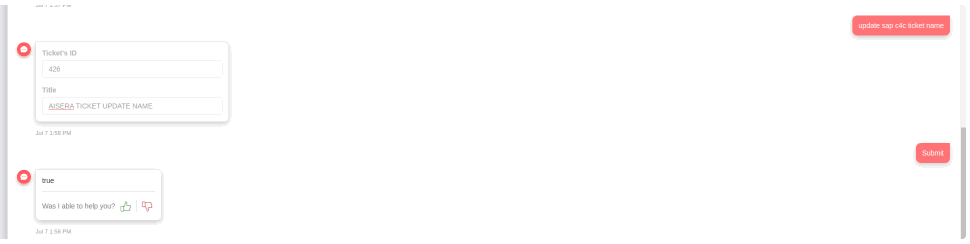
4. Update ticket’s name (subject or title of the ticket is called name in SAP C4C API)
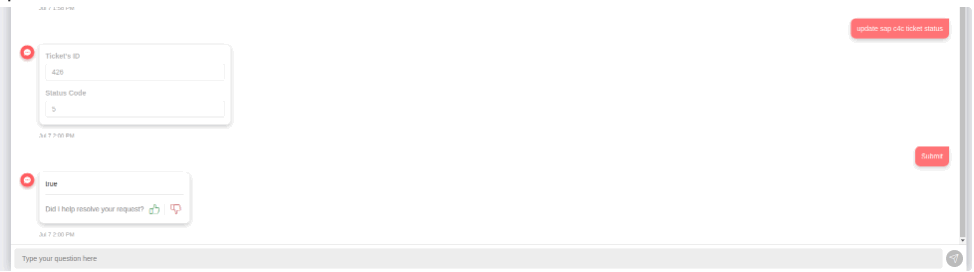
5. Update ticket’s status (e.g. to Closed)
6. Get ticket by ID
Ask your Aisera team for example JSON files that correspond to each of these flows.
### Authorization
* Basic auth requires a username and password.
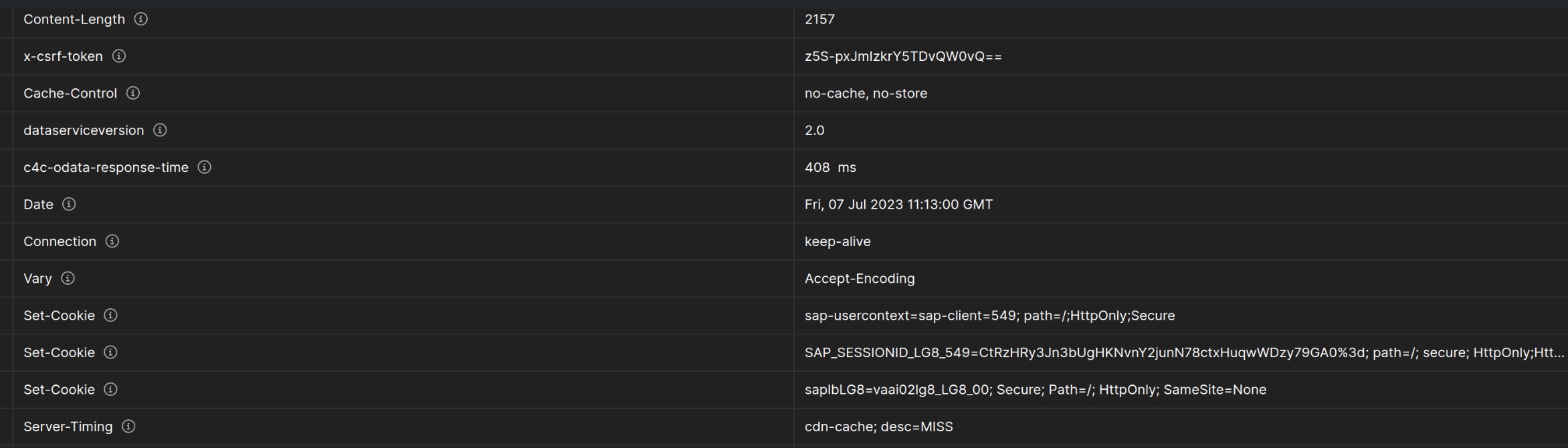
* If the x-csrf-token is enabled, you have to make a call with Basic auth and include:\
`x-csrf-token : fetch`\
in the header.\
Then use the x-csrf-token header along with Set-Cookie headers and use them as headers in succeeding calls.
* Example:\
`curl --location --request GET 'https://my363016.crm.ondemand.com/sap/c4c/odata/v1/c4codataapi/ServiceRequestCollection?$top=1' \ --header 'Accept: application/json' \ --header 'x-csrf-token: fetch' \ --header 'Authorization: Basic xxxxx'`
### Endpoints
1. GET `/ServiceRequestCollection` to list tickets.
2. POST `/ServiceRequestCollection` to create a new ticket.
3. GET `/ServiceRequestCollection?ID={ID}` to get tickets by ID.
4. PATCH `/ServiceRequestCollection('{ObjectID}')` to update a ticket by ObjectID (after getting the ticket using the ID).
### Setup Integration in Admin UI
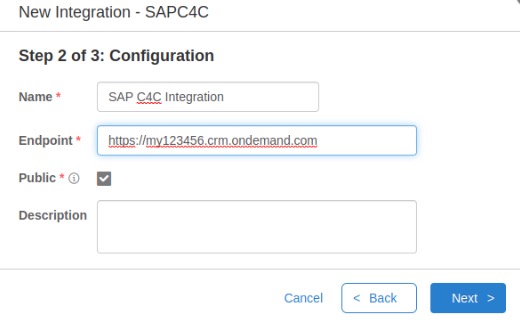
1. In the Aisera Admin UI, click **Settings > Integrations**.
2. Click the **+ New Integration** button (top right).
3. Select the **SAPC4C** icon, and click **Next**.
Add a **Name** for your C4C Integration.
4. Enter the **SAP C4C Endpoint**.\
Ensure that the endpoint is in the [https://my{ID}.crm.ondemand.com](https://my354265.crm.ondemand.com/) format.
5. If your SAP C4C implementation is not **Public**, uncheck the **Public** field.
6. Click **Next**.
7. Enter the **Username** of an SAP C4C Admin or Service User. \
This account will be logging in to the Aisera Gen AI Platform to transfer data to the Aisera temporary data storage.
8. Enter a **Password** for the Admin or Service User account.
9. Click **OK**.
### Setup Data Source in Admin UI for Ingestion of Tickets
1. In the Aisera Admin UI, click **Settings > Data Sources**.
2. Click the **+ New Integration** button (top right).
3. Select the **SAPC4C icon**, and click **Next**.
4. In the **Name** field, enter a name for the data source.
5. Select the **Integration** that you created previously.
6. In the **Schedule** field, choose **Incremental** from the pull-down menu, or choose a **Date Range**).
7. Click **Next**.
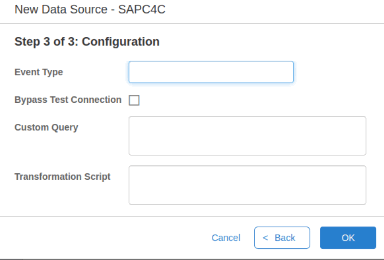
8. Leave the rest of the fields empty.
9. Add a script in the **Configuration** field of the **Overrides** window if you want to use it to transform your data.
If you have set up your system to enable a x-csrf-token, add a JSON script like the on below in the **Overrides > Configuration** field.
```
{
"xml2json": false,
"externalSystemTypeEnum": "SAPC4C",
"supportectContentTypes": [
"Request"
],
"contentTypeConfiguration": {
"Request": {
"appliesToChildren": true,
"httpContentType": "application/json",
"acceptContentType": "application/json",
"pagination": {
"type": "page",
"useIncrementalPaging": true,
"pageParam": "$skip",
"limitParam": "$top",
"defaultLimit": 1000,
"defaultOffset": 0,
"dateFormat": "yyyy-MM-dd'T'HH:mm:ss'Z'",
"parameters": [
{
"field": "$expand",
"operator": "eq",
"value": "ServiceRequestTextCollection,ServiceRequestParty"
}
],
"tableEntriesArrayPath": "d.results",
"tableEntryPath": "d.results[0]",
"isTableEntryJSONArray": false,
"retriesNo": 0,
"appendTopElement": false,
"filterConfigurations": {
"filterParameterMappers": [],
"filterConfigurations": [
{
"filterElement": "$filter",
"filterOperator": "and",
"operatorMappings": {
"eq": "eq",
"like": "eq",
"gt": "ge",
"neq": "ne",
"lt": "le"
},
"fieldMappings": {
"startDate": "LastChangeDateTime",
"endDate": "LastChangeDateTime",
"ServiceRequestLifeCycleStatusCodeText": "ServiceRequestLifeCycleStatusCodeText",
"BuyerPartyID": "BuyerPartyID",
"Name": "Name"
},
"valueMappings": {
"startDate": "datetimeoffset'{_value_}'",
"endDate": "datetimeoffset'{_value_}'",
"ServiceRequestLifeCycleStatusCodeText": "'{_value_}'",
"BuyerPartyID": "'{_value_}'",
"Name": "'{_value_}'"
},
"whitelistFields": []
}
]
},
"overrideWithDefaultLimit": false
},
"pathMappings": [
{
"path": "/sap/c4c/odata/v1/c4codataapi/ServiceRequestCollection",
"pathByKey": "/sap/c4c/odata/v1/c4codataapi/ServiceRequestCollection?ID={_key_}&$expand=ServiceRequestTextCollection,ServiceRequestParty",
"createPath": "/sap/c4c/odata/v1/c4codataapi/ServiceRequestCollection"
}
],
"supportedOperations": [
"LIST",
"GET",
"CREATE",
"UPDATE"
],
"operations": [
{
"operation": "CREATE",
"httpMethod": "post",
"headers": {},
"useFormPayload": false,
"customClose": false,
"returnGetTableEntryOnClose": false,
"customAddComment": false,
"useCreatePathInUpdate": false,
"listEntryJoltTransforms": []
},
{
"operation": "UPDATE",
"httpMethod": "patch",
"headers": {},
"pathMappings": [
{
"pathByKey": "/sap/c4c/odata/v1/c4codataapi/ServiceRequestCollection('{_key_}')"
}
],
"useFormPayload": false,
"customClose": false,
"returnGetTableEntryOnClose": false,
"customAddComment": false,
"useCreatePathInUpdate": false,
"listEntryJoltTransforms": []
}
],
"respectRequestPaginationInCount": false,
"respectEndDate": false,
"handleNullDatesConfiguration": true,
"handleDefaultDatesConfiguration": false,
"nullDateStartHoursBefore": -1000000,
"nullDateEndHoursAfter": 0,
"addElementAsArrayUnderTop": false,
"downloadFiles": false,
"timezone": "UTC",
"doNotFailOnNestedCall": false,
"isAttachment": false
}
},
"contextParameters": {},
"basicTokenAuth": false,
"startDate": true,
"endDate": true,
"tokenConfiguration": {
"tokenUri": "/sap/c4c/odata/v1/c4codataapi/ServiceRequestCollection?$top=1",
"contentType": "application/json",
"parameters": {},
"payloadParameters": {},
"tokenType": "Custom",
"tokenHeader": "x-csrf-token",
"extractCookies": true,
"authenticateWithCookiesOnly": false,
"ttl": 0,
"basicHeaderAuthorization": true,
"basicHeaderAuthorizationHeader": "Authorization",
"tokenResponseTrimHead": 0,
"tokenResponseTrimTail": 0,
"extraHeaders": {
"x-csrf-token": "fetch"
},
"extractTokenFromHeader": true,
"tokenExtractPathFromHeader": "x-csrf-token",
"requestHttpMethod": "GET"
},
"sleepOnErrors": 1000,
"retries": 10,
"rateLimitRespectNo": 0,
"rateLimitEntriesSize": 300,
"sleepOnRateLimit": 1000,
"useRemoteExecutor": false,
"timezone": "UTC",
"record": false,
"useInterval": false,
"interval": 0,
"disableFetchingServiceCatalogCategories": false,
"githubRepos": [],
"oAuth2PasswordClientClient": {
"configuration": {
"host": "tenant-server",
"port": 8088,
"apiBasePath": "/tenant-server/v1",
"connectionTimeoutInMS": 30000,
"readTimeInMS": 30000
}
},
"secondReading": false,
"hasImageProfile": true
}
```
10. If the use case for your data source is **Create Ticket Action** use the override config in the **Override Configuration for Create Ticket Action** section.
11. Click **OK**.
### Check Field Maps
After you have completed the data source configuration steps (above), the data is ingested (when you click the **OK** button) and the data source filed maps are shown at the bottom of the Data Source Details window, in the **Tickets** section.
You can edit the maps using the New Field Mapping, New Custom Field, Export Fields, and Import Fields buttons at the bottom of the Data Source Details window.
Most customers leave the default maps of the data source fields as they are. You may need to modify them for your specific use case or to resolve a data issue.
After editing the maps, you can run the data source to ingest tickets (click triangle-shaped run button on the **Data Source Details** window).
If you do not see any fields as a result of your Data Source Configuration setup, you can use the Generic connector for both the Ingestion and Data Source setups for any data source but you then need to create the field mappings yourself.
* **Create Ticket**
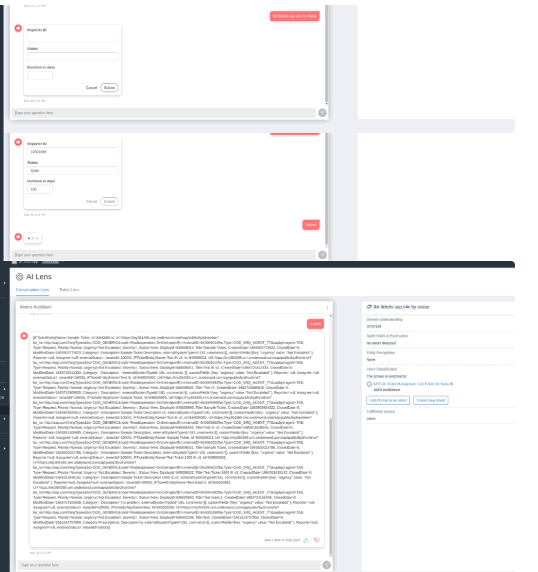
* **List Tickets by Status**\
\
**Note:** Disable **Use Ticket Status Mapping**:
\
Action screenshots from AI Lens:
* **List Tickets by Name**
* **Update the Name of a Ticket**
* **Update the Status of a Ticket**
* **Get Ticket by ID**