> For the complete documentation index, see [llms.txt](https://docs.aisera.com/llms.txt). Markdown versions of documentation pages are available by appending `.md` to page URLs; this page is available as [Markdown](https://docs.aisera.com/aisera-platform/adding-data-to-your-tenant/integrations-and-data-sources/connectors/sap-successfactors.md).
# SAP SuccessFactors
The Aisera Gen AI Platform can be connected to many pre-mapped data sources.
Connection to a specific data source is accomplished in 2 stages:
1. [**Integration**](https://docs.aisera.com/aisera-platform/adding-data-to-your-tenant/integrations-and-data-sources/connectors/sap-successfactors#set-up-an-sap-successfactor-integration)
2. [**Data Source Connection**](https://docs.aisera.com/aisera-platform/adding-data-to-your-tenant/integrations-and-data-sources/connectors/sap-successfactors#add-the-sap-successfactors-data-source)
When you complete the data source connection, the data will be ingested automatically and you will see results on the **Data Source Details** window. You can edit the mapping after reviewing the fields and then click the triangular run button at the top of the **Data Source Details** window.
If you run into problems with the mapping, you can use a **Generic Connector** instead and map the fields yourself.
## Set Up an SAP SuccessFactor Integration
1. Navigate to **Settings > Integration** in the Aisera Admin UI.
2. Click the **+ New Integration** button.
3. Enter `SAP` in the **Search** field.
4. Choose the **SAP SuccessFactors** icon.
5. Click **Next**.
6. Enter a **Name** for your Integration.
7. Select the **Public** checkbox if your SAP SuccessFactors instance is available as a public website. If it is an internal corporate tool, uncheck the Public checkbox.
8. Get the authorization information from the SAP SuccessFactors Admin and fill in the authorization fields.
9. Click the **OK** button.
10. Go to your SAP SuccessFactors Admin and ask them to get the following information for an Admin or Service Account that will log into the Aisera Gen AI Platform.
The steps your SAP SuccessFactors Admin needs to follow should be similar to the following:\
\
To obtain the **Client ID**, **Client Secret**, and **Token URL** for SAP SuccessFactors, you need to configure an OAuth 2.0 client application within the Admin Center of your SuccessFactors instance. The specific steps may vary slightly depending on your environment (e.g., OData API vs. Learning API). \
\
**To obtain the SAP SuccessFactors Client ID and Client Secr**
a. Log in to your [SAP SuccessFactors administrator account](https://help.sap.com/docs/successfactors-learning/implementing-open-content-network/generating-admin-level-system-client-secret-for-sap-successfactors-learning-system).
b. Navigate to the **Admin Center**.
c. In the Tools search field, type and select **"Manage OAuth2 Client Applications"**.
d. Click on **"Register Client Application"**.
e. Enter an **Application Name** and a valid **Application URL** (e.g., an HTTPS URL, which can be a placeholder if only API access is needed).
f. Click **"Generate X.509 Certificate"**.
g. Enter a **Common Name (CN)** in the new panel (e.g., your Company ID or application name) and click **"Generate"**.
h. Click **"Download"** to save the certificate file (`Certificate.pem`). This file contains the **private key** (client secret), and it can only be downloaded at this time.
i. Click **"Register"** to finalize the application registration.
j. Return to the main **"Manage OAuth2 Client Applications"** page and click **"Edit"** for the application you just created.
k. The **API Key** displayed is your **Client ID**.
l. Open the downloaded `Certificate.pem` file in a text editor. The string between `-----BEGIN ENCRYPTED PRIVATE KEY-----` and `-----END ENCRYPTED PRIVATE KEY-----` is your **Client Secret** (private key).
**To obtain the SAP SuccessFactors Token URL:** \
\
The Token URL follows a standard format based on your SAP SuccessFactors API server URL.
a. **Identify your API server URL/root URL**. You can find the correct URL for your specific data center/environment in the [SAP API documentation](https://help.sap.com/docs/successfactors-platform/sap-successfactors-api-reference-guide-odata-v4/authentication-using-oauth-2-0) or by contacting your SAP support team.
b.Append `/oauth/token` to your API server URL to get the full **Token URL**.
* **Example Token URL format:** `https:///oauth/token` (e.g., `apisalesdemo8.successfactors.com`). \
\
You now have all the necessary credentials to request an access token using the OAuth 2.0 client credentials flow, as outlined in the [SAP Help Portal documentation for obtaining an OAuth token](https://help.sap.com/docs/successfactors-learning/implementing-open-content-network/obtaining-oauth-token).
11. Click **OK**.
## Add the SAP SuccessFactors Data Source
Now that you have an Integration with the authorization set up, you can add the SAP SuccessFactors Data Source.
**To add an SAP SuccessFactors Data Source:**
1. Navigate to **Settings > Data Sources** in the Aisera Admin UI.
2. Enter `SAP` in the **Search** field.
3. Choose the **SAP SuccessFactors icon**.
4. Enter a **Name** for your data source.
5. SuccessFactors supports ingestion of **User** data and **Event** data. Select the option for learning from **User** data or learning from **Event** data (or both). Your choices will determine the configuration options that are added to the window.
6. Choose the **Integration** that you created in the Integration section.
7. If you selected **Event Trigger**, you need to choose a **Data Type**.
8. Set a **Schedule** for the ongoing data ingestion.
9. Add the **Public Domain** if your SAP SuccessFactors application is publicly available.
10. Enter an optional **Description**.
11. Click **Next**.
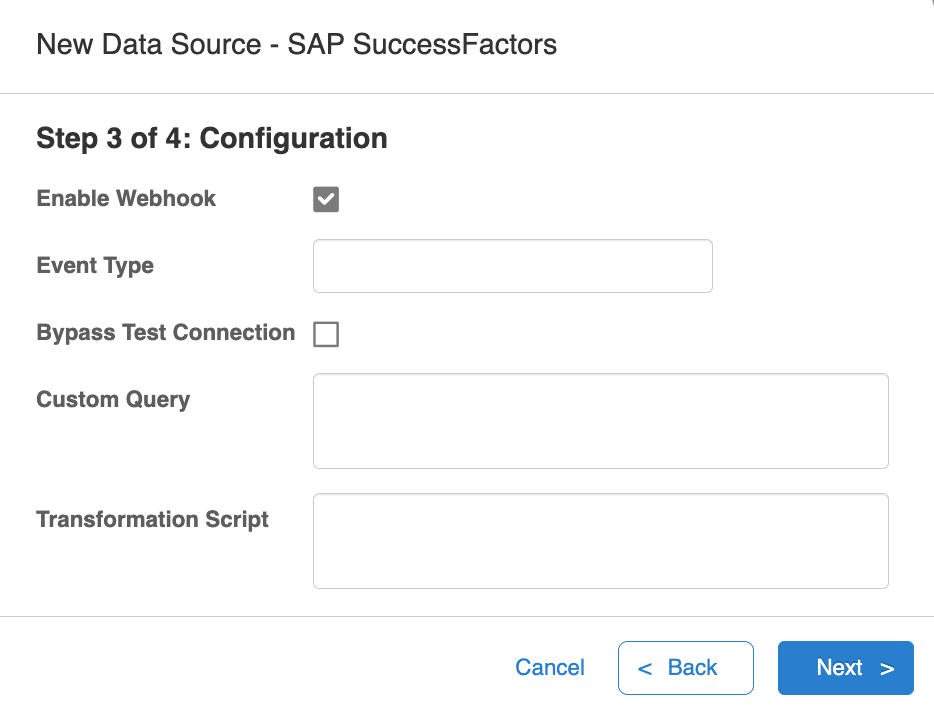
12. The rest of the configuration parameters are optional.
13. Add an **Event Type** if you chose Event Learning as a data source function.
14. Enter a **Custom Query** or **Transformation Script** if you want to specify how the data is ingested.
15. Click **Next**.