# 8x8 Live Agent

The 8x8 platform provides Unified Communications as a Service (UCaaS) and Contact Center as a Service (CCaaS) capability. This topic describes how to setup 8X8 Live Agent for an Aisera bot. \
**NOTE:** You may need to enable the corresponding intents or flows using the [**AI Workflow Studio**](https://docs.aisera.com/aisera-platform/ai-automation-optimize-flow/ai-workflow-studio) and [**Workflow to Enable a Live Agent**](https://docs.aisera.com/aisera-platform/ai-automation-optimize-flow/ai-workflow-studio/workflow-to-enable-a-live-agent).

## Prerequisites

Ask the customer for the following information before you begin:

1. 8X8 API Endpoint URL
   1. The 8x8 API endpoint for REST calls
2. 8X8 Account Credentials:
   1. Username
   2. Password
   3. API key
   4. Queue id
3. Type of authentication used with your 8x8 System

Before you can [integrate the Aisera](https://aisera.com/integrations/) Gen AI platform with your 8x8 System, you need to create an Aisera Service Account user.&#x20;

## Create an Aisera Service User

Create a service account user that can log into your 8x8 system. This user only needs Read permissions (with Export ability) to transfer data to the Aisera platform DB. If you plan to use Ticket Concierge, Knowledge Generation, or other features that write back to your 8x8 system, this user will need Read/Write permission (with Import/Export ability).\
\
This user does not need Execute or Delete permissions because all Aisera operations will be performed, tracked, and logged in the Aisera cloud.

## Using the Aisera Admin UI

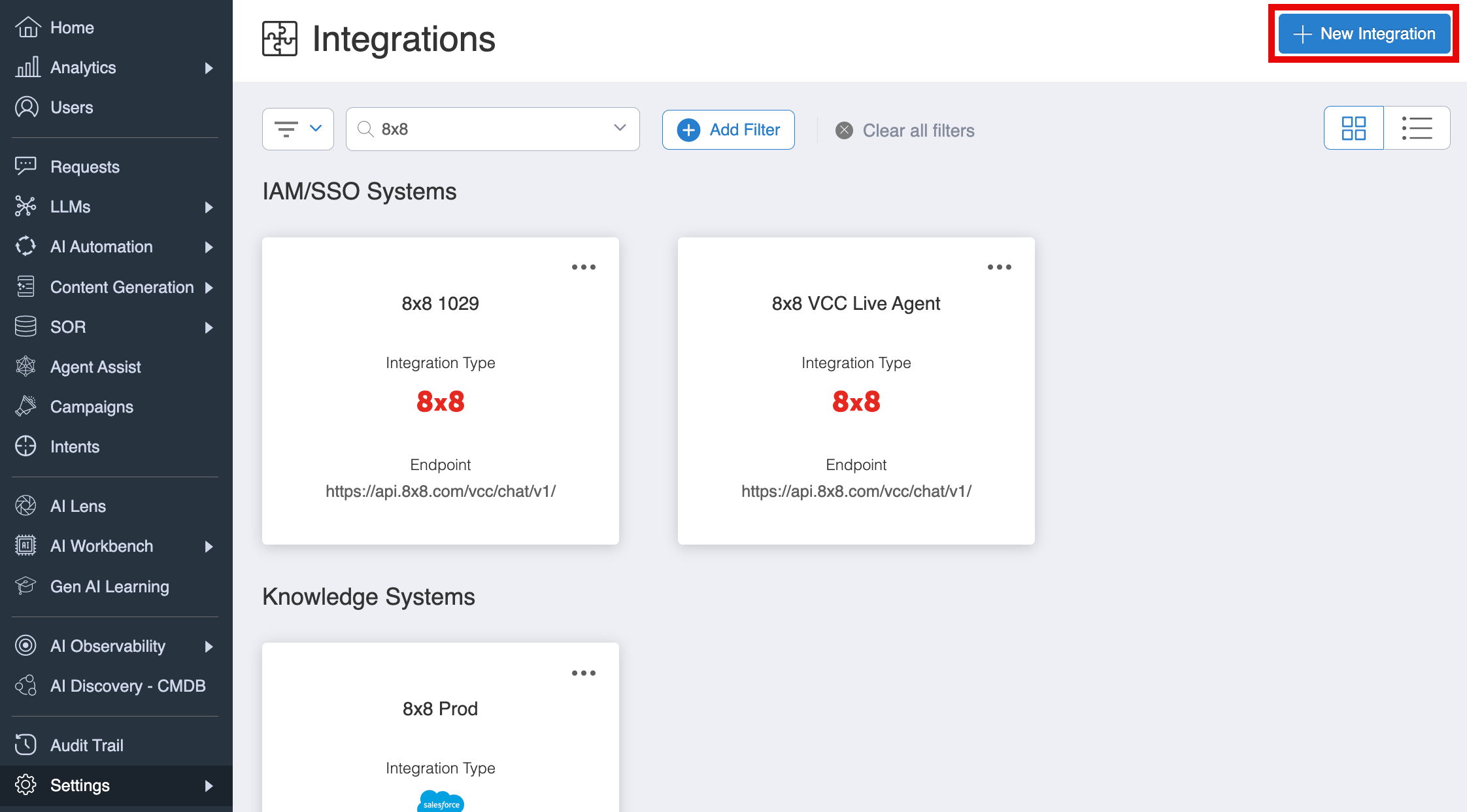
1. In the Aisera Administration Application, navigate to **Settings > Integration**.
2. Choose the **+ New Integration** button.

<div align="left"><figure><img src="https://3281977978-files.gitbook.io/~/files/v0/b/gitbook-x-prod.appspot.com/o/spaces%2FvBFXjH9S1CAy9f5hzg5Q%2Fuploads%2FMdMWsgXgxyF2HlrUSUfA%2Fnew_integration.png?alt=media&#x26;token=ee571c92-8de3-4030-ab5e-28c350101fc7" alt="" width="563"><figcaption><p>New Integration Button</p></figcaption></figure></div>

3. Enter `8x8` into the search field and select the **8x8 icon**.

<figure><img src="https://3281977978-files.gitbook.io/~/files/v0/b/gitbook-x-prod.appspot.com/o/spaces%2FvBFXjH9S1CAy9f5hzg5Q%2Fuploads%2FaFp4hcBI9gRwutMUiCT2%2Finteg88.png?alt=media&#x26;token=70b62ae6-8f4f-4e56-82e4-03e16b6b3494" alt=""><figcaption><p>Select 8x8 Integration Icon</p></figcaption></figure>

4. There are two parts to the Integration credentials.
   1. Set the Configuration parameters for the **Integration**.

<div align="left"><figure><img src="https://3281977978-files.gitbook.io/~/files/v0/b/gitbook-x-prod.appspot.com/o/spaces%2FvBFXjH9S1CAy9f5hzg5Q%2Fuploads%2FklW4XEYz22yTdT8THGOx%2F88_config.png?alt=media&#x26;token=0c20e70f-e734-4ee9-b26c-0fd9e468a953" alt="" width="563"><figcaption><p>Add System Endpoint and Name the Integration</p></figcaption></figure></div>

where:

<table><thead><tr><th width="171">Parameter</th><th>Description</th></tr></thead><tbody><tr><td>Name</td><td>Enter a name for your integration.</td></tr><tr><td>Endpoint</td><td>Add the endpoint of your 8x8 System<br>Example: https://api.8x8.com/abc/chat/v1/</td></tr><tr><td>Public</td><td>Check the box if your endpoint is publicly available</td></tr><tr><td>Description</td><td>Optional. Enter a description of your integration.</td></tr></tbody></table>

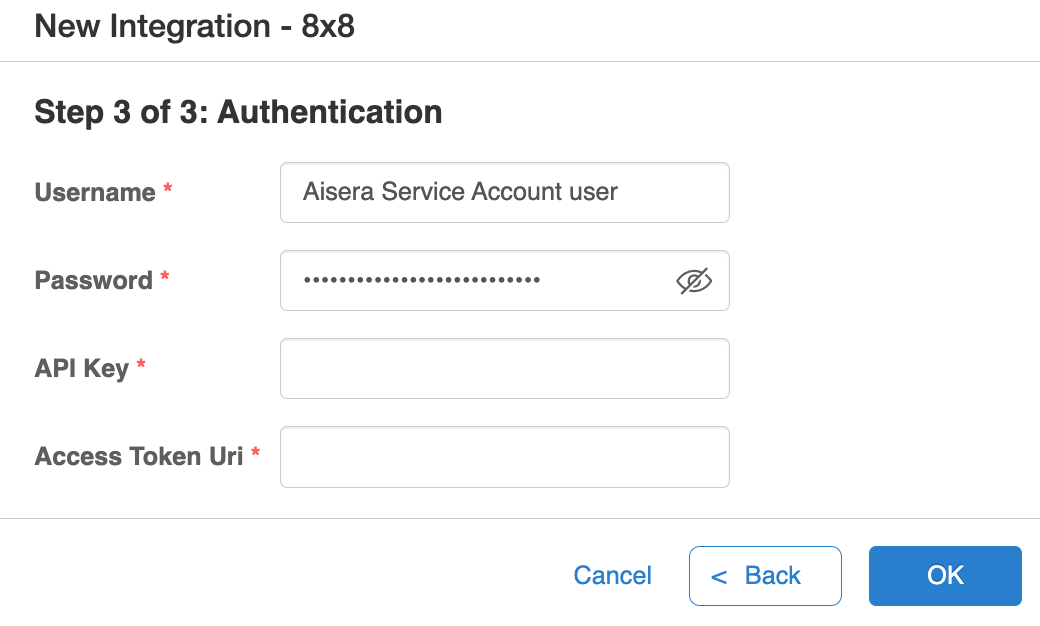
b. Set the Configuration parameters for the **Authorization**.

<figure><img src="https://3281977978-files.gitbook.io/~/files/v0/b/gitbook-x-prod.appspot.com/o/spaces%2FvBFXjH9S1CAy9f5hzg5Q%2Fuploads%2FFx9osYo8OzGIBaU31uuV%2F88service.png?alt=media&#x26;token=61716a61-c3e8-4984-ab5f-c337579da5d7" alt=""><figcaption><p>Aisera Service Account Authorization Credentials</p></figcaption></figure>

where:

<table><thead><tr><th width="193">Parameter</th><th>Description</th></tr></thead><tbody><tr><td>Username</td><td>The name of your Aisera Service Account user.</td></tr><tr><td>Password</td><td>Add the password of your Aisera Service Account user</td></tr><tr><td>API Key</td><td>Enter the API Key</td></tr><tr><td>Access Token URL</td><td>Enter the Access Token URL</td></tr></tbody></table>

5. After you create the integration, you will see the `App Token` created for the integration. Copy it down to use later.

<figure><img src="https://3281977978-files.gitbook.io/~/files/v0/b/gitbook-x-prod.appspot.com/o/spaces%2FvBFXjH9S1CAy9f5hzg5Q%2Fuploads%2FOPyrfDbDCthhoWMsl6D6%2F88_token.png?alt=media&#x26;token=489b1cee-e1aa-4865-9379-438806b52b70" alt=""><figcaption><p>Your 8x8 App Token</p></figcaption></figure>

6. Add your new integration to an Aisera app (bot).\
   If you haven't created an Aisera bot yet, see [**How to Set Up AiseraGPT**](https://app.gitbook.com/s/ksUDWGr9UTfOpa53PosP/how-to-set-up-an-aiseragpt-bot).\
   \
   If you have an existing bot, select it using **Settings > AiseraGPT**. Search for and choose your existing application. When you open the application, the application **Details** window displays.
7. Scroll down and select the **Live Agent** button.

<figure><img src="https://3281977978-files.gitbook.io/~/files/v0/b/gitbook-x-prod.appspot.com/o/spaces%2FvBFXjH9S1CAy9f5hzg5Q%2Fuploads%2Fk7XCpJ5DD7BWxIivM0R8%2Flive_agent.png?alt=media&#x26;token=7a880527-643c-4e53-a7e5-ffb9f74876ba" alt=""><figcaption><p>Select the + Add Live Agent Button</p></figcaption></figure>

8. Select your application from the resulting list.

<div align="left"><figure><img src="https://3281977978-files.gitbook.io/~/files/v0/b/gitbook-x-prod.appspot.com/o/spaces%2FvBFXjH9S1CAy9f5hzg5Q%2Fuploads%2FZqcRgIvErFjTrnZYogB7%2F88_add_live_agent.png?alt=media&#x26;token=f3b45da5-1523-4665-beb0-057f566c66f8" alt="" width="563"><figcaption><p>Add the Queue ID</p></figcaption></figure></div>

9. Add the Queue ID that you want to use from your 8x8 System.
10. Click **OK**.\
    **Note: When you click** `OK`, the Aisera Gen AI platform registers with your 8X8 System and receives a `channelId` from the 8X8 System. This `channelId` is saved in the Aisera temporary DB. \
    \
    Please contact your Aisera support team to get this `channelId` for the setup on 8X8 System. The Aisera team can look up the server query to retrieve the Channel\_Id value in their Implementation Guide.<br>
11. Copy the `channelId` for your records.

## Tasks for 8x8 System Administrators

On the 8x8 System server, the correct `appToken` and `authorization token` should be appended as Http Headers to the requests from the 8X8 System to the Aisera Gen AI platform.

```
Headers
{
"x-app-token":"<app Token>",
"Authorization": "Bearer <authorization token>"
}
```

Using the auth token from the 8x8 database, execute a GET request against the 8x8 Chat API endpoint to review the webhook registered by comparing the `channelID` value from the database.

**NOTE:** There might be a need to update the registered webhook to reflect an 8x8 load balancer custom domain.

When the 8X8 System load balancer sends callback requests to the Aisera Gen AI platform, they need to append the 2 headers above to the requests.&#x20;

Please note: all the api endpoints below use the tenant-specific api end points, rather than cluster api, for example

```
https://<tenant_name>.api.aisera.cloud
```

### The Aisera Callback Endpoint <a href="#the-aisera-callback-endpoint" id="the-aisera-callback-endpoint"></a>

POST `<tenant-specific-api>/v1/liveAgent/receiveMessage`\
\
Add the two following headers to the Aisera callback endpoint.

**1. app token header**

**NOTE:** the app token is different for each integration. See Step #3 above for instructions on retrieving the App Token.

**2. Authorization Header**

**NOTE:** This is a **Bearer** token, that you need to get from the Aisera Oauth URL.\
\
**a) Access Token End point**

POST `<tenant-specific-api>/tenant-users/oauth2/token`

Content-Type: application/x-www-form-urlencoded

**Body (required)**

```
{
  "grant_type": "password",
  "username": "<tenant login username>",
  "password": "<tenant login password>",
  "clientid": "<aisera app token, you can find in #1 part>"
}
```

**Response**

```
{
    "access_token": "",
    "refresh_token": "",
    "values": {
        "access_token": "",
        "refresh_token": "",
        "token_type": "bearer",
        "expires_in": 3600
    },
    "token_type": "bearer",
    "expires_in": 3600
}
```

**b) Refresh Token End point**

POST `<tenant-specific-api>/tenant-users/oauth2/token`

Content-Type: application/x-www-form-urlencoded

**Body(required)**

```
{
  "grant_type": "refresh_token",
  "refresh_token": "<the refresh token you get from access token endpoint>",
  "clientid": "<aisera app token, in #1>"
}
```