# JDBC Connectors

Your customers may want to ingest some of the data for their Aisera integration directly from a database. For instance, if your customer has a large amount of user data.\
\
Other example use cases include:

* Spinning up a **MySQL database** on Railway for integration testing
* Testing a **PostgreSQL query** using Neon with sample data
* Evaluating schema design in a **MariaDB** instance without local setup

Choose JDBC options to integrate a database directly to your Aisera Gen AI platform. The JDBC Connectors can connect via any JDBC driver to a database and then ingest data to your Aisera Gen AI platform.

<div align="left"><figure><img src="https://lh7-rt.googleusercontent.com/docsz/AD_4nXdCMIYSOEoOoiTngyl30Hg2RhzxQCjzNMeDK1u2e34tssHzE_WCLVdjiCdj5-Tu7YQpcapiXV8bBX9ONfncLB7EhbfOQxGWWjQ5cebuNqyuVK6v8lKXDkZN1BOuDLhl8ph9HNUOgRiVIG8Ug8Pna-M?key=EChe1NSNf326GRekwfP5cA" alt="" width="563"><figcaption><p>JDBC Data Sources</p></figcaption></figure></div>

The Aisera Gen AI platform supports the following JDBC connections:

* Amazon Redshift
* Snowflake
* Trino
* MySQL
* MariaDB
* PostgreSQL

Like all Aisera connectors, you need to first create an Integration between the JDBC connector and your Aisera Gen AI platform Tenant and then create a Data Source using that Integration.

A  JDBC Connector can ingest data which correspond to the supported Aisera Entities, such as:

* Users
* Articles
* Tickets

It is a best practice to create an Aisera Service User to connect to your data source. This user needs Read permission and login credentials for the database.\
\
After you’ve created the connection for your Tenant, you can create an application/bot to associate with this Data Source.

## Setup Integration Parameters

The following screenshots describe how to set up some of these JDBC connections.

### Snowflake Integration

In Authentication Tab :

* Username (user to connect to db - needs read access)
* Password (password to connect to db)
* URL (example: `a801.east-us-6.azure.mysnowflake.com` )

<div align="left"><figure><img src="https://3281977978-files.gitbook.io/~/files/v0/b/gitbook-x-prod.appspot.com/o/spaces%2FvBFXjH9S1CAy9f5hzg5Q%2Fuploads%2Ff7E6eVLay85kIbGfbKad%2Fj1.png?alt=media&#x26;token=c70856fb-a995-4c31-8894-e0de97a908c1" alt="" width="563"><figcaption><p>Snowflake Integration</p></figcaption></figure></div>

### Redshift Integration <a href="#redshift-integration" id="redshift-integration"></a>

In Configuration Tab :

* Endpoint (example: `localhost:5439/your_db`)

In Authentication Tab :

* Username (user to connect to db - needs read access)
* Password (password to connect to db)

<div align="left"><figure><img src="https://3281977978-files.gitbook.io/~/files/v0/b/gitbook-x-prod.appspot.com/o/spaces%2FvBFXjH9S1CAy9f5hzg5Q%2Fuploads%2FYWCemyv3cBHP7hxjFgaR%2Fj2.png?alt=media&#x26;token=4b94a02b-a478-4e37-bbec-4509f922fec3" alt="" width="563"><figcaption><p>Reshift Integration</p></figcaption></figure></div>

<div align="left"><figure><img src="https://3281977978-files.gitbook.io/~/files/v0/b/gitbook-x-prod.appspot.com/o/spaces%2FvBFXjH9S1CAy9f5hzg5Q%2Fuploads%2FAqklXtSsq5mO8AT3e88Q%2FJ3.png?alt=media&#x26;token=bb6b153c-95c2-4c3e-95d2-dd59377afc43" alt="" width="563"><figcaption><p>Redshift Authentication</p></figcaption></figure></div>

### Trino Integration <a href="#trino-integration" id="trino-integration"></a>

In Configuration Tab :

* Endpoint host:port/catalog/schema (example: `localhost:443/catalog/myschema`)

In Authentication Tab :

* Username (user to connect to db - needs read access)
* Password (password to connect to db)

<div align="left"><figure><img src="https://3281977978-files.gitbook.io/~/files/v0/b/gitbook-x-prod.appspot.com/o/spaces%2FvBFXjH9S1CAy9f5hzg5Q%2Fuploads%2FJXS2ZJJqtno6SModGk3f%2FJ4.png?alt=media&#x26;token=95b45290-80a6-4572-a272-4a9ac93268da" alt="" width="563"><figcaption><p>Trino Integration Parameters</p></figcaption></figure></div>

<div align="left"><figure><img src="https://3281977978-files.gitbook.io/~/files/v0/b/gitbook-x-prod.appspot.com/o/spaces%2FvBFXjH9S1CAy9f5hzg5Q%2Fuploads%2FNP8DaPpv8CRlHs7hMgUv%2FJ5.png?alt=media&#x26;token=34b13cc7-a943-4aeb-86bb-c1480dc094ef" alt="" width="563"><figcaption><p>Trino Integration Credentials</p></figcaption></figure></div>

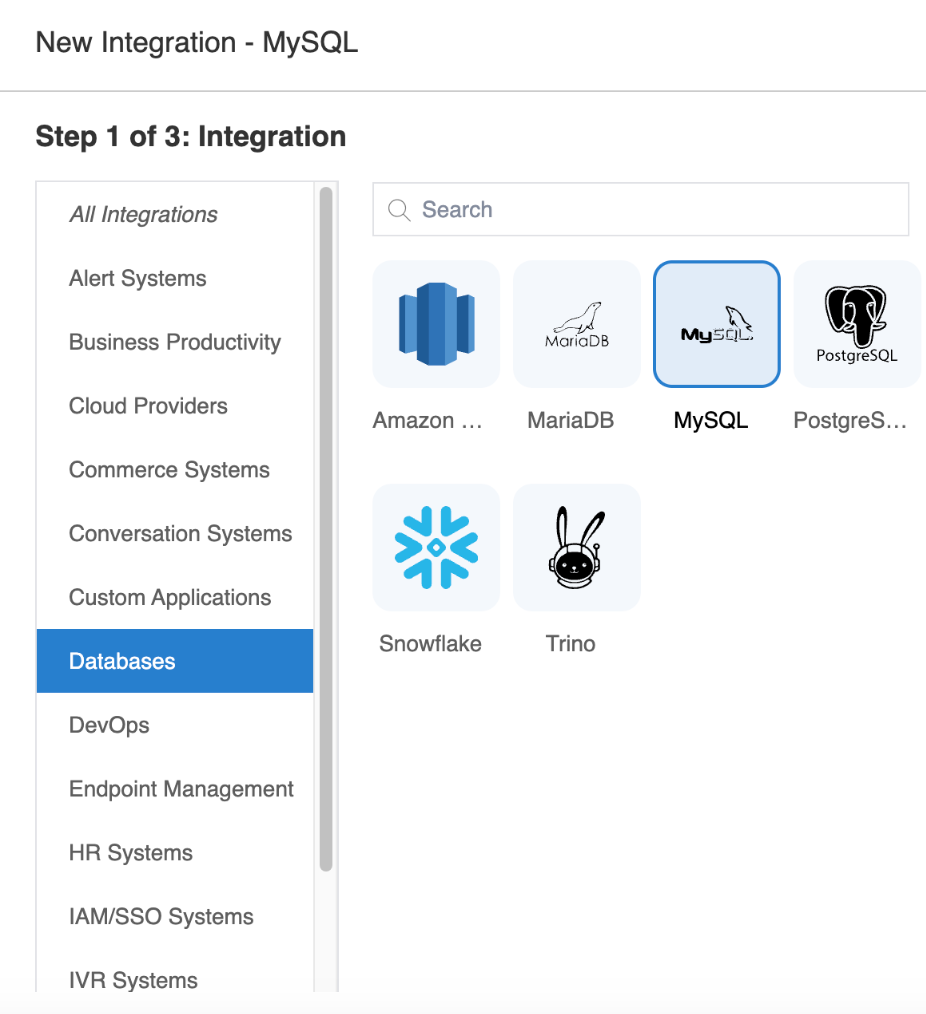
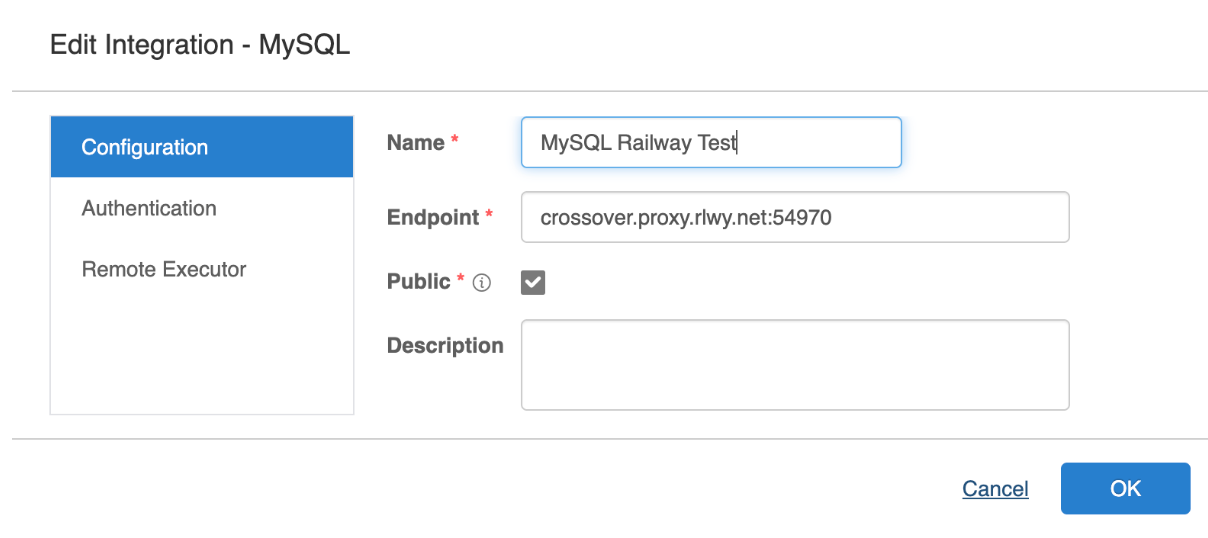
### MySQL Integration <a href="#mysql-integration" id="mysql-integration"></a>

In Configuration Tab :

* Endpoint host:port

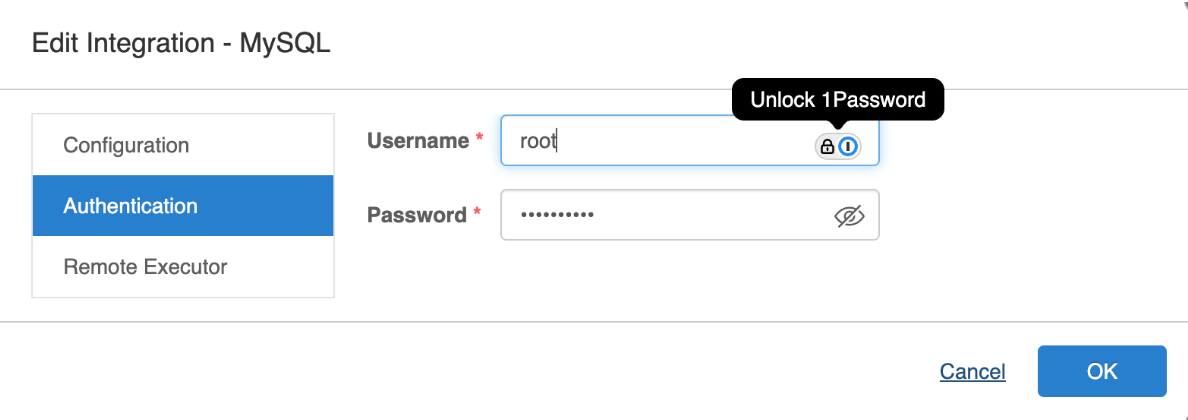
In Authentication Tab :

* Username (user to connect to db - needs read access)
* Password (password to connect to db)

<div align="left"><figure><img src="https://3281977978-files.gitbook.io/~/files/v0/b/gitbook-x-prod.appspot.com/o/spaces%2FvBFXjH9S1CAy9f5hzg5Q%2Fuploads%2FAlhzVrnJUIJZe5IbA2HI%2Fmysql1.png?alt=media&#x26;token=47dcf7ac-b8b0-419e-807d-d2e1e067083f" alt="" width="563"><figcaption><p>MySQL Integration</p></figcaption></figure></div>

<div align="left"><figure><img src="https://3281977978-files.gitbook.io/~/files/v0/b/gitbook-x-prod.appspot.com/o/spaces%2FvBFXjH9S1CAy9f5hzg5Q%2Fuploads%2Fj2xH1pVXP4slzmNun6Vl%2Fmysql3.png?alt=media&#x26;token=8c46a693-8431-4737-8c01-3480a3b99e2f" alt="" width="563"><figcaption><p>Integration - MySQL</p></figcaption></figure></div>

<div align="left"><figure><img src="https://3281977978-files.gitbook.io/~/files/v0/b/gitbook-x-prod.appspot.com/o/spaces%2FvBFXjH9S1CAy9f5hzg5Q%2Fuploads%2Fg4MgVOfp9SJ9KkzyoKWn%2Fmysql4.png?alt=media&#x26;token=4e83f88d-93ba-4fac-ab52-030a8a160f3c" alt="" width="563"><figcaption><p>User Credentials for MySQL</p></figcaption></figure></div>

<div align="left"><figure><img src="https://3281977978-files.gitbook.io/~/files/v0/b/gitbook-x-prod.appspot.com/o/spaces%2FvBFXjH9S1CAy9f5hzg5Q%2Fuploads%2FySe30RZvqmsfNL9qa3nW%2Fmysql1.png?alt=media&#x26;token=bfcd049d-72da-488c-8763-1c8da029243e" alt="" width="563"><figcaption><p>MySQL Integration</p></figcaption></figure></div>

<div align="left"><figure><img src="https://3281977978-files.gitbook.io/~/files/v0/b/gitbook-x-prod.appspot.com/o/spaces%2FvBFXjH9S1CAy9f5hzg5Q%2Fuploads%2FUNfL6UUqJo9ftaFtTP44%2Fmysql3.png?alt=media&#x26;token=1b438411-fb3e-402e-8fe3-d746121aaa8a" alt="" width="563"><figcaption><p>Name and Endpoint (MySQL instance)</p></figcaption></figure></div>

<div align="left"><figure><img src="https://3281977978-files.gitbook.io/~/files/v0/b/gitbook-x-prod.appspot.com/o/spaces%2FvBFXjH9S1CAy9f5hzg5Q%2Fuploads%2FB97cTqkrUdWPHzK1odf6%2Fmysql4.png?alt=media&#x26;token=6a13d966-0c41-4a26-98ab-00fb64c1d129" alt="" width="563"><figcaption><p>Authentication with 1Possword</p></figcaption></figure></div>

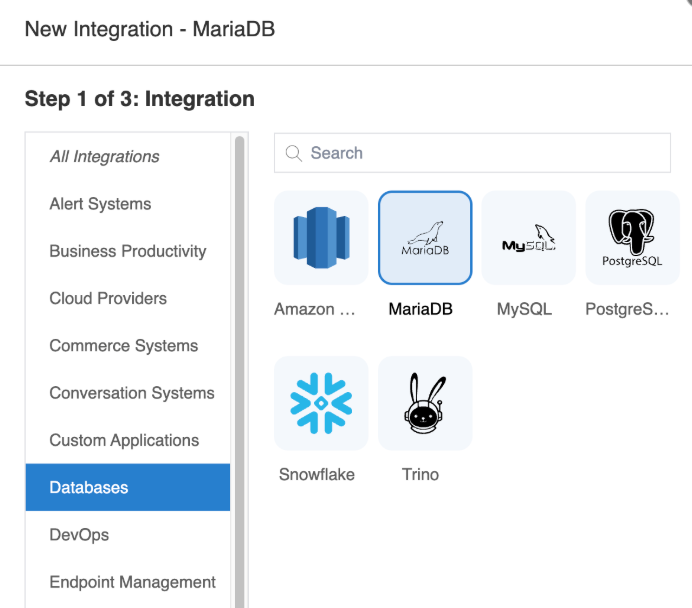
### MariaDB Integration <a href="#mariadb-integration" id="mariadb-integration"></a>

In Configuration Tab :

* Endpoint host:port

In Authentication Tab :

* Username (user to connect to db - needs read access)
* Password (password to connect to db)

<div align="left"><figure><img src="https://3281977978-files.gitbook.io/~/files/v0/b/gitbook-x-prod.appspot.com/o/spaces%2FvBFXjH9S1CAy9f5hzg5Q%2Fuploads%2FRPtDt7tGfTabHVXHOCEB%2Fmariadb1.png?alt=media&#x26;token=a29e335e-d993-44a4-ae2e-1ca15b44c269" alt="" width="519"><figcaption><p>Maria DB Integration</p></figcaption></figure></div>

<div align="left"><figure><img src="https://3281977978-files.gitbook.io/~/files/v0/b/gitbook-x-prod.appspot.com/o/spaces%2FvBFXjH9S1CAy9f5hzg5Q%2Fuploads%2FduxhSEWvxFjySUxFEThS%2Fmariadb1.png?alt=media&#x26;token=60a2a5e6-92aa-42f3-9814-d6ccdd524251" alt="" width="519"><figcaption></figcaption></figure></div>

### PostgreSQL Integration <a href="#postgresql-integration" id="postgresql-integration"></a>

In Configuration Tab :

* Endpoint host:port

In Authentication Tab :

* Username (user to connect to db - needs read access)
* Password (password to connect to db)

<div align="left"><figure><img src="https://3281977978-files.gitbook.io/~/files/v0/b/gitbook-x-prod.appspot.com/o/spaces%2FvBFXjH9S1CAy9f5hzg5Q%2Fuploads%2FRBaQQKN53CAloYtwQWF9%2FpostgreSQL1.png?alt=media&#x26;token=f41a7c78-1c7b-426c-95a4-3c184afcf0b0" alt="" width="563"><figcaption><p>PostgreSQL Integration</p></figcaption></figure></div>

<div align="left"><figure><img src="https://3281977978-files.gitbook.io/~/files/v0/b/gitbook-x-prod.appspot.com/o/spaces%2FvBFXjH9S1CAy9f5hzg5Q%2Fuploads%2FNLBlNOLyafJkSLY6nJfX%2FpostgreSQL1.png?alt=media&#x26;token=f2b98d57-028d-4284-b215-c2187e35773e" alt="" width="375"><figcaption><p>PostgreSQL connector</p></figcaption></figure></div>

## Setup the Data Source <a href="#setup-the-data-source-to-ingest-data" id="setup-the-data-source-to-ingest-data"></a>

1. Click  **+ New Data Source**.
2. Select **JDBC**.
3. Create a **Name**, Select data source **Functions** (such as, for ingesting Users > LearnUsers) and choose a **Schedule.**

<div align="left"><figure><img src="https://3281977978-files.gitbook.io/~/files/v0/b/gitbook-x-prod.appspot.com/o/spaces%2FvBFXjH9S1CAy9f5hzg5Q%2Fuploads%2FDNG8hCpWcLS5ju8asPb7%2Fedit_jdbc.png?alt=media&#x26;token=01c99a80-c401-4049-9207-623f8273a6ad" alt="" width="563"><figcaption><p>Edit the JDBC Data Source</p></figcaption></figure></div>

5. Change to the **Configuration** tab.
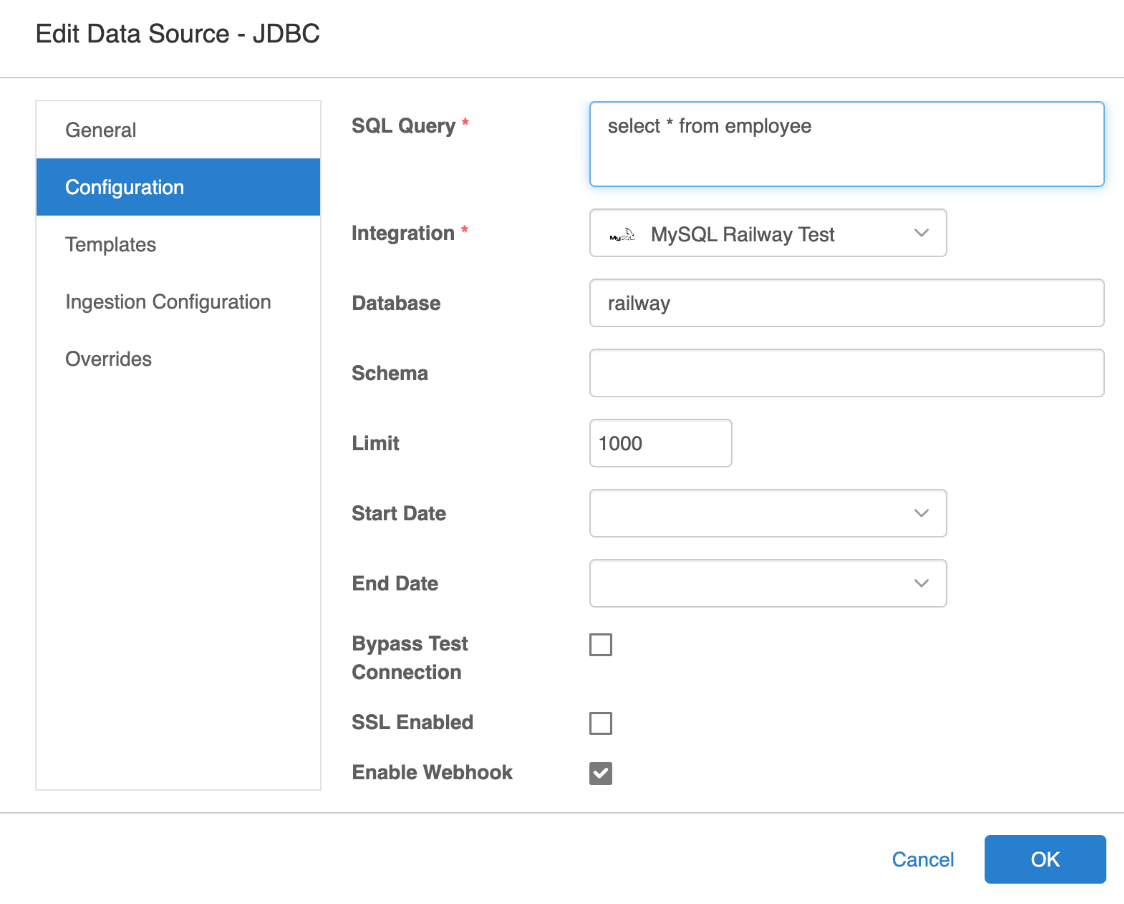
6. Type the **SQL Query** and Select the **Integration**.

* **SNOWFLAKE EXAMPLE**\
  `database.schema.table`

&#x20;     (you need to replace in the query)

* database
* schema
* table

<figure><img src="https://3281977978-files.gitbook.io/~/files/v0/b/gitbook-x-prod.appspot.com/o/spaces%2FvBFXjH9S1CAy9f5hzg5Q%2Fuploads%2FyKaROGxfEEiUVMoGR2YQ%2Fedit_jdbc2.png?alt=media&#x26;token=9392913b-5c47-4952-89cd-2f5dff204236" alt=""><figcaption><p>Snowflake Data Source</p></figcaption></figure>

* **REDSHIFT EXAMPLE**

<div align="left"><figure><img src="https://3281977978-files.gitbook.io/~/files/v0/b/gitbook-x-prod.appspot.com/o/spaces%2FvBFXjH9S1CAy9f5hzg5Q%2Fuploads%2F1nF3scdezRNqgWTJx1NZ%2Fredshift1.png?alt=media&#x26;token=3b61b254-4d98-4e66-aaa0-84d92f2fa589" alt="" width="563"><figcaption><p>Redshift Configuration</p></figcaption></figure></div>

* **TRINO EXAMPLE**

<figure><img src="https://3281977978-files.gitbook.io/~/files/v0/b/gitbook-x-prod.appspot.com/o/spaces%2FvBFXjH9S1CAy9f5hzg5Q%2Fuploads%2FHq2BzsuB0WBwVquV4uFB%2Ftrino1.png?alt=media&#x26;token=da5049c5-c7f4-4c61-8735-6deeee200384" alt=""><figcaption><p>Trino Example</p></figcaption></figure>

* **MYSQL EXAMPLE**

<figure><img src="https://3281977978-files.gitbook.io/~/files/v0/b/gitbook-x-prod.appspot.com/o/spaces%2FvBFXjH9S1CAy9f5hzg5Q%2Fuploads%2Fc8ZuGI6YOkWf4dZEIVd3%2Fmysql_again.png?alt=media&#x26;token=12f82f34-4394-4991-aa33-d78edf08ef7a" alt=""><figcaption><p>MySQL Example</p></figcaption></figure>

* **POSTGRESQL EXAMPLE**

<figure><img src="https://3281977978-files.gitbook.io/~/files/v0/b/gitbook-x-prod.appspot.com/o/spaces%2FvBFXjH9S1CAy9f5hzg5Q%2Fuploads%2FcMlXHcLtu2D2dHWrdSBP%2Fpostgres_again.png?alt=media&#x26;token=49cf3381-2944-45b6-b772-a39f70393641" alt=""><figcaption><p>PostgreSQL Example</p></figcaption></figure>

Use the Limit field to paginate the requests that you send to the database. For instance, set the limit to 500 if you want to retrieve the first 500 users and then the next 500 users. If you have set a Limit value, then you should not also include a Limit clause in the SQL Query.

Use the **Start Date** and **End Date** fields to define a range, such as:

`select * from students where ADMISSION_DATE between {_startDate_} and {_endDate_}`

Only use the **Database** field if the SQL Query calls a table from a different database than the one you have defined in the integration.

## Mapping Fields <a href="#mappings" id="mappings"></a>

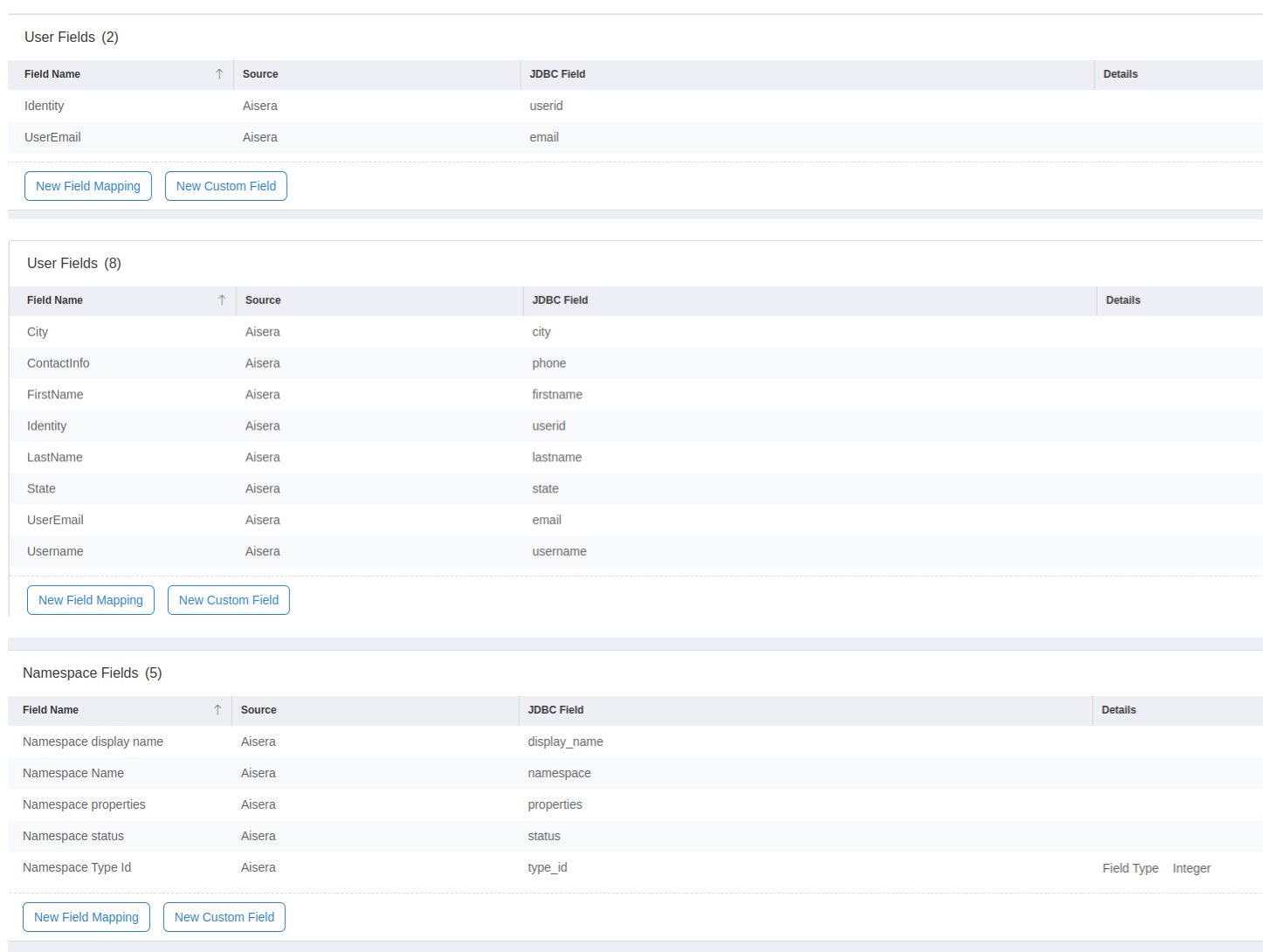
You need to manually define the mappings for each data source based on the columns from the table with the data you want to ingest, and the Aisera entity you want to map to each column.

### Examples

<figure><img src="https://3281977978-files.gitbook.io/~/files/v0/b/gitbook-x-prod.appspot.com/o/spaces%2FvBFXjH9S1CAy9f5hzg5Q%2Fuploads%2F4LoulyUU5QD5NEWq1rup%2Ffield_mapping_new.png?alt=media&#x26;token=1c39b7e6-a8c7-40cb-aa83-d90f460acd10" alt=""><figcaption><p>Examples of field mapping in the Data Source Details window</p></figcaption></figure>