# Salesforce

Salesforce is a very rich data source for Cases, and Knowledge Base entries. Its data model is quite rich and is most dynamic and highly customizable from instance to instance, making it one of the most complex and comprehensive connectors for Aisera (in terms of functionality).

Aisera Salesforce connector extracts and/or creates data on a Salesforce instance. The data extracted corresponds to the cases (tickets) on SF service cloud, and Knowledge Articles in Knowledge Base in SF service cloud. Similarly, the data created corresponds to new cases (Tickets) on SF instances.

### **Salesforce Data Model**

The following pull connector functionality is available with Salesforce integration. This includes support for the Salesforce default **Case** and **Knowledge Base** objects.

The following Salesforce data is mapped by the integration:

1. **Case Object**
   1. **Case Entity:** `Id`, `OwnerId`, `CaseNumber`, `Status,` `Subject`, `Priority, Description`
   2. **CaseComments Entity:** `Id`, `CommentBody` From CaseComments
   3. **Case Entity**: `Id`, `OwnerId`, `CaseNumber`, `Status`, `Subject`, `Priority`, `Description`
   4. **CaseComments Entity**: `Id`, `CommentBody` From CaseComments
2. **Knowledge Base Object**
   1. **KnowledgeArticleVersion Entity**: First select all published knowledge article IDs from the default `KnowledgeArticleVersion` object
   2. **Knowledge\_kav Entity**: `Answer__c`, `Title`, `Question__c`, `Summary`, `UrlName` (for each `id` in the `KnowledgeArticleVersio`n entities) **Note:** **Knowledge Articles (KA)s** need to be `enabled` and the **KA record type** needs to be created before the KA data can be pulled out of the Salesforce integration.
3. **User Object**
4. **Data retrieval**
   1. You can retrieve all of the data by using **NextURL** to fetch data in back-to-back calls to the Salesforce instance.

### Salesforce Pagination Option

The Data Source integration for Salesforce includes an optional pagination size field.

The **Pagination Size** field stores a numeric value that specifies the number of records returned for a query request. Child objects count toward the number of records for the batch size. For example, in relationship queries, multiple child objects are returned per parent row returned.

The default is 2,000; the minimum is 200, and the maximum is 2,000. There is no guarantee that the requested batch size is the actual batch size.

## Salesforce Integration

### Determine Your Authentication for Salesforce

Log in to your Salesforce instance, and set the following parameters for authentication.

#### Basic Authentication

In this case the endpoint of a Salesforce instance and a username, password, Client Id and Client Secret are provided which correspond to an app’s credentials on  Salesforce with appropriate permissions.&#x20;

The Security Token is optional and can be provided, if needed.

#### OAuth 2.0 Authentication

In this case Aisera follows the OAuth 2.0 authentication and authorization flow, using the access tokens managed by Salesforce.&#x20;

Follow the steps below to register your Salesforce App (OAuth App), which will create for you a Client ID (sometimes referred to as App Id) and Client Secret (or App Secret). These two pieces can be used later to call Salesforce API using OAuth.&#x20;

1. Login into your account and go to Setup as shown below (click on gear icon at the top right corner):

<div align="left"><figure><img src="https://3281977978-files.gitbook.io/~/files/v0/b/gitbook-x-prod.appspot.com/o/spaces%2FvBFXjH9S1CAy9f5hzg5Q%2Fuploads%2Fzn0cmFlVZbS2gXqQnpfS%2Fsf4.png?alt=media&#x26;token=2ca229bc-db36-4b65-b746-d3c083996e55" alt="" width="334"><figcaption><p>Salesforce Setup Command</p></figcaption></figure></div>

2. Enter `app` in the search bar and open the App Manager:

<div align="left"><figure><img src="https://3281977978-files.gitbook.io/~/files/v0/b/gitbook-x-prod.appspot.com/o/spaces%2FvBFXjH9S1CAy9f5hzg5Q%2Fuploads%2FPJdbjGPmwnS3Pm8UD0Vf%2Fsf5.png?alt=media&#x26;token=eb23db6c-6197-4821-9362-a6bc59d1fd20" alt="" width="563"><figcaption><p>Salesforce Application Manager</p></figcaption></figure></div>

3. Then click **New Connected App** link to create a new OAuth App:

<div align="left"><figure><img src="https://3281977978-files.gitbook.io/~/files/v0/b/gitbook-x-prod.appspot.com/o/spaces%2FvBFXjH9S1CAy9f5hzg5Q%2Fuploads%2FP59NcXderED35rfbFOYH%2Fsf6.png?alt=media&#x26;token=a21aa85d-111f-4251-87b7-e36ab088694b" alt="" width="563"><figcaption><p>New Salesforce Connected App</p></figcaption></figure></div>

4. Give your App a **Name** and:&#x20;
   1. &#x20;Enable OAuth Settings
   2. Set callback URL to following two URLs (one on each line) <https://login.salesforce.com/services/oauth2/success>\
      https\:/\<tenant>.login.aisera.cloud/?id=aisera.oauth.oauthCommand&#x20;
   3. Add an OAuth scope you want or simply add `Full access`.&#x20;
   4. Add the **Perform requests on your behalf at any time (offline\_token)** scope to get a refresh token so that you don't have to re-authenticate each time requesting an access token:

<div align="left"><figure><img src="https://3281977978-files.gitbook.io/~/files/v0/b/gitbook-x-prod.appspot.com/o/spaces%2FvBFXjH9S1CAy9f5hzg5Q%2Fuploads%2FdRkuTdjBOyTvn5qeCvdl%2Fsf7.png?alt=media&#x26;token=67e3c512-9b92-477d-9467-98b939faf26b" alt=""><figcaption><p>Enable OAuth Settings in Salesforce</p></figcaption></figure></div>

5. Click **Save**.
6. Get the `Client Id` and `Client Secret` values for your Salesforce App.
7. Navigate to the Salesforce App Manager.
8. Find your recently created App and click **View** (click on the small arrow to the right).

<div align="left"><figure><img src="https://3281977978-files.gitbook.io/~/files/v0/b/gitbook-x-prod.appspot.com/o/spaces%2FvBFXjH9S1CAy9f5hzg5Q%2Fuploads%2F7HnyC7vDSpjoACzt36uW%2Fsf8.png?alt=media&#x26;token=91efb8ef-8870-4b7c-9149-05d9ac80c86a" alt="" width="563"><figcaption><p>Retrieving Client ID and Client Secret</p></figcaption></figure></div>

9. Once the App page is loaded:
   1. Copy the Consumer Key and Consumer Secret (click on Reveal to see).&#x20;
   2. Copy any Call back URL (we will need this for OAuth Connection > Advanced Tab > Call Back URL or Redirect URL property e.g. [https://dev1.login.aisera.cloud/?id=aisera.oauth.oauthCommand](https://uat.login.aisera.cloud/?id=aisera.oauth.oauthCommand))

<div align="left"><figure><img src="https://3281977978-files.gitbook.io/~/files/v0/b/gitbook-x-prod.appspot.com/o/spaces%2FvBFXjH9S1CAy9f5hzg5Q%2Fuploads%2F0XUBes0yk2aLcEJHvpaR%2Fsf9.png?alt=media&#x26;token=49eabde7-6bab-4e39-98ce-0c26f453f006" alt="" width="563"><figcaption></figcaption></figure></div>

**Authorization URL example:** <https://login.salesforce.com/services/oauth2/authorize>

**Token Endpoint URL:** <https://login.salesforce.com/services/oauth2/token>

### Add your SF Authentication Parameters to the Aisera Integration:

1. Navigate to **Settings > Integration** in the Aisera Admin UI.
2. Click the **+ New Integration** button.
3. Search for **Salesforce**, and then choose the **Salesforce Integration**.

<div align="left"><figure><img src="https://3281977978-files.gitbook.io/~/files/v0/b/gitbook-x-prod.appspot.com/o/spaces%2FvBFXjH9S1CAy9f5hzg5Q%2Fuploads%2FZbvuLWltFnWK0OGss1iq%2Fsf_integ.png?alt=media&#x26;token=f8feba4d-9193-4fa0-b892-137605f8ab33" alt="" width="356"><figcaption><p>Choose Salesforce Integration</p></figcaption></figure></div>

4. Check **Next**.
5. Enter a **Name** for your integration and add the **Endpoint** for your Salesforce instance. This is required because the Aisera Gen AI platform will use your Salesforce API to access the fields discussed at the beginning of this document.

<div align="left"><figure><img src="https://3281977978-files.gitbook.io/~/files/v0/b/gitbook-x-prod.appspot.com/o/spaces%2FvBFXjH9S1CAy9f5hzg5Q%2Fuploads%2FxSkd6x5ZPAGW3mZRPeUm%2Fsf_integ2.png?alt=media&#x26;token=c4b64d39-0a6f-448b-ae7e-510327b4442e" alt="" width="563"><figcaption></figcaption></figure></div>

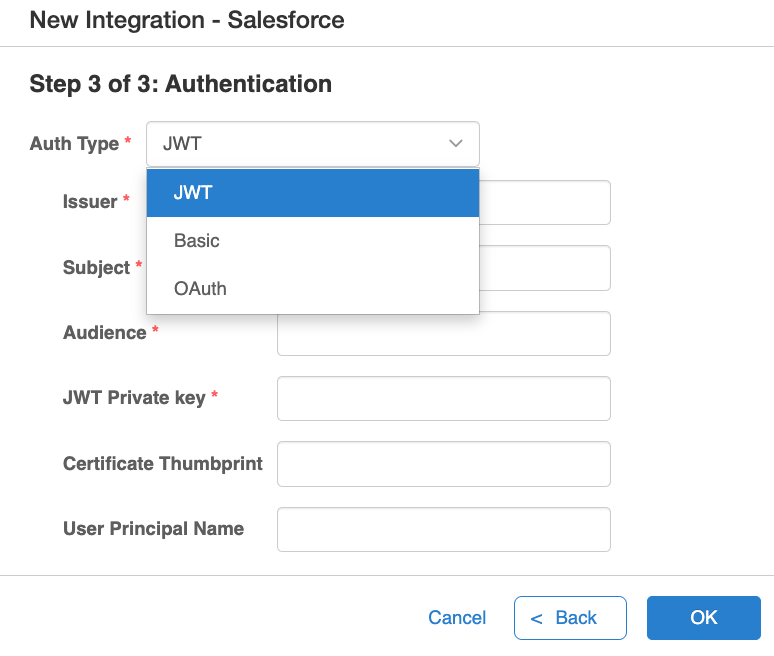
6. Choose the type of authentication your Salesforce implementation requires.

<div align="left"><figure><img src="https://3281977978-files.gitbook.io/~/files/v0/b/gitbook-x-prod.appspot.com/o/spaces%2FvBFXjH9S1CAy9f5hzg5Q%2Fuploads%2Flclk3kF9wi4X1qu8Cz9h%2Fsf_integ3.png?alt=media&#x26;token=a8334ea7-ca70-40de-a85c-d431077b7fc8" alt="" width="563"><figcaption></figcaption></figure></div>

7. Choose Basic or OAuth and click **OK**.
8. Enter the options for the authentication type you've chosen.
9. Click **OK**.

Now the Aisera Gen AI platform has the ability to access your Salesforce instance.&#x20;

## Designate Salesforce as a Data Source

The next step is to configure your Salesforce instance as a Data Source for your Aisera platform instance.

1. Navigate to the **Settings > Data Source** option in the Aisera Admin UI.
2. Click the **+ New Data Source** button.
3. Choose the **Name** of the Salesforce **Integration** that you created in the previous section.

<div align="left"><figure><img src="https://3281977978-files.gitbook.io/~/files/v0/b/gitbook-x-prod.appspot.com/o/spaces%2FvBFXjH9S1CAy9f5hzg5Q%2Fuploads%2F4JWnYkXnX9WG8lCwMsK9%2Fsf1.png?alt=media&#x26;token=bd19cf44-7876-4102-8245-b4157aba734e" alt="" width="524"><figcaption><p>Setting Salesforce as a Data Source</p></figcaption></figure></div>

Aisera integrates natively with Salesforce via the Salesforce API. The Aisera Salesforce connector uses SOQL queries to pull records from Salesforce (pull-type connector). The integration can pull data from the following objects:&#x20;

* Tickets (Cases)&#x20;
* Knowledge base&#x20;
* Users&#x20;

Even though the connector can pull all these different types of entities, it can operate with any subset of these entities. For example, in the case that a customer only needs to analyze historical cases,  it will only need to pull the Ticket entities and nothing more.&#x20;

4. Use the **Functions** pull-down menu (shown above) to determine the objects that data is pulled from, based on the functions you are performing on those objects.

## Permission Requirements on Salesforce&#x20;

Apps that access your Salesforce data are subject to the same security protections that are used  in the Salesforce user interface. A user attempting to access the API must have the permission  “API Enabled” selected, which is selected by default. The API respects object-level and field level security configured in the user interface. You can access objects and fields only if the  logged-in user's permissions and access settings allow such access.&#x20;

To pull the data, the Aisera System User must  have read-only permission for the following Salesforce objects:&#x20;

• **Cases** (Tickets)&#x20;

• **Knowledge** (Knowledge Articles)&#x20;

• **Users** (Users)&#x20;

User permissions can be edited in Salesforce **Setup > Users**.&#x20;

As mentioned above, the connector operates in Read-only mode in most use cases where the primary  objective is analysis either historical or ongoing.&#x20;

There are certain use cases that the connector needs to be able to create cases or modify attributes. In  order to create/update cases, the connector needs write permission for the Cases fields.&#x20;

## Roles and User Accounts&#x20;

The permissions of the Aisera Salesforce connector are managed inside Salesforce. The connector  assumes the role of the user or app configured in Salesforce and used to connect from the Aisera  service. That way, the minimum set of privileges can be given to Aisera.&#x20;

## Frequency of Data Ingestion Pulls &#x20;

The Aisera Salesforce connector supports different ways to pull in the corresponding records from  Salesforce as follows:&#x20;

### On Demand&#x20;

You can specify the time window needed to pull records from  Salesforce. This functionality is typically used to pull historical records. The data load  that is pulled in can range from 100K to 1M records. The connector can take  approximately 6-8 hrs to pull 1M records from Salesforce.&#x20;

### Schedule-based&#x20;

You can specify the frequency needed to pull data from Salesforce as a schedule. The frequency can  be continuous and range from every 5 mins up to every 24hrs. The connector pulls data based on the frequency specified in the connector during the initial setup (can be  edited).

<br>