> For the complete documentation index, see [llms.txt](https://docs.aisera.com/llms.txt). Markdown versions of documentation pages are available by appending `.md` to page URLs; this page is available as [Markdown](https://docs.aisera.com/aisera-platform/adding-data-to-your-tenant/data-ingestion/setting-up-remote-components-for-intranet-crawls.md).
# Setting Up Remote Components for Intranet Crawls
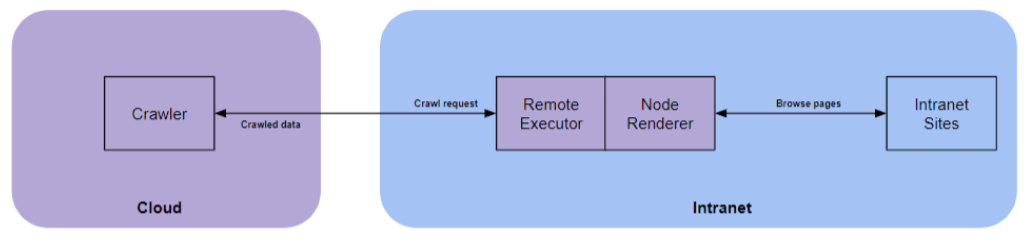
The Aisera Intranet Crawler consists of cloud and on-prem components. The simplified diagram below provides an overview of how these components work together.
Intranet Crawler with Remote Components
The remote components are the [**Remote Executor**](https://docs.aisera.com/aisera-platform/adding-data-to-your-tenant/integrations-and-data-sources/remote-executor) and the **Node Renderer**.\
\
The remote components are installed on Windows machines with outgoing internet access. If your machines have restricted internet access, you need to allowlist (whitelist) specific Aisera vanity URLs and use a different distribution of remote executor.
## Preparation
To setup the remote components, the Windows system should have the minimum configurations shown below:\
a. Operating System\
i. Windows\
b. Memory\
i. 8GB\
c. Storage\
i. 16-32GB\
d. Software\
i. Java runtime environment\
ii. Docker container runtime environment\
e. Network\
i. Need HTTPS outbound connectivity to Aisera SaaS\
ii. Connectivity to on-premise applications/services for automation
Login as Administrator to the Windows system where the components will be running.
## Install Remote Executor
1. Download the software bundle required for setting up the Remote Executor, as instructed by your Aisera Team, and place it in a local folder, unzipping if the bundle is compressed.
2. Copy or move the opt folder to C:\ in the Windows system being configured, so that you end up with a `C:\opt\aisera` directory that you can use for setup.
1. Verify that the .jar archive is signed.
2. Open command prompt and change the directory to `C:\opt\aisera`\
b. Run this command: \
`jarsigner -verify -verbose:summary -J-Djdk.jar.maxSignatureFileSize=800000000 aisera-remote-executor-<0.1.9.4.1>.jar`
**NOTE:** The `maxSignartureFileSize` is a required field.
c. This verifies that the .jar archive is signed by Aisera Inc. \
and the command outputs .jar archive is verified.
3. Make sure that the Java version on the machine is 1.8.0\_265 or later. The Remote Executor runs on Java version 8.
4. If Java is not installed, download and install the Amazon Coretto JDK from this link:\
`https://corretto.aws/downloads/latest/amazon-corretto-8-x64-windows-jdk.msi`
5. You will also need to allowlist (whitelist) certain IP addresses, as detailed in the following section.
## Install Node Renderer
1. Download the docker container provided by Aisera.
2. Make sure that the docker container for Windows is installed on your system.
3. Install AlwaysUp from Core Technologies Consulting.\
AlwaysUP is a tool used for publishing the Remote Executor as a Windows service, so that it can auto start after failures/reboots.\
Run the `AlwaysUp_Installer.exe` from the setup bundle you got from Aisera. The application has a 30-day trial period with full functionality, during which you should register it with a full license.\
To get a license, you need to find the serial number of your AlwaysUp installation as follows:
1. Start AlwaysUp
2. Click the Register Now button and follow the instructions in the screenshots below.
3. Copy the serial number to the clipboard and send it to Aisera.\
Your Aisera Team will provide you then with a license number that you can apply to AlwaysUp.
4. To enter the license app CLOSE AlwaysUp and run it again.
5. Select **Enter Code >>** in the registration window.
4. Configure the Remote Components
## Set Up Remote Executor
You need to set up the Remote Executor in accordance with the Aisera instance that needs to communicate with it. You only need to set up the Remote Executor for the instance(s) you will be using, which ultimately should include the production system, but please confirm with your Aisera Team before starting.
### Remote Executor on the Aisera Staging instance
Configure the Remote Executor for the Aisera Staging instance, as follows:
1. From the shared folder Aisera Remote Executor, download the zip file and extract the content. There is a folder called `opt` inside it. Copy to `C:/ drive`.
2. Go to the UI of the AlwaysUp application, select the **aisera service** and press stop (if it is running).
3. Add the environment variable `aisera_apiKey` with the value provided by Aisera.
1. You can add a variable from the command prompt like this: `setx aisera_apiKey “XYZ123”`
2. Or use the Windows UI, **Advanced System Settings > Environment Variables**
3. Edit the `configuration-staging0.yaml` in `C:\opt\aisera`, as follows:
1. Replace {tenant} for the host field with the Aisera tenant name for your organization, as provided by Aisera
2. Verify network connectivity with the staging instance, by running the\
`C:\opt\run_staging.bat` script, which eventually will display a message similar to:\
.`.. INFO c.a.a.r.e.c.l.HeartBeatListener - Connection to Server Opened`\
If an error message appears instead, you need to resolve the issue before proceeding. \
For example:
* If you get the `Could not start the server because the api key is missing`message, either the environment variable is not set correctly or it's not\
accessible from the .bat file.
* If you see `Invalid user credentials` please verify that the `aisera_apikey` is set correctly. If this error does not go away, check with the Aisera Team.
* Verify your API access using a browser in the Windows machine to access the Aisera tenant\
URL: `https://{tenant}-staging.api.aisera.net`, which should return:\
`404 page not found` (this is not an actual error).
* After you have verified connectivity, go to the UI of the AlwayUp application, select **Add**\
**application** and enter the following information:
* Name: aisera-staging
* Application: browse to C:\opt\aisera and select run\_staging.bat
* Start in directory: C:\opt\aisera
* This will create a service for the production environment.
* Clear the Arguments, if any.
* Save and Start the service in AlwaysUp
* `C:\opt\aisera` will now have a log file - `aisera-log-staging.log`, saying that the connection succeeded.
* IPs to Allow\
The following Aisera staging cluster ingress and egress IPs need to be allowlisted (whitelisted).
* Staging Ingress\
(Same as Prod Ingress)\
44.228.97.116\
54.70.211.230\
52.38.175.14
* Staging Egress\
54.214.210.216\
54.71.117.209\
44.226.77.170
### Remote Executor on the Aisera Production instance
Configure the Remote Executor for the Aisera Staging instance, as follows:
1. Go to the UI of AlwaysUp application, select the aisera service and press stop (if it exists)
2. Add the environment variable `aisera_apiKey` with the value provided by your Aisera Team.
1. You can add a variable from the command prompt like this: \
`setx aisera_apiKey “XYZ123”`to use the Windows UI, **Advanced System Settings > Environment Variables.**
2. Edit the configuration-prod0.yaml file in C:\opt\aisera, as follows:
1. Replace {tenant} for the host field with the Aisera tenant name for your organization, as provided by your Aisera Team.
2. Verify network connectivity with the prod instance, by running the `C:\opt\run_prod.bat` script, that displays a message similar to:\
`... INFO c.a.a.r.e.c.l.HeartBeatListener - Connection to Server Opened`\
If you receive an error message instead, you need to resolve the error before proceeding. \
For example:
* If you see the `Could not start the server because the api key is missing`message, the environment variable is not set correctly or it's not accessible from the .bat file.
* If you see `Invalid user credentials` please verify that the `aisera_apikey` is set\
correctly. If this error does not go away then please check with your Aisera Team.
* Verify your API access using a browser in the Windows machine to access the Aisera\
URL:\
`https://{tenant}.api.aisera.net`, which returns:\
`404 page not found` (this is not an error).
* After you verify the connectivity, go to the UI of the AlwayUp application, select Add application and enter the following information:
* **Name:** `aisera-prod`
* **Application:** browse to `C:\opt\aisera` and select `run_prod.bat`.
* **Start in directory:** `C:\opt\aisera` .
This will create a service for the production environment.\
Clear the arguments, if any.
* **Save** and **Start** the service in AlwaysUp\
`C:\opt\aisera` will now have a log file - \
`aisera-log-prod.log`, that should report whether\
that connection succeeded.
* IPs to Allow\
The following Aisera staging cluster ingress and egress IPs need to be allowlisted (whitelisted).
* Prod Ingress\
44.228.97.116\
54.70.211.230\
52.38.175.14
* Prod Egress\
44.226.165.11\
52.24.89.19\
50.112.246.139
### Example: Remote Executor on your Aisera Development instance
Configure the Remote Executor for the Aisera Dev instance, as follows:
1. Go to the UI of the AlwaysUp application, select other Aisera services, and press **stop.**
2. Add the environment variable `aisera_apiKey` with the value provided by your Aisera Team.
1. You can add a variable from the command prompt such as: `setx aisera_apiKey “XYZ123”` or use the Windows UI, **Advanced System Settings > Environment Variables**.
2. Edit the `configuration-dev0.yaml` file in `C:\opt\aisera`, as follows:
1. Replace {tenant} for the host field with the Aisera tenant name for your organization, as provided by your Aisera Team.
2. Verify network connectivity with the prod instance, by running the `C:\opt\run_prod.bat` script, that displays a message such as:\
`... INFO c.a.a.r.e.c.l.HeartBeatListener - Connection to Server Opened`\
\
If an error message appears instead, you need to resolve the error before proceeding. \
For example:
1. If you see the `Could not start the server because the api key is missing`message, it is either that the environment variable is not set correctly or it's not accessible from the .bat file.
2. If you get Invalid user credentials verify that the aisera\_apikey is set correctly. If this error does not go away, check with your Aisera Team.
3. Verify API access via using a browser in the Windows machine to access the Aisera URL: \
`https://{tenant}.api.aisera.net`, that will return\
`404 page not found` (this is not an error).
4. After you have verified the connectivity, go to the UI of the AlwayUp application. Select **Add**\
**application** and enter the following information:
1. Name: aisera-dev
2. Application: browse to C:\opt\aisera and select run\_dev.bat
3. Start in directory: C:\opt\aisera
This will create a service for the production environment.\
Clear the arguments, if any.
5. **Save** and **Start** the service in AlwaysUp.\
`C:\opt\aisera` should now have a log file - \
`aisera-log-dev.log`, that verifies whether\
that connection succeeded.
6. IPs to Whitelist\
The following Aisera staging cluster ingress and egress IPs need to be whitelisted.
## Setting Up the Node Renderer
1. Download the docker image that your received from the Aisera Team.
2. Use the following environment variables when you start the container to specify the host and port used by the service:\
`APP_PORT (8051 default)`\
`APP_HOST (0.0.0.0 default)`\
`APP_LOG_LEVEL (info default)`
3. Start the container\
`docker run -i --rm -t -p 8051:8051 node-rendering-service:dev`\
You need to ensure Node Renderer is listening on port `8051` on the localhost since this is the PORT that the Remote Executor code can access.\
4. Dev Ingress\
44.228.97.116\
54.70.211.230\
52.38.175.14
5. Dev Egress\
34.216.124.78\
35.155.50.253\
44.232.198.209