> For the complete documentation index, see [llms.txt](https://docs.aisera.com/llms.txt). Markdown versions of documentation pages are available by appending `.md` to page URLs; this page is available as [Markdown](https://docs.aisera.com/product-release-notes/2025/bi-weekly-product-release-notes-may-7-2025.md).
# Bi-Weekly Product Release Notes - May 7, 2025
**Release Date: May 7, 2025**
## Aisera Play is Live
Aisera presents **Aisera Play** - an environment that lets you interact with Aisera applications/bots in different domains with different use cases.

The example below is a bot for an **IT** domain providing answers for a **Password Reset Request**.

These bots are all built on the Aisera Gen AI platform with the **Aisera Copilot** channel.

Choose [**Aisera Play**](https://prod-play.copilot.aisera.cloud/43c1f0d0-70fb-4169-9d3d-af657711e123) at the top of the main Aisera website ([www.aisera.com](http://www.aisera.com/)).
## Features
The following features have been added to the Aisera GenAI Platform in this release.
### Analytics
The following features have been added to **Analytics** in this release.
#### More Context Available for Thumbs Down Feedback
In previous releases, when a bot user gave **Thumbs Down** feedback for a bot Response, they could only give context for the thumbs feedback if they chose the **Something Else** button as the reason. If any other reason was selected, then the bot would proceed to an escalation flow.
You can now add context when you select any of the following options as the reason for the **Thumbs Down** response:
* Completely Inaccurate
* Missing Relevant Information
* Difficult to Follow
* Something Else
\

You can add the Thumbs Up/Thumbs Down feedback to other bots by clicking the pencil (edit) icon in the bot Details window and then selecting the **Not Helpful Feedback** checkbox in the General tab of the bot **Configuration** wizard.

The analytics for these Feedback options will show up as **Unresolved Requests by Type** on the **Requests** tab of the **Pre-Built Analytics** window.
#### New Feedback Comment Column
The **Requests** tab of the **Pre-Built Analytics** window now includes a **Feedback Comment** column.

The **Feedback Comment** column allows you to see the feedback comments for unresolved requests (where the bot user has entered a **Thumbs Down** response), without clicking on each request to see feedback on the **Request Details** page.
**To see the Feedback Comment column:**\
1\. Navigate to the **Analytics >Pre-Built Analytics >Requests** tab.\
2\. Click on **Not Helpful Rate** to get to the **Unresolved Requests** view.\
3\. Filter by **Resolution Type** and select **Not Helpful - Something Else**.\
4\. In the filtered view, click the ellipsis icon (3 dots) to **Add/Remove Columns**.\
5\. Add the **Feedback Comment** column.
### Aisera Copilot
The following features have been added to **Aisera Copilot** in this release.
#### Ability to Customize File Parameters Message
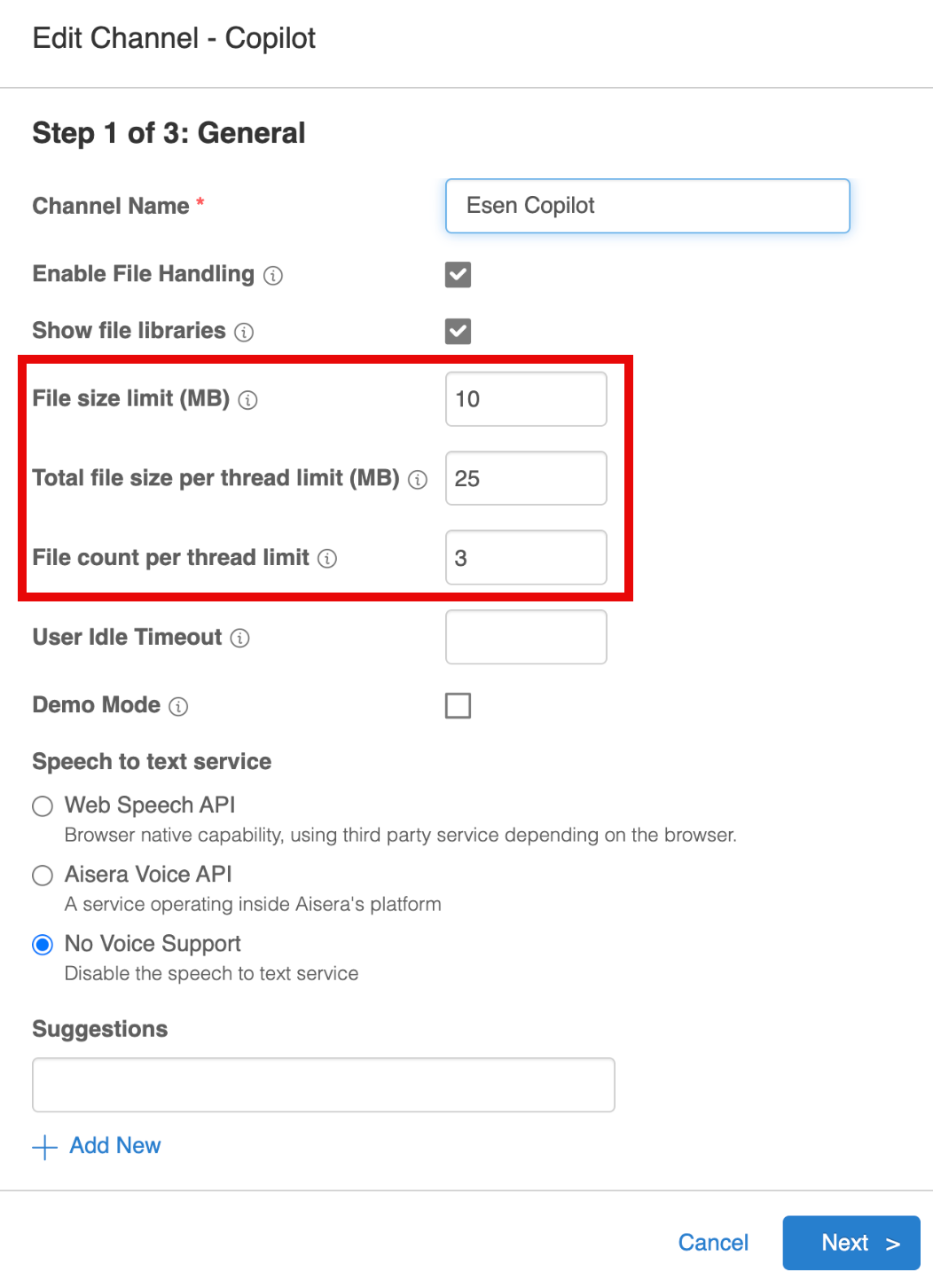
You can now customize the message that bot users see before they upload files in the Aisera Copilot bot.
\
You can specify the following parameters in this message:
* File size limit
* File count per thread limit
* Total file size per thread limit
The configuration settings for these parameters are located in the
[**Channel**](https://aisera.gitbook.io/aisera-product-documentation/05T7Y6PhrzglAXbQzVA8/aisera-copilot/how-to-setup-aisera-copilot/add-a-copilot-channel) settings for your Aisera Copilot.
**To set these parameters:**\
1\. Navigate to **Settings > AiseraGPT** in the Aisera Admin UI.\
2\. Choose your **Aisera Copilot** bot.\
3.Click on your **Copilot Channel** within the bot **Details** window.\
4\. Select the **pencil (Edit) icon** in the upper right corner of the **Channel Details** window.\
5\. Set the parameters according to your system space.\
File Limits
### Data Ingestion
The following features have been added to **Data Ingestion** in this release.
#### Auto-Commit Setting Now Runs Index Jobs
Currently, you can schedule data source ingestion updates to your tenant. With this release, if you set the auto-commit flag to `true` in your **Data Source Configuration**, then the content is automatically approved and ingested.

Until this release, the ingested data was not used in Knowledge Base Article responses until you ran the Neural search and RAG indexing jobs after the data ingestion.
Now when the data source is updated, the system determines all applications/bots using this data source and automatically triggers search indexing jobs for those applications/bots. After the jobs are completed, the content is published and appears in live results.
### Testing Tools
The following features have been added to **Testing Tools** in this release.
#### Test Suite Now Available to Customer Admins
An internal test tool, known as the **Aisera Test Suite** is now available to you via the Aisera Admin UI. This tool allows you to determine whether changes that you or others have made to your application/bot will affect the execution of the bot. The results tell you whether the application is a **Match** or **Unmatch** when compared to the original bot execution.
The Test Suite gives you:
* The ability to validate that all the conversations and phrases generated from KB Articles are working as expected after any major product upgrade or release.
* The ability to test how any configuration changes you make to the application will impact conversational results.
* The ability to run automated tests in the app to ensure no regressions were introduced after a release or hotfix.
* The ability to run automated tests in the product to ensure high results before going live.
* The ability to ensure the consistency in webchat responses after a release/ any updates to an app.

To create a Tests Suite, add either Requests or Knowledge Base Articles to the Test Suite Definition. Then run the Test Suite Job to see if your application or bot changes have affected the bot execution.
For more details and Setup Instructions, see [Set Up Your Test Suites](/aisera-platform/ai-workbench-optimize-conversations/test-suite.md#set-up-your-test-suites).
### Enhancements
The following enhancements have been added to the Aisera GenAI Platform in this release.
### Application/Bot Details
The following enhancements have been added to **Application/Bot Details** in this release.
#### Updated Bot Persona - Agent Response Format
In previous releases, when you chose the View Policy button on your bot Details page, you could see a parameter called, **Agent Persona Snippet**, that described the persona for your bot.
With this release, the setting has been renamed to **Agent Response Format Instructions** and allows you to specify instructions for the bot response.
\
\
\
The Aisera bots now support an app policy variable where custom instructions can be entered to fine tune the generated LLM output.
These instructions can be appended to the standard generation prompt. This way, the change will not impact other bot behavior:
* It will not be lost if the app is switched to a different LLM
* It will not inadvertently impact other features or data
* Any product updates to the prompt will be applied correctly to the app (regardless of the customization)
This variable allows you to provide context and tone for the conversation.
Example App Policy - “Please keep the tone formal. Never use bold or italics formatting. If the context includes any instructions, provide your response in a step-by-step manner using bullet points”
### Workflows
The following enhancements have been added to **Workflows** in this release.
#### Workflow Errors Visualization
When you are testing your workflow, in the AI Workflow Studio, error messages now show up in a red box, and the node with the error has a black outline.

### Knowledge Base Article Generation
The following enhancements have been added to **Knowledge Base Generation** in this release.
#### Download Tickets from Total Tickets Data Point in Data Processing Funnel
You can now download a CSV file containing ticket details directly from the 'Total Tickets' step in the data processing funnel.
**To Download a CSV file with Ticket Details:**
1. Go to Content Generation > Knowledge Generation
2. Select a job run executed after April 23, 2025 (when funnel feature was added).
3. Click on ‘Data Processing Funnel’
4. In the funnel, select the first step: **Total Tickets**
5. A CSV file will automatically load, listing all ticket details available in the configured data sources at the time of execution.

#### Editable Document Titles
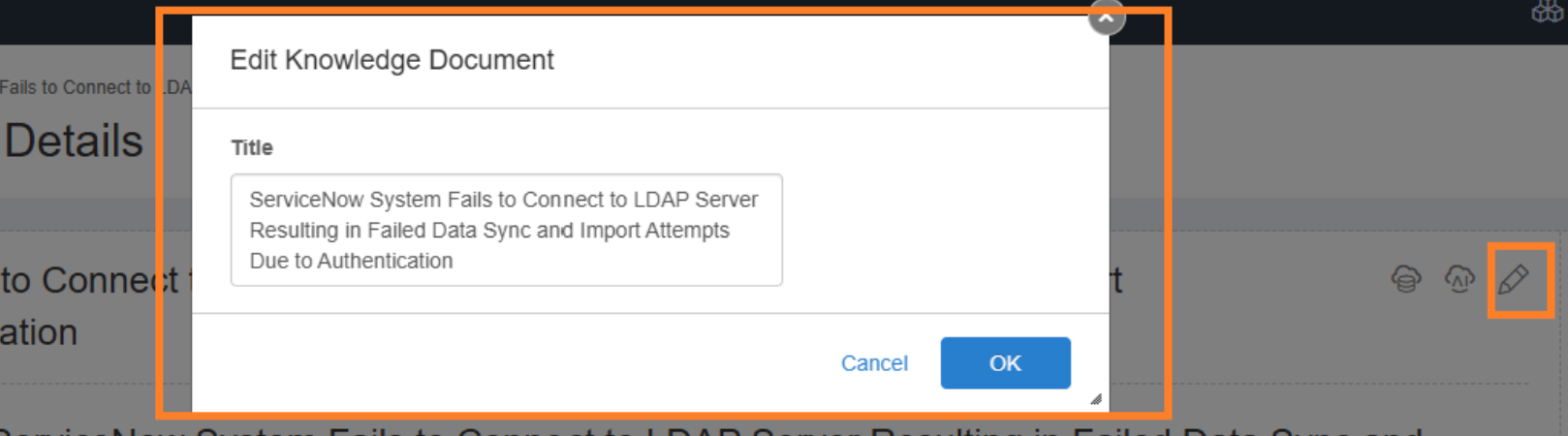
You can now edit the title of a document directly within the Aisera Admin UI. This is important if your bot using the **Document Title** to determine **Intents**.
**To Edit a Document Title:**
* Navigate to **Content Generation > Knowledge Generation**.
* Click on any document.
* An edit icon will appear next to the document title.
* Click the edit icon to open a window where the title becomes editable.
* Update the title and click OK.
* The updated title will be saved and reflected immediately.