> For the complete documentation index, see [llms.txt](https://docs.aisera.com/llms.txt). Markdown versions of documentation pages are available by appending `.md` to page URLs; this page is available as [Markdown](https://docs.aisera.com/product-release-notes/2025/bi-weekly-product-release-notes-june-4-2025.md).
# Bi-Weekly Product Release Notes - June 4, 2025
## Features
The following features have been added to the Aisera Gen AI Platform in this release.
### Channels
The following features have been added to **Channels** in this release.
#### IVR Channel Includes Voice Request Playback
You can now play a recording of the Request message if you’re using the Interactive Voice Response (IVR) channel with your bot.
This allows you to hear the customer (user) side of audio to evaluate whether it was correctly understood and interpreted by STT.
Useful for debugging to optimize bot performance and also training staff.
**To set up the Response Playback feature:**
1. Add the IVR Channel to your bot.
2. Navigate to the Details screen for your bot and open the IVR Channel.
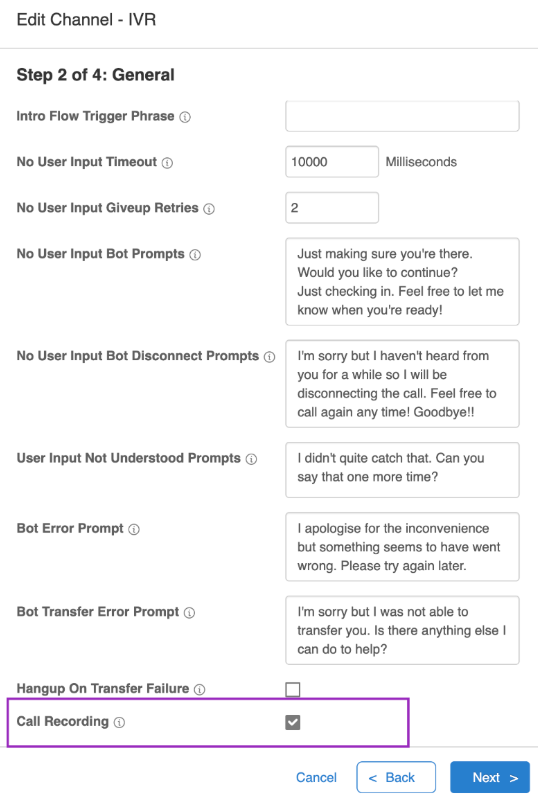
3. Click the pencil (Edit) icon to open the Channel Configuration Settings.
4. Select the Call Recording checkbox.
**To listen to the recorded Request:**
1. Navigate to the Requests window.
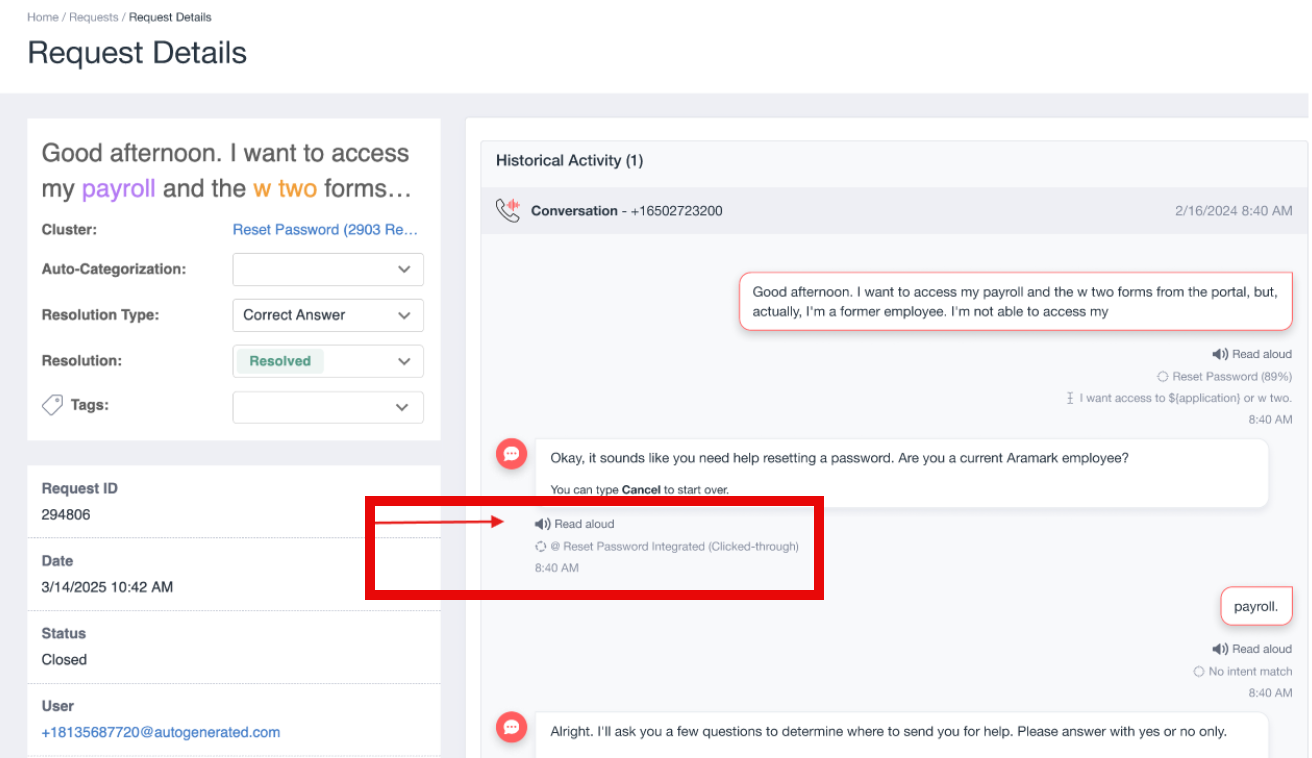
2. Choose the **Request** you want to monitor.
Choose the Request
3. On the Request Details window, click the **Read Aloud** button.
4. As the replay starts, you will see playback controls in the window.

### Knowledge Generation
The following features have been added to **Knowledge Generation** in this release.
#### Add Tags to Generated Documents
With this release, you can tag generated documents, for easier organization and operational tracking.
**To add a tag to a Generated Document:**
1. Navigate to **Content Generation → Knowledge Generation**.
2. Select any job run and click on **Generated Knowledge**.
3. In the top-right area, just below the title, you will see the **Tags** option.
4. Click on **Tags** to view all existing tags available as checkboxes. You can select the tag that you wish to add to the specific document.
5. Click on **+ New Tag**.

1. A dialog box will open where you can enter the **Name** and **Description** of the tag.

2. After entering the details, the newly added tag will appear in the **Tag** list.
3. You can now apply these tags to your generated documents.

4. You can filter documents by **Tags** in the **Knowledge Generation** page.
5. Use the **Tags** filter to sort the documents on the Knowledge Generation page. A corresponding **Tags** column is visible in the tabular view for easy reference.
### Enhancements
The following enhancements have been added to the Aisera GenAI Platform in this release.
### Workflow Analytics
The following enhancement has been added to **Workflow Analytics** in this release.
#### Aggregate Analytics for Workflows
The AI Workflow Studio now allows you to add columns that display:
* The rate of flow execution failures - Flow Execution Error.\
Column label - **Execution Failure Rate**
* The rate of Abandonment - Flow Gap - Non Terminal Node.\
Column label - **Abandonment Rate**
* The rate of (Negative Feedback + Irrelevant KB) at the end of the flow. Flow Gap - Terminal Node. Column label - **Not Helpful Rate**
* Total Number of Requests. Column label - **Request Count**
* Show rate of (Positive feedback + Relevant KB) at the end of the flow. Column label - **Resolution Rate**
* Sort by highest-to-lowest or lowest-to-highest rates.
**To view the new columns:**
1. Click the three horizontal dots on the right side of the window.
2. Choose Add and Remove Columns from the pull-down menu.
3. Type ‘Reso’ into the selection box to see the Resolution Auto-Categorization group that includes these columns,
4. Choose the columns that you want to display.
### Troubleshooting
The following enhancement has been added to Troubleshooting in this release.
#### Support for Sentry
The Aisera Gen AI platform now supports Sentry.
If you want to enable Sentry for your Aisera tenant instance, to help us track, manage, and correct errors in the code, you can choose to enable Sentry in the tenant Configuration parameters. Sentry works on the back end and automatically sends data back to the Aisera Development Team.
**To enable Sentry for your Aisera Gen AI tenant instance:**
1. Navigate to Settings > Configuration > Tools in the Aisera Admin UI.\
\
\
2. Choose the Sentry checkbox.