> For the complete documentation index, see [llms.txt](https://docs.aisera.com/llms.txt). Markdown versions of documentation pages are available by appending `.md` to page URLs; this page is available as [Markdown](https://docs.aisera.com/product-release-notes/2025/bi-weekly-product-release-notes-jan-29-2025.md).
# Bi-Weekly Product Release Notes - Jan 29, 2025
## Features
The following features have been added to the Aisera GenAI Platform in this release.
### Integration
The following feature has been added to **Integration Types** in this release.
#### Google Cloud Storage
You can now add **Google Cloud Storage** as a Data Source to use with your bot.
**To add the Google Cloud Storage option to your tenant:**
1. Navigate to **Select > Data Sources** in the Aisera Admin UI.
2. Choose **+ New Data Source**.
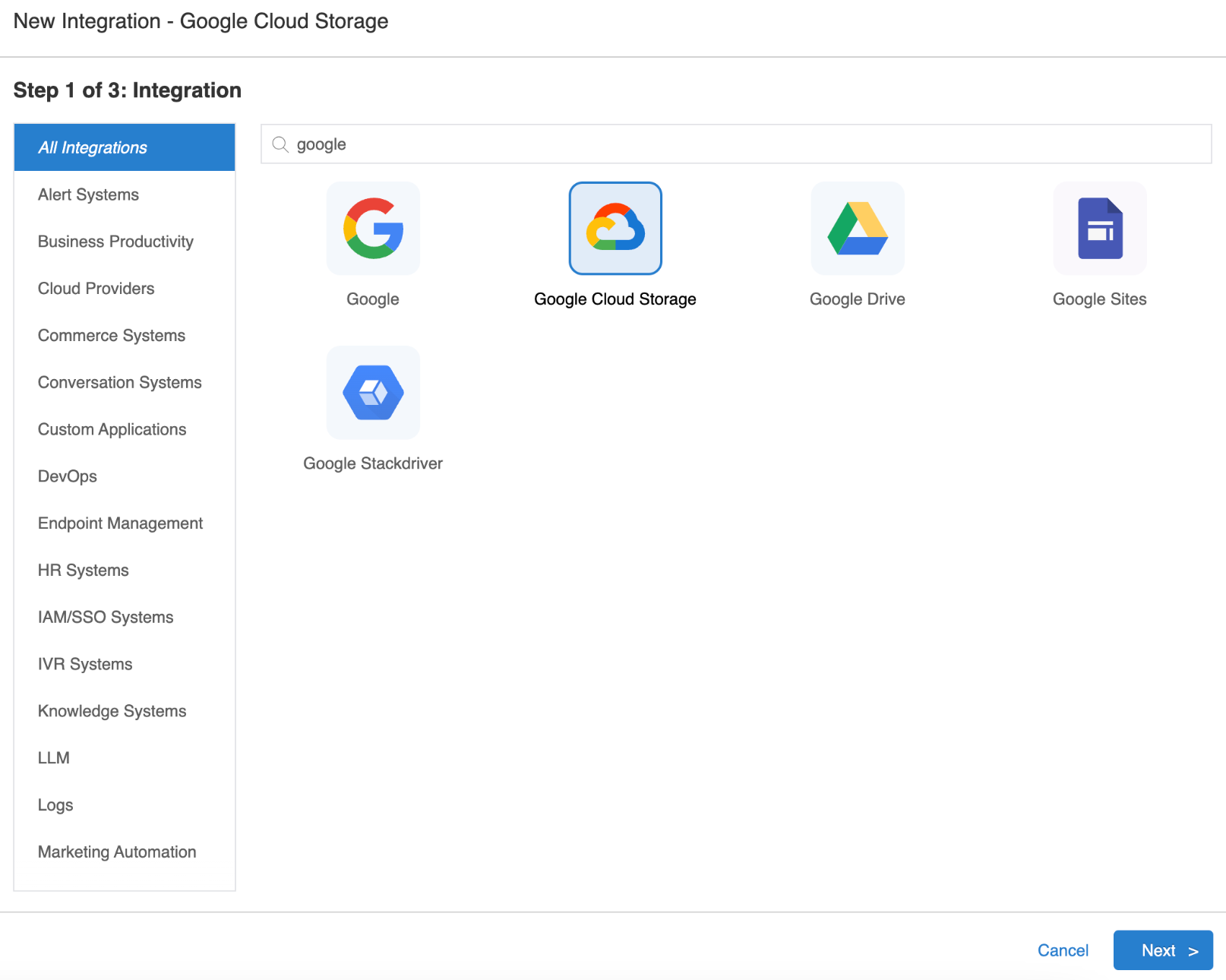
3. Type Google into the **Search** field.
4. Select the **Google Cloud Storage** icon.
1. Follow the window instructions to add the Data Type, Schedule, and any custom scripts.
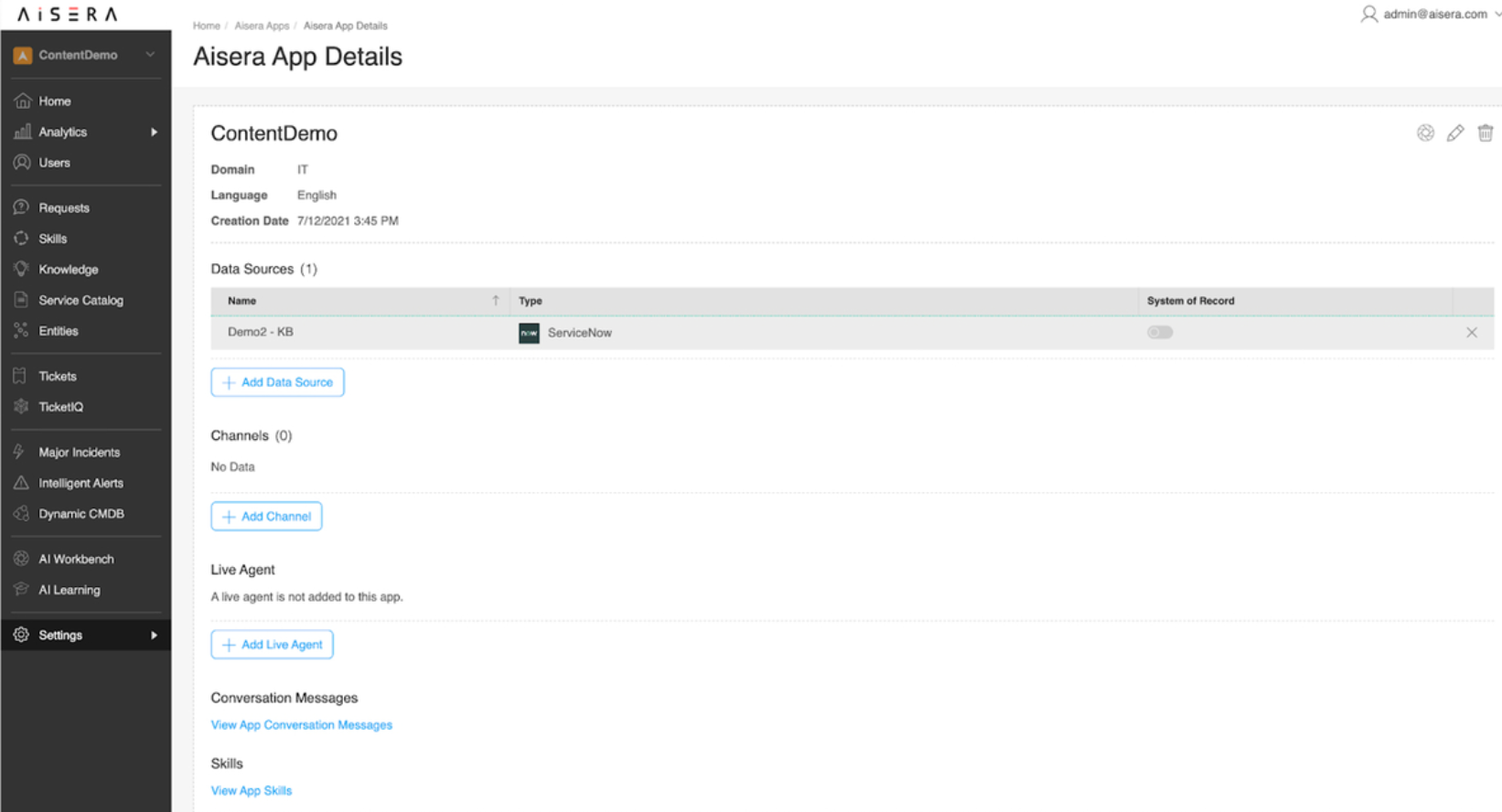
2. After you add this **Data Source** to an application or bot, you can choose it in the application **Details** window and double-click it to open the **Data Source Details** window.
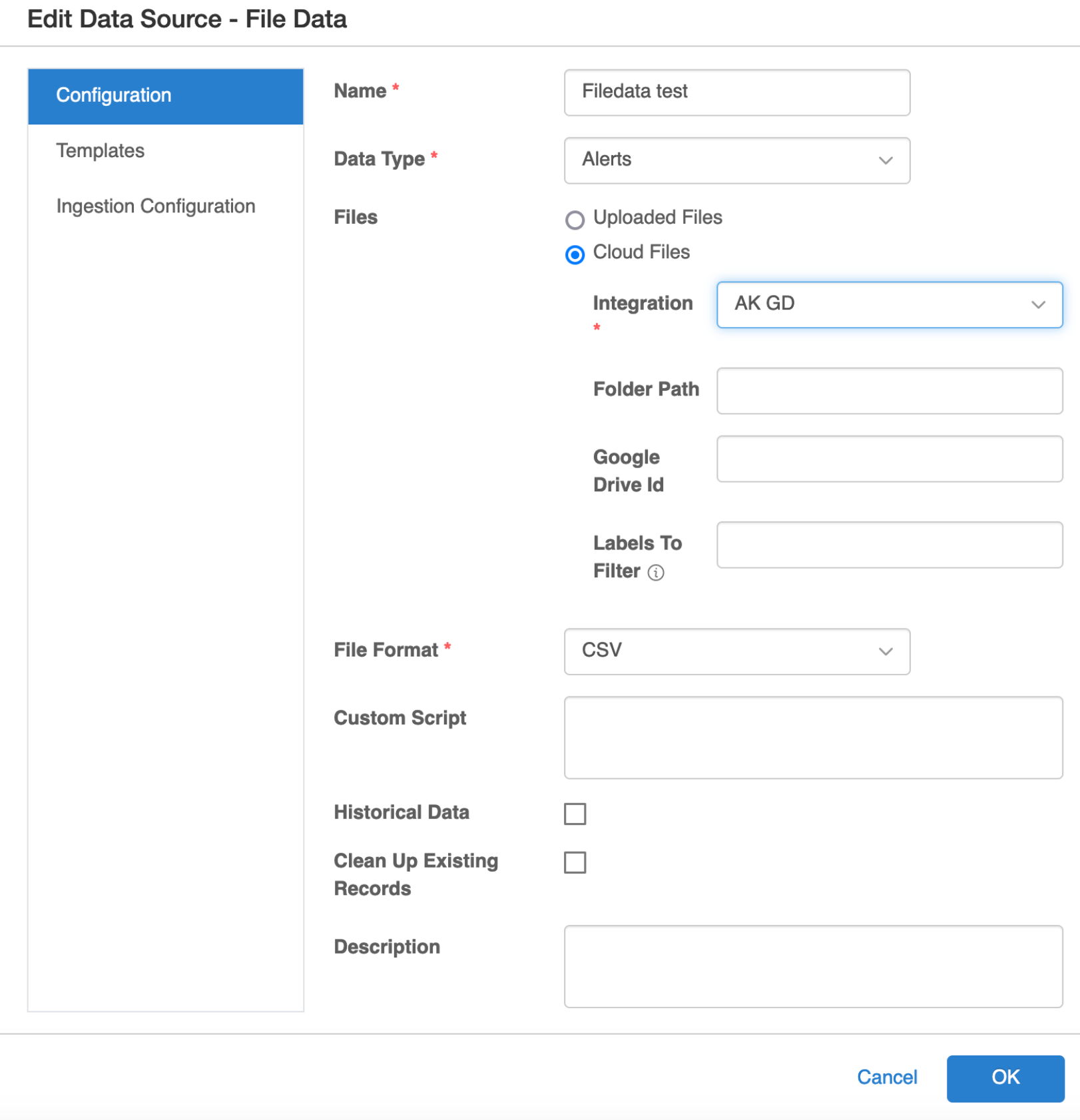
3. Click the **pencil icon** to Edit the **Data Source** parameters.
4. Select the **Cloud Files** radio button, choose the name of your Google Cloud Storage integration, and then add the parameters for the path, drive id, and filters you want to use as sources.
### Enhancements
The following enhancements have been added to the Aisera GenAI Platform in this release.
### Data Ingestion
The following enhancement has been added to **Data Ingestion** in this release.
#### New Skip Media Option for Knowledge Base Crawls
You now have the option of skipping media file URLs when your bot is crawling a knowledge base to gather (ingest) data.
**To set up the Skip Media option:**
1. Navigate to **Settings > AiseraGPT** in the Admin UI.
2. Choose your application or bot with the data source containing a scheduled crawl to ingest data.
3. Scroll down the **Details** page to the **Data Sources** section.
4. Select the row that contains the **Data Source** where you want to add the Skip Media option.
5. Click the **pencil icon** in the upper-right corner of the Application Details screen to open the **Data Source Configuration** window.
6. Click the **Advanced** settings tab.
7. Select the **Skip Media Files** checkbox.

### Knowledge Generation
The following enhancements have been added to **Knowledge Generation** in this release.
#### New Status Field for Knowledge Written to SOR
You can now add a **Status** column in the **Generated Knowledge** table to track the progress of documents that you are writing back to your Source Of Record.
**To add a Status Column:**
1. Navigate to **Content Generation → Knowledge Generation**.
2. Click on the **three dots** in the top-right corner of the table grid.
3. Select **Add/Remove Columns** and add the new column called **Status**.
4. Select the documents you want to publish to the source system (such as, Salesforce, ServiceNow, Confluence).
5. Go to **Actions → Publish to SOR**.
6. Click on the **refresh icon** in the **Status** column to view the progress.
**Status Indicators:**
* **Publishing Underway** – Document publishing is in progress.
* **Published** – Document has been successfully published.
* **Failed** – Publishing was unsuccessful.
### Channels
The following enhancements have been added to **Channels** in this release.
#### Webex, MS Teams and Slack Channels Now Support Markdown
Previously, when you created a new Aisera application or bot, Webchat Markdown Support was enabled by default. Now it is also enabled for WebEx, MS Teams, and Slack Channels.
Note: Ensure the channel is not open when editing the configuration.
**To disable the Markdown Support:**
1. Navigate to Settings > AiseraGPT.
2. Open an existing application or bot.
3. Choose the pencil icon to see the Details page for that bot.
4. Scroll down to the Channel section.
5. Double-click on the line of the Channel that you want to modify.
6. Uncheck the Enable Markdown Syntax field (while the channel is not open).
#### SMTP for Email Channel in Campaigns
You can now use your own SMTP configuration within your Tenant Configuration Settings for the Aisera Email channel in Campaigns.
Previously, the Aisera platform email features were not using the data from the Tenant SMTP Configuration. Now the Campaign feature supports selection of your preferred SMTP configuration.
When configuring a Campaign, add an Email channel to your bot and use it as the channel to send campaign information.

Set the SMTP details configured in your app’s tenant settings.
The default is Aisera's SMTP server.
### AI Workflow Studio
The following enhancement has been added to **AI Workflow Studio** in this release.
#### Setting Max File Count in User Input Node
You can now use the AI Workflow Studio’s User Input Node to set the maximum number of files for attachments, if you are using the Webchat channel with your bot.

To edit a Workflow node, hover your cursor over the node you want to edit while you have the workflow displayed as a graph on the canvas. Then click the **pencil icon** that appears below your cursor, and you will see the node edit window.