> For the complete documentation index, see [llms.txt](https://docs.aisera.com/llms.txt). Markdown versions of documentation pages are available by appending `.md` to page URLs; this page is available as [Markdown](https://docs.aisera.com/product-release-notes/2025/bi-weekly-product-release-notes-feb-12-2025.md).
# Bi-Weekly Product Release Notes - Feb 12, 2025
## Features
The following features have been added to the Aisera GenAI Platform in this release.
### Channels
The following features have been added to **Aisera Channels** in this release.
#### Copilot Channel Can Access Documents and Templates
You can now access documents and templates from the Aisera Copilot channel.
**To access Documents and Templates:**
1. Navigate to **Settings > Channels** in the Aisera UI.
2. Choose an existing Copilot channel.
3. Click the **pencil icon** at the top right in the Channel Details page.
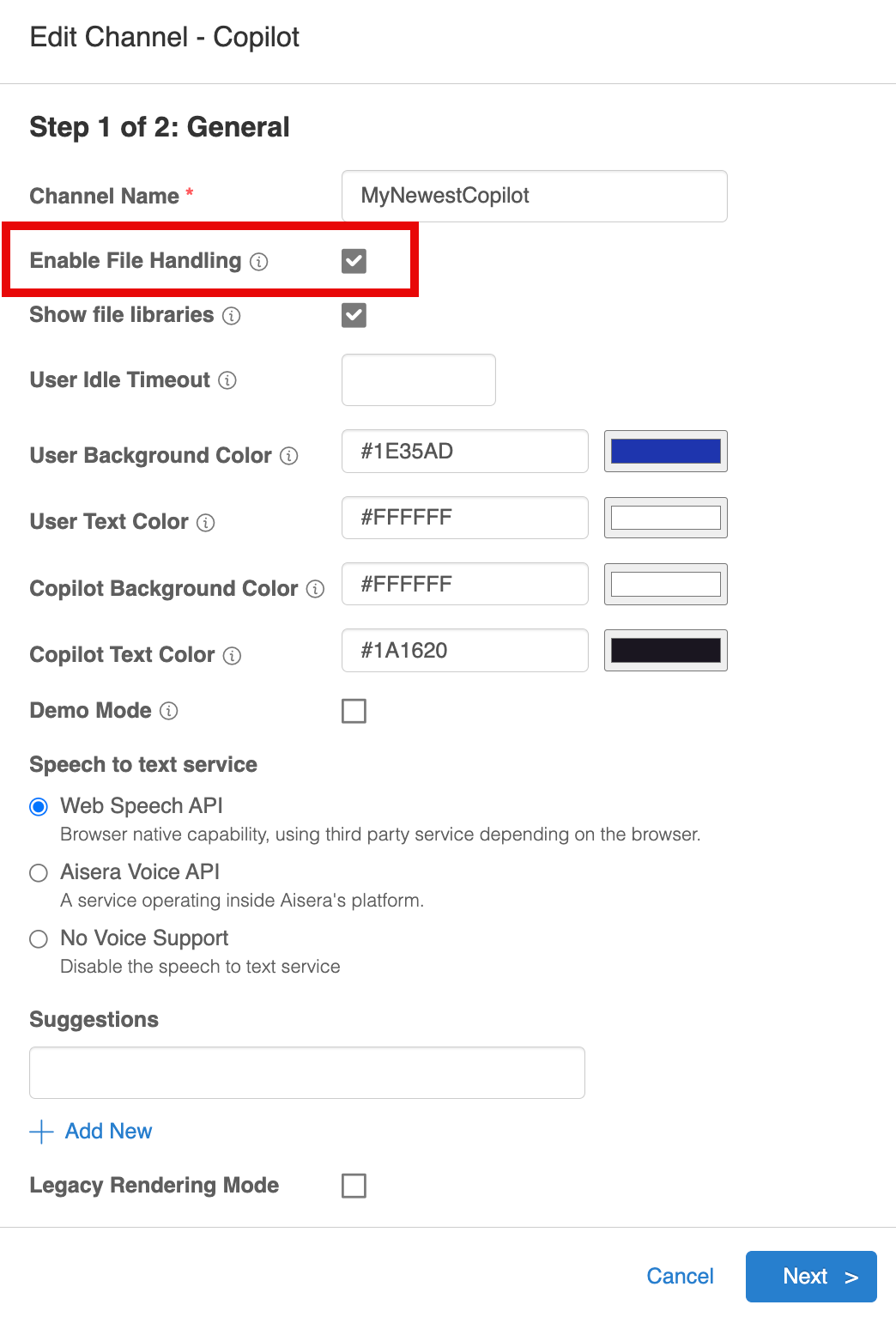
4. Select the checkbox next to **Enable File Handling**.
5. Click **OK.**
6. Double-click the Channel URL at the bottom of the **Channel Details** window to open your Copilot bot.

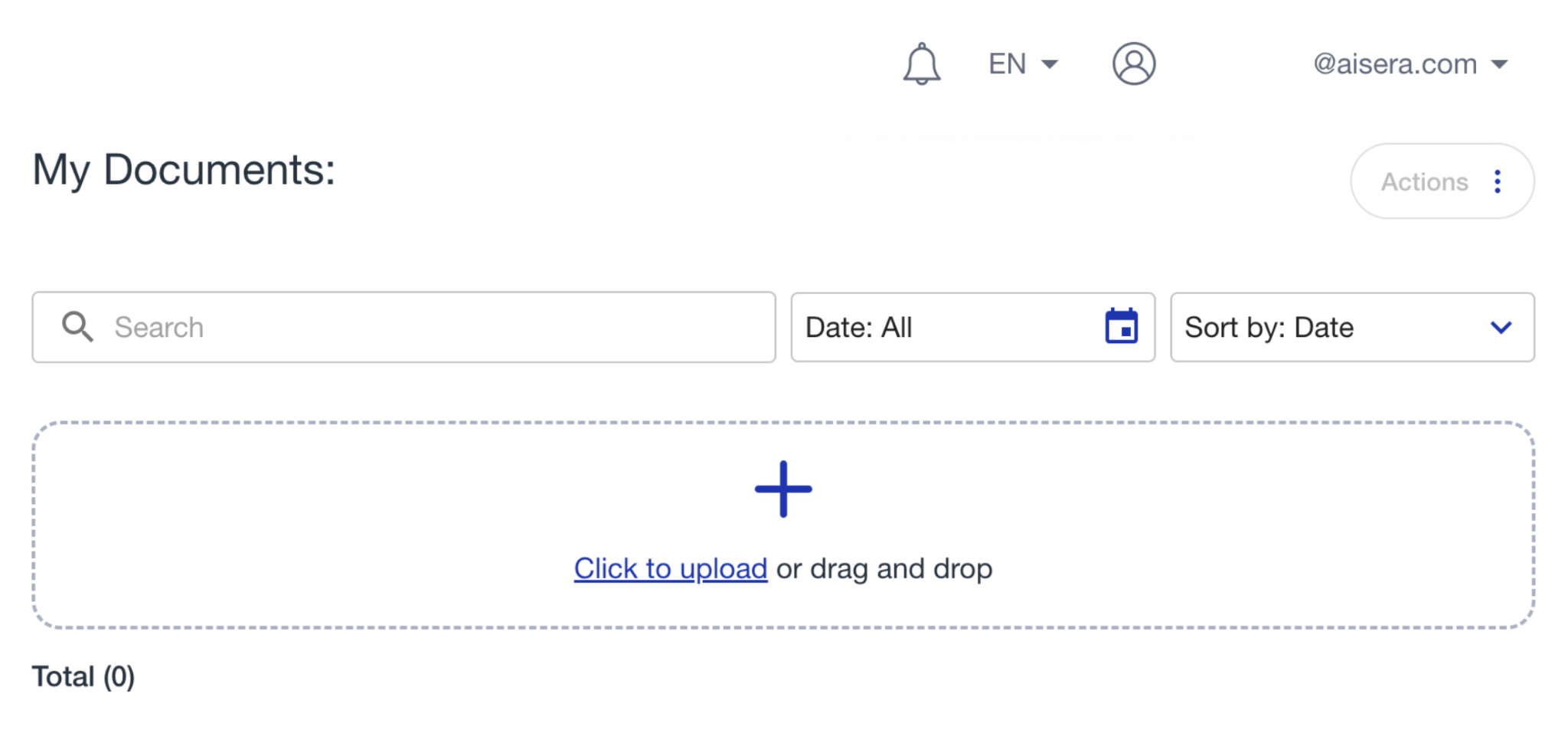
Now you can see the **Document Library** on the left side of the window, and if you hover over the **Account icon** at the right-top of the window, you will see the **Template Library** option.
Either of these options allows you to upload a file.
#### Webchat Supports Notification History
You can now see a history of notifications that occurred when you don’t have the Webchat bot open. For instance, if you received notifications from an email campaign when you weren’t interacting with the bot.
**To turn on the Notification History for your bot:**
1. Navigate to Settings > AiseraGPT in your Aisera Admin UI.
2. Choose the bot you want to modify.
3. In the Channels section of your bot **Details** window, double-click your Webchat bot.
4. Choose the **pencil icon** in the upper right corner of your **Channel Details** window.
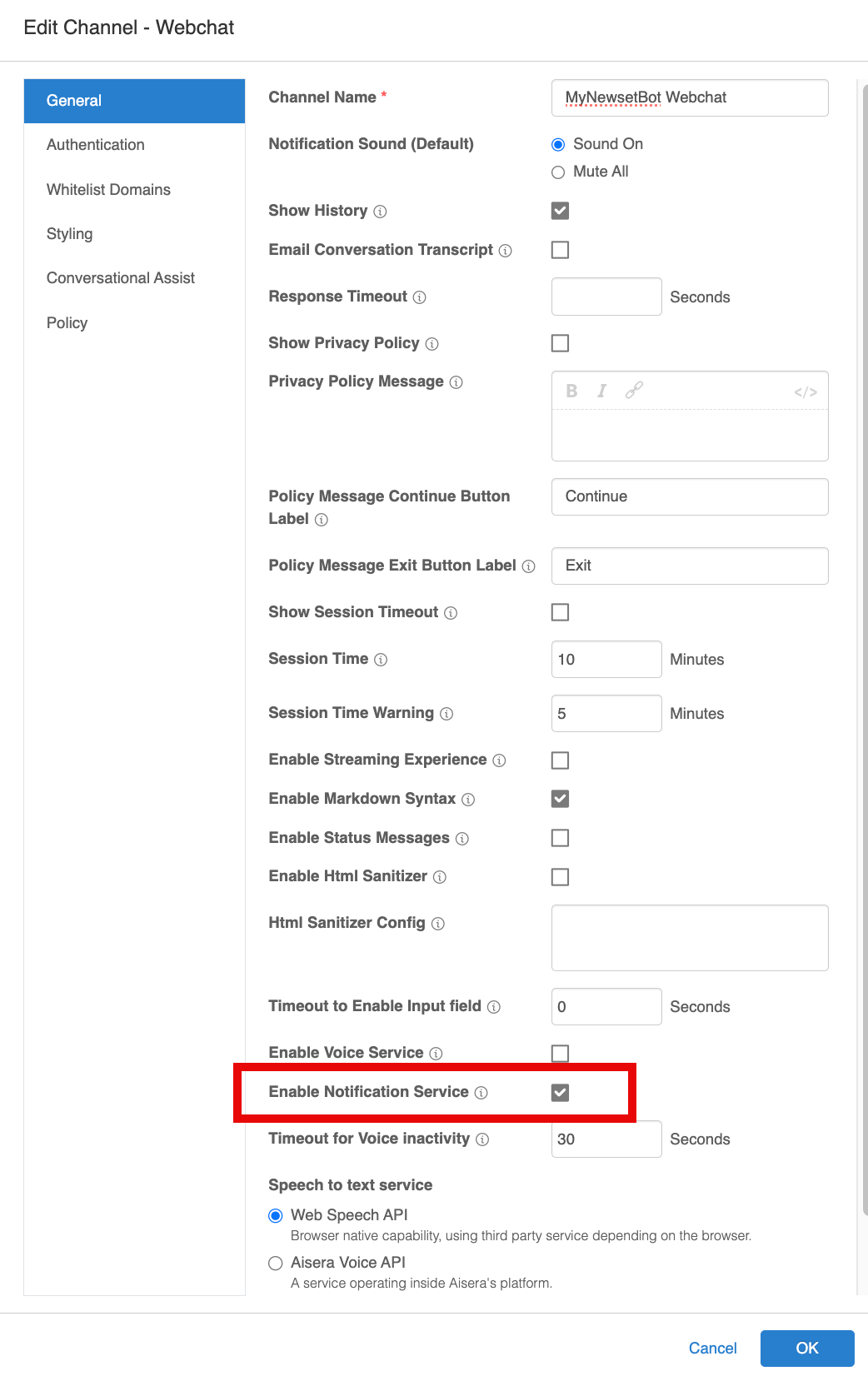
5. Check the box next to **Enable Notification Service** in the Edit Channels window.
Now your bot will have a **bell icon** in the upper right corner.
\

Choose the **bell icon** to see a list of your Notifications.
If you’re responding to a Campaign notification, you can now choose and respond to the notifications that you missed.

### Ticket Concierge
The following feature has been added to **Ticket Concierge** in this release.
#### Using Event Studio for Ticket Concierge
Ticket Concierge is a feature that looks at all the tickets that are already created in the external system and dispatches a tailored solution to the user.
With this release, there is a new Event Studio Handler that works specifically with the Ticket Concierge feature. If you are using a previous Ticket Concierge setup, it will continue to work and is still supported.
Before you begin, make sure that you have integrated a data source, ingested ticket data, and created an Aisera application or bot.
**To set up Ticket Concierge with Event Studio:**
1. Navigate to **AI Automation > Event Studio**
2. Choose **+ New Event Trigger** in the upper right corner.
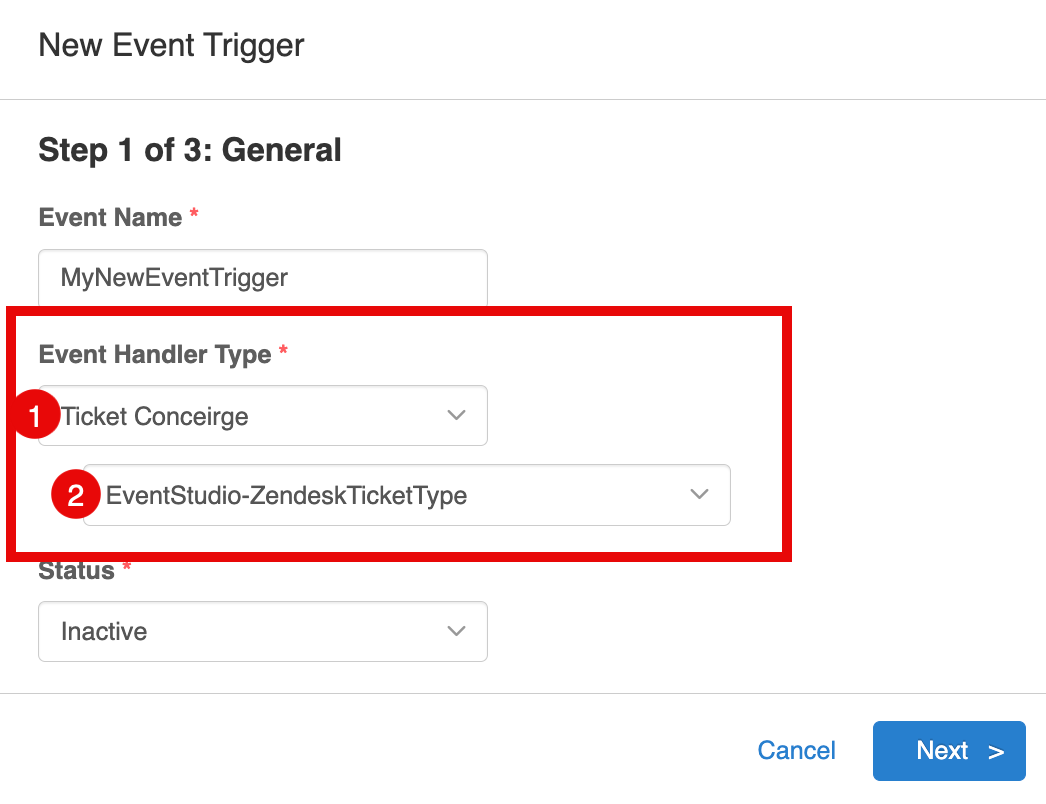
3. Select the **Ticket Concierge** option in the New Event Trigger window.
Choose Ticket Concierge as Event Handler Type
1. Choose your Ticket Type from the pull-down menu. In this example, the **Ticket Type** is Zendesk.
2. Click **OK**.
3. Choose the **Ticket Type** again from the pull-down list in the next window. This Data Type (Ticket Type) contains the mapped fields for your data source with Ticket Concierge).
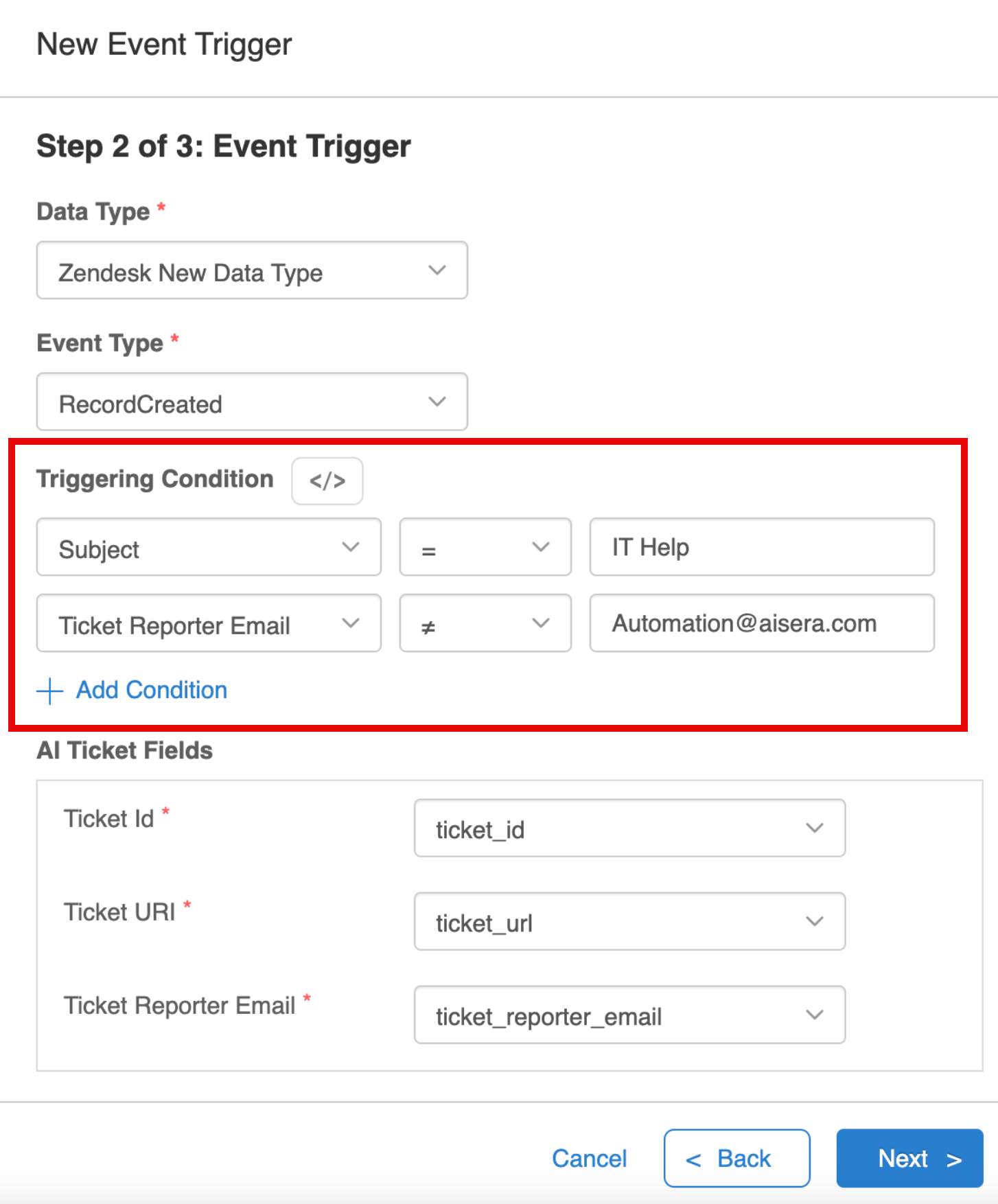
4. Select **RecordCreated** as the Event Type.
5. Define triggering conditions for the tickets you want to process. In this example, tickets with **IT Help** in the subject and a **Ticket Reporter Email** that is not **** will proceed, while those created by **** will be excluded.
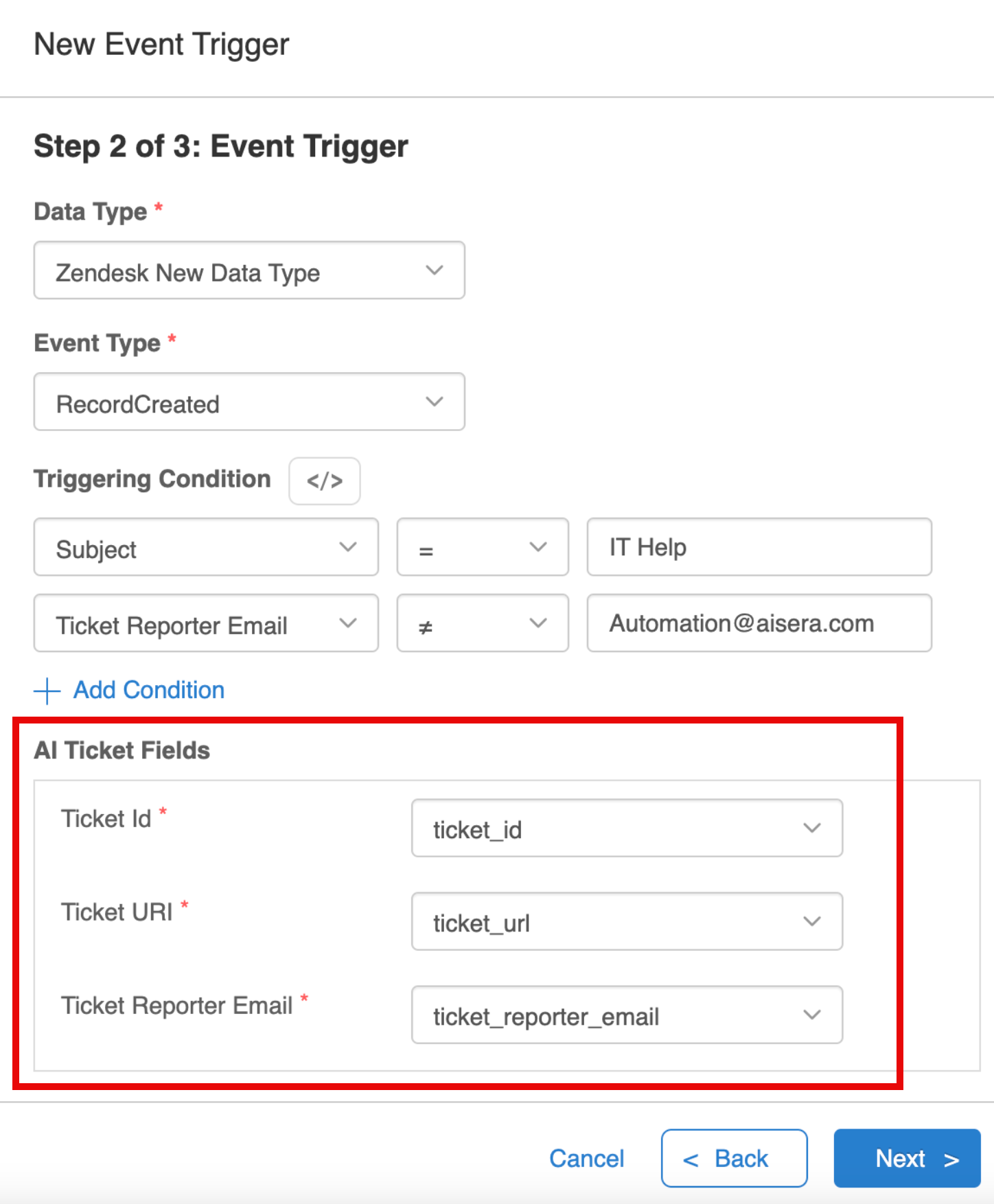
To process a ticket, three mandatory Aisera fields—**ticket\_id**, **ticket\_url,**, and **ticket\_reporter\_email**—must be mapped to the corresponding fields from your ingested data source.

6. Select the **Prehandling Flow** and **Ticket Action** flow that you want to associate with Ticket Concierge.
* **Prehandling Flow:** Flow invoked prior to processing a ticket.
* **Use Case:** If you want to enable ticket concierge even when the reporter email address is private.
* **Ticket Action Flow:** Flow involved if the fulfillment is found but before sending out the fulfillment to the end user.
* **Use Case:** If the users wants to initiate a workflow to update certain ticket fields via API.
7. Check the **Use Custom NLU Policy** check box if you want to define a custom fulfillment for Ticket Concierge. You can drag the policy to select the priority order. If unselected, the event will use the same NLU policy as the application/bot.
8. Select the ticket fields you want to include to extract intents from the user Request. Previously, we were able to extract only **Title** and **Description**, but now you can include custom fields as part of the intent extraction.
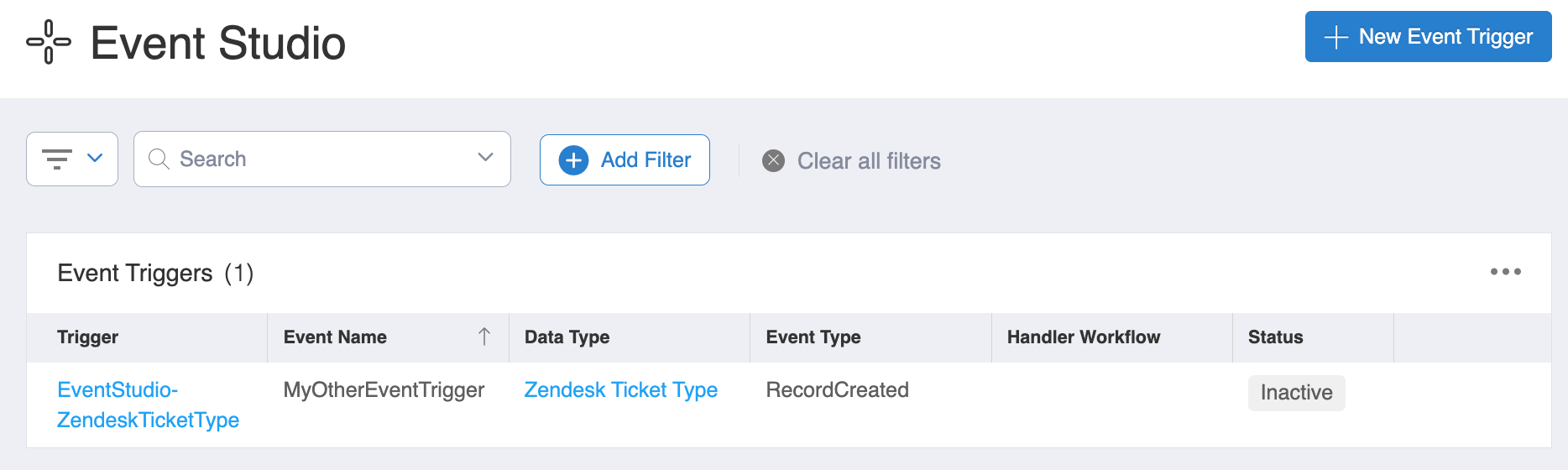
Trigger in Event Studio
9. Click **OK** to complete the Ticket Concierge setup in the Aisera Admin UI.
If you click on the Trigger link for your new Event Trigger, you will see the **Details** for your Trigger.

If you click on the **Data Type** link for this Trigger, you will see a list of the mapped fields for Ticket Concierge in this Data Type.

10. Create an Event Trigger for your Data Source to complete this setup.

11. Ask your Data Source Administrator to use the tokens from your Data Source (shown in your App Details window) to create a webhook on your Data Source system. Each Data Source system has their own webhook creation instructions.
## Enhancements
The following enhancements have been added to the Aisera GenAI Platform in this release.
### Channels
The following enhancements have been added to **Channels** in this release.
#### Webchat Supports Customized Auth Message
You can now customize the message that users will see if they have a failure during an SSO login to your bot.
**To customize the SSO Failure Message**:
1. Navigate to **Settings > AiseraGPT** and choose your bot.
2. In the **Channels** section of the Application **Details** screen, double-click on the Webchat Channel where you want to modify the message.
3. Choose the **Authorization** tab in the **Edit Channel** window.
4. Select the **SSO-SAML** radio button.

5. Add your custom message.
6. Click the **OK** button.
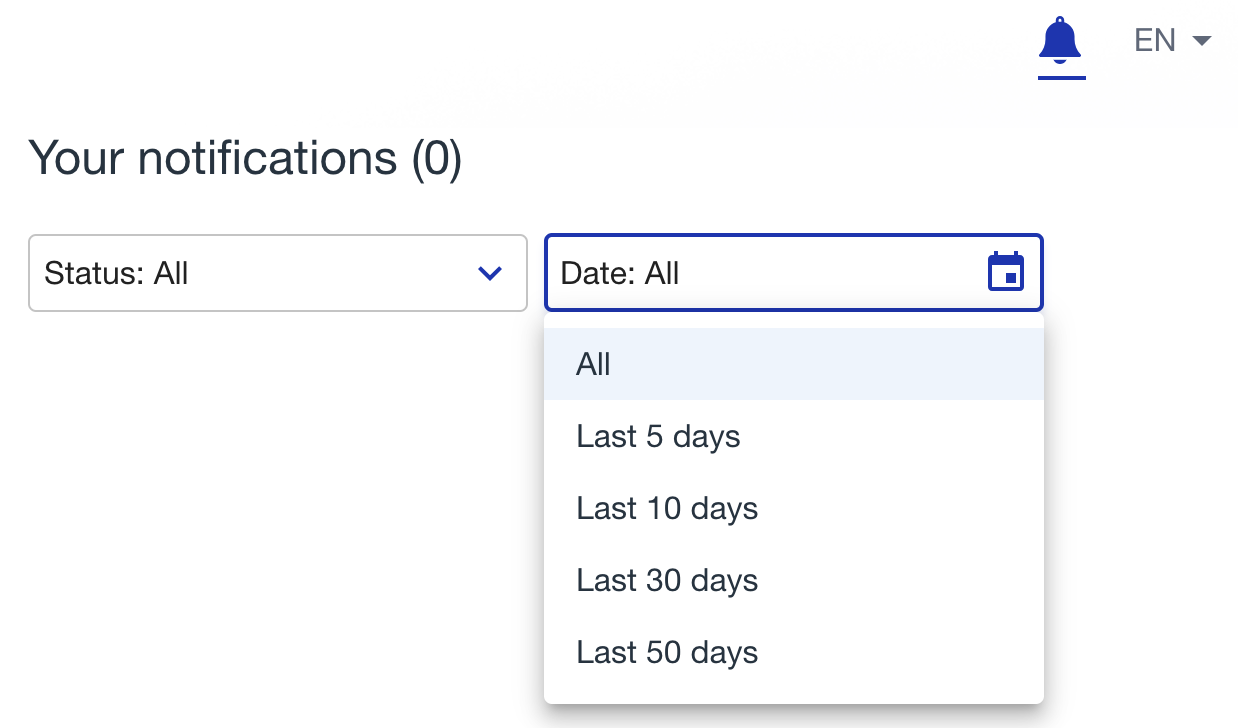
#### Notification Messages for Aisera Copilot
You can now set notification preferences in the Aisera Copilot channel.
1. Click on the bell icon in the upper right corner of your Copilot bot.
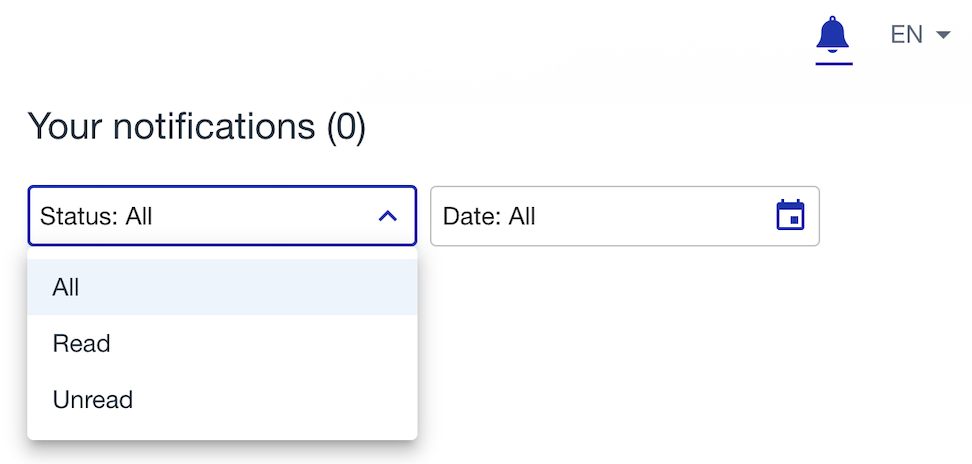
2. Select **All**, **Read**, or **Unread** Notifications.
3. Select Notification for **All**, or for the last **5**, **10**, **30**, or **50** days.
**To set your notification options:**
1. Click the **bell icon** in the upper-right side of your Copilot window.
2. Set the **Status** option for the notifications you want to view.
3. Set the **Date** field with the timeframe for the notifications you want to view.