> For the complete documentation index, see [llms.txt](https://docs.aisera.com/llms.txt). Markdown versions of documentation pages are available by appending `.md` to page URLs; this page is available as [Markdown](https://docs.aisera.com/aisera-platform/what-can-my-bot-do/ai-automation-optimize-flow/hyperflow-studio/creating-a-hyperflow.md).
# Creating a Hyperflow
When you use a [**Hyperflow**](https://aisera.com/platform/hyperflows/), you designate a data source, add **Functions**, and then specify information about the parameters that are required for that function/integration combination.
### Tenant-Level Configurations
Before you create a Hyperflow, note that there are both Tenant (Platform-level) configurations and Application/Bot level configurations that you can specify for Hyperflows.
**Consolidated Hyperflow configuration management**
Hyperflow tenant-level settings now live in one place: **Settings > Configuration > Hyperflow**. Previously, these settings were spread across multiple tabs, which made administration harder.
[Tenant Level Hyperflow Configurations](https://docs.aisera.com/aisera-platform/tenant-setup/aisera-platform-configuration/tenant-configuration-settings/hyperflows)
**Tenant-level model configuration for Hyperflows**
You can now set default LLMs for Hyperflow execution and testing at the tenant level. This centralizes model selection across the organization while still allowing app-specific overrides when needed.
[Hyperflow Execution Model](https://docs.aisera.com/aisera-platform/tenant-setup/aisera-platform-configuration/tenant-configuration-settings/hyperflows#hyperflow-execution-model)
### **Application/Bot-Level Configurations**
You can now set the LLM used for Hyperflow execution and testing at the application level. This give you flexibility to optimize performance by selecting the most appropriate model for each bot or application.
This configuration is located at the top of the **AI Automation > Hyperflows** page. The configuration will only be visible if you have disabled the **Enable Hyperflow V1** configuration. This configuration can be found under **Settings > Configurations > Hyperflows.**
### **To create a Hyperflow:**
1. Choose **Hyperflows** from the left navigation menu in the Aisera Administration application.
2. Select the **+ New Hyperflow** button in the upper-right corner.
3. Fill in the **Name**, **Description**, and **Use Cases** parameters.
4. Click the **+ Add Functions** button.
5. In the **Add Functions** window, select a **Function** from the drop-down menu. The functions that are listed in the pull-down menu represent the functions that are supported by the Integrations/Data Source associated with your application/bot. In the example below, the Zendesk data source functions as shown.
**NOTE:** To add a a **Function** to the **Hyperflow**, the Hyperflow must be in **Draft** model.
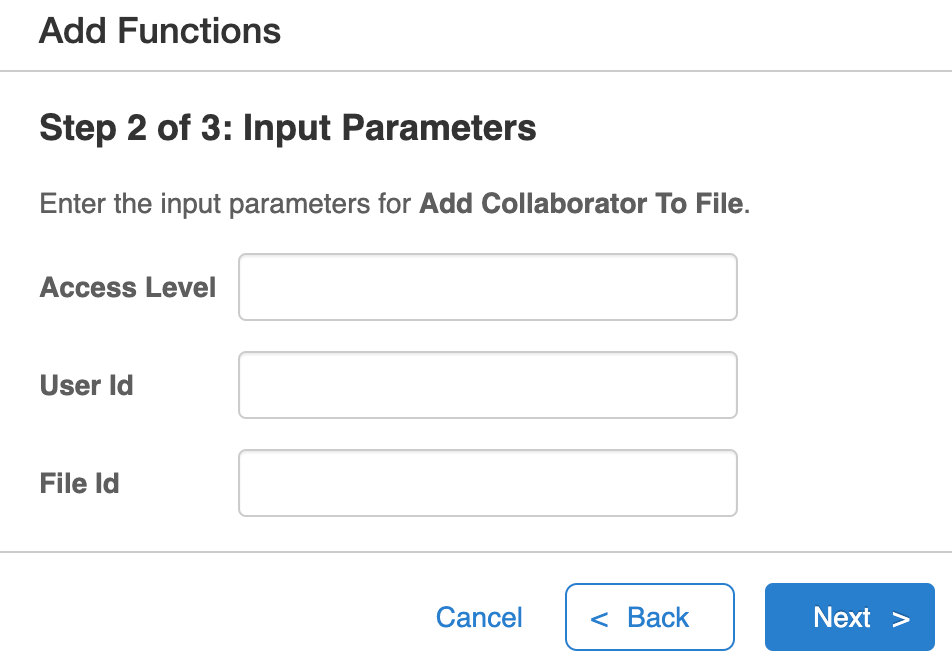
6. Select **Actions** for your **Function** and click the **Next** button. \
**Note:** You can choose more than one **Action.**
7. Add [parameters for each of the **Actions**](https://docs.aisera.com/aisera-platform/ai-automation-optimize-flow/ai-workflow-studio/building-workflows/using-workflow-actions) that are part of the **Function**.
8. While **Actions** support most interactions with supported external systems, **custom APIs** (Postman collections) can be imported to any Integrated and used as a Function.
APIs can be imported to any integration
APIs can be imported using Postman collections
Integrations can have a mix of out-of-box Actions and custom APIs
9. Additionally, any **Workflow** can be used as a **Function**. This gives your agentic automation limitless capabilities.
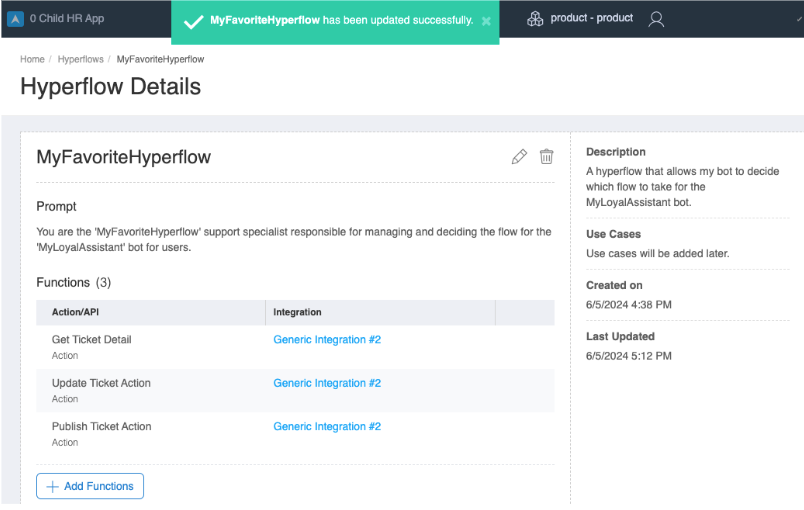
10. After you've added all of the parameters for your **Actions**, **APIs** or **Workflow** the **Function** is complete.
### Test Your Hyperflow
Use the **Test** button to run the workflow. After you select the **Test** button, you can add a query to tset the parameters that run the workflow.
### Publish a Hyperflow
Add a **Version** and a **Description** to your workflow after you select the **Publish** buttn.
### Create Another Draft Version
After your workflow is published, you can still **Test** it or create a new **Draft** version.
### Registered Hyperflows appear in the Used By Column of Workflows
You can register Hyperflows or Workflow to associate them with a specific application or bot. \
The process to register a Hyperflow is the same as the process to register a Workflow. See [**Register a Workflow for Bot Conversational Triggers**](https://docs.aisera.com/aisera-platform/ai-automation-optimize-flow/ai-workflow-studio/register-a-workflow-for-bot-conversational-triggers).\
\
Hyperflows appear in the **Used By** Column of Workflows.
### **Hyperflows Validate Registration Before Deletion**
If you attempt to delete a registered Hyperflow (Hyperflow associated with a specific application/bot) you will receive the following message in the Aisera Admin UI: `This Hyperflow cannot be deleted because it is currently registered in the application. Please remove it from the Registered Flows before attempting deletion.`
### **Go Back Option in Hyperflows**
The **Go Back** option is now available for use in a Workflow when it is being executed through the Hyperflow.
## **Hyperflow Function Authentication (OAuth)**
**Hyperflows** includes the ability to execute the **API**s/**Actions/Workflows** associated with an integration as the user who is logged into the channel of interaction. For instance, if you are using the **Aisera Webchat** channel, the **Hyperflow** function authentication will be performed (OAuth) for the user logged into that channel.
## **Context Switching**
If the user switches context which is out of scope for the Hyperflow, the next best fulfillment will be used to respond to the user's request.
## Create a Hyperflow Using a Postman Collection
In addition to creating **Hyperflow** with the Aisera Admin UI, as discussed above, you can use Aisera's curated **Postman Collections** of to build Hyperflows.
Import, explore, and customize your data using Postman. Then, export your data and use the Aisera Admin UI to import it into your integrated systems for use with **Hyperflows**.