> For the complete documentation index, see [llms.txt](https://docs.aisera.com/llms.txt). Markdown versions of documentation pages are available by appending `.md` to page URLs; this page is available as [Markdown](https://docs.aisera.com/aisera-platform/what-can-my-bot-do/ai-automation-optimize-flow/event-studio/system-triggers.md).
# System Triggers
Use System Triggers to save an event + workflow combination so that you can store and use it at another time or in a different bot. This is similar to the concept of a stored procedure.
**To create a new System Trigger:**
1. Select **Settings > System Triggers** to open the System Triggers window.
2. Choose the **+ New System Trigger**.
3. Add the **Name** of the Trigger, the Workflow it will be associated with, the **Event Type**, the **Schedule**, and the **Order**.
New System Trigger
**To use an existing System Trigger:**
1. Select **Settings > System Triggers** to open the System Triggers window.
2. Choose an existing **System Trigger** that someone has created and added for use on your system.
3. Add it to the Workflow that is associated with your application or bot.
## Use Case - Creating a Pre-Timeout Reminder
When the user sends the first request to your Aisera application or bot, it will create a conversation session for the user in this bot. Each conversation session has a max idle time in the configuration parameters. If the user doesn’t send a request within this configured time, the conversation session will be removed due to `timeout.`
Before the conversation session times out, you may want to give a reminders or notification to the user, telling them that they are about to be logged out. This is very common in banking and other high-security environments.
This **Use Case** will include five steps:
1. **Import** and **Activate** an Intent from the **Intent Library**.
2. Add a branch to your Workflow for the **Event Type**.
3. Schedule a **Task** for the Workflow.
4. **Import** a flow that checks and sends reminders.
5. Create an **Event-based** **System Trigger**.
The following steps describe how to create a **Pre Session Timeout Reminder**.
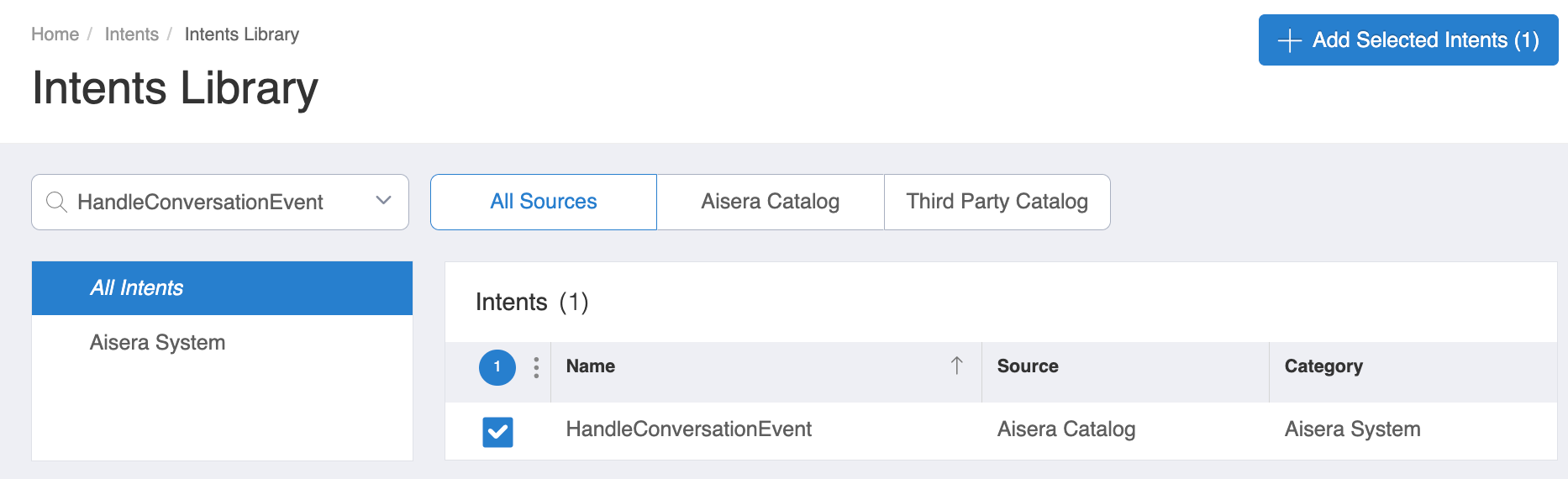
**Step 1:** Import and Activate the `HandleConversationEvent` intent from the **Intents Library**.
When you click the **OK** button, the Intent will be **imported** to your system, so you can use it in Workflows with your application or bot.
**Note:** Make sure you import the Intent from the `Intent Library`**.** Manually creating a new intent with the same intent name will **NOT** work!
You can click on the Intent name to view the Details page and make sure it is in **Active** status.
**Step 2:** Add a Branch to your Workflow for `UserConversationSessionStart.`
Add a new branch for `eventType=UserConversationSessionStart,` if it is missing.
**Step 3:** Schedule a task for `UserConversationSessionStart` and publish the flow
Under this branch, please schedule an event task for `UserConversationSessionStart`.
In this task, you need to enter the following parameters:
Provide a **unique** name for this event, such as, `review_user_conversation_session`