> For the complete documentation index, see [llms.txt](https://docs.aisera.com/llms.txt). Markdown versions of documentation pages are available by appending `.md` to page URLs; this page is available as [Markdown](https://docs.aisera.com/aisera-platform/tenant-setup/aisera-platform-configuration/audit-trail/exporting-logs-to-external-systems.md).
# Exporting Logs to External Systems
Export Aisera platform logs for use in third party applications
The Aisera platform allows exporting log information from the **Audit Trail** to third-party applications. Set up an [event trigger](/aisera-platform/what-can-my-bot-do/ai-automation-optimize-flow/event-studio.md#complete-the-following-steps-to-create-the-event-trigger) and use a [workflow](/aisera-platform/what-can-my-bot-do/ai-automation-optimize-flow/ai-workflow-studio.md) to transfer the log data to your third-party application.
{% hint style="info" %}
You will need to have a Data Source correlating to the external system you want to export your logs to. You will need to create an [Integration](/aisera-platform/adding-data-to-your-tenant/integrations-and-data-sources/creating-a-connector/adding-and-managing-integrations-in-your-tenant.md) and [Data Source](/aisera-platform/adding-data-to-your-tenant/integrations-and-data-sources/creating-a-connector/adding-and-managing-data-sources-in-your-tenant.md) if you have not done so yet.
{% endhint %}
To export log data:
1. Select **AI Automation > Event Studio** from the left navigation pane of the Admin UI
2. Click **+ New Event Trigger** on the top right of the screen
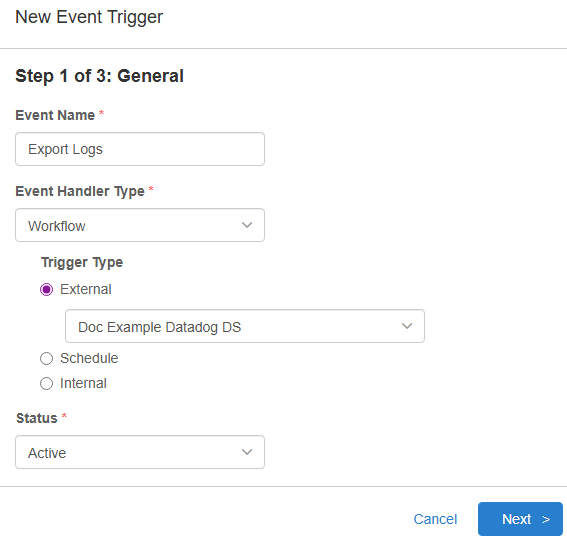
3. Fill in the **Event Name** and set the **Status** to **Active**
4. Select **Workflow** for the **Event Handler Type**
5. Select **External** for the **Trigger Type** and select the Data Source you are exporting your logs to, then select **Next >**
6. Set the [**Data Type**](/aisera-platform/ticket-operations/ticket-concierge-tc-with-event-studio.md#pdf-page-dadjkgj7xh04x8ekaejl-create-ticket-concierge-channel), **Event Type,** and **Triggering Condition**, then click **Next >**
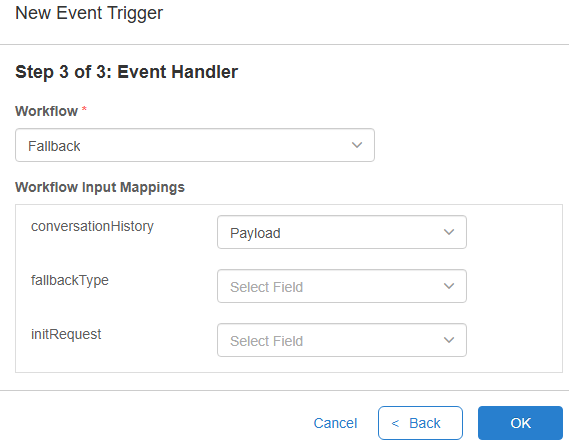
7. Select the **Workflow** you want to use your Event Handler, then click **OK** to save the event trigger
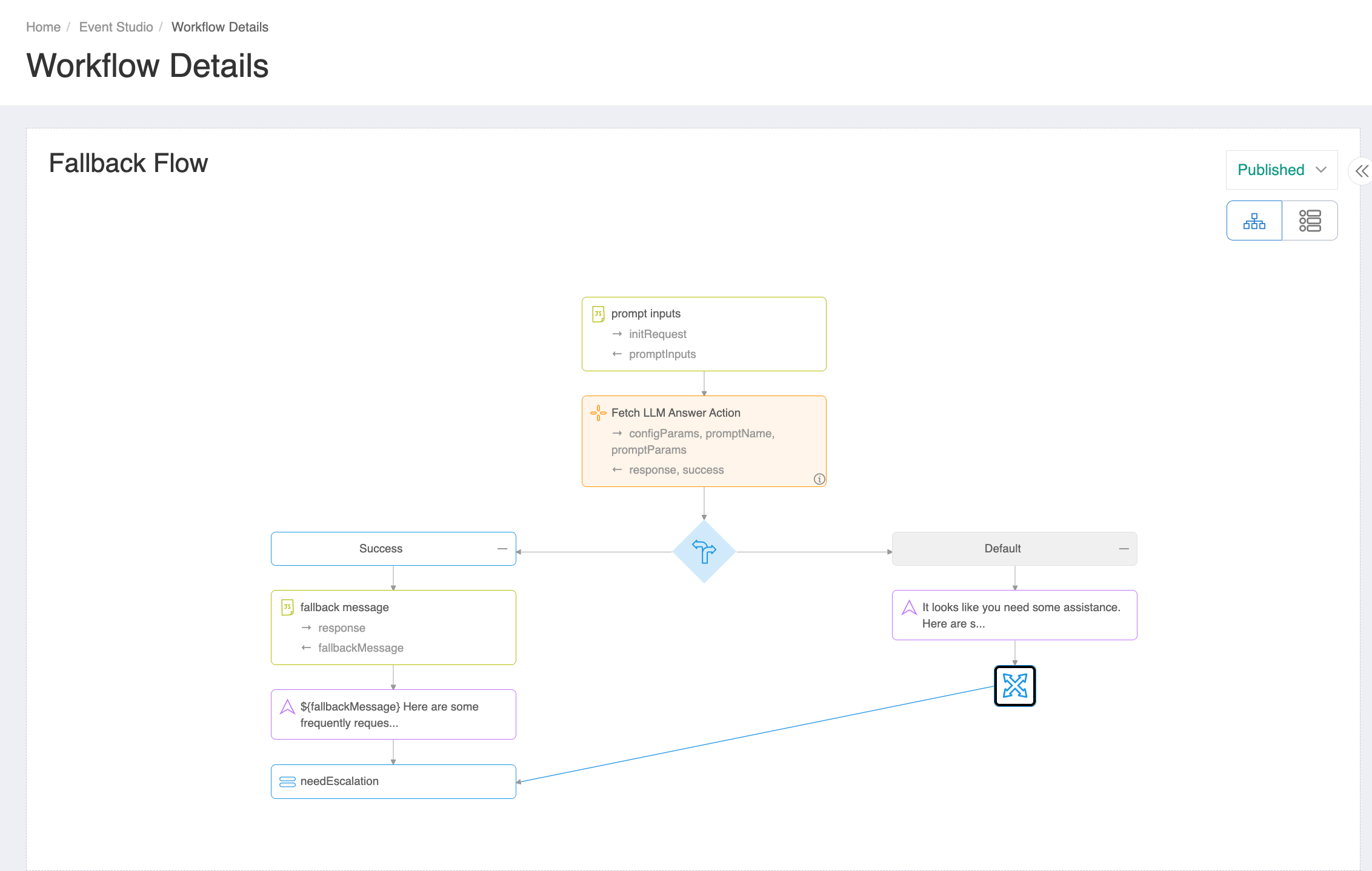
8. Click the link to the workflow you selected under the **Handler Workflow** column to navigate to the **Workflow Details** window of the AI Workflow Studio
9. The Workflow Details window displays the current Fallback flow. Add your new Event Trigger to this flow to complete the process to push the data out to your 3rd party audit system.