# Aisera Platform Permissions

## Permissions

Below is a list of each **Permission** accompanied by a description of its corresponding features.

### Aisera GPT

A user may create, view the details of, and manage Aisera applications from this window.

Select **Settings > AiseraGPT** in the Admin UI to view **AiseraGPT**

<div align="left"><figure><img src="https://3281977978-files.gitbook.io/~/files/v0/b/gitbook-x-prod.appspot.com/o/spaces%2FvBFXjH9S1CAy9f5hzg5Q%2Fuploads%2Fj1Epfk1bsovoHEEMeSbS%2FAiseraGPT.png?alt=media&#x26;token=144ee2b8-dd8c-4cce-8849-5931c662d5e7" alt=""><figcaption><p>Aisera GPT Window</p></figcaption></figure></div>

### Access Control&#x20;

**Access Attributes** are settings that allow you to dictate which information is used and delivered in interactions with end users. They enable you to establish access controls and restrictions on documents based on user and document attributes ingested into the Aisera Application. A User can manage **Access Attributes** from this window.

Select **Settings > Access Control** in the Admin UI to view **Access Control**.

<div align="left"><figure><img src="https://3281977978-files.gitbook.io/~/files/v0/b/gitbook-x-prod.appspot.com/o/spaces%2FvBFXjH9S1CAy9f5hzg5Q%2Fuploads%2FMKDa1n0XJjWLVc8tO58z%2FAccessControlWindow.png?alt=media&#x26;token=503b2b71-fab4-45aa-94c9-6a7965e00f3a" alt=""><figcaption><p>Access Control Window</p></figcaption></figure></div>

### AI Discovery CMDB&#x20;

The **Configuration Management Database Discover (CMDB)** allows AI to determine and create a list of systems, applications, networks, storage, and business services on your network inventory.

Select **AI Discovery - CMDB** on the left navigation pane to navigate to the **AI Discovery - CMDB** window.

<figure><img src="https://3281977978-files.gitbook.io/~/files/v0/b/gitbook-x-prod.appspot.com/o/spaces%2FvBFXjH9S1CAy9f5hzg5Q%2Fuploads%2FgxX7CBw4nXcSR4FO1ide%2FAIDiscoveryCMDBWindow.png?alt=media&#x26;token=be07bdf5-9c21-46ba-b8f1-216cdaafb116" alt=""><figcaption><p>AI Discovery - CMDB Window</p></figcaption></figure>

### AI Workflows

**Workflows** provide your Aisera application to integrate with third party systems, execute business logic, and follow predefined steps to complete tasks. You can create, manage, and edit workflows in the **AI Workflow Studio**.

Select **AI Automation > AI Workflow Studio** on the left navigation pane to navigate to the **AI Workflow Studio**

<figure><img src="https://3281977978-files.gitbook.io/~/files/v0/b/gitbook-x-prod.appspot.com/o/spaces%2FvBFXjH9S1CAy9f5hzg5Q%2Fuploads%2FymncjEke7XDDRs4nptNI%2FAIWorkflowStudioWindow.png?alt=media&#x26;token=0cbc635c-cdf3-49f8-8156-998ef3e70bdd" alt=""><figcaption><p>Workflow Studio Window</p></figcaption></figure>

### Audit

Changes you make to objects in the Aisera platform are logged as audit logs. Users who have access to the Audit feature can view audit log history.

Select **Settings > Audit Trail** in the Admin UI to view the log history.

<div align="left"><figure><img src="https://3281977978-files.gitbook.io/~/files/v0/b/gitbook-x-prod.appspot.com/o/spaces%2FvBFXjH9S1CAy9f5hzg5Q%2Fuploads%2FV0ojSvmUbdvNsvFF7OV6%2Fent_audit_trail.png?alt=media&#x26;token=8bd73af8-aa68-4dd6-b1ff-3f9629012354" alt=""><figcaption><p>Audit Trail Window</p></figcaption></figure></div>

### Channel

Channels are the medium through which end users engage with Aisera Application. Channel configurations are available for users who have access to this feature.&#x20;

Select **Settings > Channels** in the Admin UI to add or manage channels.

<div align="left"><figure><img src="https://3281977978-files.gitbook.io/~/files/v0/b/gitbook-x-prod.appspot.com/o/spaces%2FvBFXjH9S1CAy9f5hzg5Q%2Fuploads%2FJvdfczO8hZxfGwrPWSJ1%2Fent_channels.png?alt=media&#x26;token=c7b08845-45e3-45cc-8500-8713cb38f35c" alt=""><figcaption><p>Channels Window</p></figcaption></figure></div>

### Conversation Message

Systems messages that are provided by default for **Message Keys** (scenarios) listed. **Messages** can be customized.

Select **Settings > AiseraGPT** and then open or create a new application. Choose **View App Conversation Messages** to see the default messages associated with Aisera platform. Hover over the right-side of a line item and click the **pencil** icon to edit/customize a message.

<div align="left"><figure><img src="https://3281977978-files.gitbook.io/~/files/v0/b/gitbook-x-prod.appspot.com/o/spaces%2FvBFXjH9S1CAy9f5hzg5Q%2Fuploads%2FpyM5jdM3JSk9qkbrLQaM%2Fent_conversation_messages2.png?alt=media&#x26;token=4df69926-3755-4cb9-8ab4-6839a2cfa935" alt=""><figcaption><p>Conversation Messages for a Specific Application or Bot</p></figcaption></figure></div>

### Configurations

The **Configurations** window allows you to configure tenants settings.

Select **Settings > Configuration** to navigate the **Configuration** window.

<figure><img src="https://3281977978-files.gitbook.io/~/files/v0/b/gitbook-x-prod.appspot.com/o/spaces%2FvBFXjH9S1CAy9f5hzg5Q%2Fuploads%2FvClkyiBPS509ZU13R88O%2FConfigurationModal.png?alt=media&#x26;token=740863bf-739d-4389-8a23-0283d7475ea1" alt=""><figcaption><p>Tenant Configurations Window</p></figcaption></figure>

### Data Source

This feature stores the configuration information for the data source that you are integrating with your application. This is the pass-through information that allows the Aisera platform to access your data source.

To set up your data sources, go to **Settings > Data Source**. You can open an existing data source or create a new one. To manage a data source, select it to view or modify its details. Enable editing by clicking the pencil icon at the top.

<div align="left"><figure><img src="https://3281977978-files.gitbook.io/~/files/v0/b/gitbook-x-prod.appspot.com/o/spaces%2FvBFXjH9S1CAy9f5hzg5Q%2Fuploads%2FWphbgfxYrSxPjzO8JR6B%2Fsettings_data_sources.png?alt=media&#x26;token=0a7c34fe-b35d-407a-a382-31d9b765c032" alt=""><figcaption><p>Add a Data Source</p></figcaption></figure></div>

### Data Type

A **Data Type** in Aisera is a custom entity used as a Data Source for **Events** and **Triggers**. It includes select data fields obtained from User and Ticket Learning Jobs

Select **Settings > Data Types**  on the left navigation pane to view, create, manage, and edit **Data Types** within the Aisera Platform.

Users with **Write** permissions can view and edit Data Types. Users with **Read** permissions can view Data Types but not edit them. The **Data Types** window is hidden for users with **None** permissions.

<figure><img src="https://3281977978-files.gitbook.io/~/files/v0/b/gitbook-x-prod.appspot.com/o/spaces%2FvBFXjH9S1CAy9f5hzg5Q%2Fuploads%2F5s748734bI2zeXb863uz%2FDataTypesWindow.png?alt=media&#x26;token=18572a67-d4af-4c38-8ae8-e80e82266a3e" alt=""><figcaption><p>Data Types Window</p></figcaption></figure>

### Direct Escalation

Select **AI Workbench > Unresolved** in the left navigation pane. Then select the **Direct Escalation** tab to see the **Direct Escalation** window.

<figure><img src="https://3281977978-files.gitbook.io/~/files/v0/b/gitbook-x-prod.appspot.com/o/spaces%2FvBFXjH9S1CAy9f5hzg5Q%2Fuploads%2F7GbYsuM546xs33AzdmKF%2FDirectEscalationWindow.png?alt=media&#x26;token=8e0c8447-0021-40d4-acad-6246933740c5" alt=""><figcaption><p>Direct Escalation Window</p></figcaption></figure>

### Email Template

Email templates are used with **Campaigns** & **Approvals**.

Select **Settings > Email Templates** to view existing templates that are available for your application. You can select the list or document view in the upper-right corner of the window. Choose the **pencil** icon to edit a template.

<div align="left"><figure><img src="https://3281977978-files.gitbook.io/~/files/v0/b/gitbook-x-prod.appspot.com/o/spaces%2FvBFXjH9S1CAy9f5hzg5Q%2Fuploads%2FAnpl8datTuyGvubmYD5N%2Fent_email_templates.png?alt=media&#x26;token=8170d51a-d496-498e-bf45-0fbb09a73357" alt=""><figcaption><p>Email Template Window</p></figcaption></figure></div>

### Event Trigger

The **Event Studio** is a feature that allows you to build AI automations without writing code.

Select **AI Automation > Event Studio** from the left navigation panel to view the **Event Studio** window.

<figure><img src="https://3281977978-files.gitbook.io/~/files/v0/b/gitbook-x-prod.appspot.com/o/spaces%2FvBFXjH9S1CAy9f5hzg5Q%2Fuploads%2FxQ0yOeEyXLWoPHyFPATt%2FEventStudioWindow.png?alt=media&#x26;token=6b90a4ee-5e83-455e-abb5-6495c12705a9" alt=""><figcaption><p>Event Studio Window</p></figcaption></figure>

### Hyperflow

Hyperflows are a form of Workflow where the flow of the conversation and the APIs chosen to fulfill the user's request are determined by the AI.

A user with **None** permissions will be unable to view Hyperflows or navigate to the **Hyperflows** window.

**A user with Read** permissions will be able to view created Hyperflows and navigate to the **Hyperflows** window. Hyperflows will also be visible from other windows the user has permissions to, such as when displaying connected Hyperflows from the **Workflows** window.

A user with **Write** permissions will be able to view and create Hyperflows from the **Hyperflows** window. They will also be able to view the names of connected workflows connected to Hyperflows regardless of their permissions.

Navigate to **AI Automation > Hyperflows** to view the **Hyperflows** window.

<figure><img src="https://3281977978-files.gitbook.io/~/files/v0/b/gitbook-x-prod.appspot.com/o/spaces%2FvBFXjH9S1CAy9f5hzg5Q%2Fuploads%2Fmm6xxQA3LWeaRrF7yYjX%2FHyperflowsWindow.png?alt=media&#x26;token=25fdca8a-ccf2-4c92-b3b0-9dcb1d225f91" alt=""><figcaption><p>Hyperflows Window</p></figcaption></figure>

### Integrations

This entity stores the authentication and authorization data for data sources that you connect to Aisera Application.

Choose **Settings > Integrations** to see a list of your applications and the integrations associated with each. You can view the integrations as a list or as boxes with icons that show the logo for each integration. From either view, you can click the **pencil** icon to edit your integration data. You can also create a new integration when you create a new application, as part of the **Add Data Source** command.

<div align="left"><figure><img src="https://3281977978-files.gitbook.io/~/files/v0/b/gitbook-x-prod.appspot.com/o/spaces%2FvBFXjH9S1CAy9f5hzg5Q%2Fuploads%2FC5DFP9hahr1BXZaVgs6i%2Fent_integration.png?alt=media&#x26;token=e0cacf99-97eb-428a-9e62-fe6a60ab8de6" alt=""><figcaption><p>Add an Integration</p></figcaption></figure></div>

### Intelligent Alert

Select **AI Observability > Intelligent Alerts** in the left navigation panel to navigate to the **Intelligent Alerts** window.

<figure><img src="https://3281977978-files.gitbook.io/~/files/v0/b/gitbook-x-prod.appspot.com/o/spaces%2FvBFXjH9S1CAy9f5hzg5Q%2Fuploads%2FekH3NUAO5tR3M8i8r6t3%2FIntelligent%20AlertWindow.png?alt=media&#x26;token=07bba059-8dfb-4b40-aad3-acfa504a2af7" alt=""><figcaption><p>Intelligent Alerts Window</p></figcaption></figure>

### Intents

This feature relates to the data stored for the **Intents** and the associated mapping to **Fulfillments**. **Intents** are topics that the bot can serve. This permission encompasses a number of features within the Aisera Admin UI. These features include **Agent Assist, AI Lens, AI Workbench, Campaigns, Gen AI Learning, Intents, Knowledge,** and **Service Catalog.**&#x20;

Select **Agent Assist** on the left navigation pane to see the **Agent Assist** window.

<figure><img src="https://3281977978-files.gitbook.io/~/files/v0/b/gitbook-x-prod.appspot.com/o/spaces%2FvBFXjH9S1CAy9f5hzg5Q%2Fuploads%2FCjek2iwUXoWOJEo9HtQg%2FAgentAssistWindow.png?alt=media&#x26;token=ce580ad1-ea3f-43b6-9fc7-c67fce0cf3b6" alt=""><figcaption><p>Agent Assist Window</p></figcaption></figure>

Select **AI Lens** on the left navigation pane to see the **AI Lens** window.

<figure><img src="https://3281977978-files.gitbook.io/~/files/v0/b/gitbook-x-prod.appspot.com/o/spaces%2FvBFXjH9S1CAy9f5hzg5Q%2Fuploads%2F3GCIBTwRrTB0oOaLiYAc%2FAILensWindow.png?alt=media&#x26;token=e7383ba1-7c66-43af-9915-8d37f69f7d78" alt=""><figcaption><p>AI Lens Window</p></figcaption></figure>

The **AI Workbench** is a collection of features. To see the associated windows select **AI Workbench** on the left navigation window.

<div align="left"><figure><img src="https://3281977978-files.gitbook.io/~/files/v0/b/gitbook-x-prod.appspot.com/o/spaces%2FvBFXjH9S1CAy9f5hzg5Q%2Fuploads%2Fetk6YNlE8WFtatLPrmBj%2Fimage.png?alt=media&#x26;token=20bfa37e-0742-4e17-9e76-711ced3781a0" alt=""><figcaption><p>AI Workbench Navigation Menu</p></figcaption></figure></div>

Select **Campaigns** in the left navigation panel to view the **Campaigns** window.

<div align="left"><figure><img src="https://3281977978-files.gitbook.io/~/files/v0/b/gitbook-x-prod.appspot.com/o/spaces%2FvBFXjH9S1CAy9f5hzg5Q%2Fuploads%2FuBlEZQO1jZysFq3FbNeD%2FCampaignsWindow.png?alt=media&#x26;token=81d4f7a8-1915-496c-b1d3-9c28d845430a" alt=""><figcaption><p>Campaigns Window</p></figcaption></figure></div>

Select **Gen AI Learning** in the left navigation panel to view the **Generative AI Learning** window.

<div align="left"><figure><img src="https://3281977978-files.gitbook.io/~/files/v0/b/gitbook-x-prod.appspot.com/o/spaces%2FvBFXjH9S1CAy9f5hzg5Q%2Fuploads%2FaDl9z5JNMigARkoXj4LD%2FGenerativeAILearningWindow.png?alt=media&#x26;token=8c46f2a5-24bd-4a2b-a87d-5516f8cd6e63" alt=""><figcaption><p>Generative AI Learning Window</p></figcaption></figure></div>

Select **Intents** in the left navigation panel to view the **Intents** window. You can select new Intents from the **Intents Library**, edit existing Intents, or create your own. You can see other objects that are associated with an Intent from the **Intents** window.

<div align="left"><figure><img src="https://3281977978-files.gitbook.io/~/files/v0/b/gitbook-x-prod.appspot.com/o/spaces%2FvBFXjH9S1CAy9f5hzg5Q%2Fuploads%2FtW8dnh4migtJPP76f3W7%2Fent_intents2.png?alt=media&#x26;token=4a7e3b06-9552-4681-a79c-224aef1de097" alt=""><figcaption><p>Intents Window</p></figcaption></figure></div>

Select **SOR > Knowledge Documents** to navigate to the **Knowledge Documents** window. Intents only provides **Read** permissions to the user.

<figure><img src="https://3281977978-files.gitbook.io/~/files/v0/b/gitbook-x-prod.appspot.com/o/spaces%2FvBFXjH9S1CAy9f5hzg5Q%2Fuploads%2FNSIiQz1eH7dGeXZ9mT7W%2FKnowledgeWindow.png?alt=media&#x26;token=9b9da246-9d14-4b19-9082-cef30200d667" alt=""><figcaption><p>Knowledge Documents Window</p></figcaption></figure>

Select **SOR > Service Catalog** to view the **Service Catalog Items** window.

<figure><img src="https://3281977978-files.gitbook.io/~/files/v0/b/gitbook-x-prod.appspot.com/o/spaces%2FvBFXjH9S1CAy9f5hzg5Q%2Fuploads%2FfscLD1xfFa45bxJf3tgx%2FServiceCatalogITemsWindow.png?alt=media&#x26;token=1a1bb151-76c6-4b4b-adb9-2ce11c9c75c2" alt=""><figcaption><p>Service Catalog Items Window</p></figcaption></figure>

### Intents Review

Select **AI Workbench > Review** and select the **Intents Review** tab to view the **Intents Review** window.

<div align="left"><figure><img src="https://3281977978-files.gitbook.io/~/files/v0/b/gitbook-x-prod.appspot.com/o/spaces%2FvBFXjH9S1CAy9f5hzg5Q%2Fuploads%2Fgyy2lxJ0UMurDYvCxhIU%2FIntentsReviewWindow.png?alt=media&#x26;token=025ded3d-9739-40fe-b17d-6adeb78eae7b" alt=""><figcaption><p>Intents Review Window</p></figcaption></figure></div>

### Job Execution

This entity stores the information about system and user jobs that have been run from your application, like **Knowledge Generation**, **Ticket Learning**, and **Knowledge Learning**. The data stored includes the name of the job, the pipeline status, user who ran the job, the start time, and the job duration. **Jobs** are triggered automatically and provide a view only access to the jobs.

Select **Settings > Jobs** to see the list of jobs that have been run from your application. To run a job, you need to go to the related windows:

* **Content Generation > Knowledge Generation**
* **Gen AI Learning > Ticket Learning**&#x20;
* **Gen AI Learning > Knowledge Learning**

<div align="left"><figure><img src="https://3281977978-files.gitbook.io/~/files/v0/b/gitbook-x-prod.appspot.com/o/spaces%2FvBFXjH9S1CAy9f5hzg5Q%2Fuploads%2FPdNiiRNxRFQskhvDlq17%2Fent_jobs.png?alt=media&#x26;token=8b1facc2-a477-4641-97d0-04418ad478d0" alt=""><figcaption><p>Jobs Window</p></figcaption></figure></div>

In the **Name** pull-down list at the top left of the **Jobs** window, you can search for jobs that have `Knowledge Generation` in the name.

![](https://3281977978-files.gitbook.io/~/files/v0/b/gitbook-x-prod.appspot.com/o/spaces%2FvBFXjH9S1CAy9f5hzg5Q%2Fuploads%2F4JR2yoYKWtfYDkmAWhlx%2Funknown.png?alt=media\&token=87511dfd-a639-4141-8787-e1025883a0db)

<br>

### Knowledge

This entity stores the information from **Knowledge Articles** that are ingested into your application. Ingested content is also referred to as the **Source of Record (SOR)** in the Aisera platform.

Select **SOR > Knowledge** to see a list of the Knowledge Base articles that have been ingested into your application. You can edit the data or apply templates to the data, if you have write privileges to this entity.

<div align="left"><figure><img src="https://3281977978-files.gitbook.io/~/files/v0/b/gitbook-x-prod.appspot.com/o/spaces%2FvBFXjH9S1CAy9f5hzg5Q%2Fuploads%2Fgug4NJmtqhHAKUjHQHcb%2Fent_knowledge.png?alt=media&#x26;token=e2277283-3323-4376-b0a8-9701c4a79e42" alt=""><figcaption><p>Knowledge Documents Window</p></figcaption></figure></div>

### LLM Prompts System

This permission allows a user to view, create, and manage **System Prompts** in the **Prompt Studio**. This permission requires that a user have at least **Read** privileges for [**Prompt Studio**](#prompt-studio).

Select **LLMs > Prompt Studio** to view the **Prompts Studio** window.

### LLM Prompts User&#x20;

This permission allows a user to view, create, and manage **System Prompts** in the **Prompt Studio**. This permission requires that a user have at least **Read** privileges for [**Prompt Studio**](#prompt-studio).

Select **LLMs > Prompt Studio** to view the **Prompts Studio** window.

### Possible Issues (previously Major Incidents)&#x20;

Allows users to view, create, and manage **Possible Issues**. It also determines the visibility of the **AI Observability** navigation option on the left navigation panel.

Navigate to **AI Observability > Possible Issues** to view the **Possible Issues** window.

<figure><img src="https://3281977978-files.gitbook.io/~/files/v0/b/gitbook-x-prod.appspot.com/o/spaces%2FvBFXjH9S1CAy9f5hzg5Q%2Fuploads%2FbA07nG08G1m15BYQQC8Y%2Fimage.png?alt=media&#x26;token=30bc47a2-25f5-45b4-a1bb-70a6e26d4be7" alt=""><figcaption></figcaption></figure>

### Model&#x20;

Users with read permissions can view system jobs, while users with write permissions can execute jobs.

### Model Job&#x20;

A user with write permissions will be able to edit job configurations.

### Ontology&#x20;

This permission allows a user to control access to the **Ontology** window. This permission does not allow users to edit **Ontologies**.

Select **LLMs > Ontologies** on the left navigation panel to see the **Ontologies** window.

<figure><img src="https://3281977978-files.gitbook.io/~/files/v0/b/gitbook-x-prod.appspot.com/o/spaces%2FvBFXjH9S1CAy9f5hzg5Q%2Fuploads%2FeUcWs3pNTAf0zAuAwiY5%2FOntologiesWindow.png?alt=media&#x26;token=f84f9d69-9f1f-4b4d-84b1-4bb453411299" alt=""><figcaption><p>Ontologies Window</p></figcaption></figure>

### Ontology Entity&#x20;

This permission allows a user edit, create, and manage ontologies. This permission requires that a user has at least **Read** permissions for [**Ontology**](#ontology).

Select **LLMs > Ontologies** on the left navigation panel to see the **Ontologies** window.

#### Publish to SOR

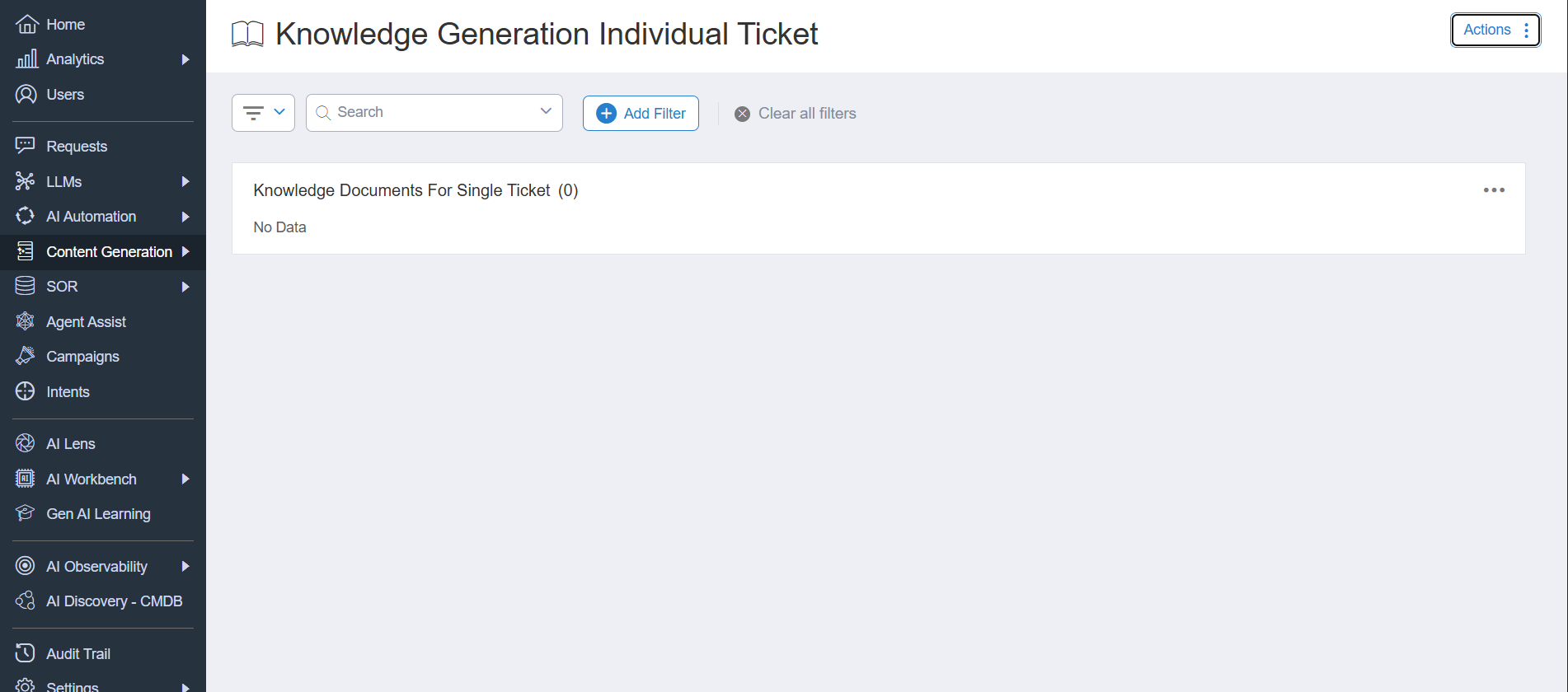
This permission allows a user to publish a Knowledge Base Article generated from a single ticket to the system of record (SOR).

&#x20;Select **Content Generation > Knowledge Generation individual Ticket** to see Knowledge Base Artilces generated from a single ticket and related actions.

<figure><img src="https://3281977978-files.gitbook.io/~/files/v0/b/gitbook-x-prod.appspot.com/o/spaces%2FvBFXjH9S1CAy9f5hzg5Q%2Fuploads%2Fo5D1NnMTXTlzswO0Vxw8%2Fimage.png?alt=media&#x26;token=d85b8f7d-3552-40ac-9261-a5bba1c65175" alt=""><figcaption><p>Knowledge Generation Individual Ticket Window</p></figcaption></figure>

### Prompt Studio

This permission allows a user to view the **Prompt Studios** screen.

Select **LLMs > Prompt Studio** to view the **Prompts Studio** window.

<figure><img src="https://3281977978-files.gitbook.io/~/files/v0/b/gitbook-x-prod.appspot.com/o/spaces%2FvBFXjH9S1CAy9f5hzg5Q%2Fuploads%2F56dFpPfqYc5nEPQbruqk%2Fimage.png?alt=media&#x26;token=9493d557-461f-455f-a88c-20ad3972b645" alt=""><figcaption><p>Prompts Studio Window</p></figcaption></figure>

### Privacy Access

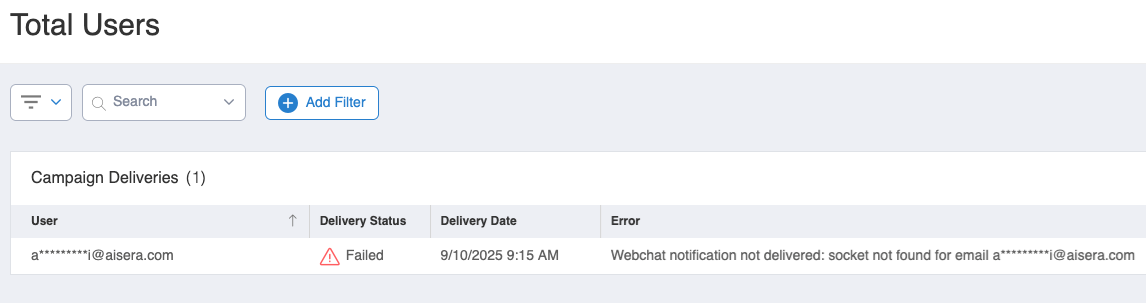
This permission manages the visibility of Personally Identifiable Information (PII) in the Aisera Admin UI. Users with **Read** permissions can view PII such as names or emails, whereas this infomation will be obscured for users with **None** permissions.

This will also affect data extracted from the platform. When a user with **None** permissions in **Privacy Access** downloads information, such as campaign reports, any Personally Identifiable Information (PII) will be obfuscated or removed.

<figure><img src="https://3281977978-files.gitbook.io/~/files/v0/b/gitbook-x-prod.appspot.com/o/spaces%2FvBFXjH9S1CAy9f5hzg5Q%2Fuploads%2Focsr0OhRHUbvPM6PGd5I%2Funknown.png?alt=media&#x26;token=e4b7660a-9f61-4b20-a08d-1e872ccc42b7" alt=""><figcaption></figcaption></figure>

### Request

This entity holds the request history.

Select **Requests** to see a list of the Requests that customers have entered into your application. If you have **Write** permission to the **Requests** entity, you can choose from different visualizations for the **Requests Over Time** metric in the **Requests** window. The lower part of the Requests window contains a list of your requests that you can customize by adding or removing columns. You can also export the list to a CSV file.

<div align="left"><figure><img src="https://3281977978-files.gitbook.io/~/files/v0/b/gitbook-x-prod.appspot.com/o/spaces%2FvBFXjH9S1CAy9f5hzg5Q%2Fuploads%2F4V3Aib4YZAEhHDC1ETFN%2Fent_requests.png?alt=media&#x26;token=0aeba1ae-96e2-4df4-8db2-088e39f6ff0a" alt=""><figcaption><p>Requests Window</p></figcaption></figure></div>

### System Trigger

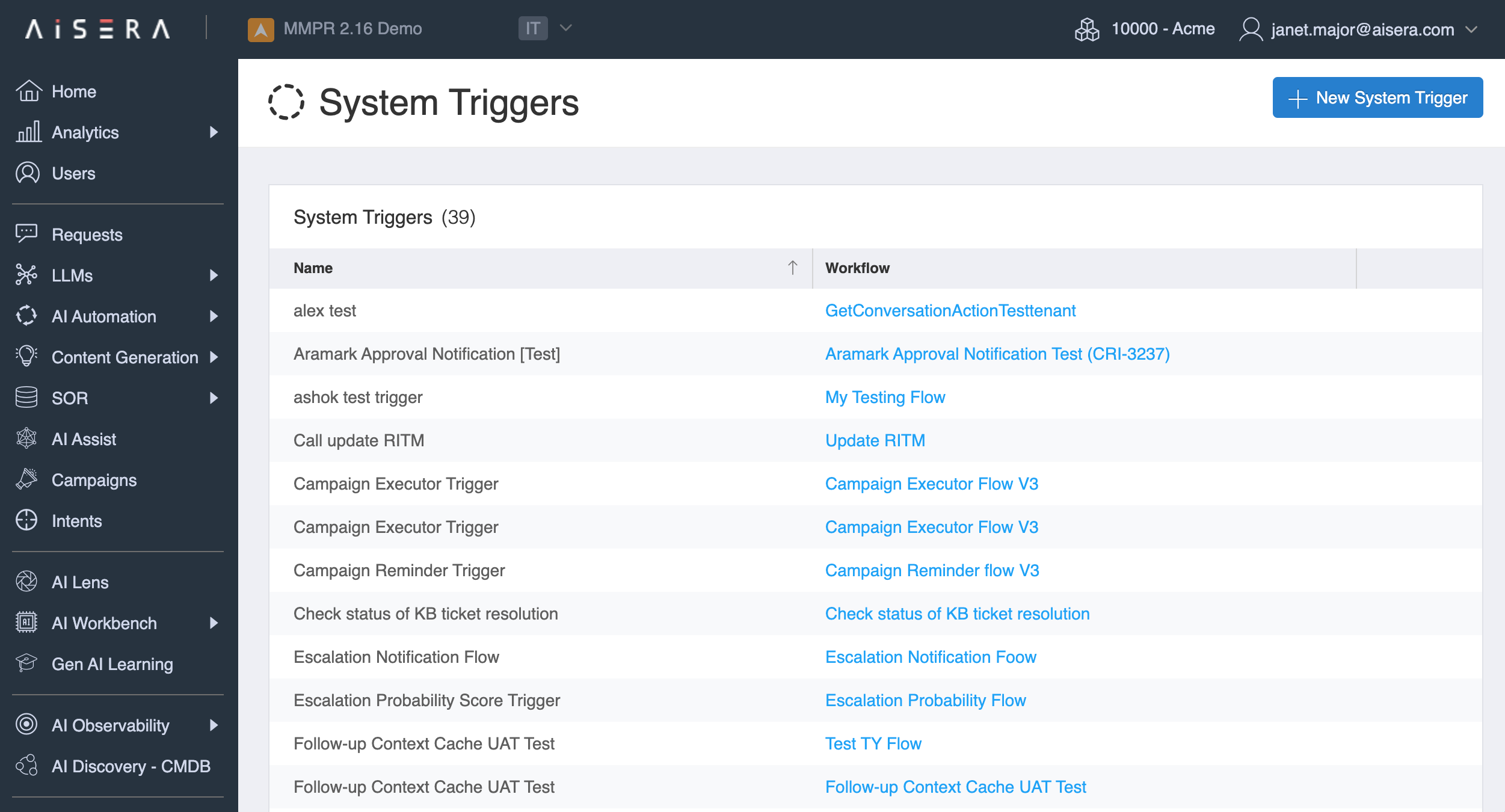
This entity stores the data f**or System Triggers**, which are triggers used within **Workflows**.

Select **Settings > System Triggers** to add or modify a schedule-based or event-based **System Trigger** to kick off a **Workflow**. This involves creating a **Trigger** in the **System Triggers** window,  applying it to a **Workflow**, and then setting **Scheduled** or **Event** to start the trigger.

<div align="left"><figure><img src="https://3281977978-files.gitbook.io/~/files/v0/b/gitbook-x-prod.appspot.com/o/spaces%2FvBFXjH9S1CAy9f5hzg5Q%2Fuploads%2Fwo6P6KKZbeCdACbLHzOV%2Fent_system_triggers.png?alt=media&#x26;token=cd4f62d3-2941-4891-93fc-58f70616c0e6" alt=""><figcaption><p>System Triggers Window</p></figcaption></figure></div>

### Tickets

This entity holds the data for the tickets that have been ingested into your application.

Select **SOR > Tickets** to see a list of the **Tickets** that have been ingested into your application. If you have **Write** permission to the **Ticket** entity, you can choose from different visualization charts for the **Tickets Over Time** metric in the **Tickets** window. The lower part of the **Tickets** window contains the list of your tickets that you can customize by adding or removing columns. You can also export the list to a CSV file.

<div align="left"><figure><img src="https://3281977978-files.gitbook.io/~/files/v0/b/gitbook-x-prod.appspot.com/o/spaces%2FvBFXjH9S1CAy9f5hzg5Q%2Fuploads%2FYT6CAydCKlhNvfBwHu1y%2Fent_tickets.png?alt=media&#x26;token=d1170699-6f9e-48c4-b082-a4e9b15c0b67" alt=""><figcaption><p>Tickets Window</p></figcaption></figure></div>

### Users

This object stores the user data ingested to the application from your **System of Record (SOR)**. This data must be ingested, and therefore, it is not editable.

Select **Users** to see the list of users that have been ingested into your application. You can add or remove columns from the list, or export the list as a CSV file, but you cannot edit the user list, since it must be ingested.

<figure><img src="https://3281977978-files.gitbook.io/~/files/v0/b/gitbook-x-prod.appspot.com/o/spaces%2FvBFXjH9S1CAy9f5hzg5Q%2Fuploads%2FZnBpQ6ZLXhlzA0hLSWHm%2Fimage.png?alt=media&#x26;token=fc902a39-5116-4adb-88f1-6ed8e4f97609" alt=""><figcaption><p>Users Window</p></figcaption></figure>

### User Accounts

Allows a user to view, create, and manage **User** accounts and roles on the Aisera platform.

Navigate to **Settings > User Accounts** to view the **User Accounts** window.

<figure><img src="https://3281977978-files.gitbook.io/~/files/v0/b/gitbook-x-prod.appspot.com/o/spaces%2FvBFXjH9S1CAy9f5hzg5Q%2Fuploads%2FkIKH5NxY22tcTMU7QA5h%2FUserAccountsWindow.png?alt=media&#x26;token=de1cb582-4ded-4e4d-ae71-319dd2319191" alt=""><figcaption><p>User Accounts Window</p></figcaption></figure>