> For the complete documentation index, see [llms.txt](https://docs.aisera.com/llms.txt). Markdown versions of documentation pages are available by appending `.md` to page URLs; this page is available as [Markdown](https://docs.aisera.com/aisera-copilot/how-to-setup-aisera-assistant-copilot/add-custom-css-attributes.md).
# Add Custom CSS Attributes
You can customize your Copilot channel to add your own color tags and images with a custom CSS snippet in the Copilot **Details** window.
To add custom CSS attributes:
1. Navigate to **Settings > AiseraGPT**
2. Choose an existing bot that uses the **Copilot** channel.
Channels in Bot Details Window
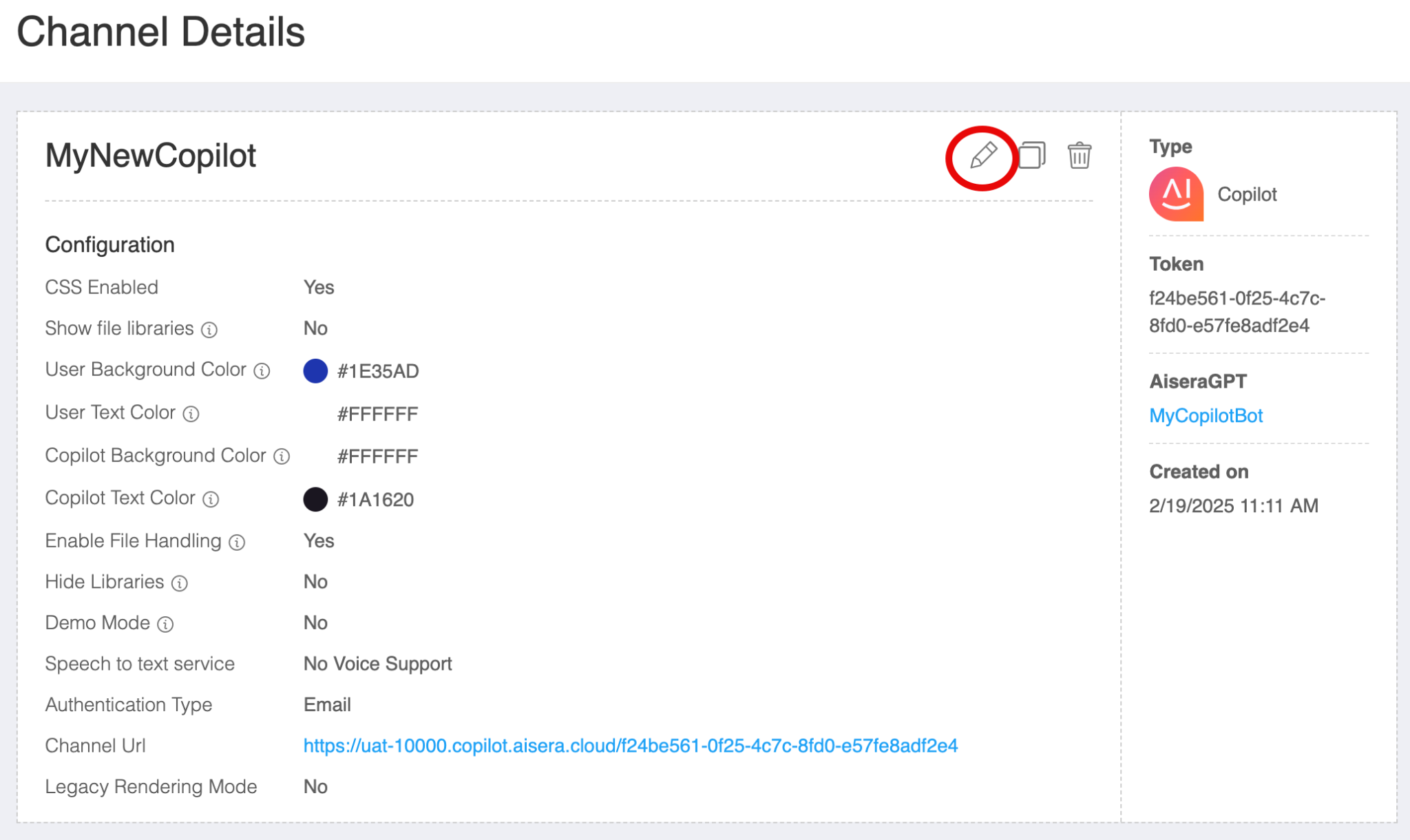
3. Double-Click the **Copilot channel** in the **Details** window. This brings you to the **Channel Details** window for your **Copilot** bot.
Channel Details
5. Click the **pencil icon** to edit the **Copilot Details**. \
This brings you to a set of three **Edit Channel - Copilot** window.
6. Choose **Next** at the bottom of the first window.
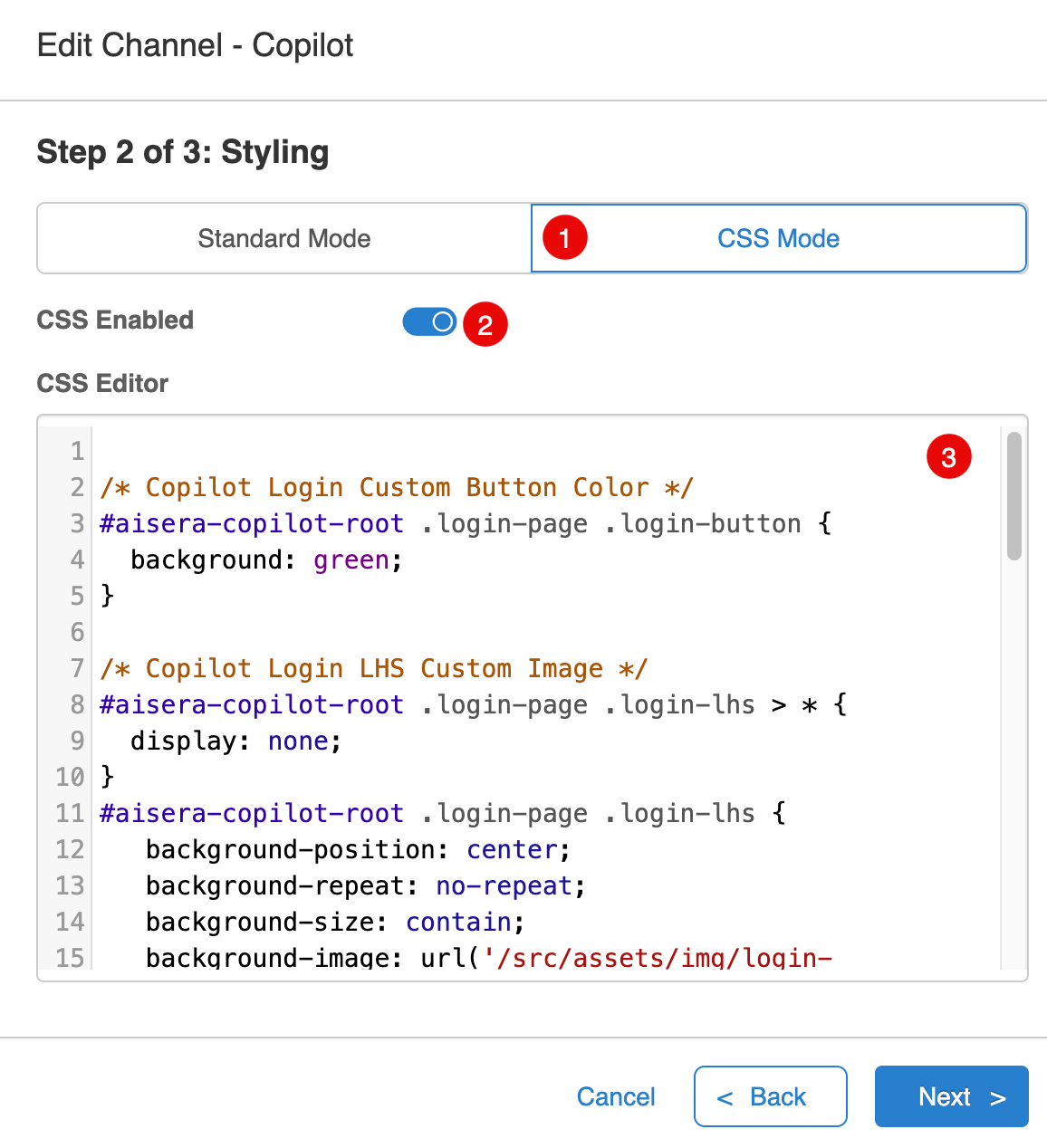
7. In the second window, choose the **CSS Mode** button.
CSS Snippet
8. Toggle the **CSS Enabled** button to **ON**.
9. Add the CSS attributes for your custom color and image.
10. Click the **Next** button and then the **OK** button to exit the Channel **Edit** windows.