# Add a Copilot Channel

Adding a Copilot Channel to your Aisera application or bot involves the following steps:\
\
[**Add the Copilot Channel to your tenant (your Aisera Gen AI platform instance)**](#pdf-page-qg1az7rhivmzs7tz06cd-pdf-page-6lyqq7x7kqbbsnbi1iqn-to-add-a-channel)

[**Add the Copilot Channel to a specific application or bot**](#pdf-page-qg1az7rhivmzs7tz06cd-pdf-page-6lyqq7x7kqbbsnbi1iqn-to-add-a-channel-1)

[**Log in to your Copilot Application**](#to-log-into-your-copilot)

## To Add the Copilot to your Aisera platform: <a href="#pdf-page-qg1az7rhivmzs7tz06cd-pdf-page-6lyqq7x7kqbbsnbi1iqn-to-add-a-channel" id="pdf-page-qg1az7rhivmzs7tz06cd-pdf-page-6lyqq7x7kqbbsnbi1iqn-to-add-a-channel"></a>

1. Choose **Settings > Channels** from the navigation menu of your Aisera Admin UI.
2. Select **+ Add New Channel**.
3. Choose the Aisera **Copilot** channel.

<div align="left"><figure><img src="https://629498482-files.gitbook.io/~/files/v0/b/gitbook-x-prod.appspot.com/o/spaces%2FQbRzfjGifZM4mn1HcRUQ%2Fuploads%2FWkvEmwKDAB3IZzYx6FYJ%2Fcopilot_choice.png?alt=media&#x26;token=feebcbe9-540f-4c6e-8ea3-b5c8efe801e0" alt="" width="456"><figcaption></figcaption></figure></div>

4. Set the parameters for your **Copilot Channel**.

<div align="left"><figure><img src="https://629498482-files.gitbook.io/~/files/v0/b/gitbook-x-prod.appspot.com/o/spaces%2FQbRzfjGifZM4mn1HcRUQ%2Fuploads%2FQGtCT25HpY0DshGjkS5p%2Fcopilot1.png?alt=media&#x26;token=e6ad9e76-a4aa-4329-b0fc-529d267da923" alt="" width="563"><figcaption></figcaption></figure></div>

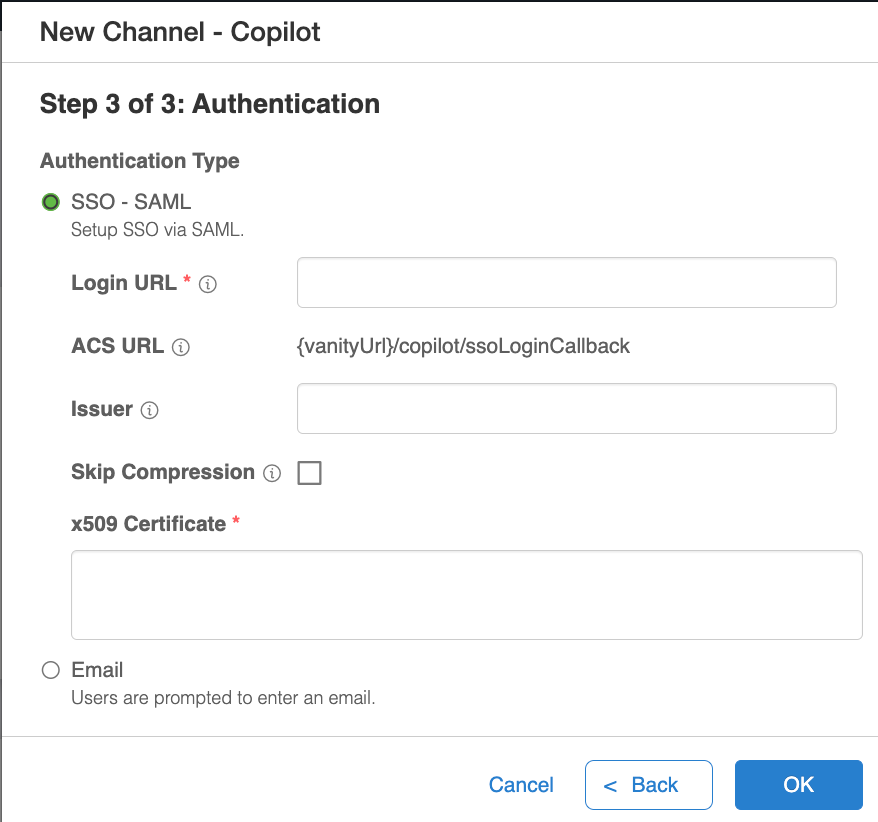
5. Choose the authentication method for your **Copilot Channel**.

<div align="left"><figure><img src="https://629498482-files.gitbook.io/~/files/v0/b/gitbook-x-prod.appspot.com/o/spaces%2FQbRzfjGifZM4mn1HcRUQ%2Fuploads%2FLPyM6oKYwVuiLEeLnEdZ%2Fcopilot2.png?alt=media&#x26;token=3debc7cd-c3e0-4a56-a51e-945620fdfbae" alt="" width="563"><figcaption></figcaption></figure></div>

6. Click **OK**.

## To Add the Copilot Channel to your bot software <a href="#pdf-page-qg1az7rhivmzs7tz06cd-pdf-page-6lyqq7x7kqbbsnbi1iqn-to-add-a-channel" id="pdf-page-qg1az7rhivmzs7tz06cd-pdf-page-6lyqq7x7kqbbsnbi1iqn-to-add-a-channel"></a>

1. Navigate to **Settings > AiseraGPT** in the Aisera Admin UI and create or choose your Copilot bot from the applications shown on the page.
2. Click the **Add Channel** link in the bot **Details** page.

<div align="left"><figure><img src="https://629498482-files.gitbook.io/~/files/v0/b/gitbook-x-prod.appspot.com/o/spaces%2FQbRzfjGifZM4mn1HcRUQ%2Fuploads%2FbwFqXjJmUmr43ynzCKBO%2Fadd_channel7.png?alt=media&#x26;token=aef309d0-cdae-4882-b4c9-d1ba2011fced" alt="" width="375"><figcaption></figcaption></figure></div>

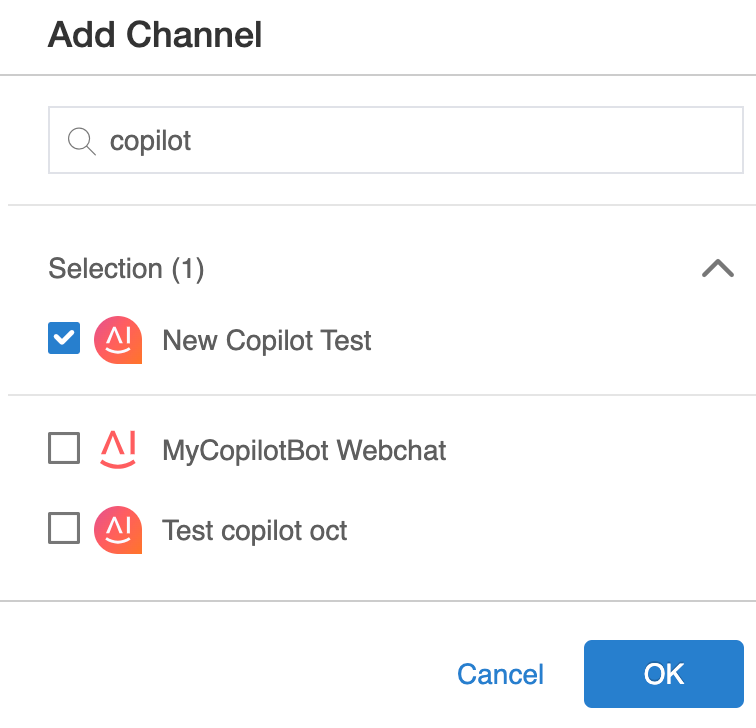
3. Select the **Copilot Channel** you just added from the pull-down list that includes all of the channels on your Aisera tenant platform.&#x20;

<div align="left"><figure><img src="https://629498482-files.gitbook.io/~/files/v0/b/gitbook-x-prod.appspot.com/o/spaces%2FQbRzfjGifZM4mn1HcRUQ%2Fuploads%2FAMk9ZUTmjpx5yxAFyiyM%2Fcopilot_test.png?alt=media&#x26;token=a4a84610-eda5-4ced-a873-90e48b141172" alt="" width="375"><figcaption></figcaption></figure></div>

4. Click the **OK** button.\
   \
   Now you can see your new channel on the bot's **Details** page.

<figure><img src="https://629498482-files.gitbook.io/~/files/v0/b/gitbook-x-prod.appspot.com/o/spaces%2FQbRzfjGifZM4mn1HcRUQ%2Fuploads%2FRpRQTW5hX8q2yz4BBDOK%2Fchannel_details7.png?alt=media&#x26;token=09e1fd67-e086-43ea-9d32-ff45ef932fc9" alt=""><figcaption></figcaption></figure>

5. Select the blue link in the Channels section of your bot Details, at the bottom of the section with the name of your **Copilot Channel**.

## To Log into your Copilot

Log in to your Copilot, based on the authorization you specified for your **Copilot Channel**.

<div align="left"><figure><img src="https://629498482-files.gitbook.io/~/files/v0/b/gitbook-x-prod.appspot.com/o/spaces%2FQbRzfjGifZM4mn1HcRUQ%2Fuploads%2FbGsTK5afmDYc6MQjC1Zo%2Fcopilot_signin.png?alt=media&#x26;token=02a74697-1d76-43ca-9c88-e2f5ac4d3881" alt="" width="563"><figcaption></figcaption></figure></div>

Now you can see your bot in the **Copilot Channel**.

<div align="left"><figure><img src="https://629498482-files.gitbook.io/~/files/v0/b/gitbook-x-prod.appspot.com/o/spaces%2FQbRzfjGifZM4mn1HcRUQ%2Fuploads%2FCzpzEu6AkZbb9CsWUZNZ%2Fmysecondcopilot_done.png?alt=media&#x26;token=3f2dbc80-6560-4282-b739-a72c5060c0e4" alt="" width="563"><figcaption></figcaption></figure></div>

<br>